
Hi all. In this article I’ll explain what are WS-FED and SAML protocols and how to identify which one is being used with Fiddler.
What is WS-FED protocol?
WS-Fed is an OASIS open standard, like SAML It describes the management and brokering of trust relationships and security token exchange across web services and organizational boundaries. WS-Federation can be difficult to understand but it is also a part of the larger WS-Security framework and an extension to the functionality of WS-Trust. For example, WS-Federation builds on the Security Token Service (STS) model defined in WS-Trust by providing mechanisms that facilitate interactions. Through WS-Federation protocol extensions, WS-Trust enables integrating attribute, pseudonym, and claims authorization services with Security Token Services.
What is SAML protocol?
An SAML protocol is a simple request-response protocol. As Sign-In protocol, SAML describes how SAML elements are packaged within SAML request and response elements, and gives the processing rules that the SAML entities must follow when producing or consuming these elements.
There are two versions of SAML Protocol:
- SAML 1.1: a simple request-response protocol.
- SAML 2.0: Add new features as Assertion Query and Request Protocol, Authentication Request Protocol, Artifact Resolution Protocol, Name Identifier Management Protocol, Single Logout Protocol and Name Identifier Mapping Protocol.
SAML SSO uses passive authentication.
Difference between WS-FED and SAML requests
In the table below we can identify some items that can help us identify if WS-FED or SAML is being used in the requests:
| WS-FED | SAML |
| https://adfs.ulyneves.com/adfs/ls?wa=wsignin1.0 wtrealm=urn:microsoft:adfs:claimsxray wauth=urn:oasis:names:tc:SAML:1.0:am:password | https://adfs.ulyneves.com/adfs/ls/IdpInitiatedSignOn? LoginToRP=urn:microsoft:adfs:claimsxray RequestedAuthenticationContext=urn:oasis:names:tc:SAML:2.0:ac:classes:Password |
Identifying which protocol is being used during authentication request
To get deeper into the steps to help identify which protocol is being used during the sign in we’ll need two requirements:
- Fiddler installed in the client. To download fiddler, use this link.
- Application Claims X-Ray configured as a Relying Party Trust in the AD FS farm. If you don’t have it yet, check the steps available using this link.
Installing Fiddler
After you download the Fiddler installation’s file, let’s execute it.
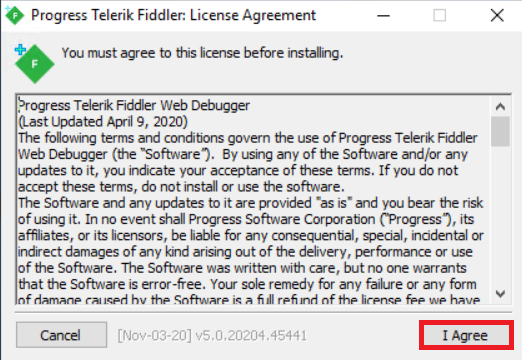
Select Agree in the License Agreement’s page.
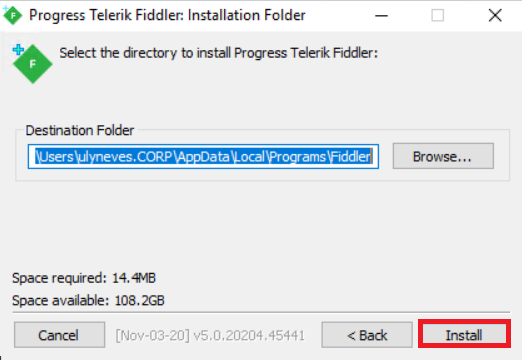
Select Install.
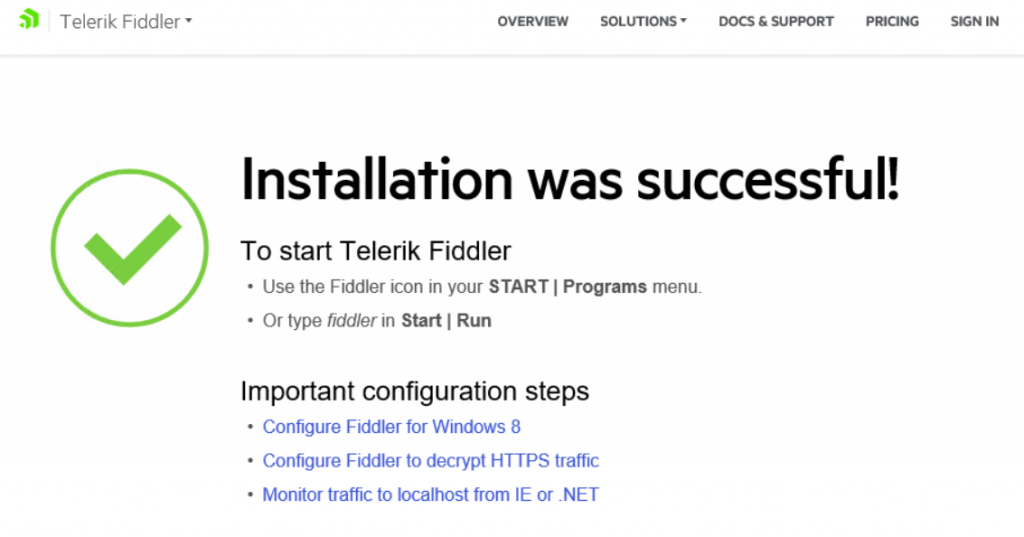
After the installation is successful, you will be redirected to the web page below:
Configuring Fiddler to read cryptographed communication
Now that fiddler is installed in the client, let’s configure it to decrypt https traffic following steps below:
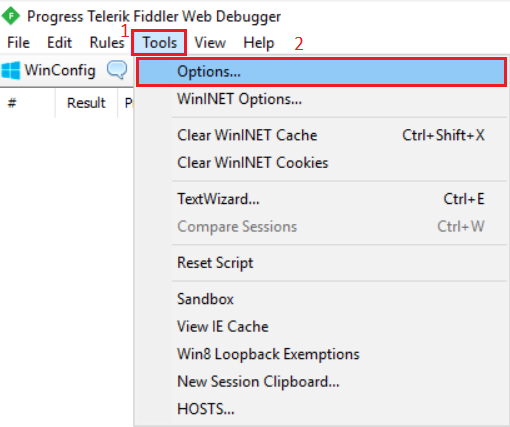
1 – Open Fiddler and select Tools.
2 – Select Options.
Select tab HTTPS and check option Decrypt HTTPS traffic.
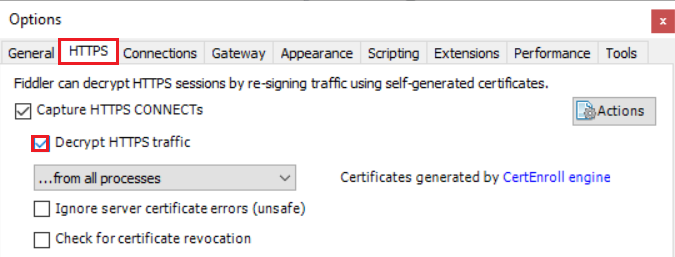
You will be prompted to install a certificate. This is to have fiddler being able to intercept the traffic and decrypt it.
Click Yes.
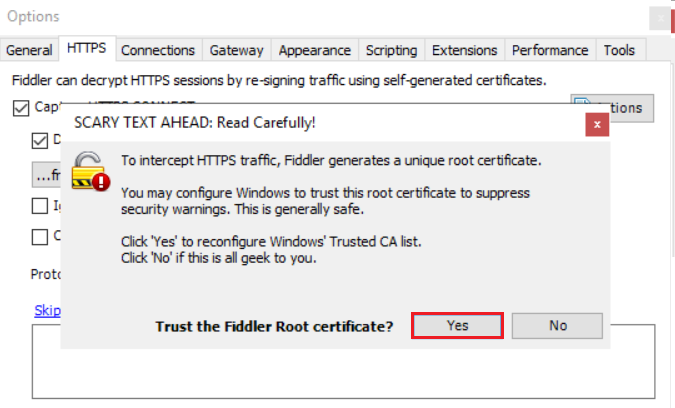
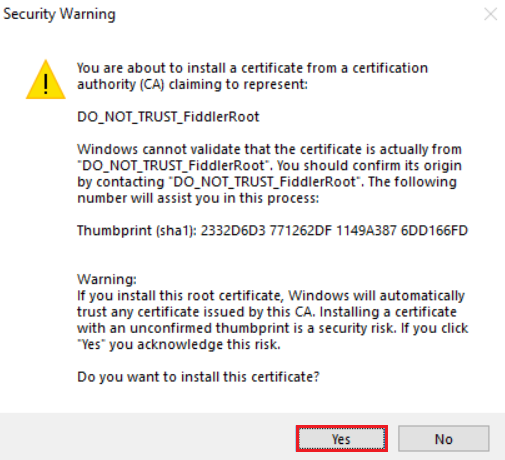
Confirm the certificate’s installation selecting Yes.
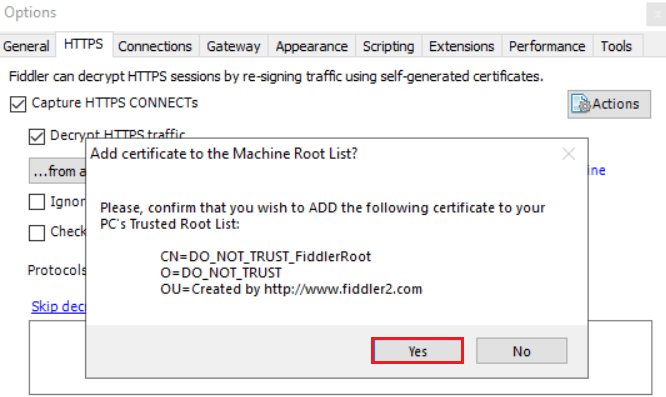
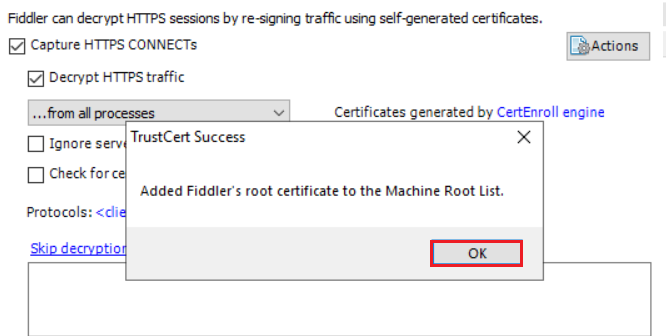
Select Yes to confirm adding Fiddler’s certificate to Trusted Store inside the client machine.
Select OK.
Monitoring communication through WS-FED
After configuring application Claims X-Ray in the AD FS farm, Access page using step 2 available on this link.
Obs: Before running steps below, start fiddler capture in the client pressing F12 in the keyboard.
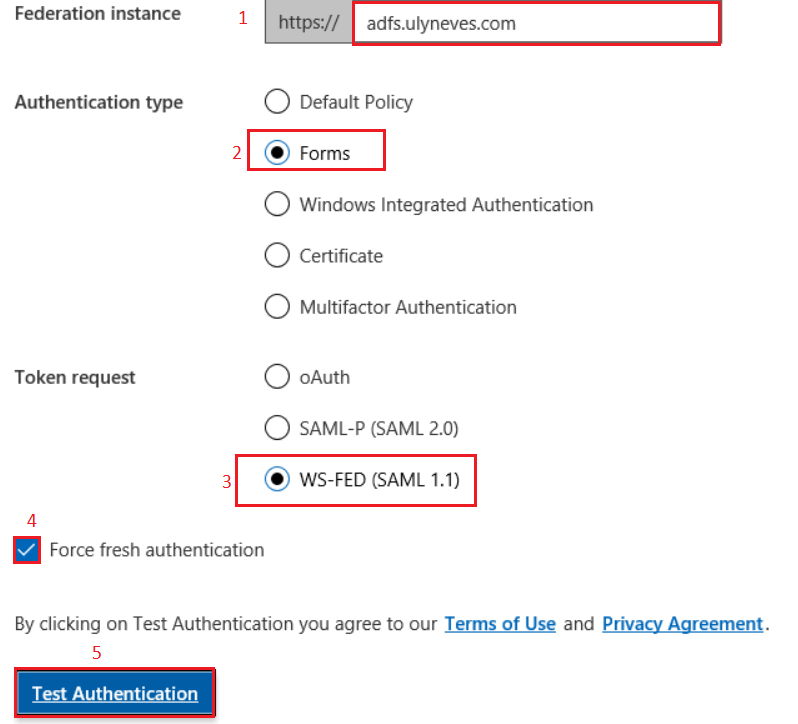
Let’s follow steps below to simulate a sign in to AD FS using WS-FED protocol:
1 – Select the Federation instance name.
2 – In the Authentication type option, select Forms protocol.
3 – In the Toke request, select WS-FED (SAML 1.1).
4 – Mark option Force fresh authentication.
5 – Click Test Authentication.
Things to check in the request:
As explained in the table previously, we can see below the items to help us identify WS-FED protocol:
https://adfs.ulyneves.com/adfs/ls?wa=wsignin1.0 – AD FS passive endpoint for WSFED
wtrealm=urn:microsoft:adfs:claimsxray – Relying Party Identifier
wauth=urn:oasis:names:tc:SAML:1.0:am:password – Authentication method used
Follow steps below to identify the protocol used using Fiddler:
1 – Select the request to the AD FS service address.
2 – Select Inspectors’ tab.
3 – Select Webforms.
4 – WE can observe the Query String’s name as WA with value wsignin1.0.

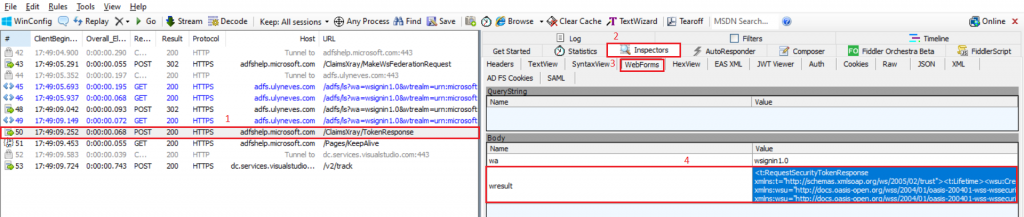
Following the steps below in the subsequent post request, we see the token response without encryption:
Follow steps below to identify the protocol used using Fiddler:
1 – Select the request to the AD FS service address.
2 – Select Inspectors’ tab.
3 – Select Webforms.
4 – We can observe the token response reaching host adfshelp.microsoft.com with wsresult not encrypted.
Monitoring communication through SAML protocol
Now that we have identified the WS-FED protocol in the fiddler, let’s run the same test with SAML protocol.
Obs: Before running steps below, start fiddler capture in the client pressing F12 in the keyboard.
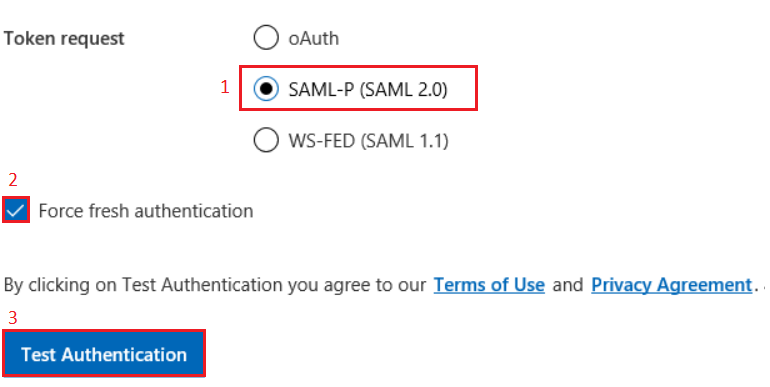
Let’s keep the same configurations from the precious test, changing only the steps below:
1 – Select SAML-P (SAML 2.0).
2 – Select Force fresh authentication.
3 – Select Test Authentication.
Things to check in the request:
As explained in the table previously, we can see below the items to help us identify SAML protocol:
https://adfs.ulyneves.com/adfs/ls/IdpInitiatedSignOn? – AD FS passive endpoint for SAML
LoginToRP=urn:microsoft:adfs:claimsxray – Relying Party Identifier
RequestedAuthenticationContext=urn:oasis:names:tc:SAML:2.0:ac:classes:Password – Authentication method used
Follow steps below to identify the protocol used using Fiddler:
1 – Select the request to the AD FS service address.
2 – Select Inspectors’ tab.
3 – Select Webforms.
4 – We can observe the Query String’s name as LogintoRP with value urn:microsoft:adfs:claimsxray.

Different from WS-FED, SAML protocol have encrypted certificates as we can observe in the post request identified in the steps below:
1 – Select the request to the POST request to the Application’s URL.
2 – Select Inspectors’ tab.
3 – Select Webforms.
4 – We can observe that the SAML response is encrypted.
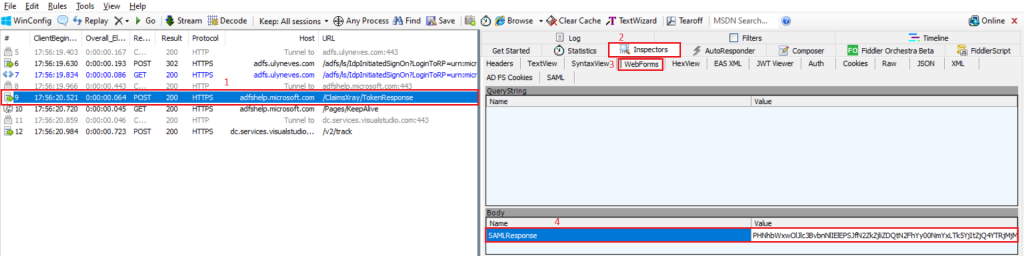
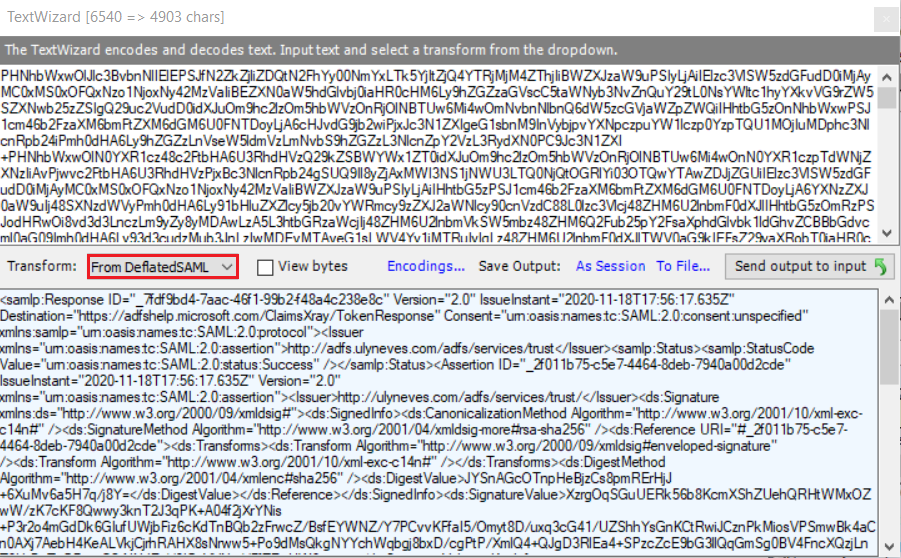
To decrypt the SAML response using Fiddler, follow steps below:
1 – Right click on the SAML Response’s value.
2 – Select Send to TextWizard…

In the window below, select From DeflatedSAML and you will be able to see the SAML token decrypted.
Summary
In this article, we covered the differences between WS-FED and SAML protocols and how to identify them using Fiddler during a troubleshooting session. We also explained how to identify the protocol, application and authentication method used inside the SAML and WS-FED requests.
I hope you have enjoyed reading this article and it helps you when administering your AD FS environment.
Enjoyed the article? Like and share. 🙂
In case you have any suggestion or feedback, please leave a comment.
[ ]’s
Ulysses Neves
