
Explore Microsoft 365 security as we guide you through implementing a Conditional Access policy that requires Windows Hello for Business authentication. This step-by-step tutorial covers the integration process, authentication strength configuration, and offers insights into expected error messages. Discover how to investigate and resolve issues efficiently, ensuring a seamless transition to this advanced security measure and strengthening your Microsoft 365 environment against unauthorized access. Elevate your digital workspace security and empower users with this comprehensive guide.
Scenario:
For learning purposes, let’s consider the scenario where I want to enforce the users to use Windows Hello for Business to authenticate against Office 365 Apps.
Application: Office 365
User: User5@contoso.com
Grant control: Require authentication strength
Custom Authentication Strength: Windows Hello For Business
Creating the custom Authentication Strength
The initial step to leverage authentication strength in the Conditional Access policy is to create a custom policy. While built-in policies are available, they may not align with our specific requirements, necessitating the creation of a new one to meet our current scope.
- Open the Microsoft Entra admin center using URL https://entra.microsoft.com/.
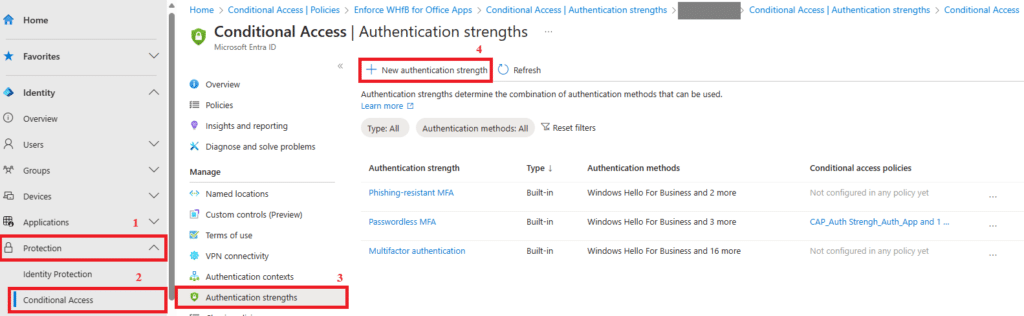
- Expand Protection » Conditional Access » Authentication Strengths » Select + New authentication strength:
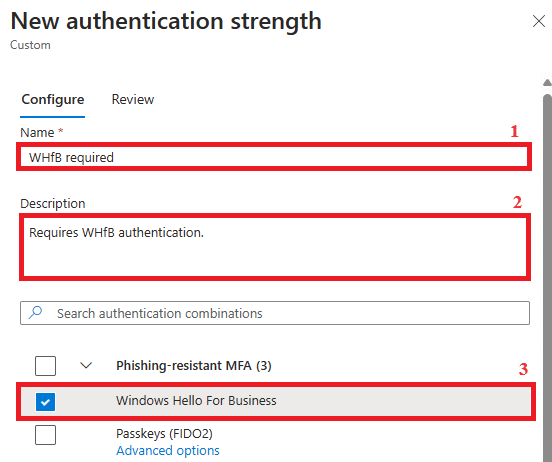
Give a name to the configuration and select the authentication method to be required by the setting. In our case, we’ll select Windows Hello for Business only.
Creating the Conditional Access Policy
With the Auth Strength above created, let’s build the conditional access policy, considering the scenario mentioned above:
Still in the Microsoft Entra admin center portal, expand Protection » Conditional Access » Select + New Policy.
For this scenario, we’ll only configure users, Target resources and Grant properties. Give the policy a name and configure the additional settings:
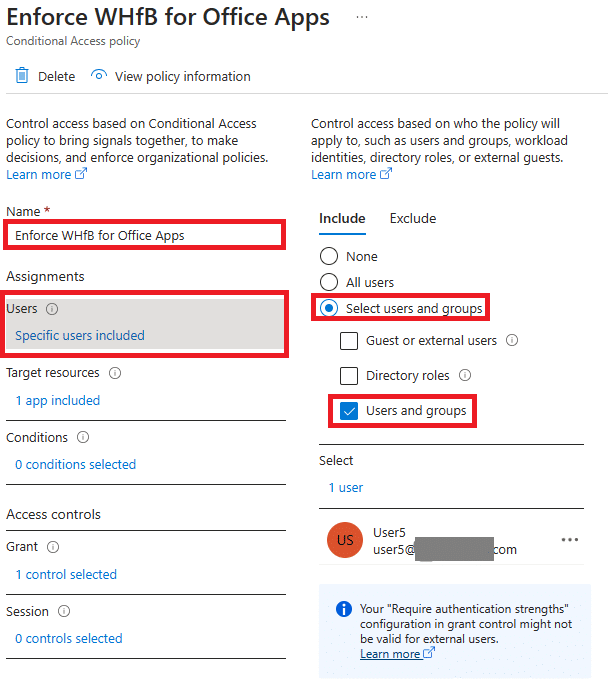
User: Select Users » Include | Select users and groups » Users and Groups » Select » Choose the user or group you would like to enforce the WHfB. Your setting should look like below:
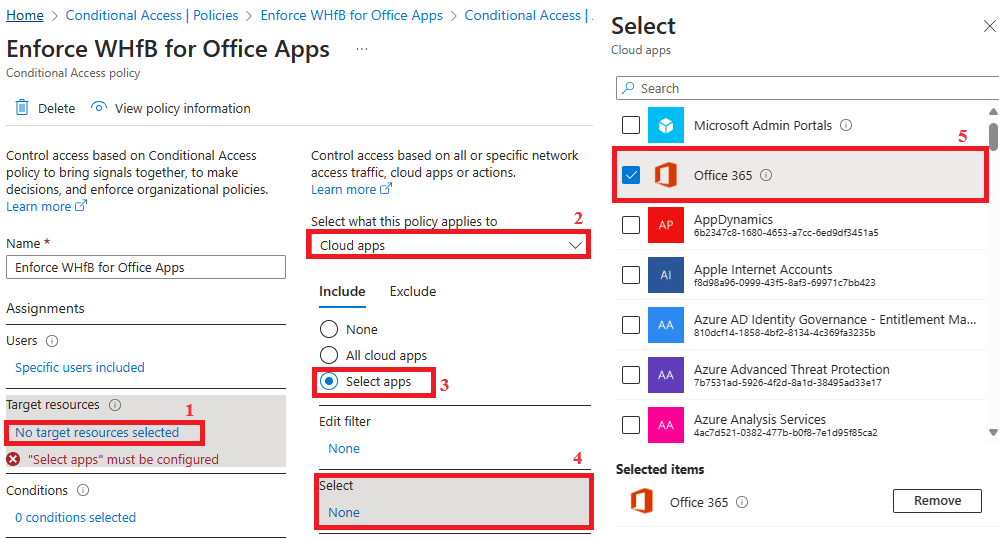
Target resources: Select No targets resources selected » Cloud Apps » Include | Selected Apps » Select » Find Office 365 App group in the picker list. Click on Select after choosing the App. Your setting should look like below:
Access controls: Select Grant » Grant Access » Require Authentication Strength » Select the Auth Strength custom policy configured previously. In our case, WHfB required. Your setting should look like below:
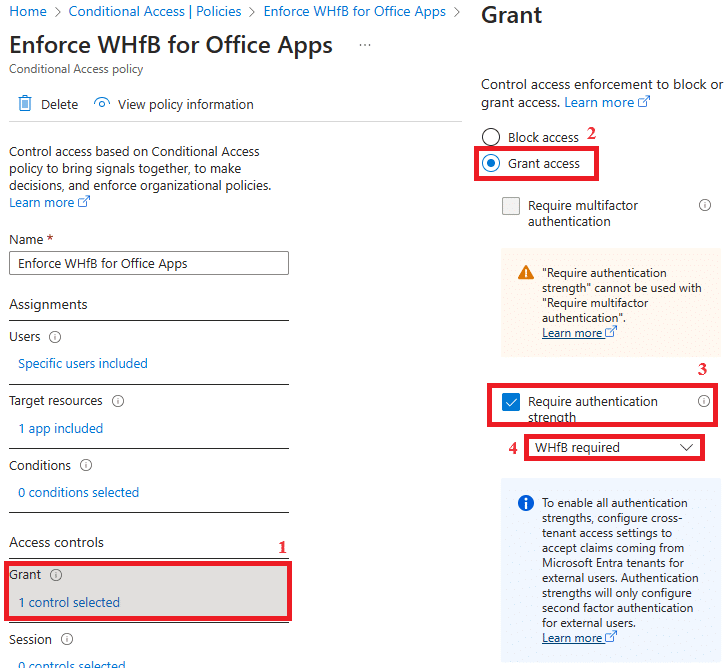
Turn the policy On and click Save.
User experience:
Scenario 1: Let’s simulate the scenario where the user does not meet the authentication Strength requirements. I will have User5 sign into the Windows machine using password and access Office portal using Edge.
Error message is observed after the user provides a username and password when attempting to access https://portal.office.com:
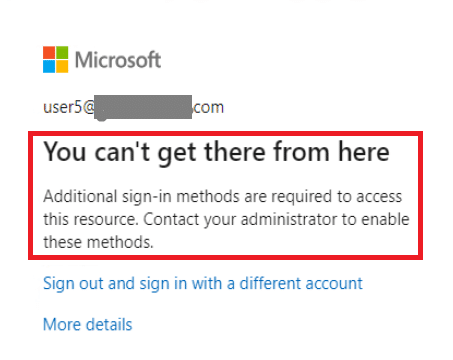
Troubleshooting: Let’s investigate the block reason using Entra Sign in report.
After finding the event that matched with our error above, under Basic Info tab, we’re able to find more details about the source of the block message:
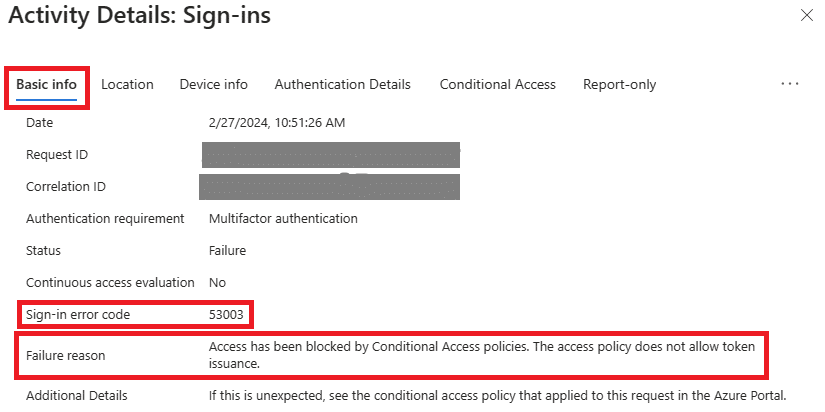
Under Authentication Details, we’re able to find the first authentication method satisfied (Green), but an error message complains about the MFA claim (red). We also see the configured authentication method requirement under ‘Requirement’ column (blue):
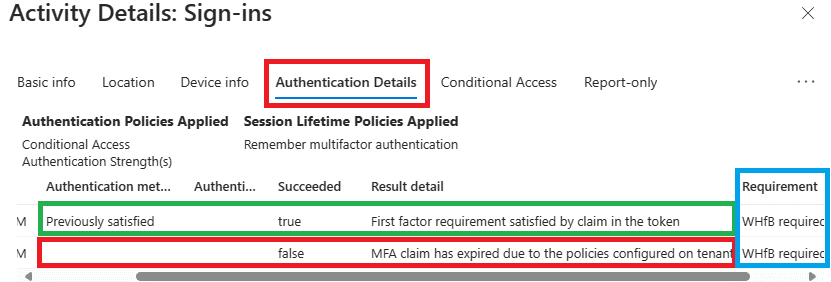
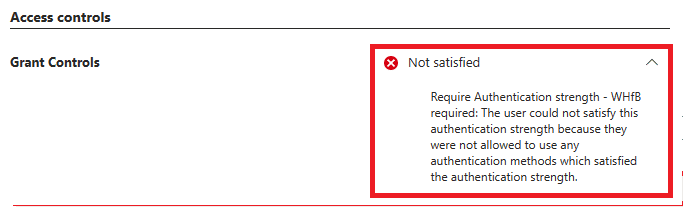
The reason for the failing authentication is because the user did not sign in to the Windows machine using Windows Hello for Business PIN, but using a password.
Checking the Conditional Access policy tab, we find the policy that triggered the failure:
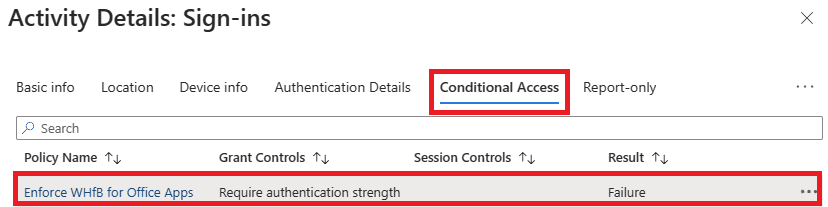
Expanding the policy’s details, we find more information about the policy result:
This limitation is properly documented in the Microsoft’s public doc below:
Windows Hello for Business – If the user signed in with Windows Hello for Business as their primary authentication method, it can be used to satisfy an authentication strength requirement that includes Windows Hello for Business. However, if the user signed in with another method like password as their primary authentication method, and the authentication strength requires Windows Hello for Business, they aren’t prompted to sign in with Windows Hello for Business. The user needs to restart the session, choose Sign-in options, and select a method required by the authentication strength.
Scenario 2: Let’s sign in to the Windows machine using a Windows Hello for Business PIN and try to access the same Office App.
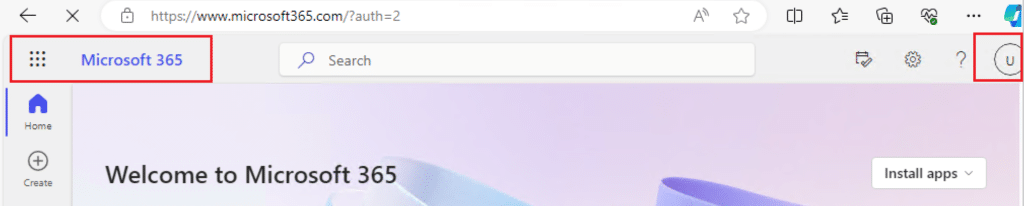
After using WHfB PIN to authenticate against the Windows machine, the user is automatically authorized to access Office portal:
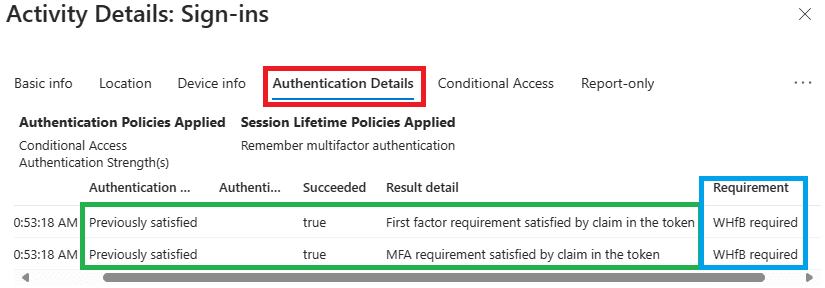
Checking the same Authentication Details tab, we confirm that both authentication methods have been satisfied because the token obtained from the Windows Sign in using the WHfB PIN has already an MFA claim present:
Conclusion:
In this article, we explained how to enforce users to sign in to the Windows using a Windows Hello for Business PIN before being authorized to access a Microsoft 365 app. We used the Entra Conditional Access policy with Authentication Strength to accomplish this goal. I trust that this article has not only been informative but will also empower you in effectively managing your Windows Hello for Business environment.
Did you find this article helpful? Consider showing your appreciation by liking and sharing it. 🙂
Disclaimer: The views expressed in this post are personal and do not represent the opinions of my organization. The provided solution is offered “AS IS” without warranties or guarantees and should be validated in a test environment before deployment in production.
Your suggestions and feedback are invaluable; feel free to leave a comment.
[ ]’s Ulysses Neves
