Hi mates. Today, we’re going to explain how to deploy AD FS farm with SQL Server configured with a custom TCP port using Server Manager wizard and PowerShell.
Lab environment:
– AD FS Server version: 2019
– SQL Server version: 2019
– SQL Service version: 2019
– Custom SQL port: 53324
Requirements on:
SQL server:
– SQL service installed
AD FS:
– SSL certificate installed
– Standard domain account or GMSA account to be used by Active Directory Federation Services
Note: In case you need instructions on how to install the SSL certificate on AD FS, please check this article.
I will not explain how to configure the custom port on SQL server because Microsoft has already published an article with steps to configure it.
Install AD FS role using PowerShell
As the first step to install AD FS service, install the role running the command below on PowerShell:
Install-windowsfeature adfs-federation –IncludeManagementTools

In this article, I will cover the configuration steps using both Server Manager and PowerShell.
Install AD FS with SQL on a custom port using the Server manager
Configure the new AD FS farm using the AD FS configuration Wizard on Server Manager.
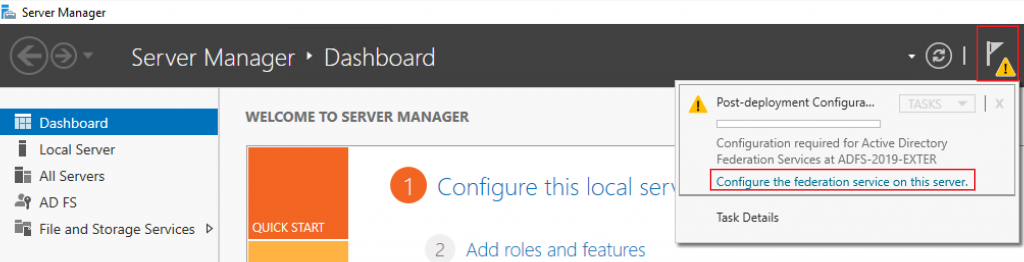
Open the Server Manager » Click on the orange flag below and select Configure the federation service on this server.
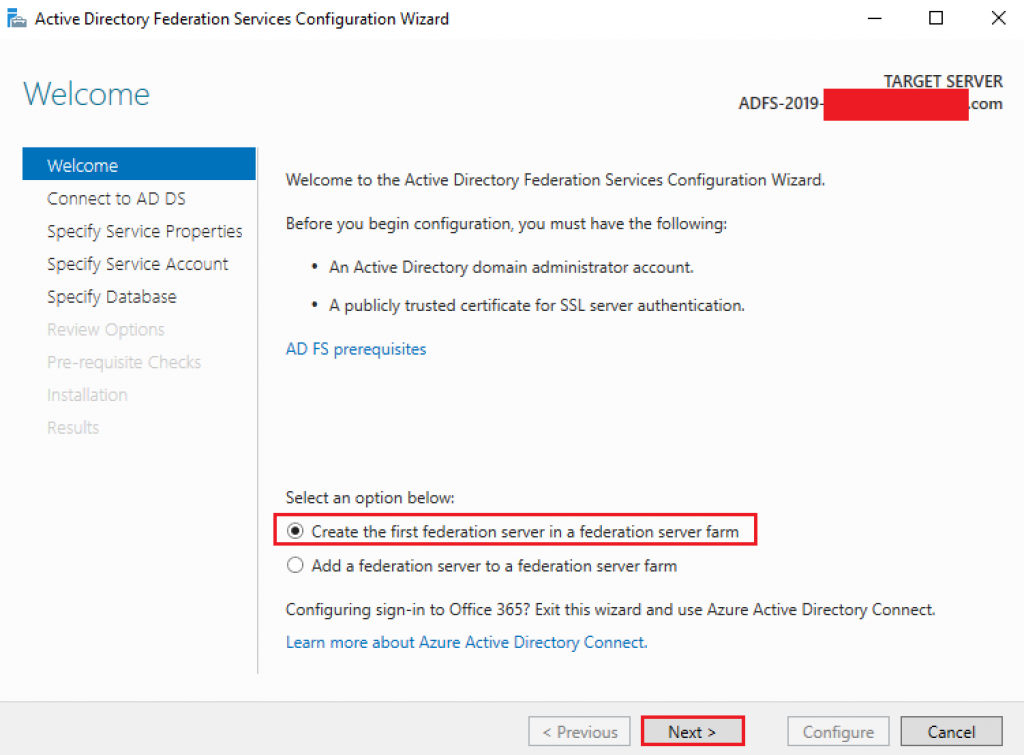
On the Welcome screen, select Create the first federation server in a federation server farm and click Next.
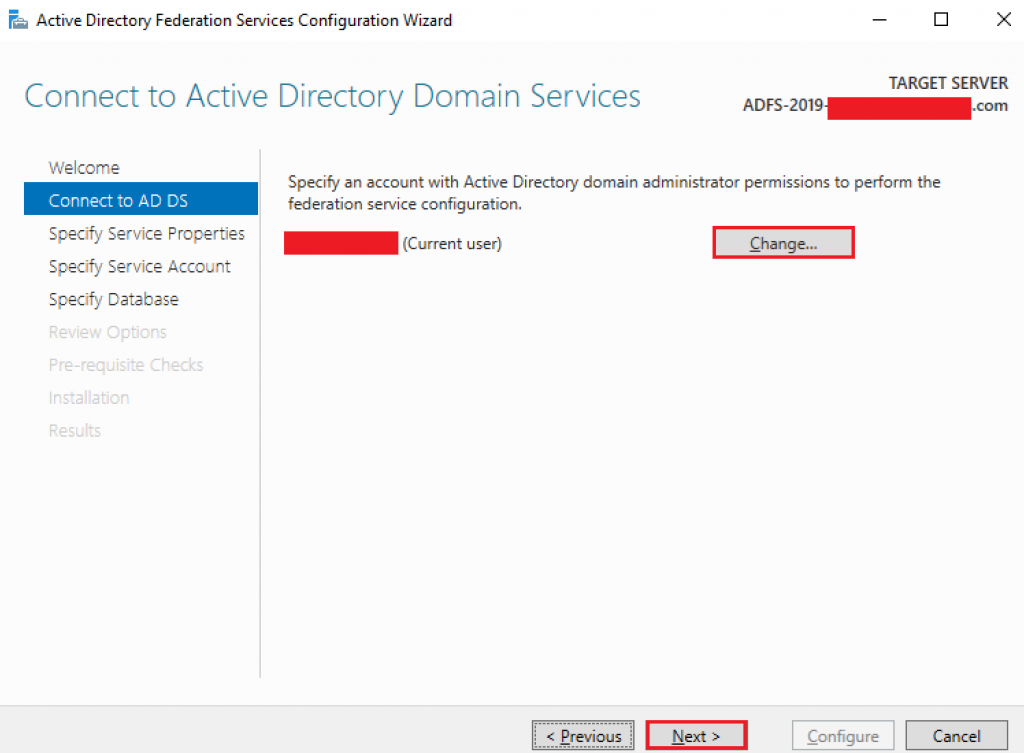
By default, the configuration wizard shows the account signed to the server to be used during the setup. This account must have Domain Admin permissions. You can use the change button if the account running the wizard is not part of the domain group Domain Admins.
Click Next.
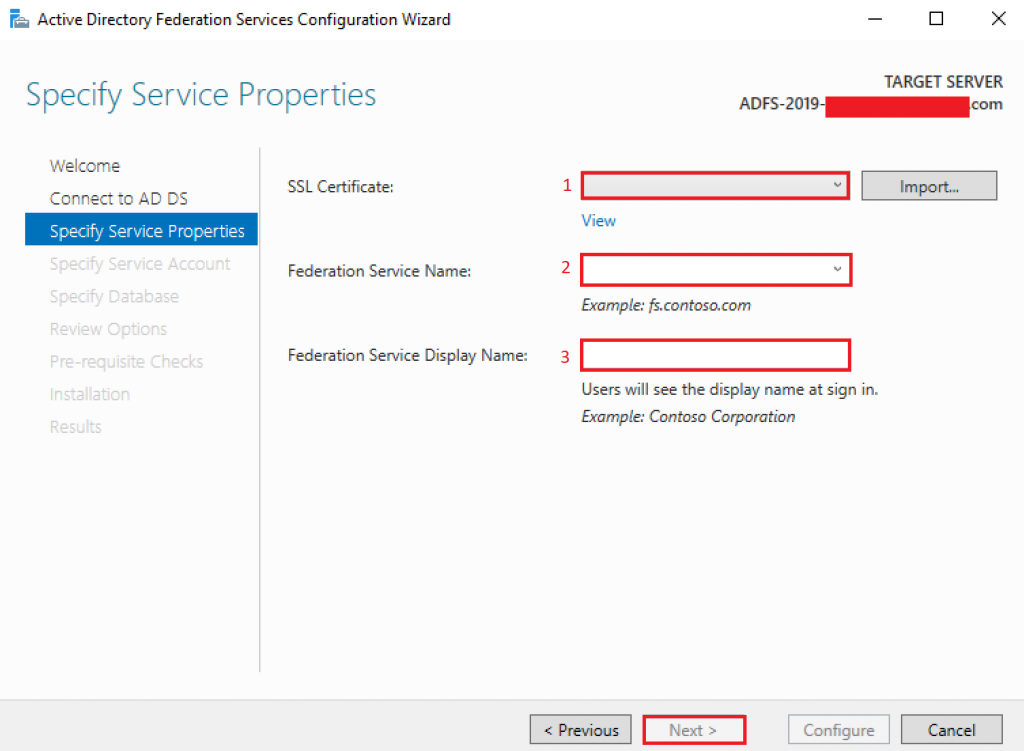
On Service properties, provide the information below:
1 – Select the SSL certificate with CN matching to the Federation Service Name to be used, installed as mentioned at the beginning of this article.
2 – Provide a Federation Service Name. Ex: fs.contoso.com
3 – Provide a Service Display Name. This name will appear on the AD FS Sign-in page.
Click Next.
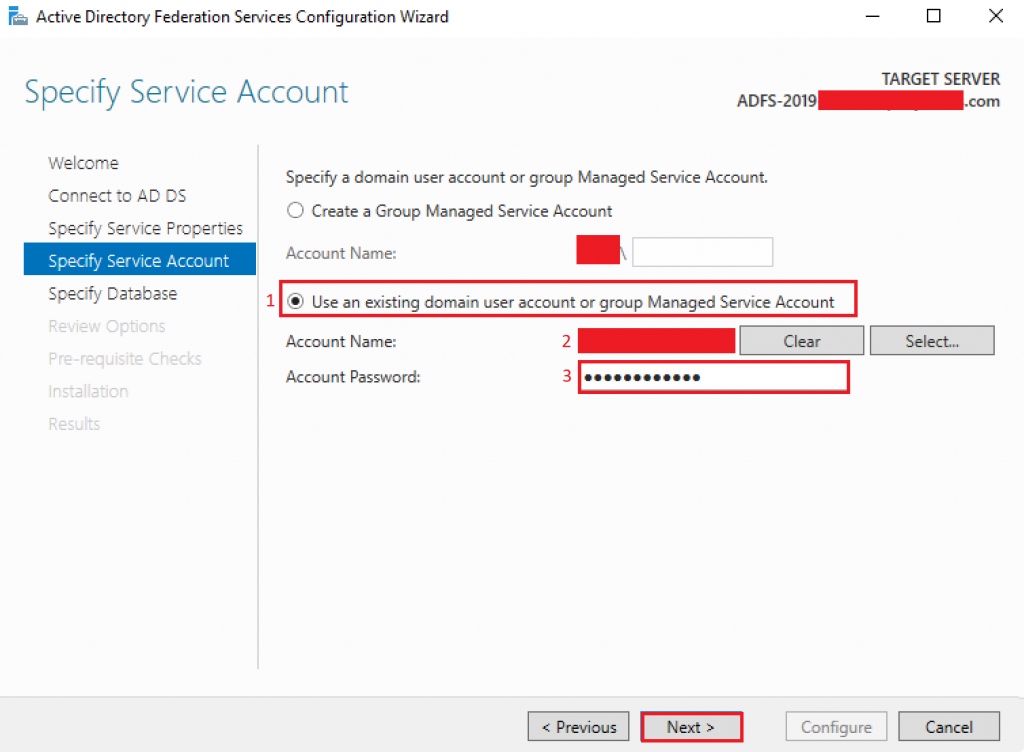
In the step below, we can create a GMSA account or choose a standard domain account. In our case, I created a standard domain account to be used by the AD FS service. The requirements for the AD FS service account are mentioned below:
- Any standard domain account can be used as a service account for AD FS. Group Managed Service accounts are also supported. The permissions required at runtime will be added automatically when you configure AD FS.
- The User Rights Assignment required for the AD service account is ‘Log on as a Service’
- The User Rights Assignments required for the ‘NT Service\adfssrv’ and ‘NT Service\drs’ are ‘Generate Security Audits’ and ‘Log on as a Service’.
- Group Managed service accounts require at least one domain controller running Windows Server 2012 or higher. The GMSA must live under the default ‘CN=Managed Service Accounts’ container.
- For Kerberos authentication, the service principal name ‘
HOST/<adfs\_service\_name>‘ must be registered on the AD FS service account. By default, AD FS will configure this when creating a new AD FS farm. If this fails, such as in the case of a collision or insufficient permissions, you’ll see a warning, and you should add it manually.
Reference: https://learn.microsoft.com/en-us/windows-server/identity/ad-fs/overview/ad-fs-requirements#BKMK_4
In this deployment, I will use a standard domain account with the steps below:
1 – Select option Use an existing domain user account or group Managed Service Account.
2 – Select the service account.
3 – Provide the service account’s password.
Click Next.
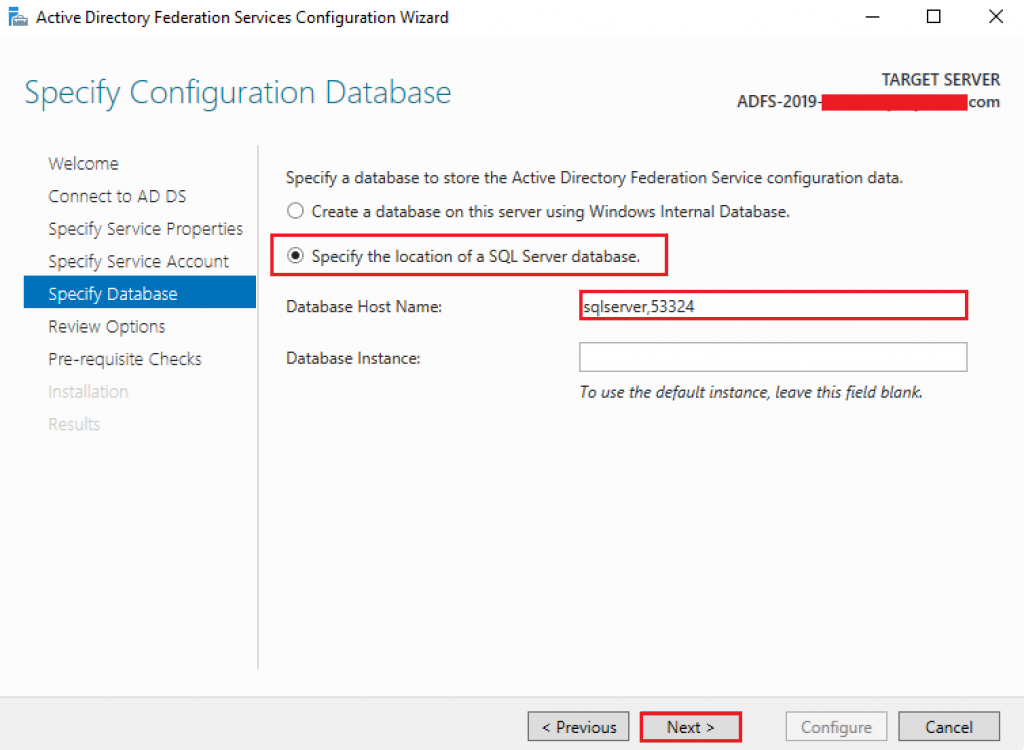
In this window, we have to select which database type AD FS service will use. We can configure it to use WID (Windows Internal Database) or SQL database. We are going to configure the service to use a SQL database using custom port 53324 that has been configured on the SQL server before.
To configure SQL server, let’s select the option Specify the location of a SQL Server database and provide the information below:
Database Host Name on format: SQL Server Name + comma + custom port
Ex: sqlserver,53324
Note: In case your SQL server uses default port 1433, it’s not necessary to mention the port.
Database Instance: This is required only if you don’t use the default SQL instance.
Click Next.
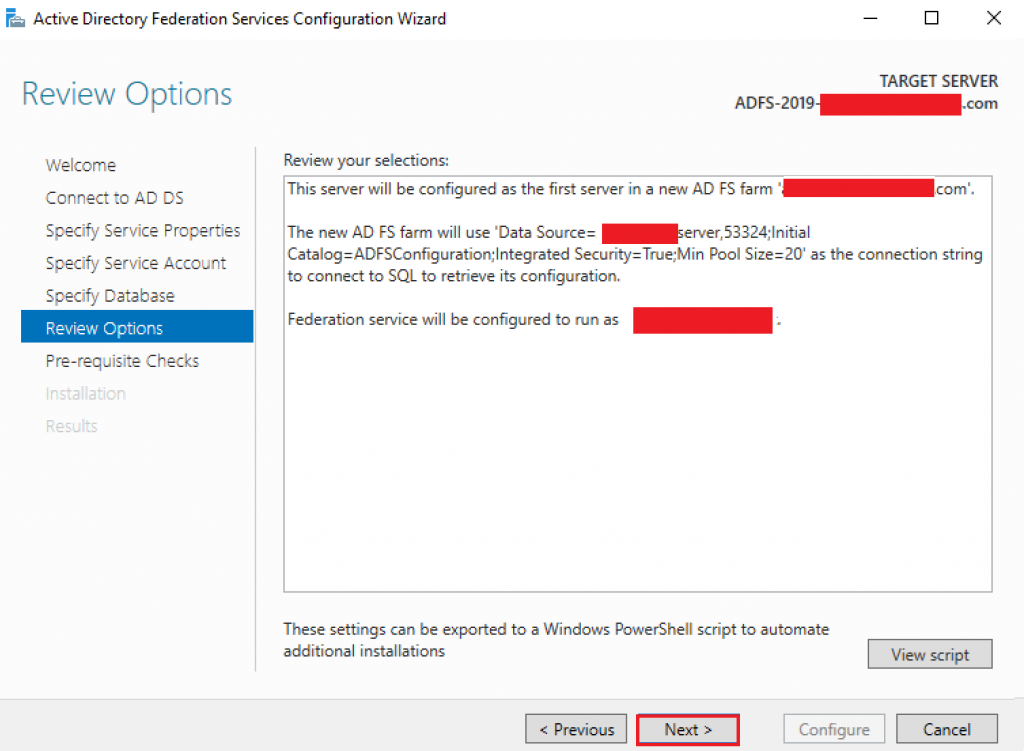
Once the AD FS is able to reach the SQL server on the custom port, you might see the review screen below:
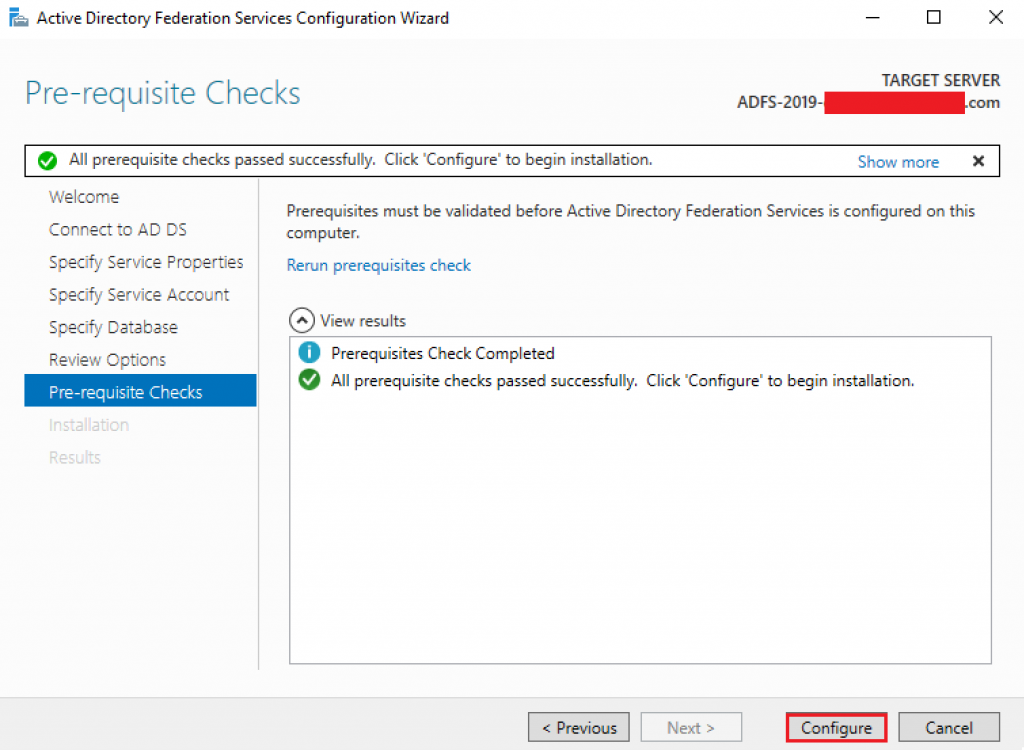
Now with the configuration provided, we can see on the screen below that all prerequisites to have the service configured are completed. Let’s click on Configure.
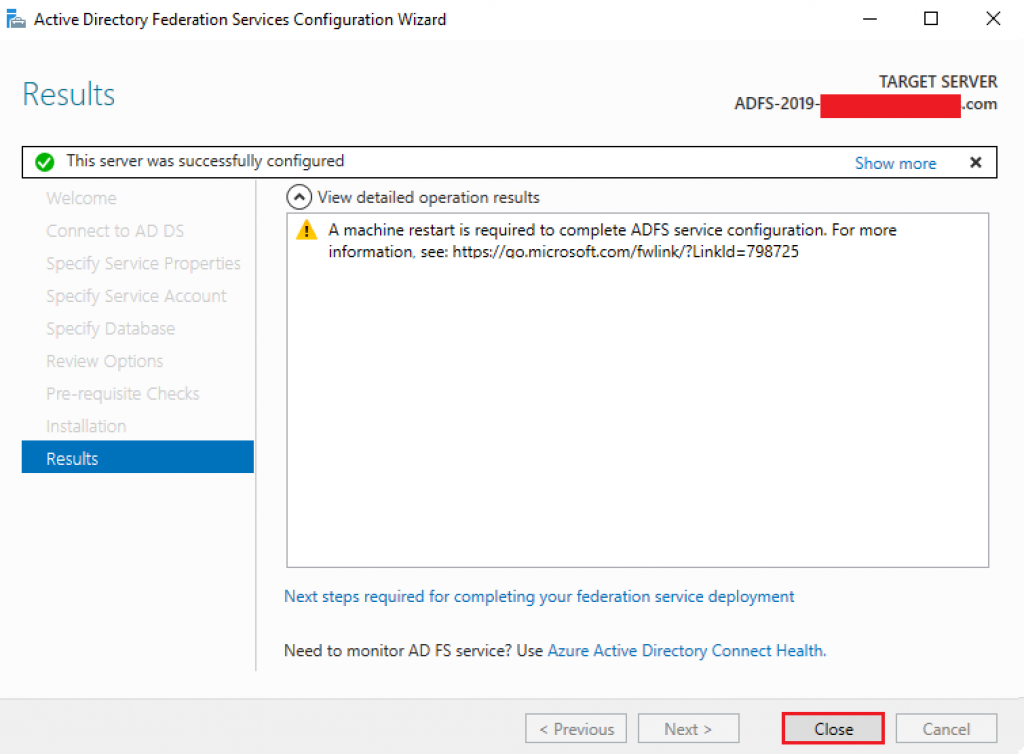
With the installation finished, we see an alert requesting server reboot and to finish the wizard, select Close.
Install AD FS with SQL on a custom port using PowerShell
Another option to configure the AD FS service is to run the AD FS configuration step using PowerShell command below:
Get the credential used for the federation service account $serviceAccountCredential = Get-Credential -Message "Enter the credential for the Federation Service Account." Install-AdfsFarm-CertificateThumbprint:"SSL-CERT-THUMBPRINT"-FederationServiceDisplayName:"AD FS with SQL"-FederationServiceName:"fs.contoso.com"-ServiceAccountCredential:$serviceAccountCredential ` -SQLConnectionString:"Data Source=sqlserver,53324;Initial Catalog=ADFSConfiguration;Integrated Security=True;Min Pool Size=20"
Note: Customize the command above as per your configuration requirements.

Validate AD FS installation on the SQL server
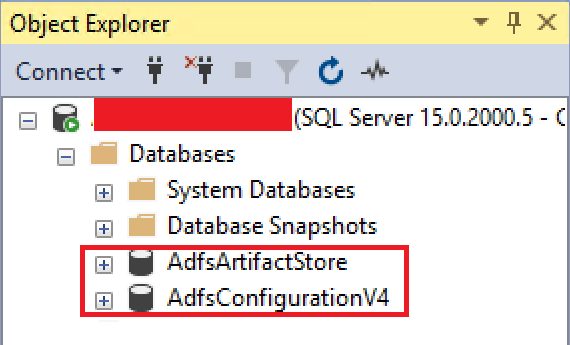
With the service installed, we can see both AD FS configuration databases created on SQL server:
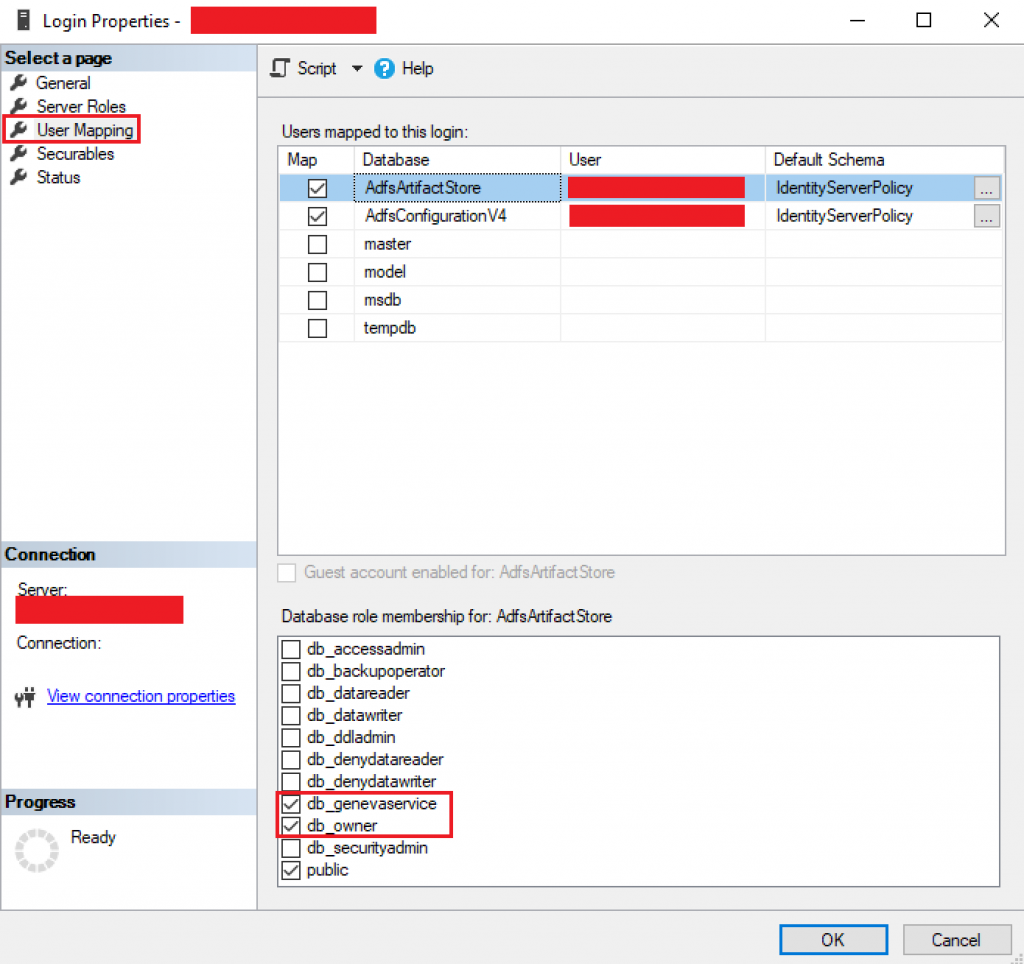
Checking the AD FS service account’s permissions on both databases above, we see db_genevaservice and db_owner roles defined:
Summary
In this article, we covered how to deploy AD FS farm with SQL Server configured with a custom TCP port using Server Manager wizard and PowerShell.
I hope you have enjoyed reading this article and it helps you manage your AD FS environment.
Enjoyed the article? Like and share. 🙂
Note: I do not represent the organization I work for, all the opinions expressed here, are my own. This post is provided AS IS with no warranties or guarantees and confers no rights.
In case you have any suggestion or feedback, please leave a comment.
[ ]’s
Ulysses Neves
