Hi everyone. Today, we’re going to share a very useful Active directory group policy to help you deploy windows hello for business.
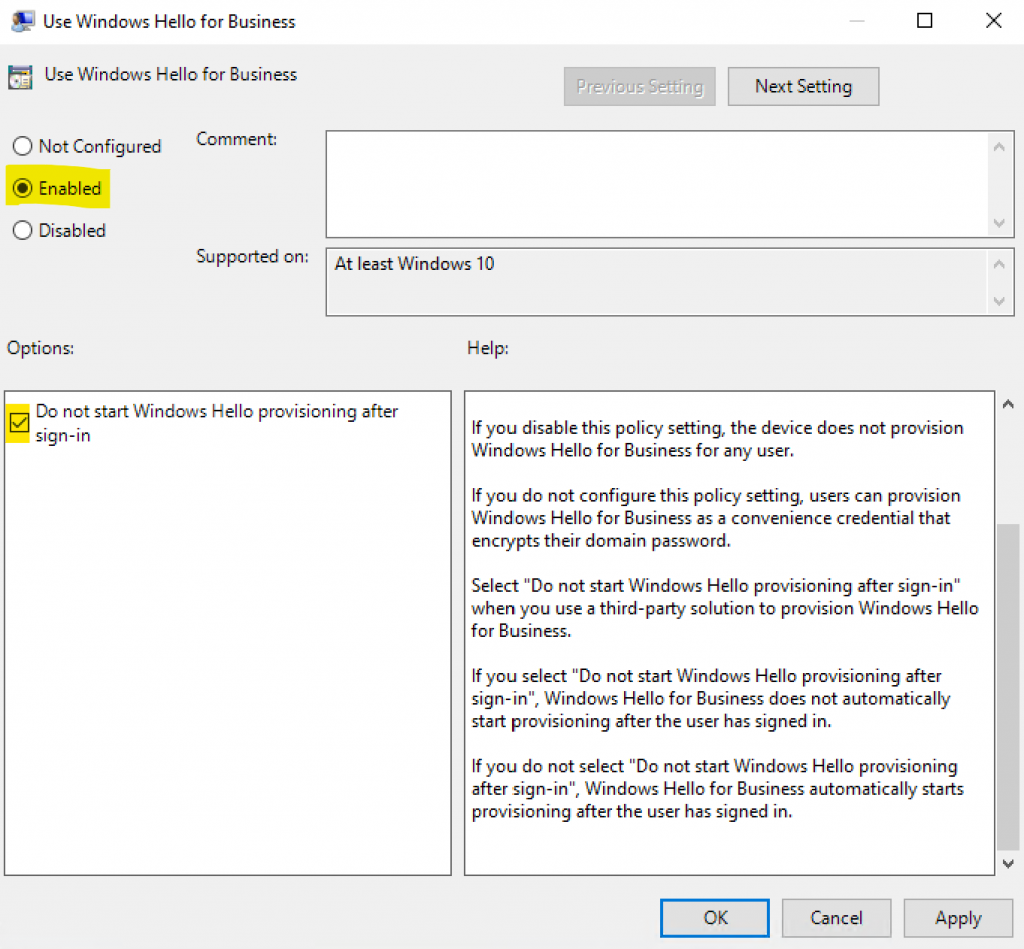
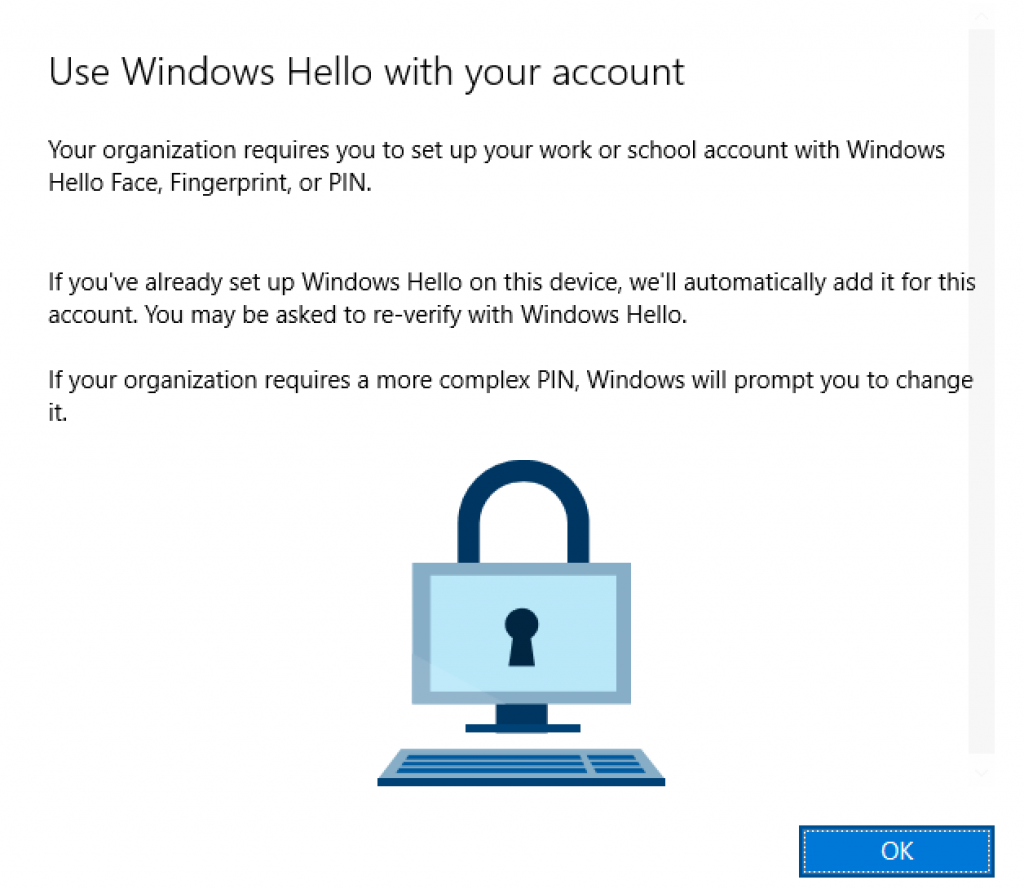
Scenario: By default, once you enable Windows Hello for Business using GPO, once the users affected by the policy sign in, they receive the WHfB enrollment prompt. This rollout can confuse users if not properly communicated by the IT Admins. To help administrators avoid prompting users for WHfB enrollment immediately after sign-in, the option ‘Do not start Windows Hello provisioning after sign-in’ in the ‘Use Windows Hello for Business’ policy can be used.
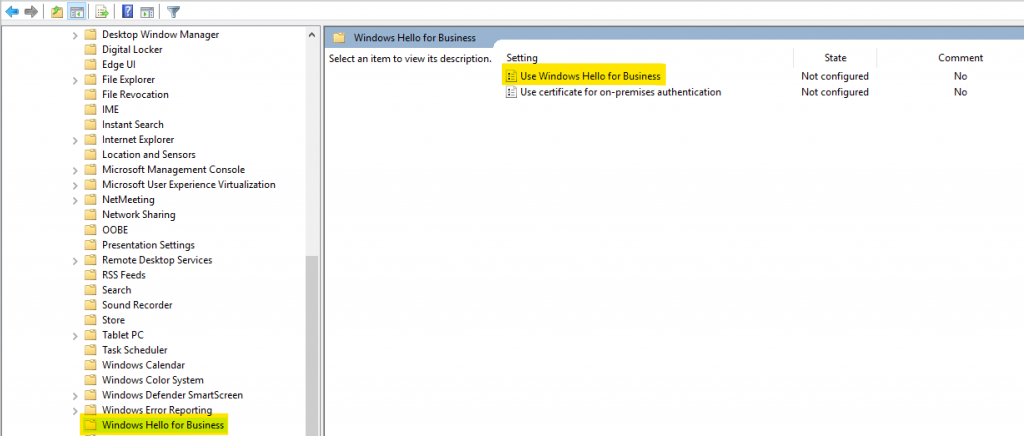
The policy Use Windows Hello for Business can be enabled by user or computer using path User configuration and Computer Configuration under Policies > Administrative Templates > Windows Components > Windows Hello for Business as below:
SUPPRESSING WHfB ENROLLMENT PROMPT
As per policy information, select the option Do not start Windows Hello provisioning after sign-in when you use a third-party solution to provision Windows Hello for Business or plan to have the users manually configure the PIN.
For more information on this group policy, please check this Microsoft official document.
VALIDATING THE POLICY
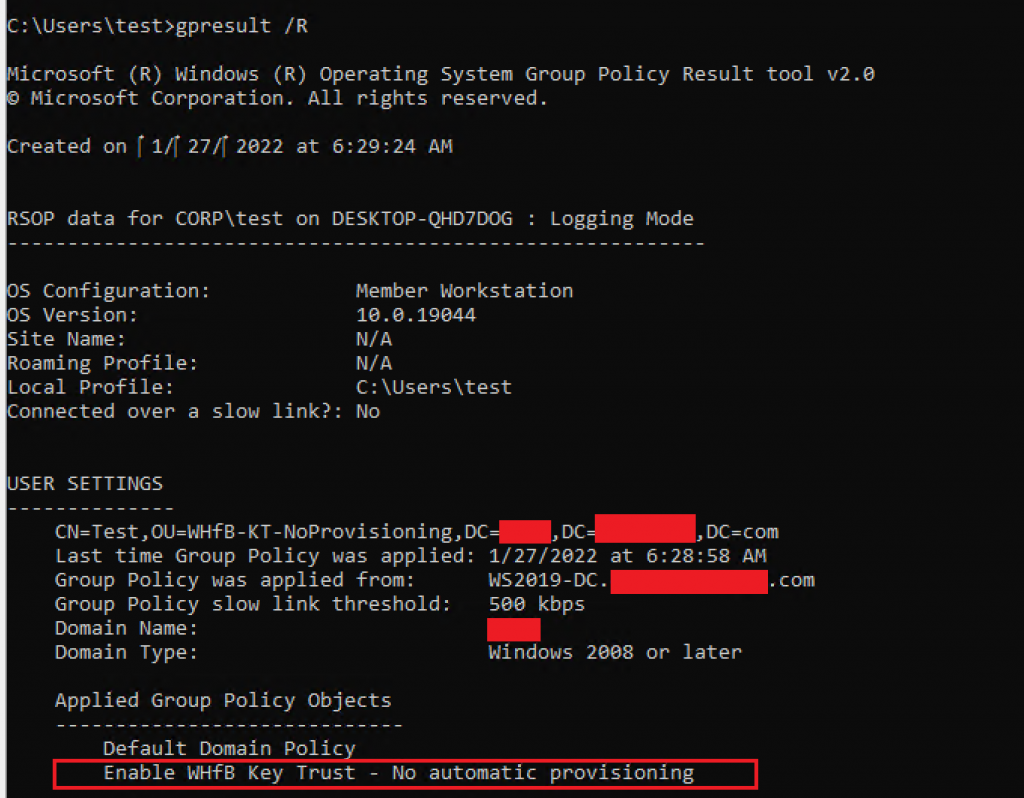
To validate if the options work fine, I’ve created a policy named ‘Enable WHfB Key Trust – No automatic provisioning’ to reproduce the behavior as below:
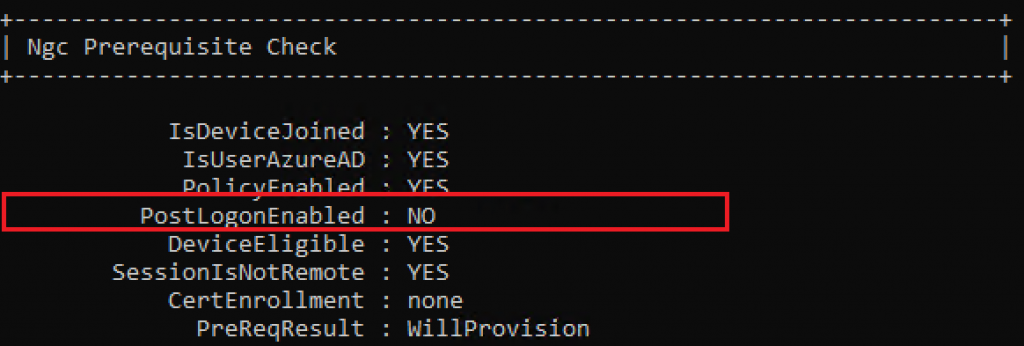
Running the command dsregcmd /status in the client, we can confirm in the session Ngc Prerequisite Check that PostLogonEnabled is set to NO.
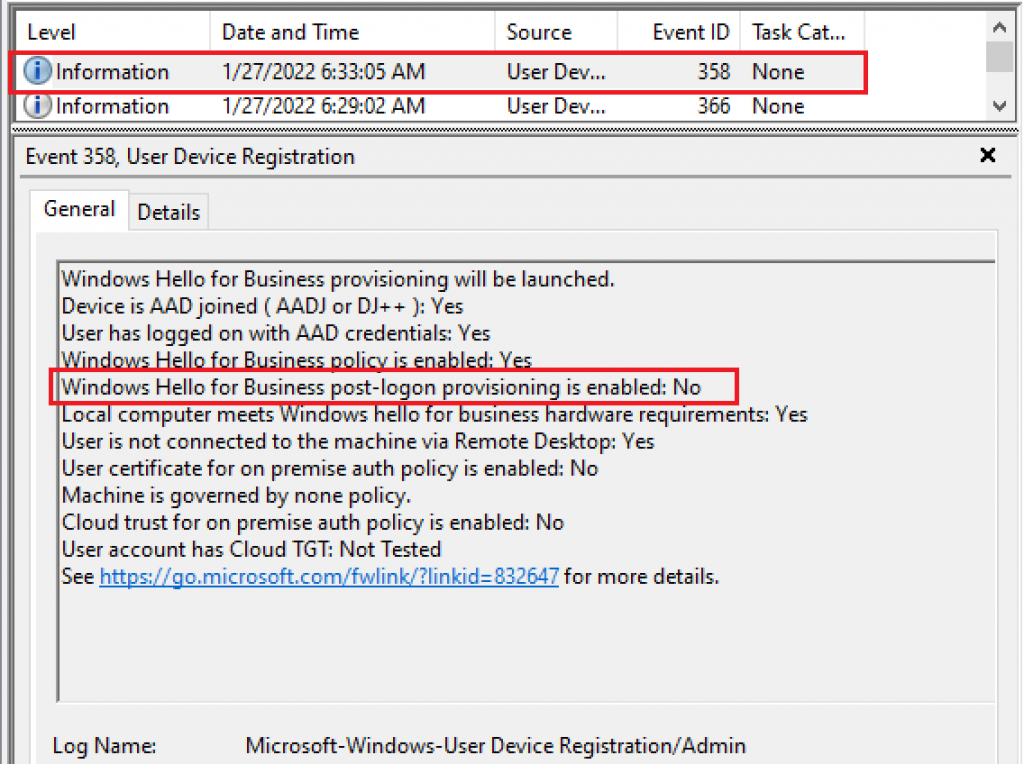
Another way to confirm if the automatic enrollment will be suppressed is by checking event viewer under Applications and Service Logs\Microsoft\Windows\User Device Registration\Admin events. Check event ID 358.
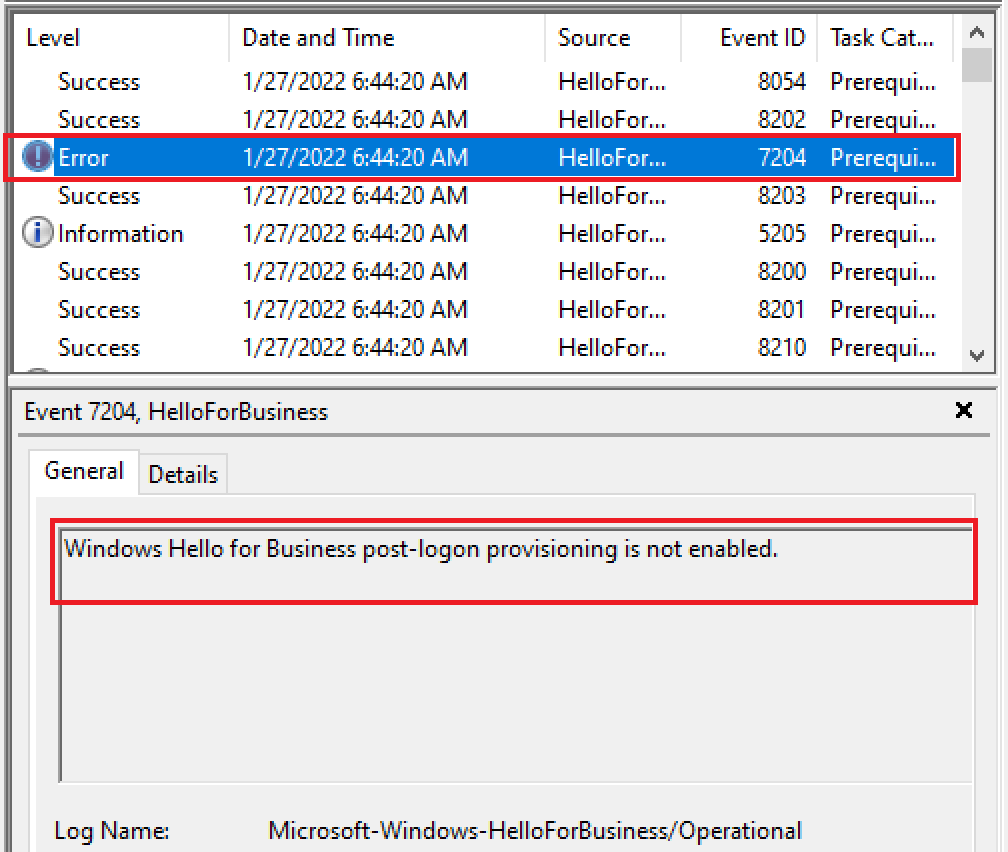
Still, in the client’s event viewer, check Applications and Service Logs\Microsoft\Windows\HelloforBusiness\Operational and look for event ID 7204 that should show up with the message ‘Windows Hello for Business port-logon provisioning is not enabled.’ This is expected due to GPO configured.
With automatic WHfB suppressed, I was not prompted for WHfB enrollment after sign-in. Now, let’s confirm that my user can configure the Windows Hello PIN manually, as my policy has enabled the Windows Hello for Business. This option is available at Sign-in options in the configuration menu.
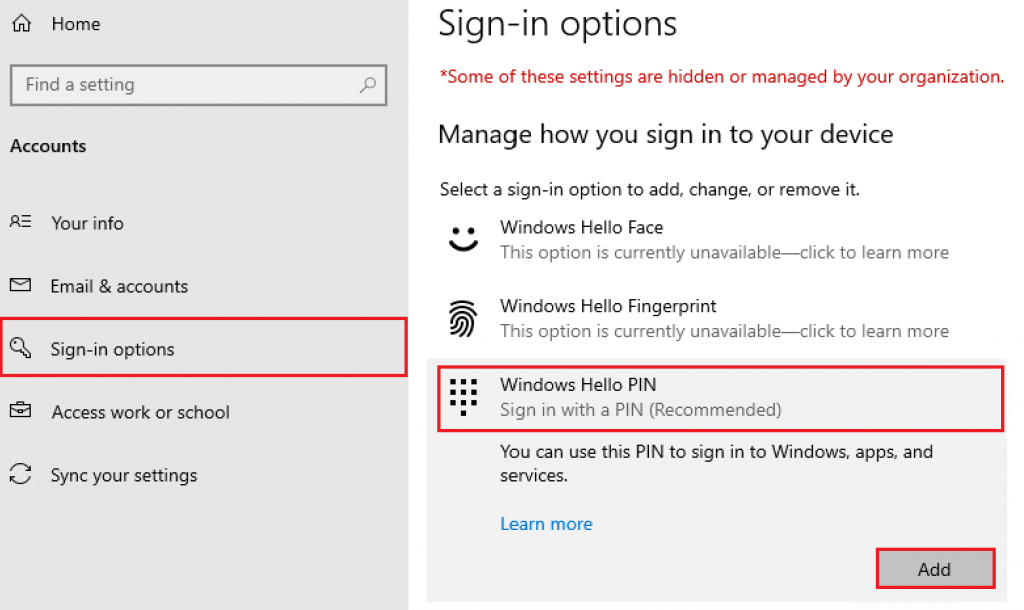
Once I select Add in the menu above, I am prompted to start the WHfB enrollment.
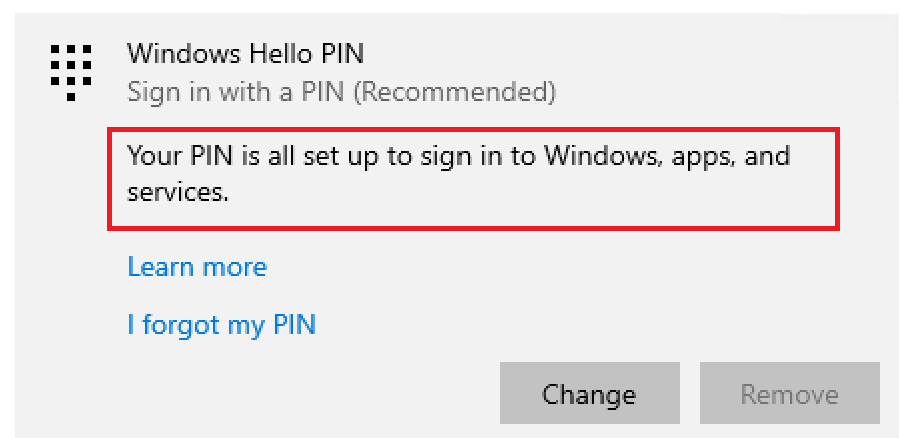
After successful enrollment, my PIN has been successfully configured and can be used as an authentication method during my future signings.
Summary
In this article, we covered how to suppress WHfB automatic enrollment using Active Directory Group Policy.
I hope you have enjoyed reading this article and it helps you manage your WHfB environment.
Enjoyed the article? Like and share. 🙂
Note: I do not represent the organization I work for, all the opinions expressed here, are my own. This post is provided AS IS with no warranties or guarantees and confers no rights.
In case you have any suggestions or feedback, please leave a comment.
[ ]’s
Ulysses Neves
