Update notice — September 2026: This article contains commands from the Azure AD or MSOnline PowerShell modules kept since its original publication. Microsoft has deprecated these modules and recommends Microsoft Graph PowerShell for current automation. Do not use the legacy commands in new implementations.
Source: Guidance for migrating to Microsoft Graph: “Azure AD, Azure AD Preview and MSOnline PowerShell modules are deprecated.”
Hello, everyone. In today’s article, we’ll explain how to configure a conditional access policy for guest users in Azure. Administrators typically require strong authentication methods to be used by users external to the organization to access Azure resources.
What are guest users
External guest users are credentials of users from other organizations who engage in some type of collaboration on Azure services. The feature that enables this collaboration is called Microsoft Entra ID B2B (business-to-business). For more information about this feature, click this link.
Identifying guest users in Azure
By accessing the All Users menu, you can identify guest users through the User type column.

To identify guest users using PowerShell,
Get-AzureADUser -Filter "Usertype eq 'Guest'"

Creating the conditional access policy
Let’s create a policy that requires MFA for external and guest users in the tenant.
Access the conditional access policies menu by clicking this link.
Let’s create a new policy by clicking New policy.

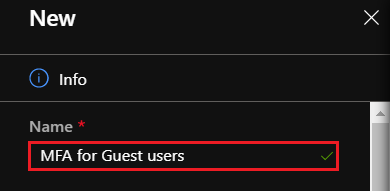
Enter the name of the policy you want to create.
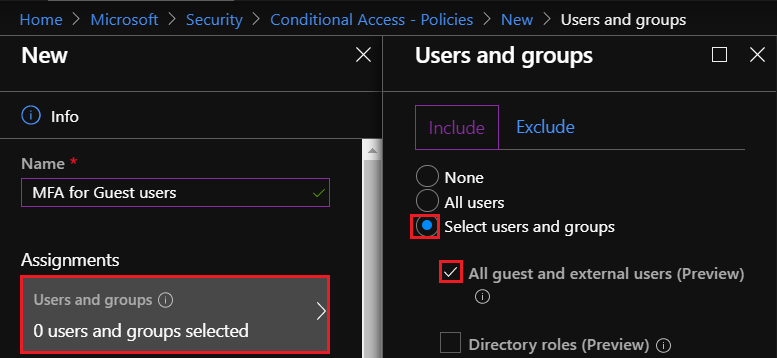
On the Users and groups tab, check the options Select users and groups > All guest and external users (Preview).
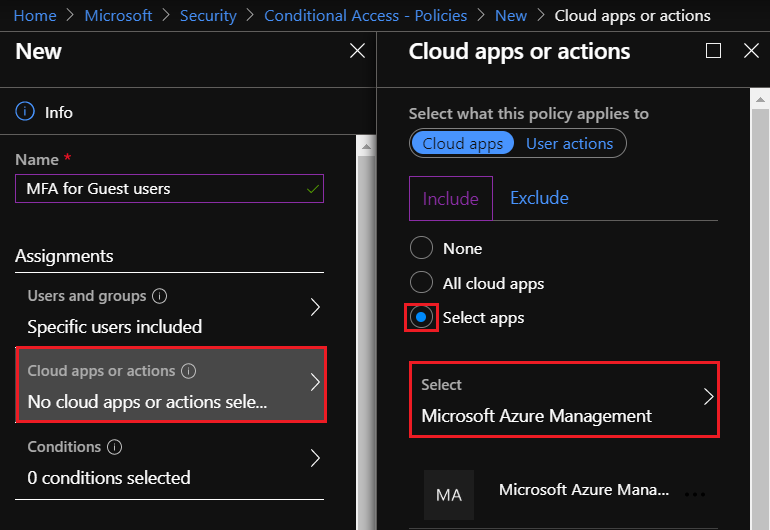
For this simulation, let’s select Azure management. On this tab you can select other applications.
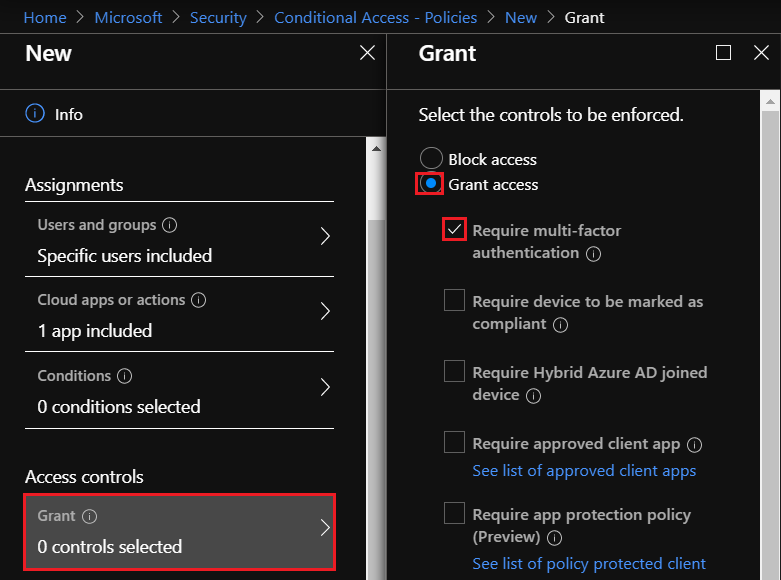
On the Access controls > Grant > tab, [select Require multi-factor authentication].
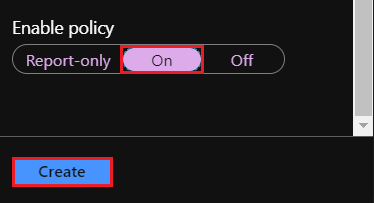
Enable the policy by clicking On and then Create.
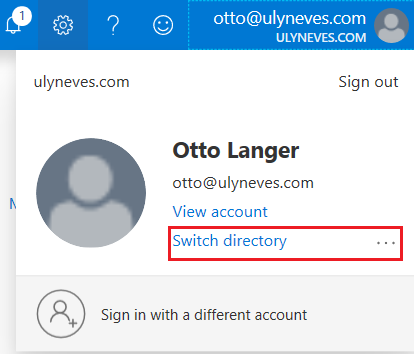
We’re signed in with the user Otto in the home organization (ulyneves.com). Let’s switch directories to the tenant where the user is a guest to validate the newly created policy.
Click the user’s name.

Select Switch directory.
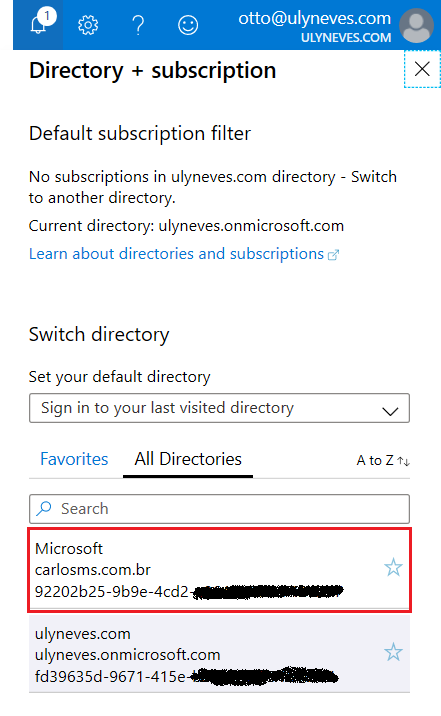
Let’s select the directory Carlosms.com.br, where the user is a guest.
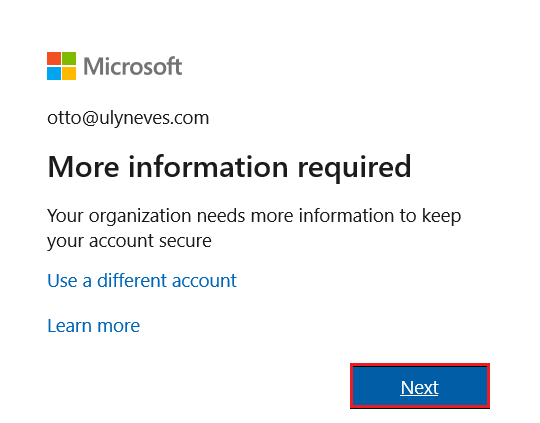
The user is immediately prompted to perform MFA.
In the access logs, we can see that the sign-in was interrupted so the user could perform MFA.
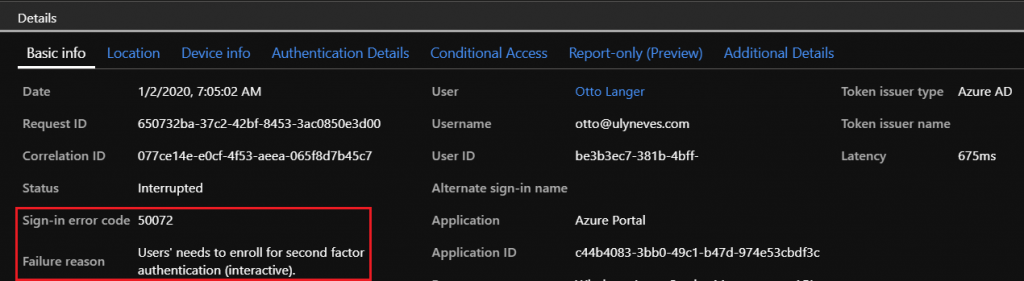
We also see, on the Conditional Access tab, the policy that interrupted the user’s access.

Summary
In today’s article, we showed how to configure a conditional access policy that requires multi-factor authentication for guest users in an organization.
I hope this content has helped enrich your knowledge of Microsoft Entra ID.
Did you like the post? Like it and share it. 🙂
If you have any suggestions or comments, let us know.
[ ]’s
Ulysses Neves
