
Hello, everyone. In today’s article, we’ll explain step by step how to block access to Dynamics applications by location using a conditional access policy. This scenario is quite common in organizations that want to allow access to applications only through trusted networks.
Creating a named location
Let’s create a trusted network to exclude from the access blocking policy.
Access the Conditional Access – Named locations menu by clicking this link.
Click New location to create a new named location.

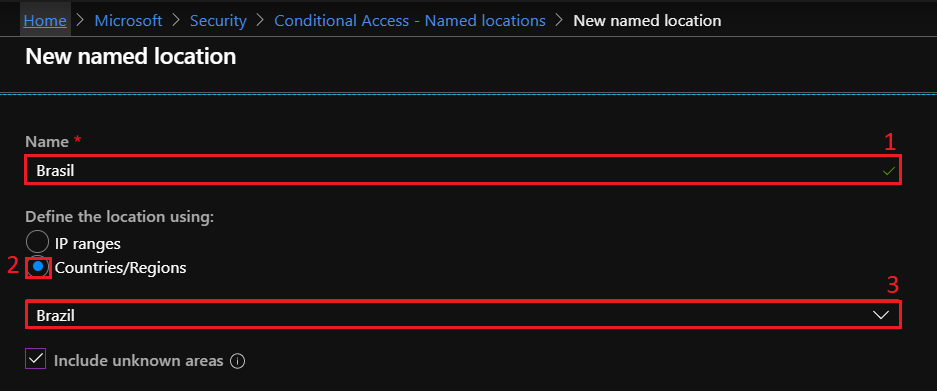
Let’s enter the named location information:
1 – Location name.
2 – Let’s create a location by country/region.
3 – Let’s select Brazil as the country allowed for access.
Click Create.
Creating the external access blocking policy
Now let’s create the conditional access policy to block access coming from countries other than Brazil.
Click this link to access the Conditional Access – Policies menu.

Enter the policy name in the Name field.
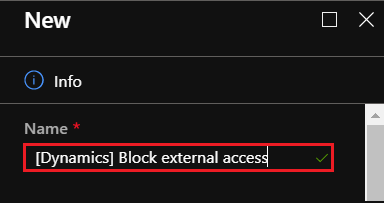
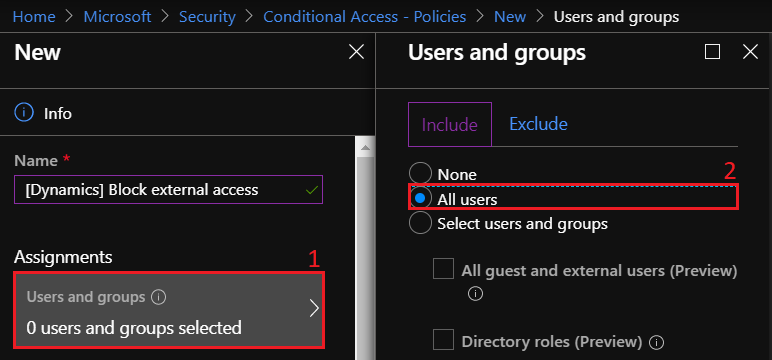
Let’s select the users who will receive the policy by performing the steps below:
1 – Select the Users and groups menu.
2 – Select All users.
Click Done.
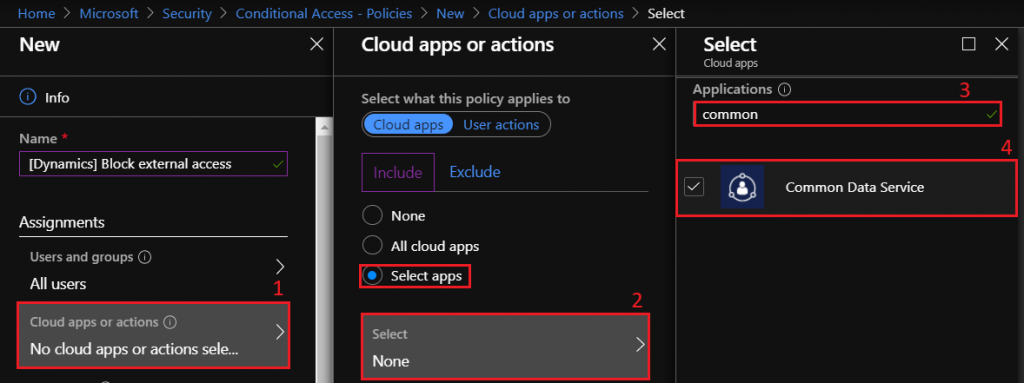
To select the application to be controlled by the policy, perform the steps below:
1 – Select the Cloud apps or actions menu.
2 – Select Select apps and then Select.
3 – Search for the Common Data Service application.
4 – Select the application.
Click Select and then Done.
Let’s configure the location by performing the steps below:
1 – Select the Conditions menu.
2 – Select the Locations menu.
3 – Enable the Locations option by clicking Yes.
4 – Select the Any location option to cover all locations.
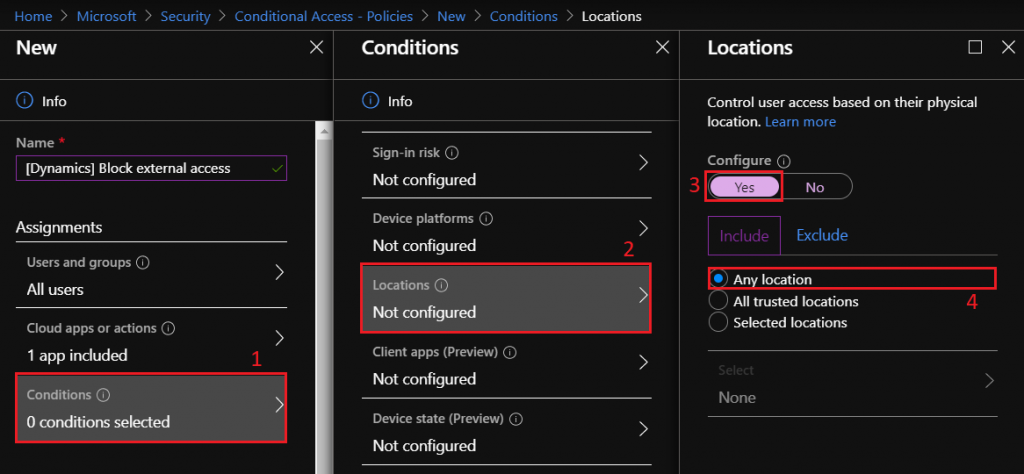
Click Done.
Still in the Locations option, let’s exclude Brazil from the policy by performing the steps:
1 – Click Exclude.
2 – Select the Selected locations option and then Select.
3 – Select the named locations that will be excluded from the policy.
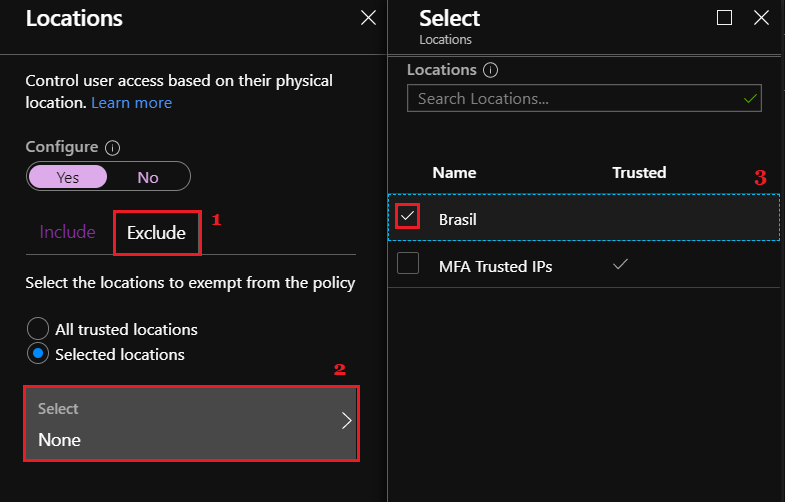
Click Select, then Done and Done again.
Now let’s define the access control for this policy. Perform the steps below:
1 – Select the Access controls option.
2 – Check the Block access control.
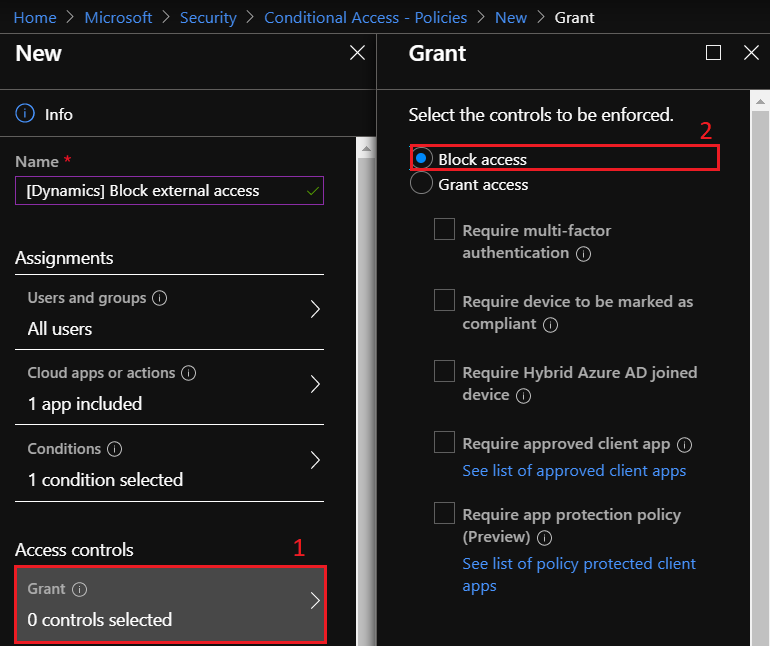
Click Select.
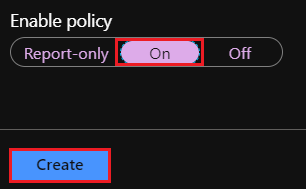
Let’s enable the policy by clicking On in the Enable policy option.
Click Create.
Testing access to the Dynamics 365 application from Brazil
Let’s validate that the policy we just created works by accessing the link of the application hosted in Azure. For our illustration, we’ll access the URL https://ulyneves.crm4.dynamics.com/ from inside Brazil.
Enter the user’s credentials in Azure.
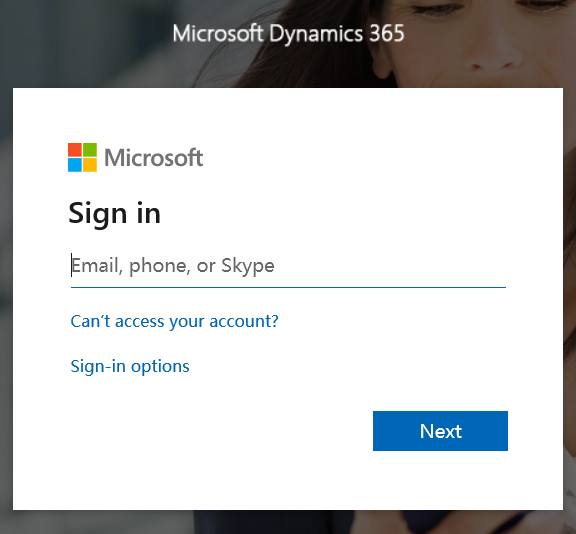
Access originating from an IP in Brazil is granted to the user.
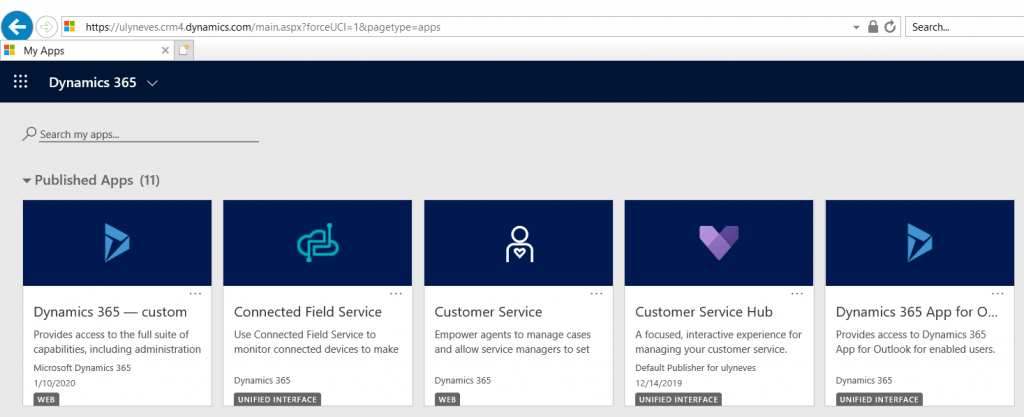
Monitoring access through the Sign-ins menu
Let’s check the access we just simulated through the Sign-ins menu in Azure. To access this menu, click this link.
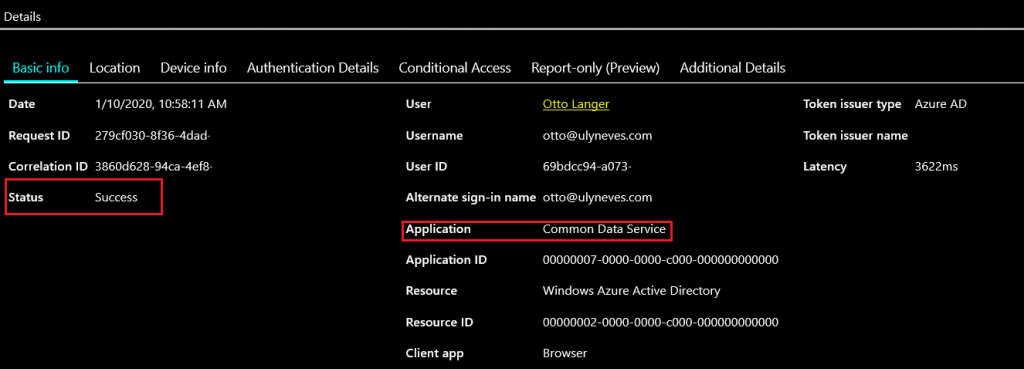
On the Basic Info tab, we can see that access was granted to the Common Data Service application, which is required when accessing Dynamics applications.
On the Conditional Access tab, we can see that the created policy was not applied to the access, in the Result column with status Not Applied.

Testing access to the Dynamics 365 application from outside Brazil
Now let’s access the same URL from the previous test through an IP outside Brazil. Let’s simulate this access using the Tor browser’s proxy function. To use this browser, download it from this link.
Enter the user’s credentials.
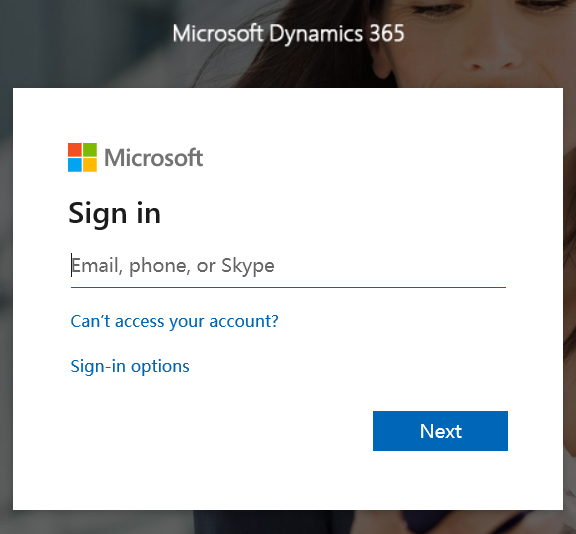
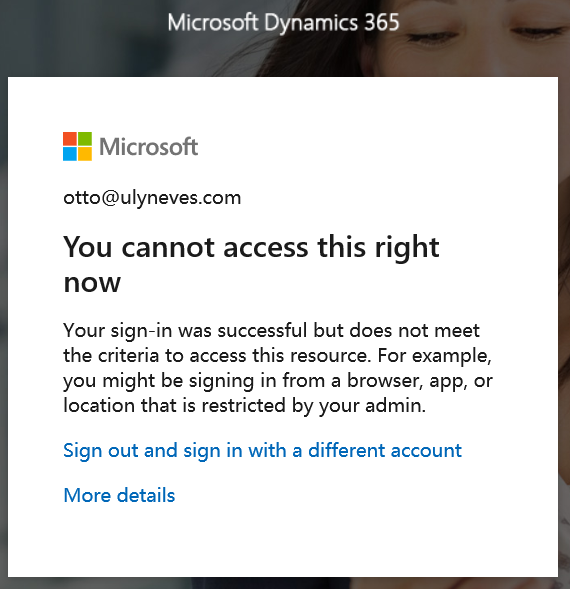
Access is validated, but it is blocked by the conditional access policy we created.
Monitoring access through the Sign-ins menu
Let’s check the reason for the simulated access block through the Sign-ins menu in Azure. To access this option, click this link.
On the Basic info tab, we can see in the Sign-in error code field the code 53003 – Access has been blocked due to conditional access policies.
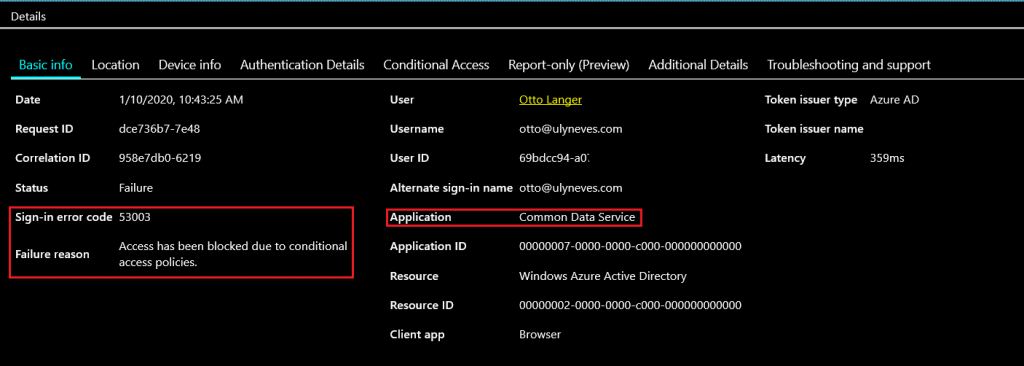
On the Conditional Access tab, we observe that the result of the conditional access policy is Failure, which identifies the access block.

On the Location tab, we confirm access from outside Brazil.

Summary
In today’s article, we explained step by step how to block access to Dynamics 365 applications using a location-based conditional access policy.
I hope this content has helped enrich your knowledge of Azure.
Did you like the post?
Like it and share it. 🙂
If you have any suggestions or comments, let us know.
[ ]’s
