
Hi everyone. In today’s article, we’ll demonstrate how to enable the user password change option via AD FS. This feature is used when it’s necessary to allow users inside or outside the company to update their domain passwords without needing to be connected to the office network.
Requirements needed
- AD FS server.
- WAP (Web Application Proxy) server.
- Device joined to Microsoft Entra ID.
Enabling the password update feature on the internal network.
Let’s access the AD FS server and open the AD FS Management console. Perform the steps below:
1 – Select the Endpoints menu.
2 – In the Other category, find the /adfs/portal/updatepassword/ endpoint.
3 – Right-click the endpoint and select Enable.

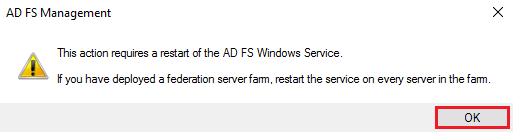
For the configuration to take effect, you’ll need to restart the AD FS service on all servers with this role. Click OK.
Enabling the password update feature on the external network
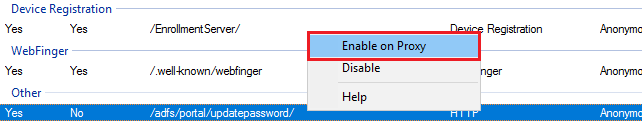
Let’s enable access to the password update portal through the external network by right-clicking the same endpoint and selecting the Enable on Proxy option.
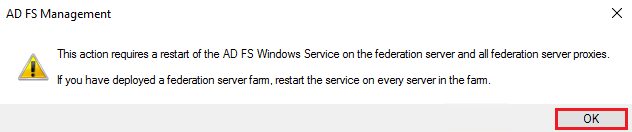
Now the message informs us that we need to restart the AD FS service on all WAP and AD FS servers for this feature to be activated.
Restarting the ‘adfssrv’ service on the servers
Let’s log in to the AD FS servers and restart the ‘adfssrv’ service using PowerShell with the command below:
Restart-Service adfssrv

Let’s now restart the same service on the WAP servers.

Updating the password using the AD FS portal
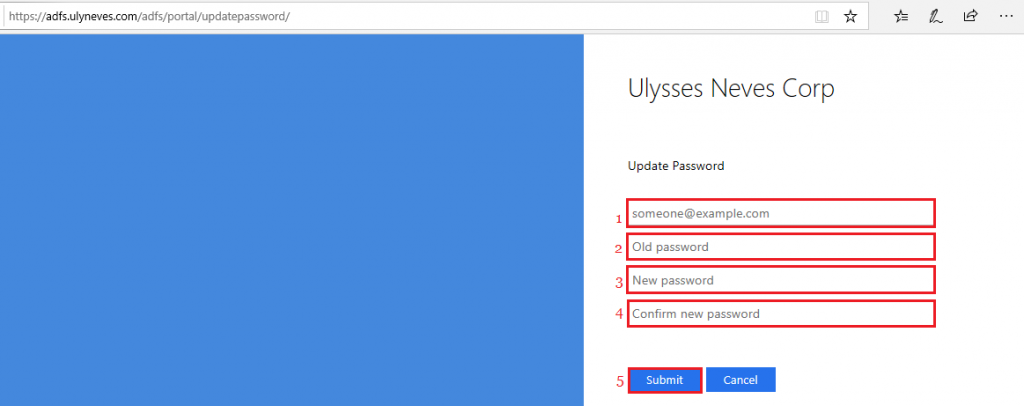
To update the password on the corporate network, I’ll access the AD FS portal at https://adfs.contoso.com/adfs/portal/updatepassword/ on a device registered with Microsoft Entra ID.
Enter the user’s information as follows:
1 – Enter the user’s UPN in Azure.
2 – Enter the current password.
3 – Enter the new password.
4 – Confirm the new password.
5 – Click Submit.
With the password changed, you can see the confirmation message below:
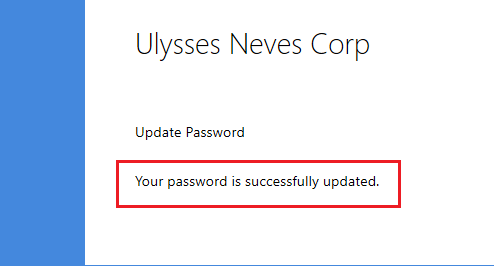
With the password changed, the user can now access external and internal applications with the new password.
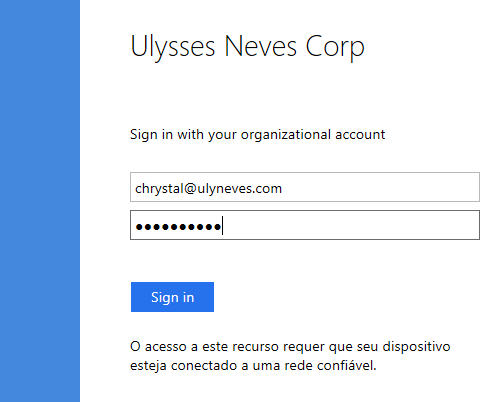
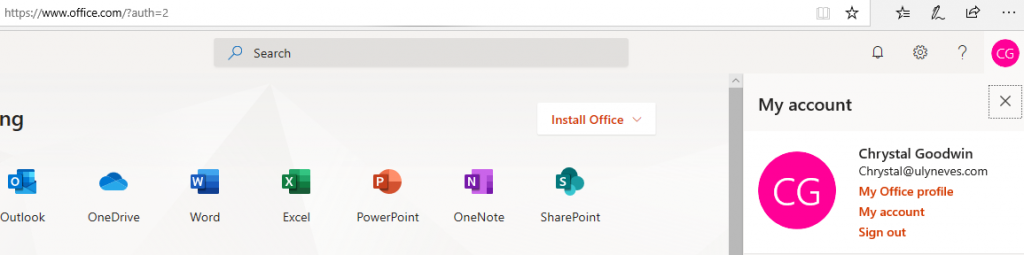
We accessed the Office portal and authenticated through AD FS with the new password, and access was granted, confirming that the new password was updated on the company’s internal network.
For more information about how to configure the password update portal using AD FS, check out this link.
Summary
In today’s article, we showed how to activate the AD FS password update portal to allow users inside and outside the company to update their passwords without needing to be connected to the corporate network.
I hope this content has helped enrich your knowledge of AD FS.
Did you like the post? Like and share it. 🙂
If you have any suggestions or comments, let us know.
[ ]’s
Ulysses Neves

Olá amigo Ulysses Neves, é possivel adicionarmos um botão de troca de senha no portal de login?
Olá Marcos, tudo bem?
No caso do AD FS, se conheces de desenvolvimento, podes criar um botão ou link para redirecionar o usuário para a URL https://fqdn/adfs/portal/updatepassword/ onde o usuário pode atualizar a senha. Lembrando que, alterando a página autenticação do AD FS pode acarretar problemas de autenticação e tornar seu ambiente não suportado. Mais informações, recomendo checar esta documentação oficial: https://learn.microsoft.com/en-us/windows-server/identity/ad-fs/operations/advanced-customization-of-ad-fs-sign-in-pages#considerations