Hello everyone. In today’s article we’ll show you how to install the Microsoft Entra Connect Health Agent for AD FS and monitor the environment through the Azure portal.
What is Microsoft Entra Connect Health for AD FS
Microsoft Entra Connect Health monitors the identity infrastructure by presenting incident alerts and security best practices, helping administrators maintain and ensure the environment is running properly. To make this monitoring possible, collection agents installed on the servers are used. All the information collected by the agents across the AD SYNC, AD FS, AD FS proxy, and AD DS infrastructure is displayed through the Health and Analytics portal, available through this link.
Installing the Microsoft Entra Connect agent for AD FS
Let’s download the agent by accessing the Health and Analytics menu mentioned above and clicking Download Azure AD Connect Health Agent for AD FS.
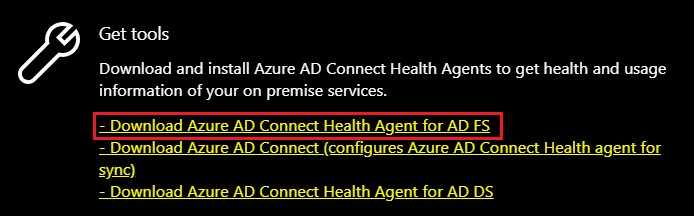
To properly monitor the AD FS environment, the agent must be installed on all AD FS servers and also on the proxy/WAP servers.
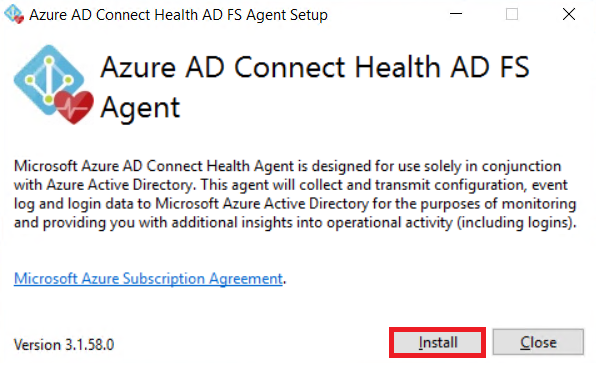
Let’s run the installer we downloaded.

Click install.
Click Configure Now.
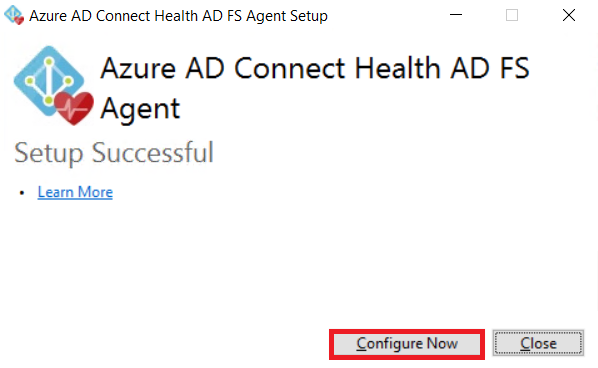
When you run the step above, the installer opens a PowerShell window and you’re prompted for the user to perform the configuration. I’ll use an account with global administrator privileges, which by default has permission to register an agent in Azure.
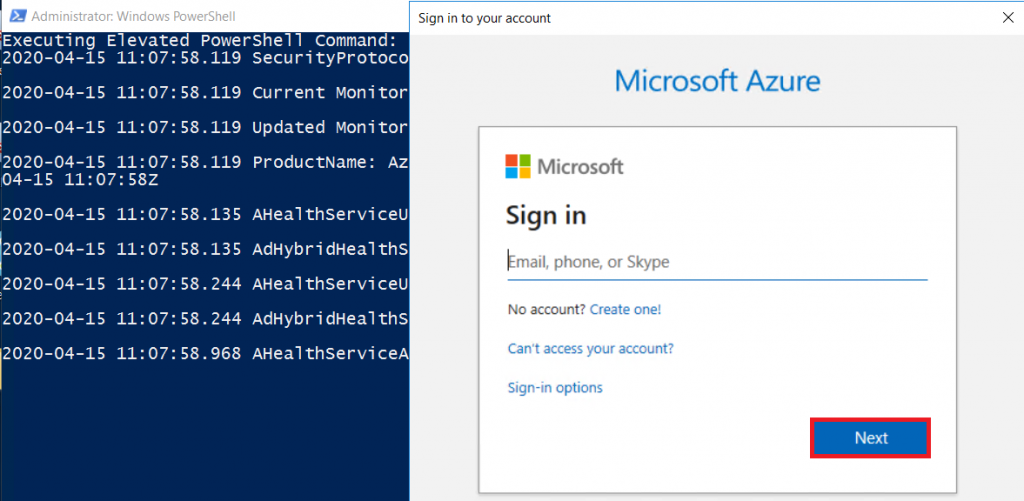
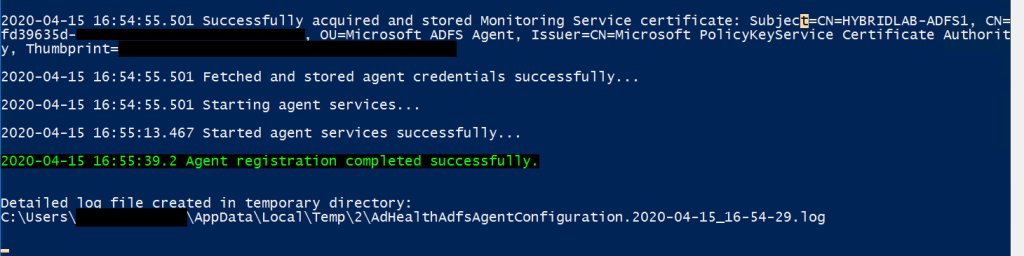
Once authentication is complete, you can see that the agent registration finished successfully.
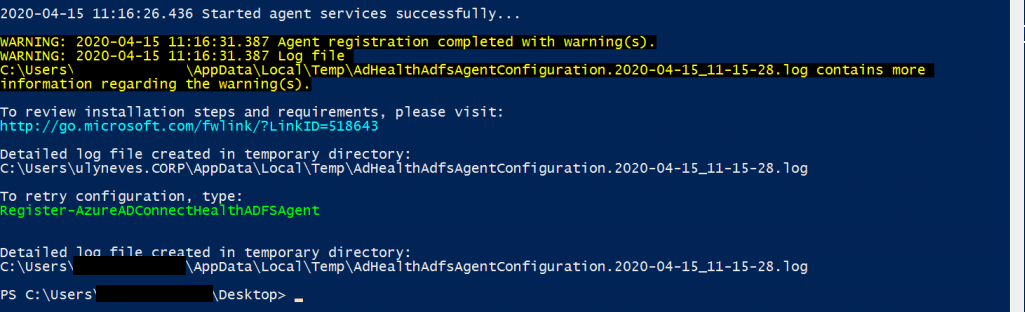
If you get a result similar to the one shown below, you’ll need to verify that all the installation requirements have been correctly met. For more information, go to this link.
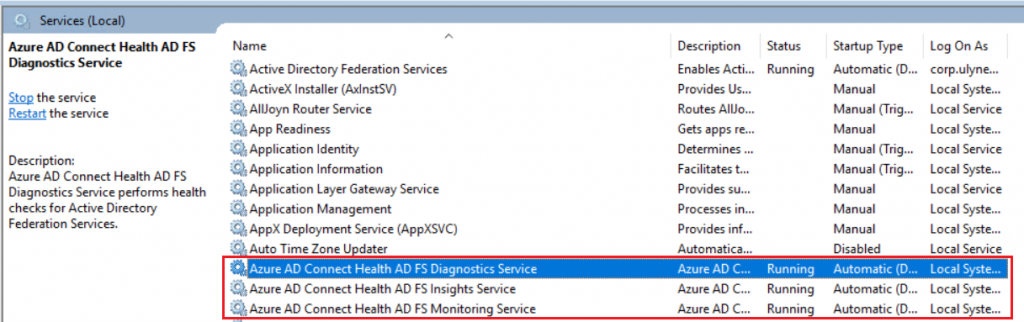
With the agent installed, we can confirm that the services are functional.
Enabling auditing on the AD FS servers
Now let’s enable auditing on the AD FS servers. This step should not be performed on the AD FS proxy/WAP servers.
On the AD FS server, let’s open Server Manager > Tools > Local Security Policy.
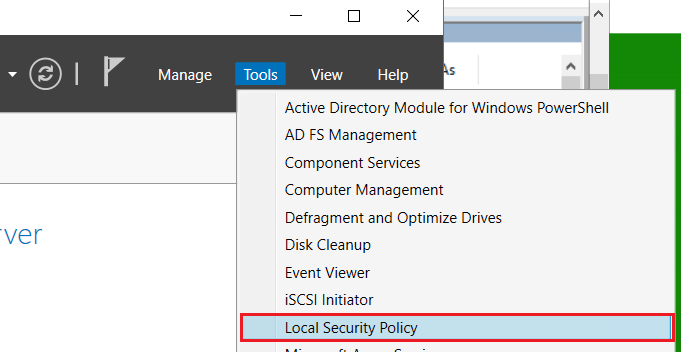
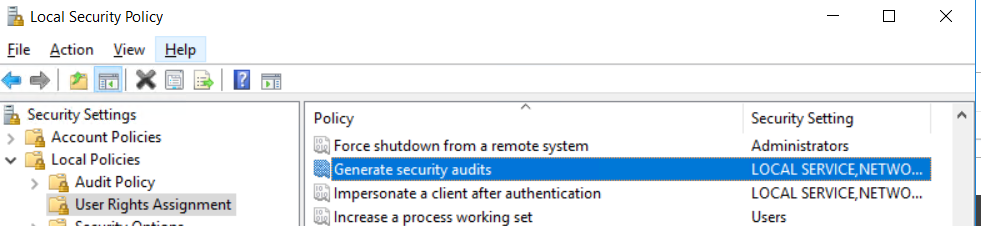
Under Security Settings > Local Policies > User Rights Assignment, let’s double-click the Generate security audits setting.
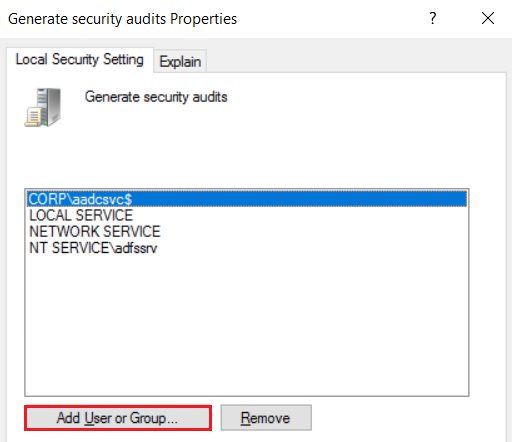
Let’s add the AD FS service account in the window below.
Let’s run the command below at the Windows prompt to define the types of events to be monitored:
auditpol.exe /set /subcategory:{0CCE9222-69AE-11D9-BED3-505054503030} /failure:enable /success:enable

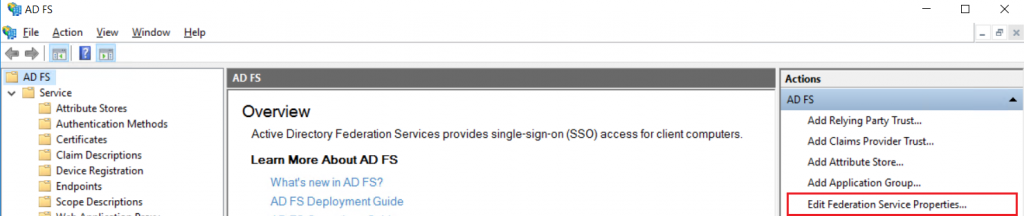
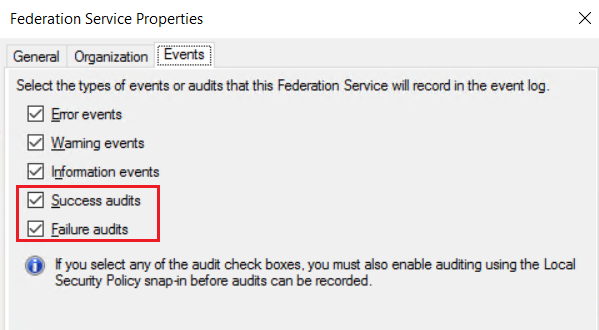
By accessing the AD FS > Edit Federation Services Properties… service, you can see that the Success audits and Failure audits events are enabled.
Validating the AD FS agents in the Azure portal
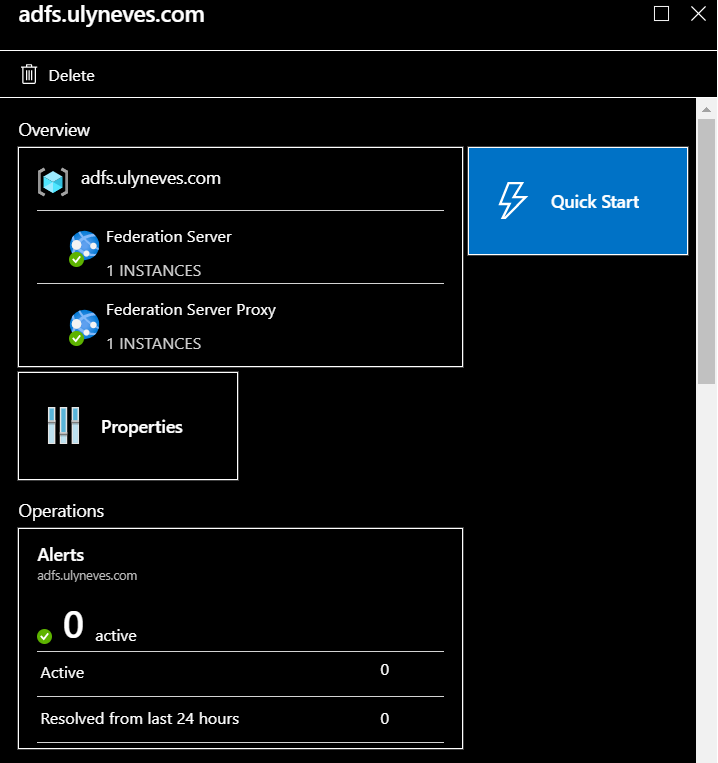
To validate that the installed agents are communicating with Microsoft Entra ID, go to this link. You can see the registered agents and their respective statuses, as shown below:

By selecting the agent, you can see some additional information about the AD FS environment.
Summary
In today’s article, we showed how to monitor the AD FS environment using the Microsoft Entra Connect Health Agent for AD FS. We explained step by step how to install it, register the agent, and validate the data in the Azure portal.
I hope this content has contributed to enriching your knowledge of Microsoft Entra ID.
Did you like the post? Like and share it. 🙂
If you have any suggestions or comments, let us know.
[ ]’s
Ulysses Neves
