Hello everyone. In today’s article, I’ll explain how to configure JEA (Just Enough Administration) in the AD FS service. This feature allows AD FS service administrators to delegate limited access to other users without the need to grant administrative access to the servers. One example is delegating to user support technicians permission to unlock accounts locked by AD FS Smart lockout.
What is JEA (Just Enough Administration)?
JEA allows administrators to delegate limited access within a given service to other users without allowing administrative access to the servers, preventing unnecessary access and controlling the administrative activities performed on the servers. More information about this feature can be found through this link.
We will perform the following activities in this article:
- Create the gMSA service account for use in the lab.
- Configure JEA on the AD FS servers.
- Install the gMSA account on the AD FS servers.
- Create the delegated access group.
- Create the RoleCapabilities folder.
- Create the PowerShell role configuration files.
- Register the remote session using the configuration files.
- Perform the remote access test using PowerShell with a test user.
Creating the service account (gMSA)
The steps below must be performed on a domain controller server.
Run the command below if this is the first gMSA account in the domain:
Add-KdsRootKey -EffectiveTime ((get-date).addhours(-10))
In our case, since it is not the first account, we will run the command below:
Get-KdsRootKey
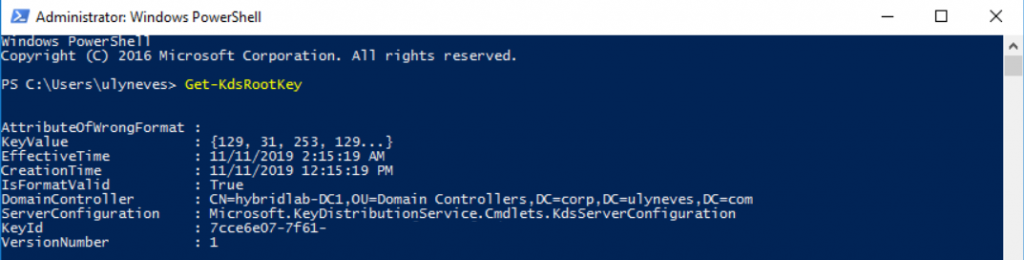
With the KeyID in hand, we can proceed with configuring the service.
Configuring JEA on the AD FS servers
We will now run the commands below on the AD FS servers:
$adfsServer = Get-ADComputer -Identity "AD FS server hostname"
If you have more than one AD FS server, run the command on all servers.

Run the command below on a domain controller server to create the new service account and grant it permission on the AD FS servers.
$ServiceAccount = New-ADServiceAccount "nome da conta de serviço" -DNSHostName "FQDN do domínio que contém o KeyID" -PrincipalsAllowedToRetrieveManagedPassword $adfsServer –passthru

We will now run the command below on the AD FS servers:
Add-ADComputerServiceAccount -Identity "servidor AD FS" -ServiceAccount $ServiceAccount

Installing the gMSA account on the AD FS server
Install-ADServiceAccount "conta de serviço criada anteriormente"

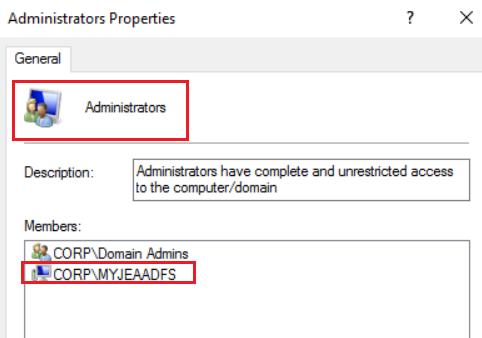
We will grant local administrator permission on the AD FS server by adding the gMSA account to the “Administrators” group
We will now create the security group that will allow us to give its members controlled privileges in the AD FS service.
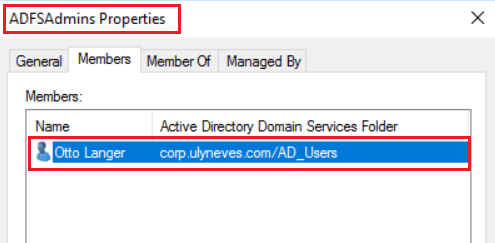
We will create the security group in AD and include at least one user for our test.
Creating a delegated administrators group
In our example, I will create the ADFSAdmins security group and include the user otto@ulyneves.com.
Creating the “RoleCapabilities” folder
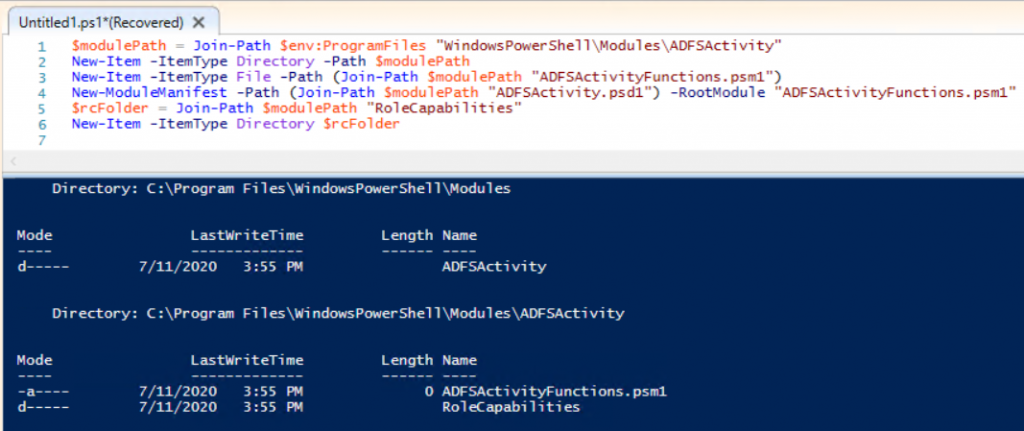
On the AD FS server, we will create the folder that will store the roles by running the commands below:
$modulePath = Join-Path $env:ProgramFiles "WindowsPowerShell\Modules\ADFSActivity"
New-Item -ItemType Directory -Path $modulePath
New-Item -ItemType File -Path (Join-Path $modulePath "ADFSActivityFunctions.psm1")
New-ModuleManifest -Path (Join-Path $modulePath "ADFSActivity.psd1") -RootModule "ADFSActivityFunctions.psm1"
$rcFolder = Join-Path $modulePath "RoleCapabilities"
New-Item -ItemType Directory $rcFolder
For convenience, we ran the commands above using PowerShell ISE.
Creating the PowerShell role configuration files
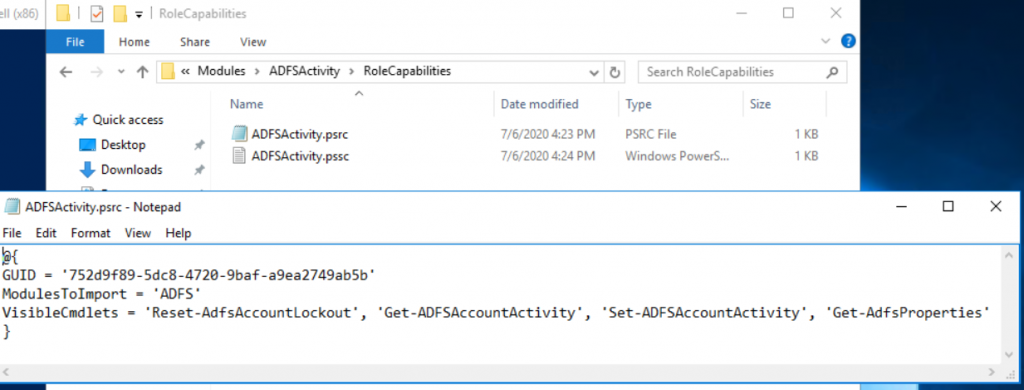
We will now create the role configuration files and store them in the folder on the AD FS server through the $rcFolder variable created in the previous step.
@{
GUID = '752d9f89-5dc8-4720-9baf-a9ea2749ab5b'
ModulesToImport = 'ADFS'
VisibleCmdlets = 'Reset-AdfsAccountLockout', 'Get-ADFSAccountActivity', 'Set-ADFSAccountActivity', 'Get-AdfsProperties'
}
Save the file on the AD FS server as: C:\Program Files\WindowsPowerShell\Modules\ADFSActivity\RoleCapabilities\ADFSActivity.psrc
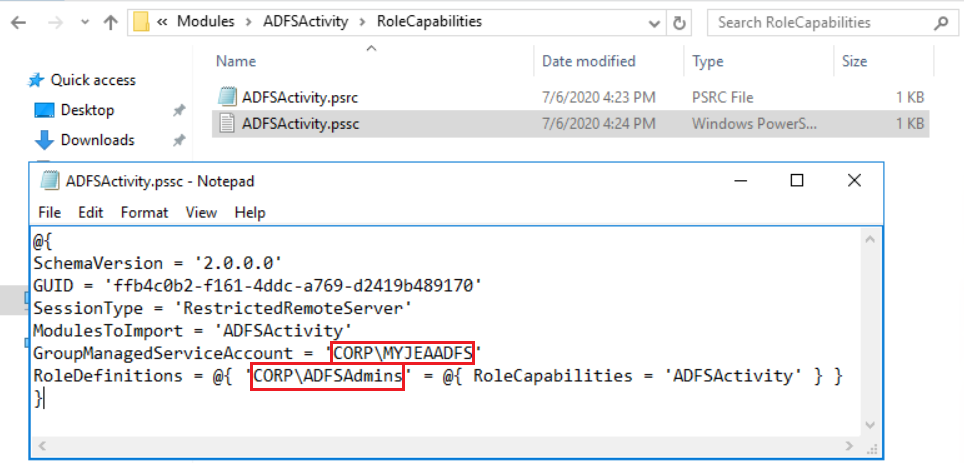
We will create another .pssc file to integrate the security group created in AD with the “ADFSActivity” module.
Open Notepad, paste the information below, and change only the security group and the gMSA account created at the beginning of this article.
@{
SchemaVersion = '2.0.0.0'
GUID = 'ffb4c0b2-f161-4ddc-a769-d2419b489170'
SessionType = 'RestrictedRemoteServer'
ModulesToImport = 'ADFSActivity'
GroupManagedServiceAccount = 'Conta gMSA criada'
RoleDefinitions = @{ 'domínio\grupo de segurança' = @{ RoleCapabilities = 'ADFSActivity' } }
}
Save the file as ADFSActivity.pssc in the same directory as the ADFSActivity.psrc file from the previous step.
Registering the remote session using the configuration files
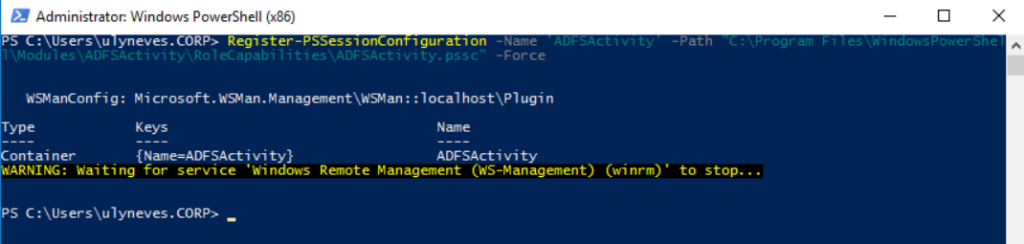
With the files created, we will now register the session configuration in AD FS using the created files. To do this, run the command below:
Register-PSSessionConfiguration -Name 'ADFSActivity' -Path "C:\Program Files\WindowsPowerShell\Modules\ADFSActivity\RoleCapabilities\ADFSActivity.pssc" -Force
Testing permissions in the AD FS service using PowerShell
With the configuration completed on the AD FS servers, we will now test user Otto@ulyneves.com’s access to the AD FS server through a remote session using PowerShell.
Let’s sign in to a desktop with the otto@ulyneves.com account and open PowerShell. We will run the following command to remotely access the AD FS server:
Enter-PSSession -ComputerName 'ADFSServerName' -ConfigurationName ADFSActivity

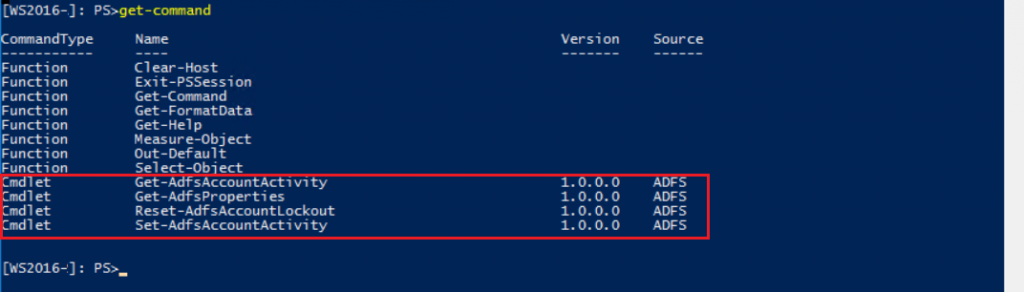
We will now run the get-command command to confirm which commands can be run by user Otto on the AD FS server.
We can see that user Otto does not have the same access as an administrator on the AD FS server.
Summary
In today’s article, we demonstrated how to integrate JEA (Just Enough Administration) with the AD FS service. In the next article, we will talk about AD FS Smart lockout and how to use this AD FS feature to protect against improper access and unwanted lockouts on user accounts.
I hope this content has helped enrich your knowledge of AD FS.
Did you enjoy the post? Like and share it. 🙂
If you have any suggestions or comments, leave a comment.
Best regards,
Ulysses Neves
