
Hello everyone. Today, we’re going to investigate the error message ‘DsrCmdJoinHelper::Join: TenantInfo::Discover failed with error code 0x801c0021‘ when trying to turn a domain-joined device into Hybrid Azure AD Joined.
Scenario: Azure AD Hybrid Device Join
In this article, we’ll focus on the error message, but if you are looking for the requirements and steps to implement Azure AD Hybrid Device Join, please check this Microsoft implementation guide.
Checking device registration status
Prior to the Hybrid Join implementation, once you run the command dsregcmd /status on a windows 10 or 11 domain-joined machines, you may face the device state as below:
+———————————————————————-+
| Device State |
+———————————————————————-+
         AzureAdJoined : NO
      EnterpriseJoined : NO
          DomainJoined : YES
            DomainName : CORP
           Device Name : WS10-Hybrid.corp.contoso.com
In case you have DomainJoined is YES, and AzureAdJoined set to NO, means the device is currently joined to the OnPrem Active Directory only.
For more information about all parameters in the output, please check this Microsoft Official document.
ISSUE: You have implemented all steps to have your domain joined devices turn into Azure AD Hybrid join, and the devices still don’t show AzureAdJoined as YES.
You face error message DsrCmdJoinHelper::Join: TenantInfo::Discover failed with error code 0x801c0021 when running dsregcmd /status.
Investigating the issue
There are some events and tools that can be used to investigate device join process in the client. We are going to use below ones:
– Utility dsregcmd
– Event viewer log Microsoft-Windows-User Device Registration/Admin
– Event viewer log Microsoft-Windows-User Device Registration/Debug
Dsregcmd diagnostic data
Running dsregcmd /status using a command prompt in one affected machine, you can see in the Diagnostic Data that DsrBeginDiscover is failing.
DsrCLI: logging initialized.
DsrCLI: logging initialized.
DsrCmdJoinHelper::Join: ClientRequestId: 2b367844-2668-4b80-8190-b237d3f788aeDsrCmdAccountMgr::IsDomainControllerAvailable: DsGetDcName success { domain:corp.contoso.com forest:corp.contoso.com domainController:\DC.corp.contoso.com isDcAvailable:true }
PreJoinChecks Complete.
preCheckResult: Join
deviceKeysHealthy: undefined
isJoined: undefined
isDcAvailable: YES
isSystem: YES
keyProvider: undefined
keyContainer: undefined
dsrInstance: undefined
elapsedSeconds: 0
resultCode: 0x0
Automatic device join pre-check tasks completed.
TenantInfo::Discover: DsrBeginDiscover failed. 0x80072ee2
DsrCmdJoinHelper::Join: TenantInfo::Discover failed with error code 0x801c0021.
DSREGCMD_END_STATUS
AzureAdJoined : NO
EnterpriseJoined : NO
Now, checking the Event viewer log Microsoft-Windows-User Device Registration/Admin, we can find a few errors related to communication against Azure AD:
The WinHTTP callback function failed. WINHTTP_STATUS_CALLBACK status code: 2097152 (WINHTTP_CALLBACK_STATUS_REQUEST_ERROR). Error: Unknown HResult Error code: 0x80072ee2
Checking the event viewer log Microsoft-Windows-User Device Registration/Debug filtering by event ID 500, we see the client trying to reach the Azure AD tenant after identifying in the Active Directory to which tenant the device should register.
TryGetADRegistrationConfiguration: read keywords found value azureADName:contoso.com
TryGetADRegistrationConfiguration: read keywords found value azureADId:xxxxxxxx-xxxx-xxxx-xxxx-xxxxxxxxxxxxxxx
With the event below, we can see the HTTP request running under SYSTEM context.

With subsequent events, we see the error message returned from the request above:
WinHttpRequest::OnCallback: WINHTTP_ASYNC_RESULT dwResult: 5 (API_SEND_REQUEST), dwError: 0x00002ee2
WinHttpRequest::OnCallback: The callback handling failed with error code: 0x80072ee2
DsrCmdJoinHelper::Join: TenantInfo::Discover failed with error code 0x801c0021.
Back to event viewer log Microsoft-Windows-User Device Registration/Admin, filtering by event IDs 304 and 309, we can see the Azure DRS service discover phase has failed:
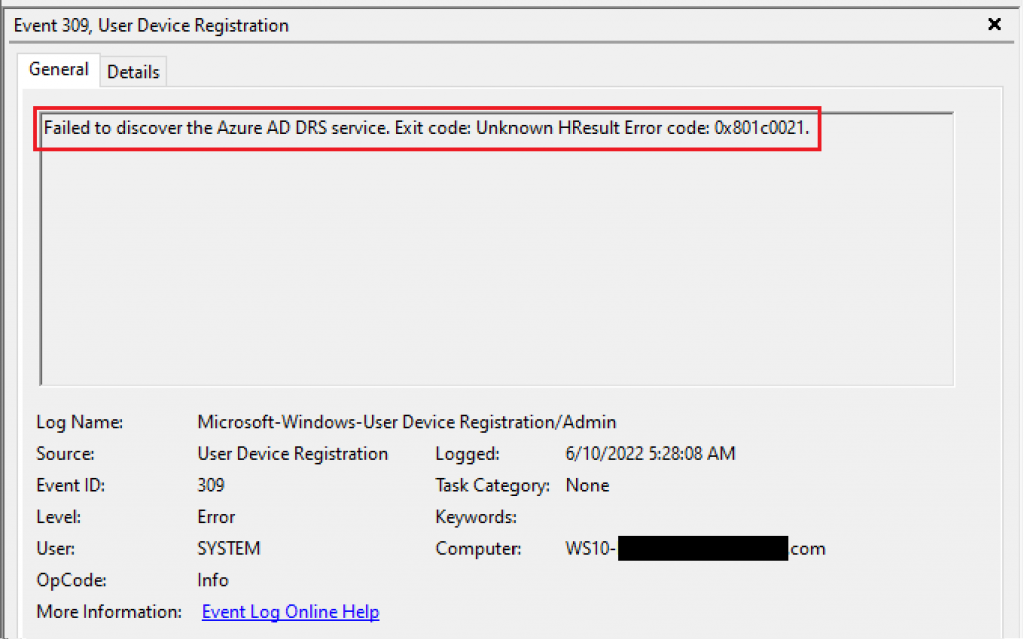
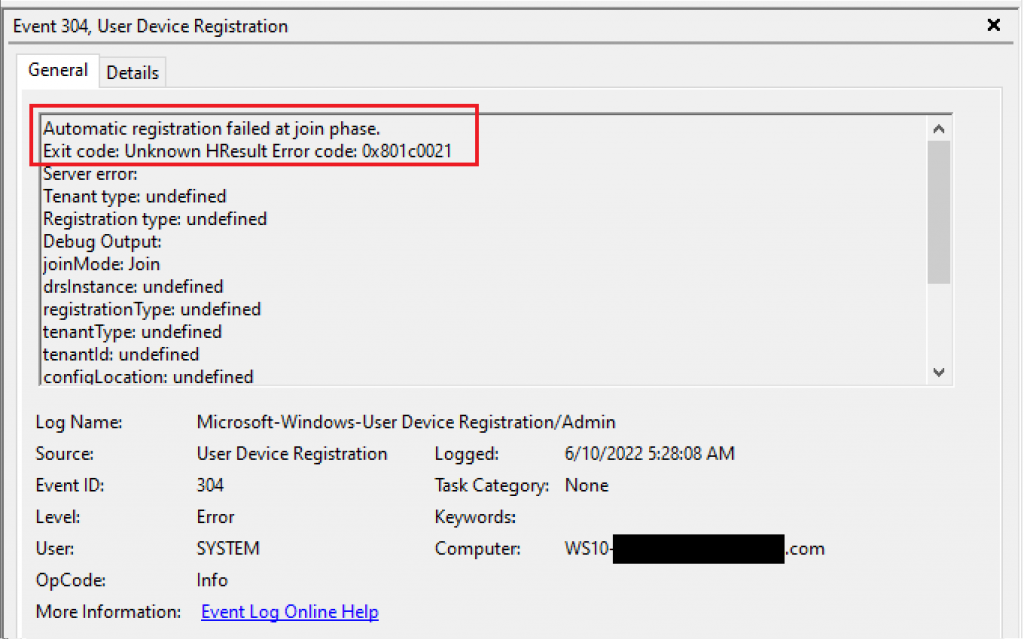
REASON: Due to network connectivity issues, the Automatic Device join task is not capable of authenticating the computer against Azure AD, failing on phase F explained in this Official Microsoft Article, that says:
The Automatic Device Join task triggers with each user sign-in or every hour, and tries to authenticate the computer to Azure AD using the corresponding private key of the public key in the userCertificate attribute. Azure AD authenticates the computer and issues an ID token to the computer.
FIX: The Automatic Device Join task run under the SYSTEM context and normal failure scenarios are related to proxy blocking the machine account from accessing the internet. If this is your case, best solution is to work with the network team to allow the device account to reach Azure AD without proxy authentication.
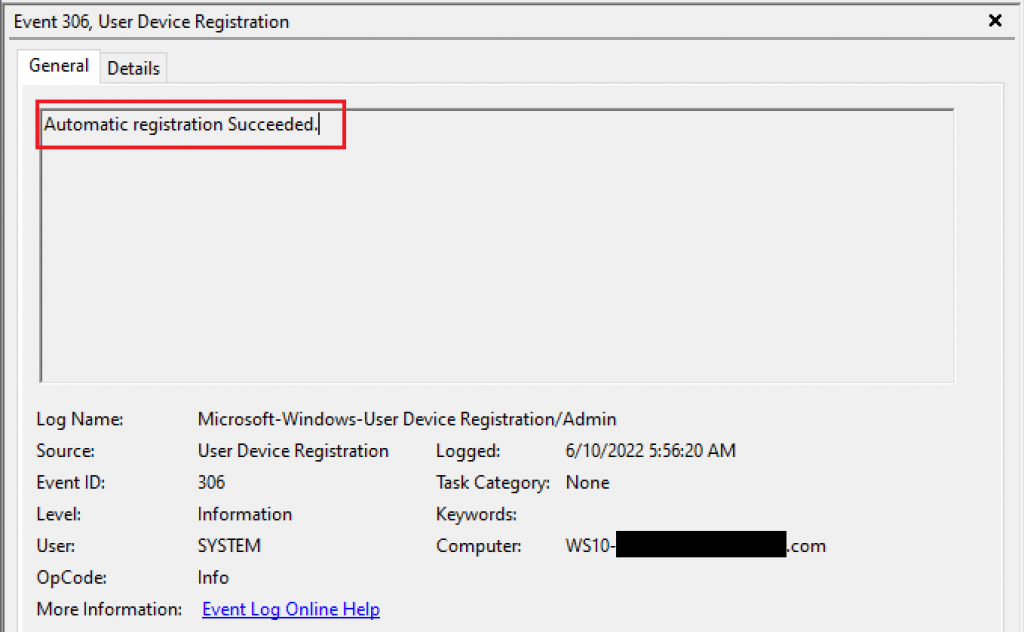
In my case, I’ve blocked the outbound communication from this machine to reproduce the failed network connectivity between the device and Azure AD. After removing the firewall rule, with a new sign-in to the machine, the Automatic Device Join task triggers again, and now we see a successful join:
Event Viewer Log: Microsoft-Windows-User Device Registration/Admin
Event IDs: 100 and 101

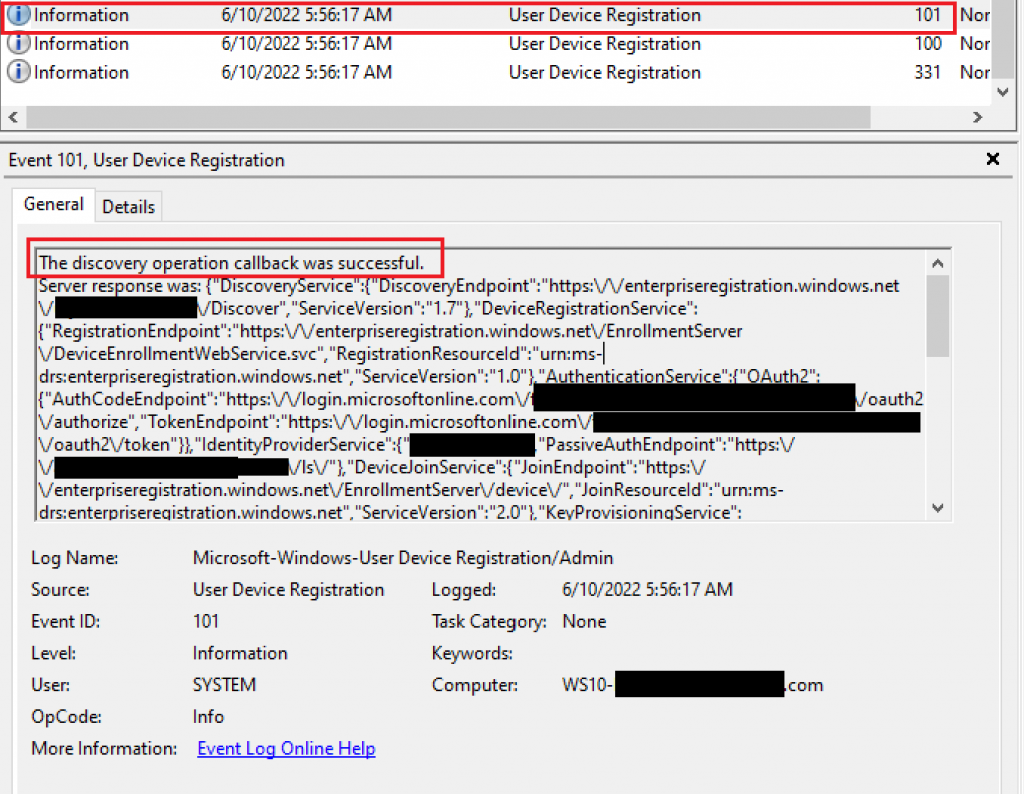
With the callback successful status, the discovery phase is working fine and the Automatic registration is succeeded.
And we confirm with the output of command dsregcmd /status, that the affected device has both Azure DomainJoined and AzureAdJoined set to YES.
+———————————————————————-+
| Device State |
+———————————————————————-+
         AzureAdJoined : YES
      EnterpriseJoined : NO
          DomainJoined : YES
            DomainName : CORP
           Device Name : WS10-Hybrid.corp.contoso.com
Summary
In this article, we covered how to investigate the error message ‘DsrCmdJoinHelper::Join: TenantInfo::Discover failed with error code 0x801c0021‘ when trying to turn a domain-joined device into Hybrid Azure AD Joined.
I hope you have enjoyed reading this article, and it helps you manage your Hybrid devices in Azure AD.
Enjoyed the article? Like and share. 🙂
Note: I do not represent the organization I work for, all the opinions expressed here, are my own. This post is provided AS IS with no warranties or guarantees and confers no rights.
In case you have any suggestions or feedback, please leave a comment.
[ ]’s
Ulysses Neves

I have this, but on testing connectivity, it works fine under system context – but i still get the above error and cannot hybrid join any machines.
We dont use a proxy either….
As per here: https://techcommunity.microsoft.com/t5/microsoft-intune/still-can-t-get-endpoints-azure-ad-hybrid-joined/m-p/3868061
Hi Kris, Thanks for bringing your comment here. The proxy blocking authentication under SYSTEM context is just one scenario that can block the device registration, but there are other scenarios like local configurations via GPO or missing requirements. Normally, the command dsregcmd /status gives you more information on what is preventing the Hybrid join to occur. If you are familiar with the Windows Event viewer, the events mentioned in my article can give you more details and help in the troubleshooting. I would recommend checking the requirements public doc https://learn.microsoft.com/en-us/azure/active-directory/devices/howto-hybrid-azure-ad-join#prerequisites, but if you still face the issue, best would be to open a ticket with Microsoft to get proper support.