
Hello, everyone. In today’s article, we’ll explain how to configure an access policy with custom controls using DUO.
Microsoft Entra Conditional Access has the ability to add custom controls. This gives customers the ability to integrate third-party services to control access to applications registered in Azure. You can use services from RSA, Duo Security, and Trusona.
We’ll explain step by step how to register and configure a third-party service to be used as a control method for access in Conditional Access policies. We’ll use the DUO service for this demonstration.
Creating an Account on the DUO Website
Let’s create an account on DUO by visiting the website through this link.
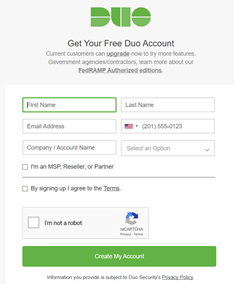
Click Free Trial.

Enter your information and click Create My Account.
Generating the JSON in DUO for Microsoft Entra Connect
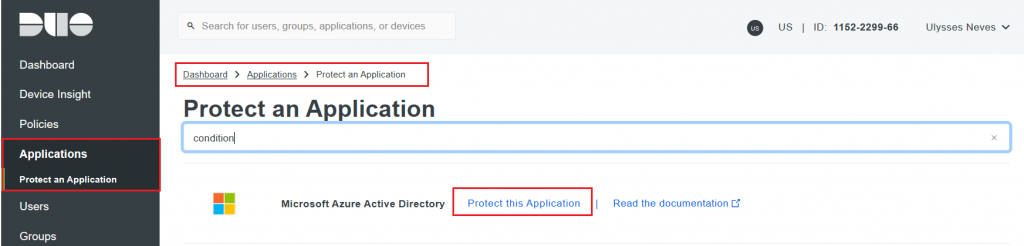
Select the Applications > Protect an Application option.
Let’s search for the Microsoft Azure Active Directory application and select the Protect this Application option.
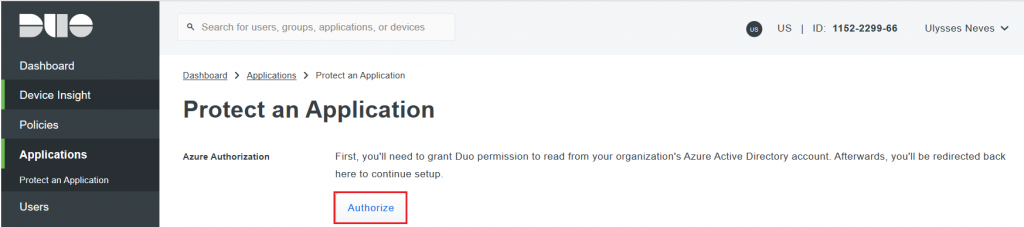
Click Authorize.
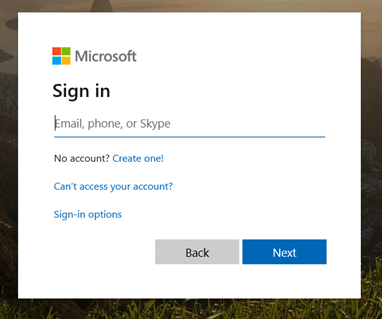
Enter your Azure credentials.
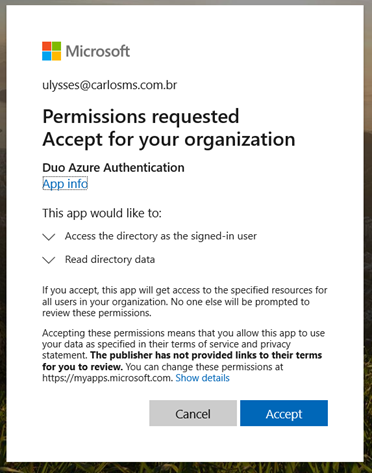
For DUO to generate the JSON, information needs to be collected from Microsoft Entra ID.
Click Accept.
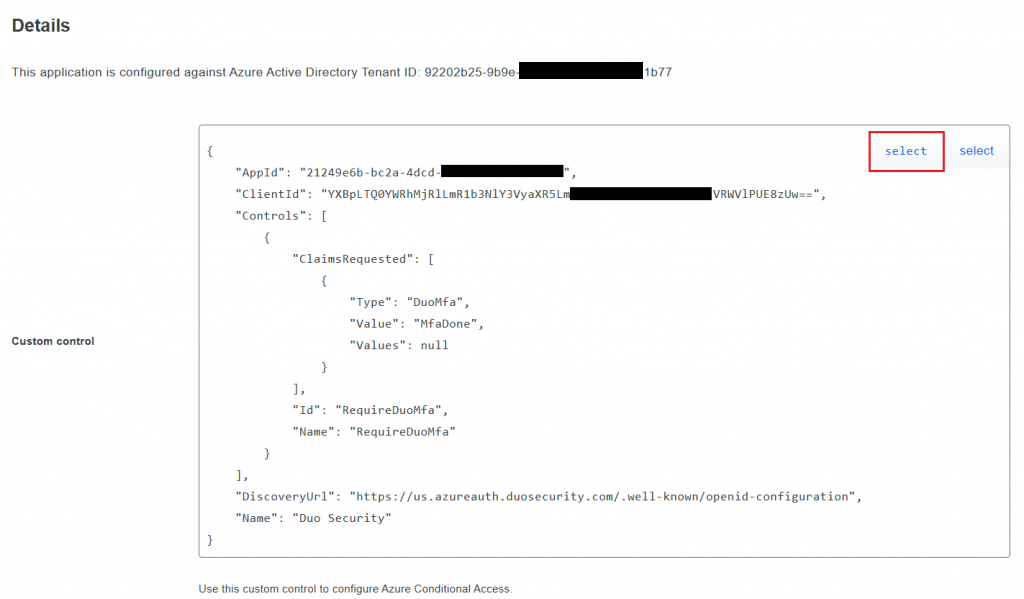
In the code below, click Select.
Configuring the Control in Microsoft Entra ID
Let’s configure the code generated by the DUO portal in Microsoft Entra ID to use DUO as an access control in Azure.
Access the Conditional Access policy menu using this link.
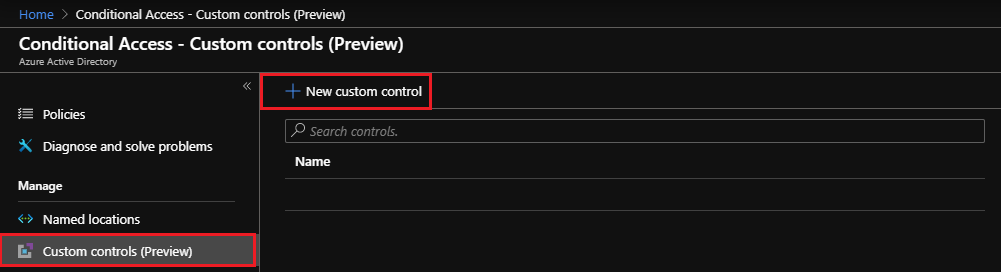
Select the Custom controls (Preview) menu and click New custom control.
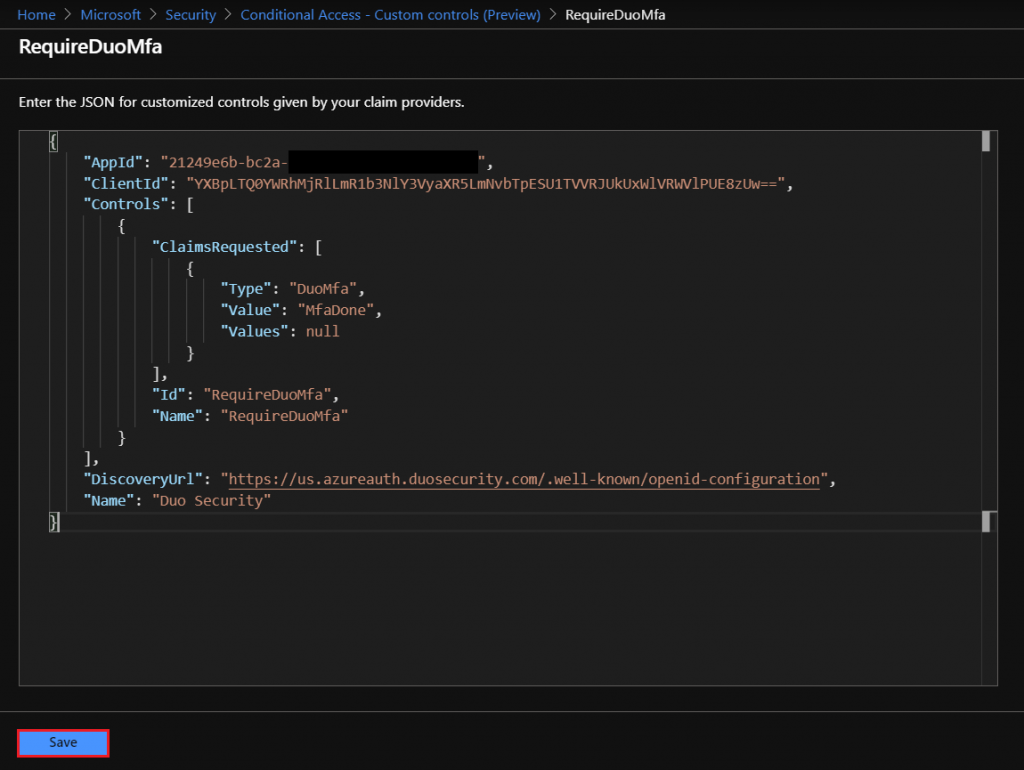
Paste the JSON code in the space below and click Save.
Creating the Conditional Access Policy
Now let’s create a Conditional Access policy to use the DUO control we just registered in Microsoft Entra ID.
Access the Conditional Access policies menu using this link.
Click New policy.
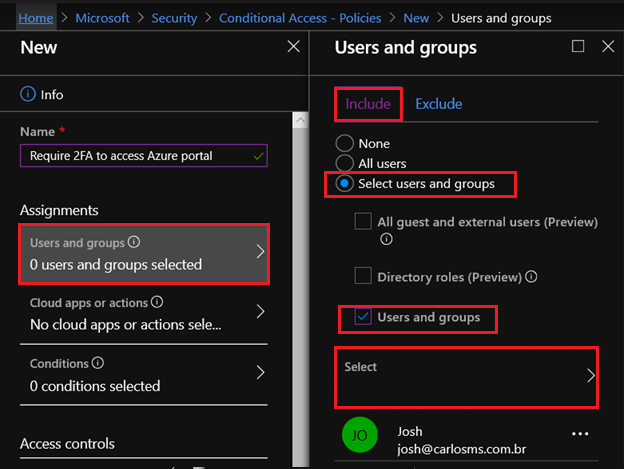
Enter the policy name in the Name field.
Select the audience to be affected by the policy by clicking Users and groups > Include > Select users and groups > Users and groups > Select > [Select the user or group you want to require the DUO control for].
Click Select and Done.
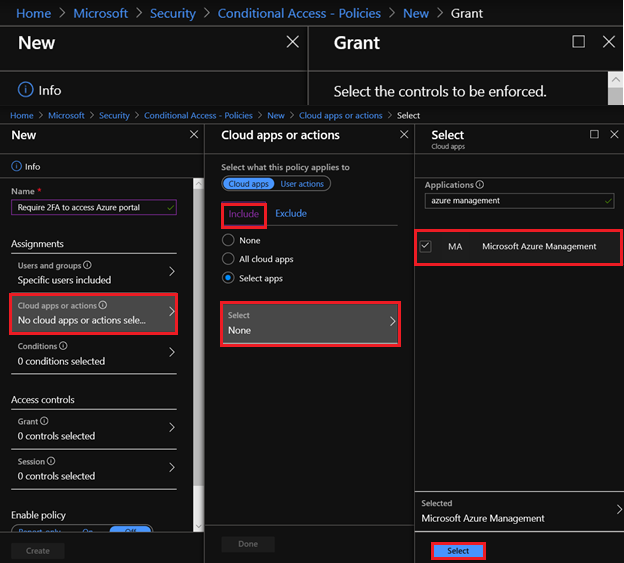
Select the applications to be affected by the policy by clicking Cloud apps or actions > Select apps > Select > Select the app.
Click Select and Done.
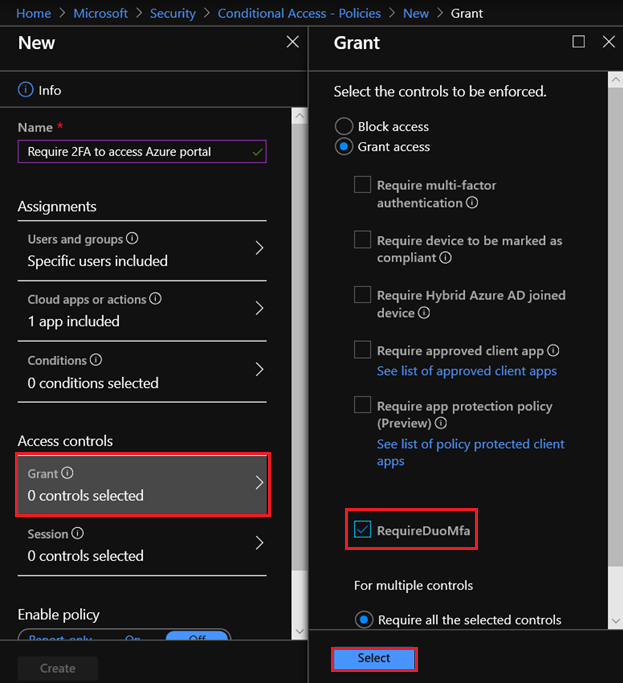
Now let’s select the control to be applied by the policy for access to the application selected in the previous step.
Select Grant access > Require DuoMfa.
Click Select.
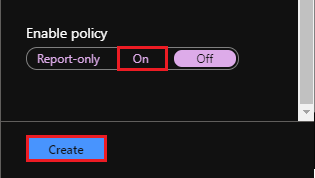
Enable the policy by clicking On and Create.
Testing the Policy Using the Duo App
Now let’s test the access of user John, whom we selected to use the DUO control when accessing the Azure portal.
Let’s access the Azure portal by typing https://portal.azure.com.
Enter your credentials.
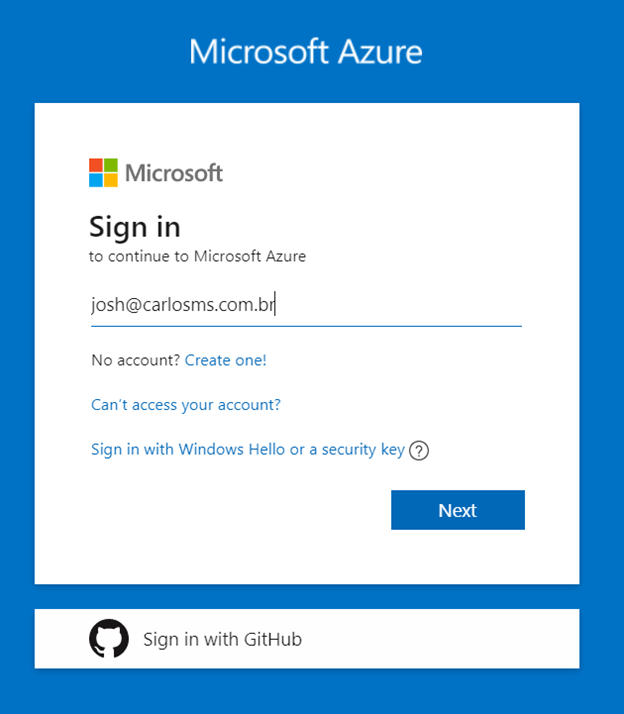
The Azure portal identifies that there is a policy for the user accessing the Azure portal and redirects to the DUO portal so the user can validate their credentials.
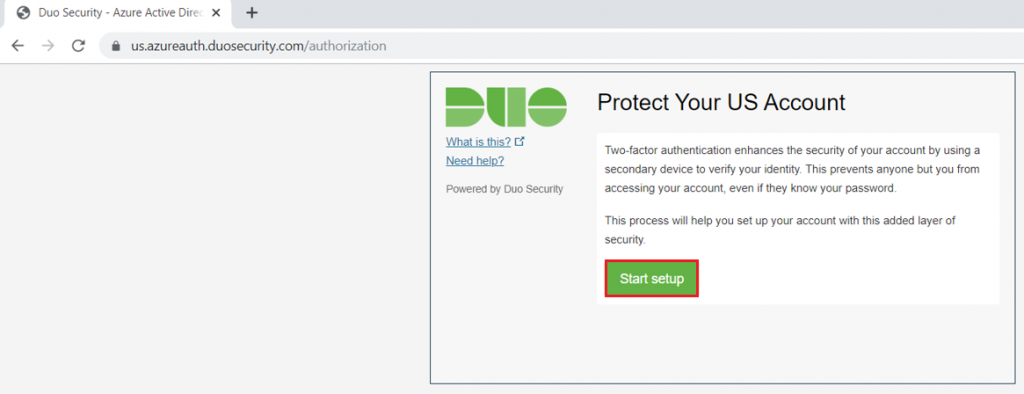
Since this is the first access to the DUO portal, the user Josh is prompted to register their device.
Click Start Setup.
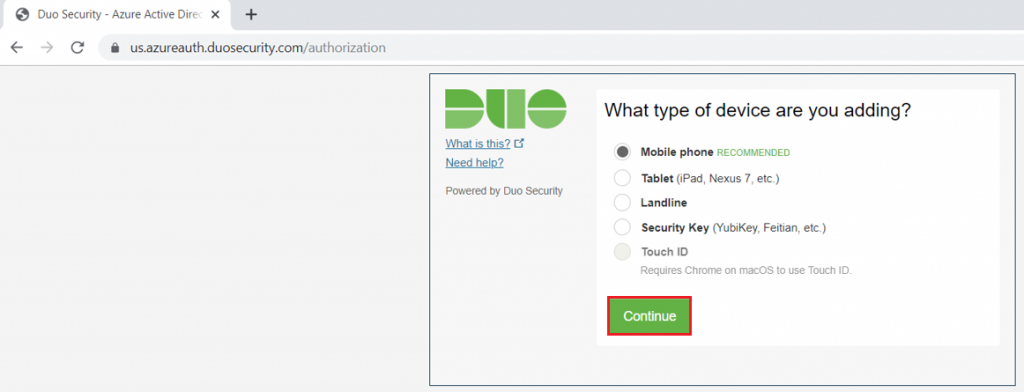
Select a device and click Continue.
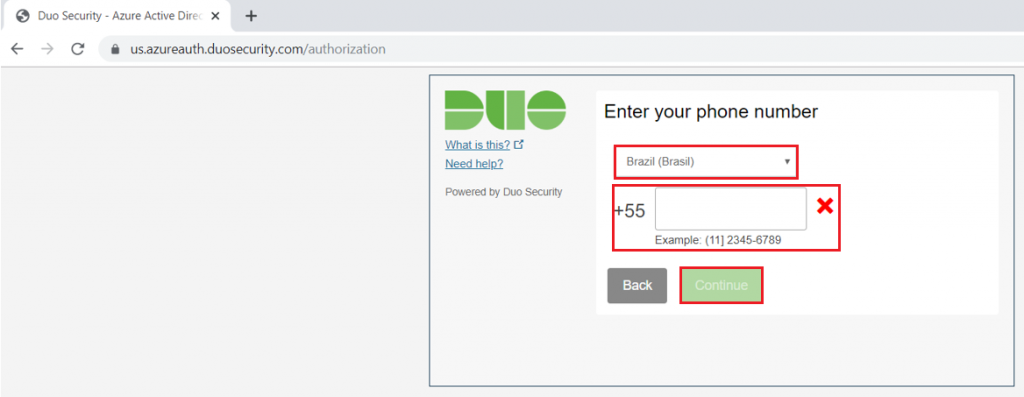
Register your contact information for this authentication and click Continue.
The DUO app is available for download for Apple and Android devices using this link.
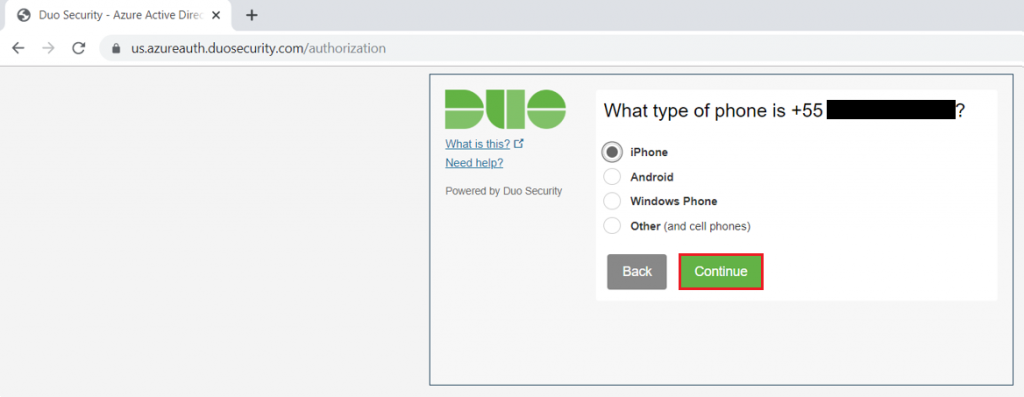
Select your device to use the DUO app and click Continue.
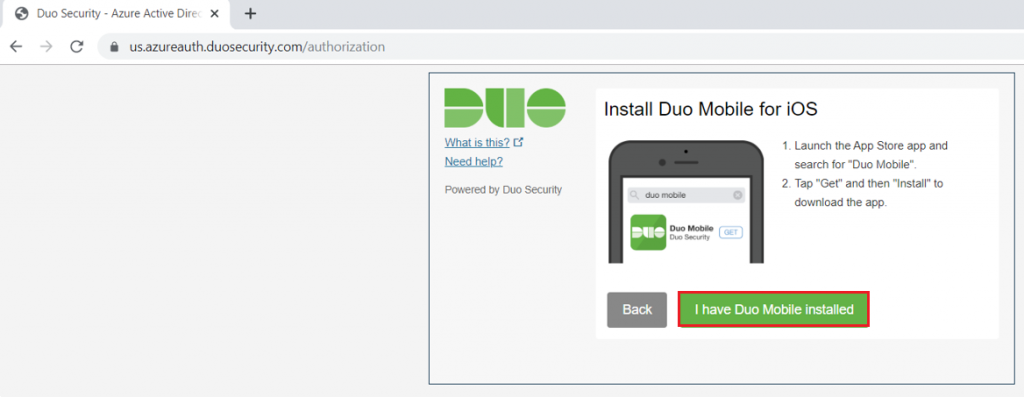
With the DUO mobile app installed on your device, click I have Duo Mobile installed.
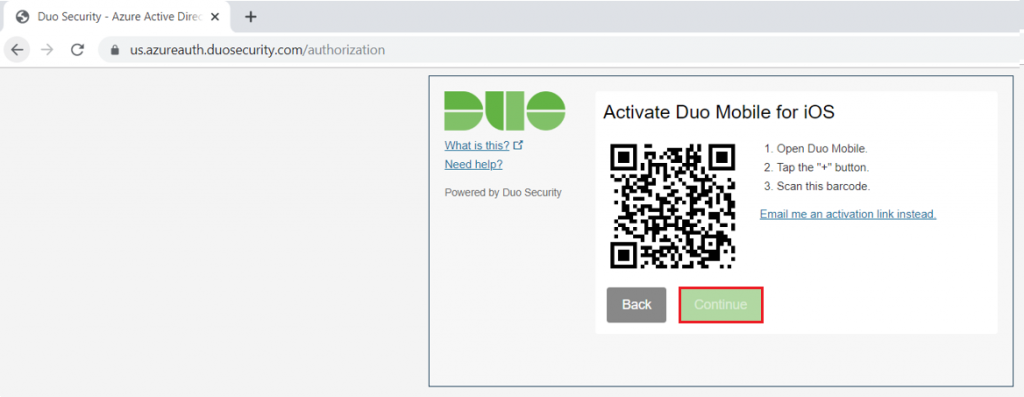
Open the DUO app on your mobile device and select the Add Account option.
Scan the code shown on the screen and click Continue.
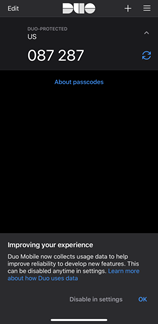
Once the code is registered, the app on your device will start generating dynamic codes.
Click Continue.
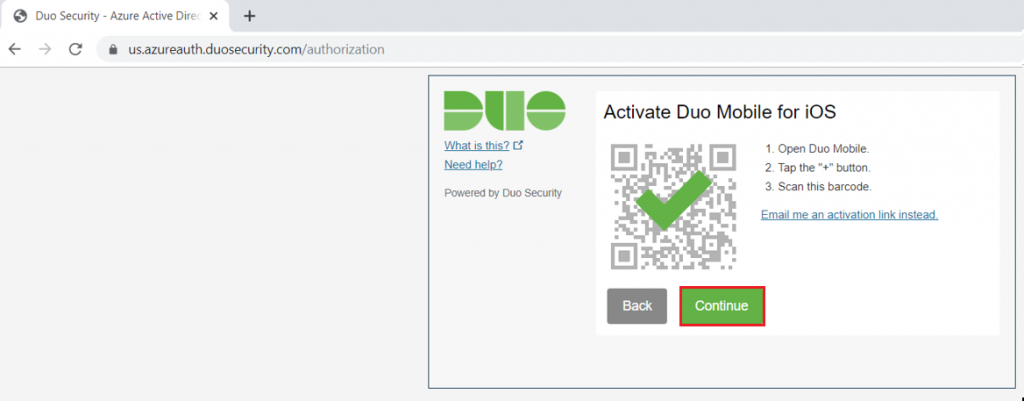
With the registration completed on the DUO portal, click Continue to Login.
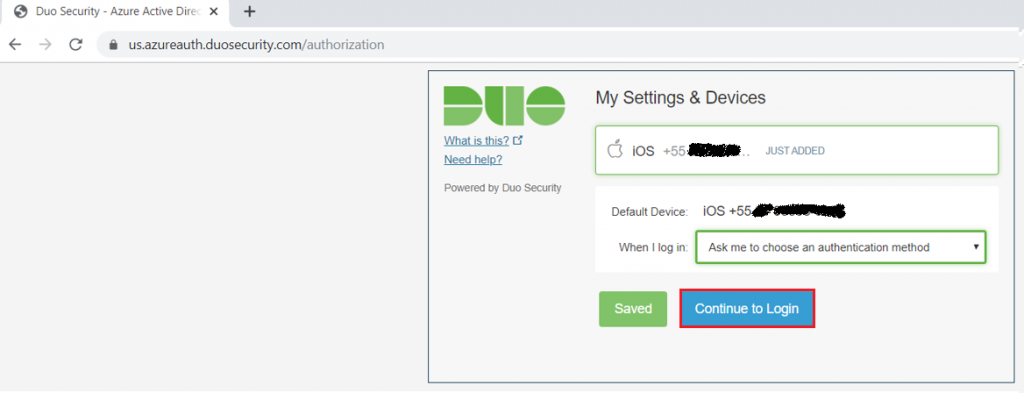
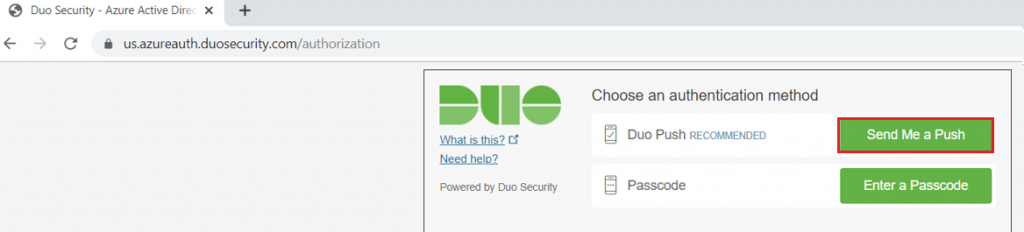
You can now select how DUO will perform the authentication. Let’s select the option to send a push to the mobile device.
Click Send Me a Push.
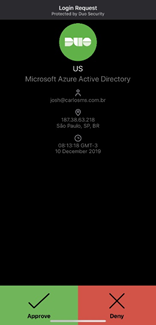
On your mobile device, click Approve.
With the DUO authentication completed, you’ll receive the message below indicating that the device registration was completed successfully.
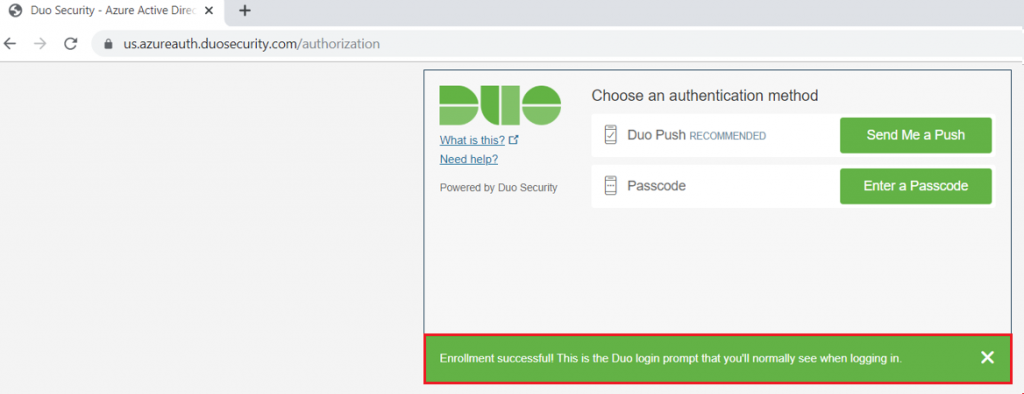
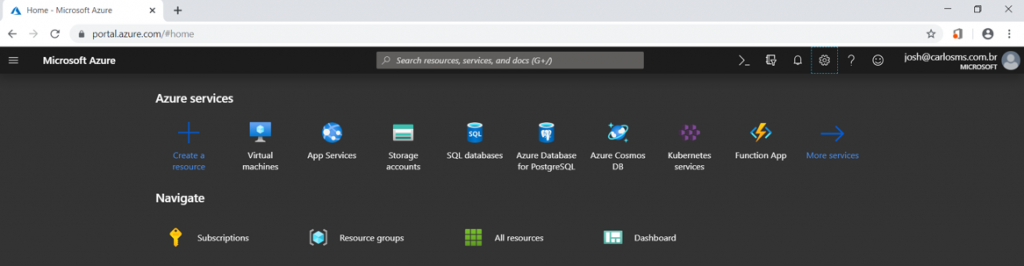
The DUO portal sends the access authorization back to the client and redirects it to the Azure portal.
Azure identifies that the policy rules have been satisfied and access to the application is authorized.
Summary
In today’s article, we showed how to configure a Conditional Access policy that requires two-factor authentication control using third-party services. In our demonstration, we created a Conditional Access policy using DUOMfa and tested that policy to show the user experience.
I hope this content has contributed to enriching your knowledge of Azure.
Did you like the post? Like and share it. 🙂
If you have any suggestions or comments, leave a comment.
[ ]’s
Ulysses Neves
