
Update notice — September 2026: This article preserves the 2020 connector-installation interface and screenshots as historical reference. The connector is now called the Microsoft Entra private network connector. Before a new deployment, follow the current Microsoft documentation and validate the requirements below.
Current prerequisites:
- Microsoft Entra ID P1 or P2 subscription.
- Application Administrator account.
- Windows Server 2016 or later.
- .NET Framework 4.7.2 or later.
- TLS 1.2 enabled on the connector server.
- For Application Proxy on Windows Server 2019 or later, disable HTTP/2 on the connector server as documented by Microsoft.
Connector naming source: Add an on-premises application for remote access through application proxy: “Application proxy uses the same connector as Microsoft Entra Private Access. The connector is called Microsoft Entra private network connector.”
Installation and prerequisite source: How to configure connectors: “The Microsoft Entra private network connector requires a server running Windows Server 2016 or later.” Microsoft also states: “The minimum .NET version required for the connector is v4.7.2+.” and “The Windows connector server must have TLS 1.2 enabled before you install the private network connector.”
Compatibility warning: Do not install Microsoft Entra application proxy and Microsoft Entra Password Protection Proxy on the same server. Microsoft states: “These different versions are incompatible when installed together.”
Hello everyone. In today’s article, I’ll show you how to install the Microsoft Entra private network connector on a Windows server and how to validate its registration in Microsoft Entra ID.
What is the Microsoft Entra private network connector?
The Application Proxy enables single sign-on (SSO) and external access to applications hosted in the company’s internal infrastructure. For this access to be available, you must publish the applications in Azure. The connectors make the external connection to the internal infrastructure possible and must have full access to the infrastructure where the applications are hosted.
Throughout this article, we will perform the following activities:
- Enable the Application Proxy service in Azure.
- Download the connector installation file.
- Install the connector.
- Validate the connector installation status on the server and the Application Proxy certificate.
- Validate the connector status in the Azure portal.
Enabling the Application Proxy service in Azure
Assuming the server meets all the requirements for connector installation, the first step is to enable the service in the Azure portal. Let’s access the service menu using this link. If you have not yet validated the requirements for installing the connector, access this link.
Click Enable application proxy.

Confirm by clicking Yes.
Downloading the connector installation file
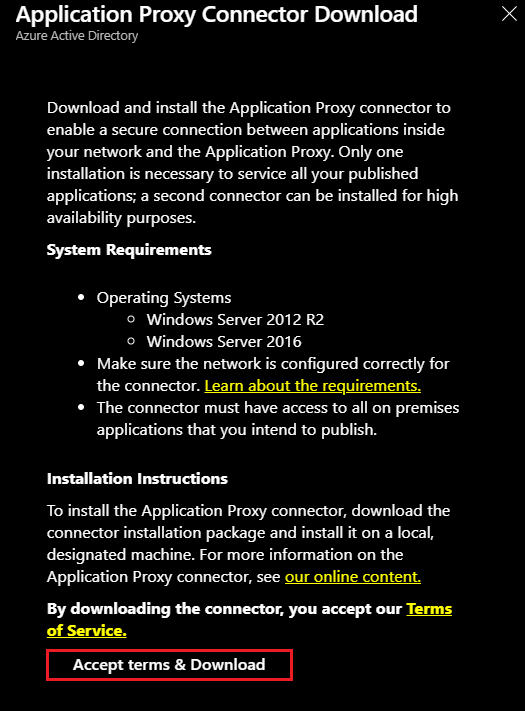
With the service enabled, click Download connector service.

Accept the terms of use by clicking Accept terms & Download.
Installing the connector
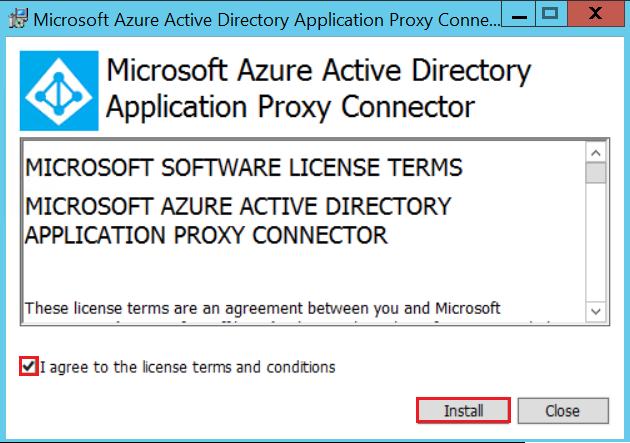
With the file downloaded, install the connector by running the AADApplicationProxyConnectorInstaller.exe file.

Accept the application’s terms of use and click Install.
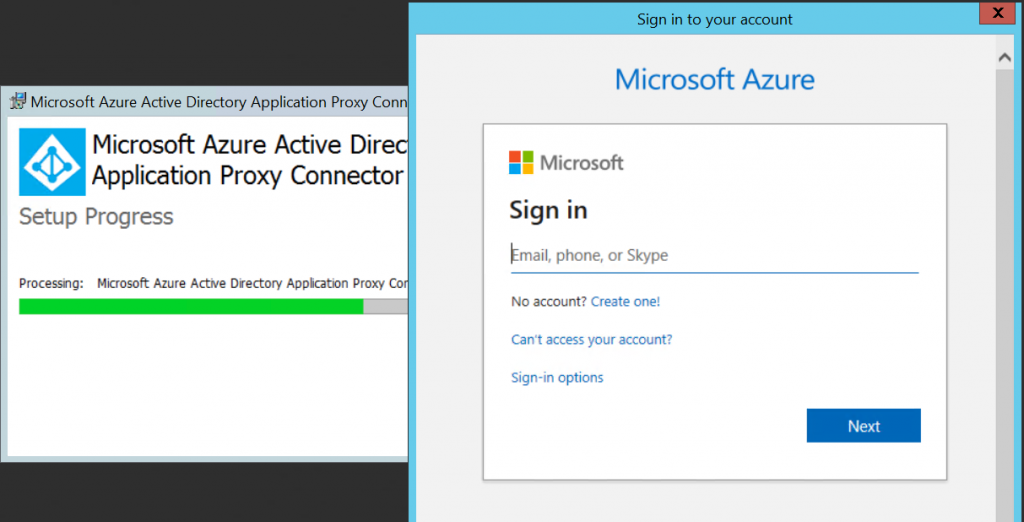
Sign in with a Microsoft Entra ID credential that has application administrator privileges in Azure.
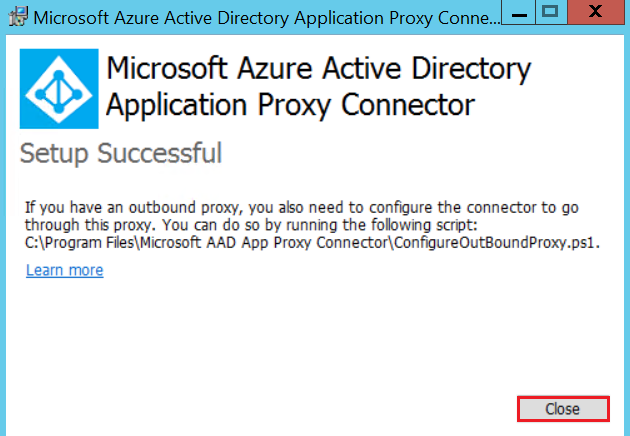
To finish the installation, click Close. If you have a proxy in your infrastructure, follow the service configuration steps using this link.
Validating the connector status on the server
With the installation complete, we can verify that the connector is working on the server through the Microsoft AAD Application Proxy Connector service.

In the Windows Server events, you can also validate the connector installation and registration in Azure through the path: Applications and Service Logs > Microsoft > AadApplicationProxy > Connector > Admin.
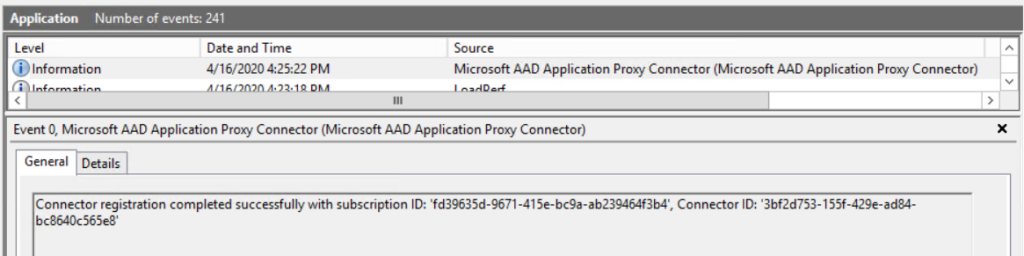

Let’s validate the certificate used for connector authentication by accessing the certificates installed on the server. We will find the certificate generated during installation by the CA “connectorregistrationca.msappproxy.net” in the Certificates – Local Computer\Personal\Certificates folder.

Validating the connector status in Azure
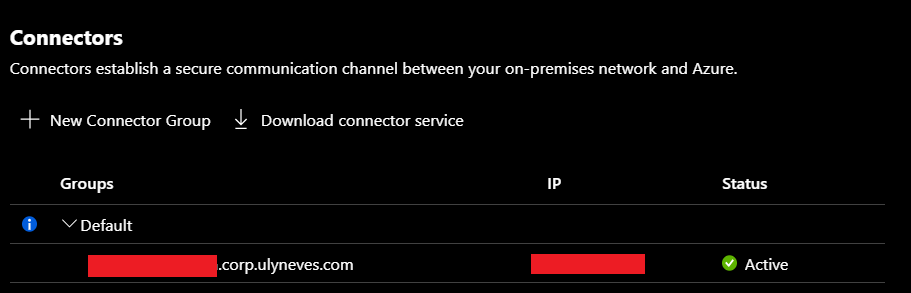
Let’s confirm the health of the connector in Azure by accessing the Application Proxy menu in the Azure portal or by clicking this link.
Below, we can see the connector with the Active status.
Summary
In today’s article, we explained what the Application Proxy connector is and what it is used for. We explained step by step how to install the connector on a server and validate the certificate used for connector authentication and communication with the Application Proxy service in Azure.
I hope this content has helped broaden your knowledge of Microsoft Entra ID.
Did you enjoy the post? Like and share. 🙂
If you have any suggestions or observations, leave a comment.
Best regards,
Ulysses Neves
