Hi mates. Today we’re going to explain how to add a new federation server to an existing AD FS farm using PowerShell. These steps can be useful in case you want to automate your AD FS farm deployment.
Importing the SSL certificate WITH the private key
Before installing and configuring the AD FS role, we need to import the SSL certificate WITH the private key. Once you have the certificate, follow steps below:
Run command below to save the password used to protect the certificate into a variable:
$mypwd = Get-Credential -UserName 'Enter password below' -Message 'Enter password below'
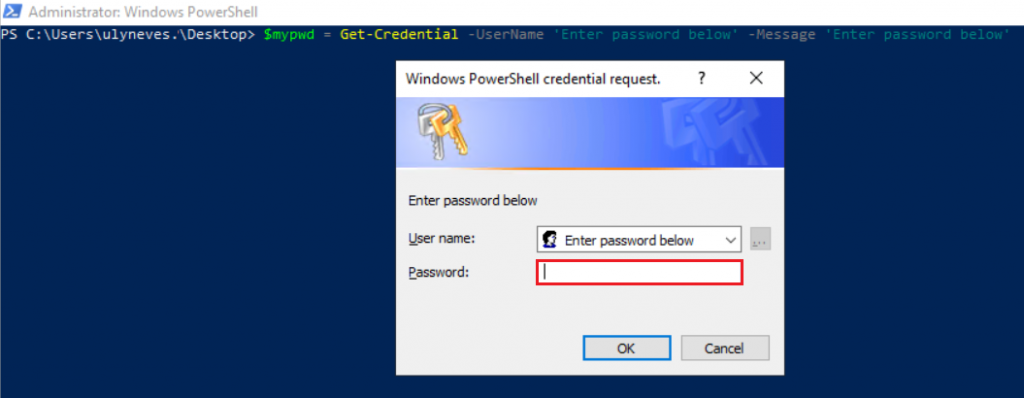
Enter the certificate’s password.
Execute the command below to import the certificate in the new server:
Import-PfxCertificate -FilePath C:\temp\cert.pfx -CertStoreLocation Cert:\LocalMachine\My -Password $mypwd.Password

Validating certificate in the store cert:\LocalMachine\My
Make sure SSL certificate was successfully imported into the server running the command below:
Get-ChildItem -Path cert:\LocalMachine\My | FL FriendlyName, Thumbprint, Subject, NotBefore, NotAfter

Install AD FS role
Run command below on the new server:
Install-windowsfeature adfs-federation –IncludeManagementTools

Run following command in the primary AD FS server to identify the service account used by the AD FS service:
Get-ItemProperty -Path HKLM:\SYSTEM\CURRENTCONTROLSET\SERVICES\ADFSSRV | Select ObjectName

AD FS with WID database: Run command below updating the parameters marked in bold according to your infrastructure:
$fscredential = domain\adfs-service-account
Add-AdfsFarmNode -OverwriteConfiguration -PrimaryComputerName "primary-adfs-fqdn" -GroupServiceAccountIdentifier $fscredential -CertificateThumbprint "CERTTHUMBPRINT"


AD FS with SQL database: Run command below updating the parameters marked in bold according to your infrastructure:
$fscredential = domain\adfs-service-account
Add-AdfsFarmNode -ServiceAccountCredential $fscredential -SQLConnectionString "Data Source=SQLHost;Integrated Security=True"
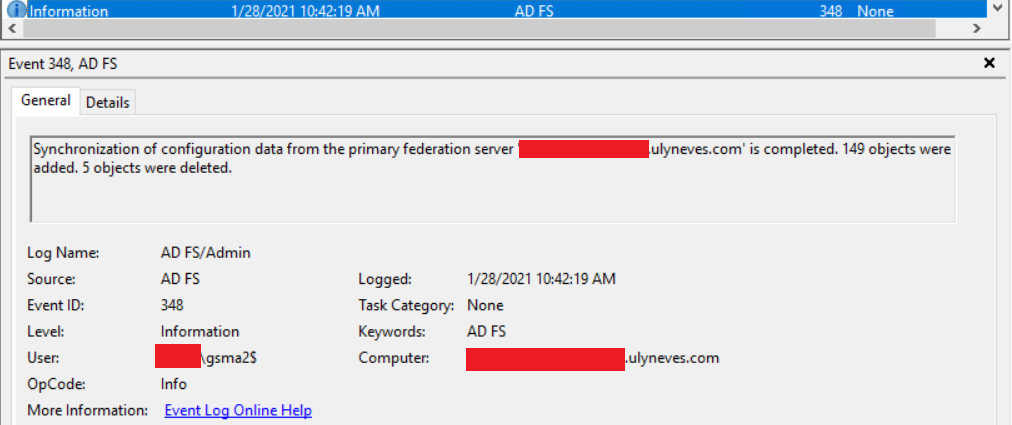
With the successful result, look for event 348 in the event viewer of the new AD FS server:
Validating Sync process through PowerShell
Note: If you run AD FS with SQL database, ignore this step.
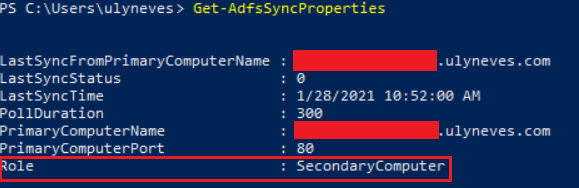
Run command below to see the sync status between the secondary and primary AD FS servers:
Get-AdfsSyncProperties
Summary
In this article, we covered how to add a new federation server to an existing AD FS farm using PowerShell.
I hope you have enjoyed reading this article, and it helps you to manage your AD FS environment.
Enjoyed the article? Like and share. 🙂
In case you have any suggestion or feedback, please leave a comment.
[ ]’s
Ulysses Neves

Thank you for the feedback! I am happy that it helped you!
Hi Ulysses. Got through your article and I was wondering why you would use the parameter when adding a new node to an existing ADFS farm? Wouldn’t that remove all the existing config from the database (relying parties, etc)?
Hi John, thanks for the comment. In fact, no. When using WID database, the command Add-AdfsFarmNode will create a new local database in the new server copying all databases from the primary node. More information on this commando, please check this link: https://docs.microsoft.com/en-us/powershell/module/adfs/add-adfsfarmnode?view=windowsserver2022-ps
Hey Ulysses,
thanks for your article! A question remains, though: is it correct that when using an external SQL database instead of WID per node each of the members is listed as “Primary”?
PS C:\> Get-AdfsSyncProperties
Role
—-
PrimaryComputer
I have two existing WS 2012 nodes, both already say they’re “Primary”, added a 2019 third server, which points to the same SQL database to extend the current setup, but it also states it’s “Primary”. And for the life of it I don’t know how to easily make out which servers are already part of a setup (= ADFS Member Servers). 😐
Do you have an idea? Thanks!
Hello Toabias,
Thank you for raising the question and for the feedback. In WID scenarios, the primary/secondary architecture is required, since the database is hosted locally and replicated to secondary nodes. When the AD FS databases are hosted on SQL servers/clusters, there is no such limitation. As per public doc, You do not need to set the primary AD FS server using Set-AdfsSyncProperties -Role when using SQL as the database. This is because all of the nodes are considered primary in this configuration. Reference: https://learn.microsoft.com/en-us/windows-server/identity/ad-fs/deployment/upgrading-to-ad-fs-in-windows-server-sql#remove-the-windows-server-2012-r2-ad-fs-server
In regard to your statement ‘ I don’t know how to easily make out which servers are already part of a setup (= ADFS Member Servers).’, if you have both AD FS running on 2012 R2 and 2019, you have a Mixed-mode AD FS farm. it’s considered to be temporary and has some limitations in terms of features. On AD FS running on 2016 and above, the command ‘Get-AdfsFarmInformation | select FarmNodes’ gives you the list of AD FS servers reporting in the farm, but this command is not available on 2012 R2 versions. In such cases, if you want to identify the AD FS servers connected to the SQL server, I would suggest checking in the SQL servers the incoming connections to the AD FS databases.
I hope the information above clarified your concern. 🙂