
Hi all. Today we are going to cover the error message ‘The user certificate is not found on the device with id: device’s ID’ on Event viewer and the device is with status ‘Pending’ on Azure AD.
Scenario:
Join type: Azure AD Hybrid Join
Client: Windows 10
Issue: The Windows 10 client is joined to a local domain and is replicated to Azure AD, but the device is not able to finish the join process.
On Azure AD, we see the device status as “Pending” as below:

Investigating the logs in the client machine
Once we have the Hybrid Join policy in place, we might be able to check the Automatic-Device-Join task in the Task Scheduler with Last Run Result as (0x1) which is ‘Not successful’:

Checking event viewer logs on the client machine on Microsoft-Windows-User Device Registration/Admin, we see events 204 and 304 below:

Result on event ID 204:
The get join response operation callback failed with exit code: Unknown HResult Error code: 0x801c005a.
Activity Id: XXXXXXXXXXXXXXXXXXXXXXXXXXXX
The server returned HTTP status: 400
Server response was: {“code”:”invalid_request”,”subcode”:”error_computer_user_cert_not_found”,”message”:”The user certificate is not found on the device with id: XXXXXXXXXXXXXXXXXXXXXXXXXXXX.”,”operation”:”DeviceRenew”,”requestid”:”d650c573-b84c-4256-8751-e43102420c26″,”time”:”07-23-2021 16:35:13Z”}
Result on event ID 304:
Automatic registration failed at join phase.
Exit code: Unknown HResult Error code: 0x801c005a
Server error: The user certificate is not found on the device with id: XXXXXXXXXXXXXXXXXXXXXXXXXXXX.
Tenant type: Federated
Registration type: fallback_sync
Debug Output:
joinMode: Join
drsInstance: azure
registrationType: fallback_sync
tenantType: Federated
tenantId: XXXXXXXXXXXXXXXXXXXXXXXXXXXX.
configLocation: undefined
errorPhase: join
adalCorrelationId: undefined
adalLog:
undefined
adalResponseCode: 0x0
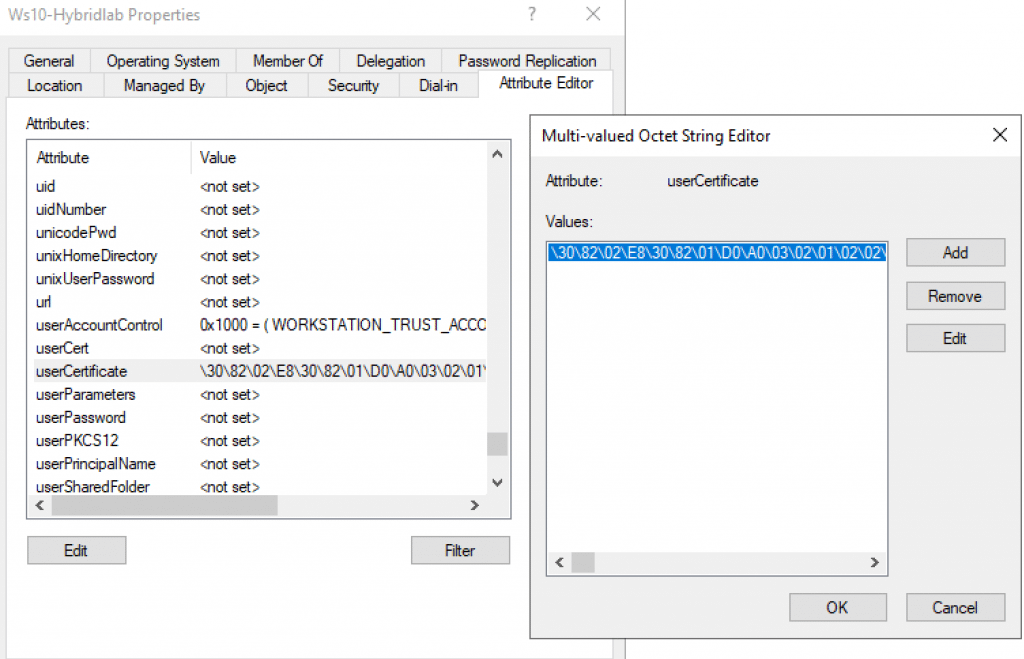
Explanation: Once the device has the policy to Hybrid Join and the machine has connectivity to the internet, the task Automatic-Device-Join task will generate a temporary self-signed certificate and save it on the machine’s account, specifically on attribute UserCertificate.
In case task is not able to save the certificate’s information on the attribute UserCertificate or it was modified before the machine finished the join process, you might face the issue above.
Fixing the issue on the client
Running the command below on the client machine, we are able to locate it in the local AD.
([adsisearcher]”(&(name=$env:computername)(objectClass=computer))”).findall().path
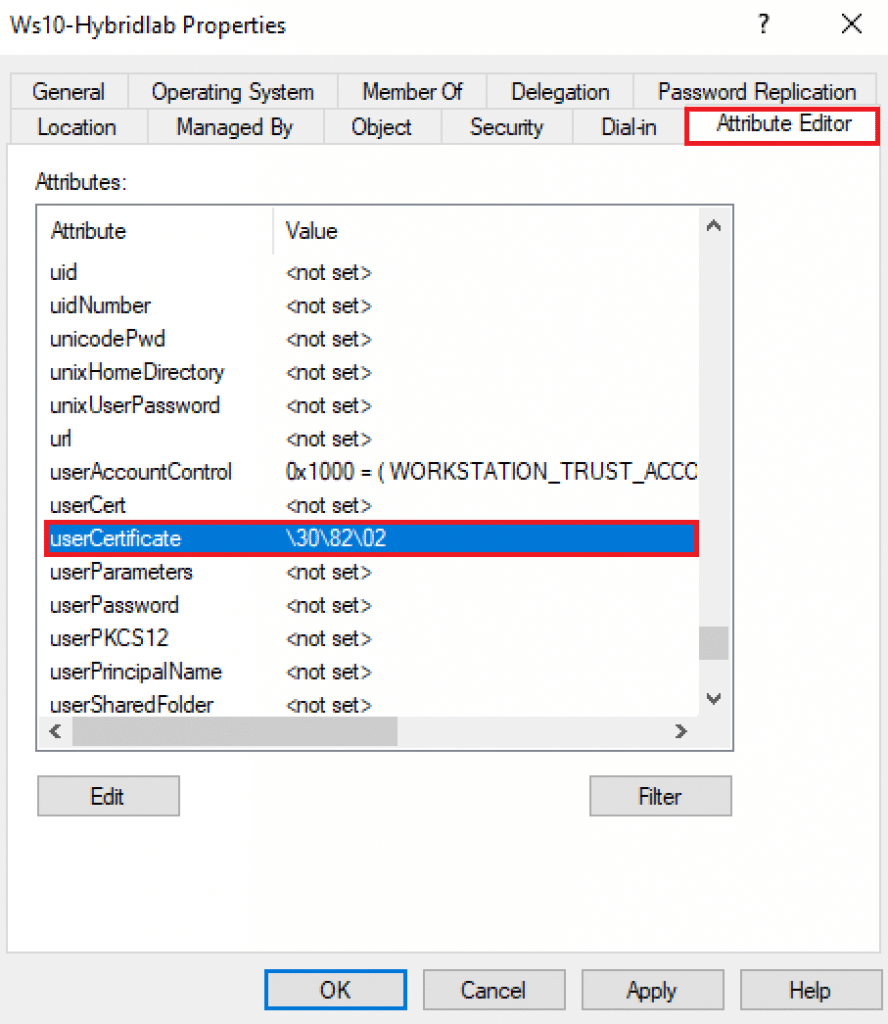
After locating the machine in the Active Directory, we might be able to locate the UserCertificate attribute in the Attribute Editor’s tab. As we can see below, I broke with the certificate to reproduce the issue. That could be changed by any third-party tool or an administrator.
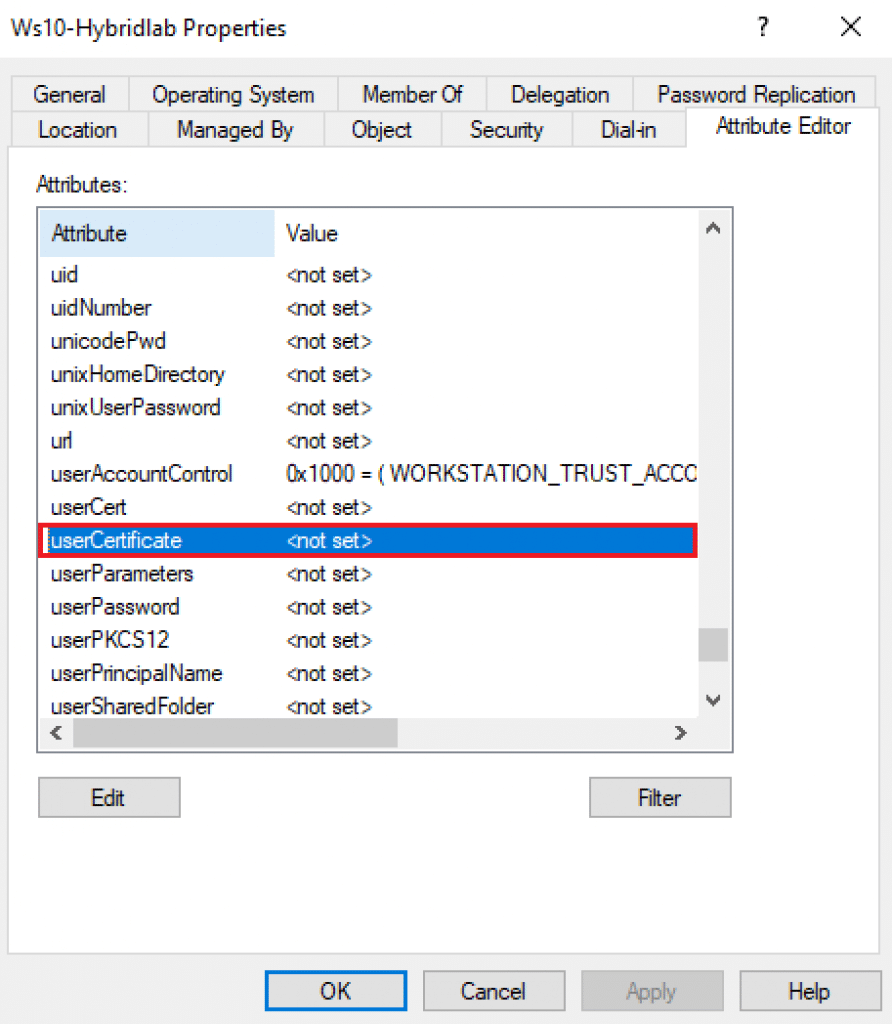
To fix the issue, I’ve deleted the corrupted certificate’s information inside the attribute UserCertificate.
Now, to force the client machine generates a new temporary certificate, let’s run the task Automatic-Device-Join manually. We can trigger the same task by signing in to the Windows 10 machine.
Delete the pending device in Azure AD
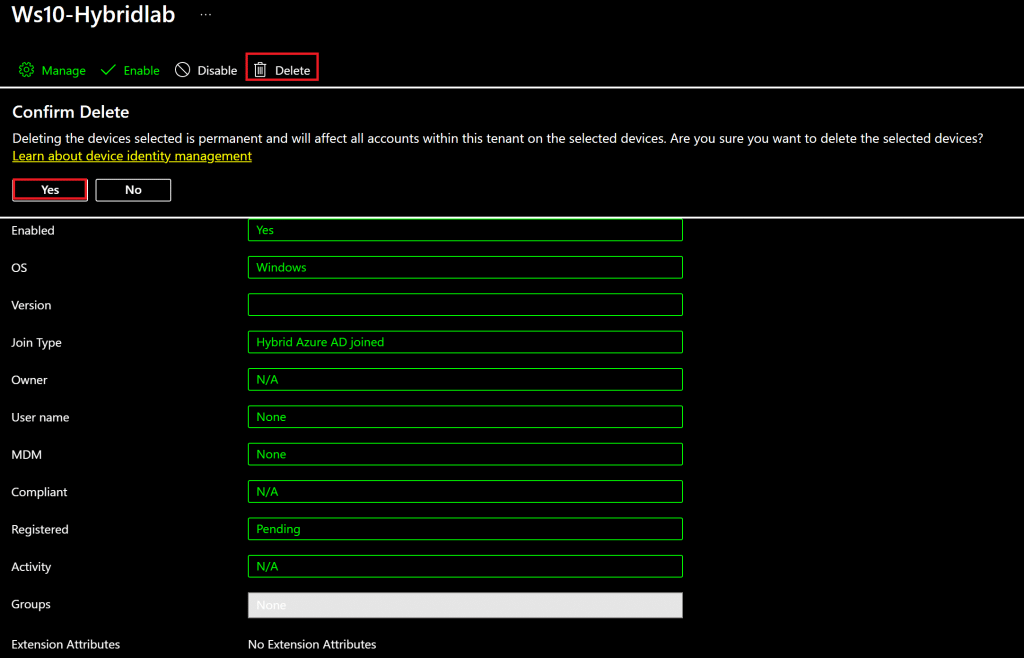
To force AD Connect to sync the new temporary certificate to Azure AD, we need to remove the current device by deleting it.
Select the device with the status ‘pending’ on Azure AD and select Delete.
SYNC the certificate to Azure AD
With the new certificate populated and the old device removed from Azure AD, let’s force a FULL SYNC on AD Connect to SYNC the same device with a new certificate to Azure running the command below:
Start-ADSyncSyncCycle -PolicyType Initial

Joining the device
Now that we have the device with the temporary certificate in Azure AD, let’s force the join running the command below on Command prompt as administrator:
dsregcmd /debug /join
Note: The Automatic join process can also run, signing in to the client device or running manually the task Automatic-Device-Join.
Now, checking the task scheduler, we are able to see a return code ‘0’, which means ‘Successful join’:
Task Scheduler successfully completed task “\Microsoft\Windows\Workplace Join\Automatic-Device-Join” , instance “{8e426519-b5a0-4f55-8194-efb953384d8c}” , action “%SystemRoot%\System32\dsregcmd.exe” with return code 0.

On Event viewer, we confirm on Microsoft-Windows-User Device Registration/Admin, event 306 status Automatic registration succeeded.
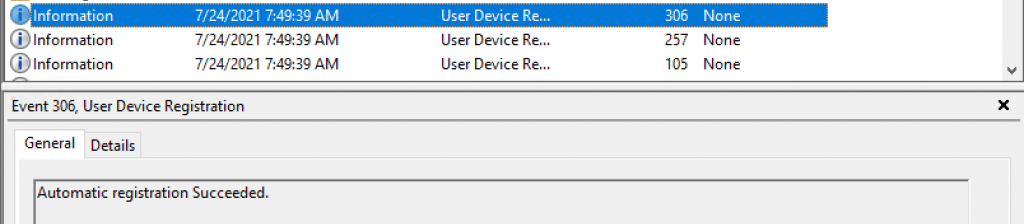
On Command prompt, we can also confirm the successful Hybrid Join running the command: dsregcmd /status

We can also confirm the device status updated on Azure from the previous ‘Pending’ to the date the device was registered as below:

Summary
In this article, we covered the error message ‘The user certificate is not found on the device with id: device’s ID’ on Event viewer, and the device is with status ‘Pending’ on Azure AD.
I hope you have enjoyed reading this article, and it helps you to manage your Hybrid Join deployment.
Enjoyed the article? Like and share. 🙂
Note: I do not represent the organization I work for, all the opinions expressed here, are my own. This post is provided AS IS with no warranties or guarantees and confers no rights.
In case you have any suggestions or feedback, please leave a comment.
[ ]’s
Ulysses Neves

Hi thanks for the article, how long does it take to create a new user certificate, I tried this but even 10 minutes after running Automatic device registration, I still have not set in the user certificate attribute.
Looking forward for any recommendations
Hey Patrick. Thanks for your query. By default, the task for Hybrid Join runs every hour and creates the certificate in the user’s personal store. Please check more information on this official link: https://docs.microsoft.com/en-us/azure/active-directory/devices/device-registration-how-it-works#hybrid-azure-ad-joined-in-managed-environments
I like the valuable info you provide in your articles. I will bookmark your weblog and check again here regularly. I am quite certain I will learn plenty of new stuff right here! Good luck for the next!
Thanks for the feedback provided. Happy to help! Keep in touch! 🙂
WOW. Been looking for a quick solution and here it was. Thanks. Deleted the UserCertificate attribute, duplicate AAD object, went on with other work and later checked (2hrs later) and boom, there it was Hybrid Joined, Registered and Intune device manageable.
THANKS
Hey Marius. Thank you for the feedback. Always a pleasure to help. 🙂
Thanks for this wonderful article. Would you happen to have another article about troubleshooting a hybrid-join AD workstation that will not register in Intune properly? workstation looks good in AzureAD device list but when I register it for Intune MDM it puts another entry with a completely different GUID in Intune and Azure AD.
Hello James. Thank you for the feedback. Indeed, your topic is a good suggestion. I will consider when planning new articles.