Hi everyone. Today we’re going to cover the error message ‘No client certificate associated with the request was found.’ during Web Application Proxy trust configuration.
Identifying the error:
In case you try to setup the WAP trust using PowerShell Command ‘Install-WebApplicationProxy’, you might get error message below:
Install-WebApplicationProxy : Unable to retrieve proxy configuration data from the Federation Server.
At line:1 char:1
- Install-WebApplicationProxy -FederationServiceName “fs.contoso …
~~~~~~~~~~~~~~~~~- CategoryInfo : NotSpecified: (:) [Install-WebApplicationProxy], ConfigurationErrorsException
- FullyQualifiedErrorId : DeploymentTask,Microsoft.IdentityServer.Management.Proxy.Commands.InstallProxyCommand
Checking AD FS Tracing events on the WAP server, we find error below when AD FS Tracing is enabled. If you don’t know how to enable AD FS Debug tracing, please check this official Microsoft guide:
Request for configuration failed with status:ProtocolError
Message: The remote server returned an error: (401) Unauthorized.
Exception:System.Net.WebException: The remote server returned an error: (401) Unauthorized.
at System.Net.HttpWebRequest.GetResponse()
at Microsoft.IdentityServer.Management.Proxy.StsConfigurationProvider.GetStsProxyConfiguration(X509Certificate2 trustCert)
Checking Admin logs on the AD FS server, we see events below:
The federation server proxy was not able to authenticate to the Federation Service.
User Action
Ensure that the proxy is trusted by the Federation Service. To do this, log on to the proxy computer with the hostname that is identified in the certificate subject name and re-establish trust between the proxy and the Federation Service using the Install-WebApplicationProxy cmdlet.
Additional Data
Certificate details: Null
Thumbprint: Null
NotAfter Time: Null
Client endpoint: WAP server’s IP
With AD FS Tracing logs enabled on the AD FS server, we can capture event ID 107 with errors below:
TlsRequestVerificationMethod: Incoming request didnt contain a cert.
Error retrieving proxy configuration.
Microsoft.IdentityServer.WebHost.Proxy.ProxyTrustException: No client certificate associated with the request was found.
at Microsoft.IdentityServer.Web.Proxy.TlsRequestVerificationMethod.VerifyTrustedRequest(WrappedHttpListenerContext context, String& auditInformation)
at Microsoft.IdentityServer.Web.Rest.RestRequestHandler.OnGetContext(WrappedHttpListenerContext context)
ProxyRequestHandler.DefaultExceptionHandler: ProxyTrust could not be verified for certificate with subject name ” and thumbprint ”.
Exception details:
Exception: No client certificate associated with the request was found.
StackTrace: at Microsoft.IdentityServer.Web.Proxy.TlsRequestVerificationMethod.VerifyTrustedRequest(WrappedHttpListenerContext context, String& auditInformation)
at Microsoft.IdentityServer.Web.Rest.RestRequestHandler.OnGetContext(WrappedHttpListenerContext context)
Reason:
A TLS certificate is used by WAP service to establish a secure communication with AD FS during the WAP trust process before sending a self-signed certificate to be used as the authentication method after the trust is established. If AD FS does not trust the TLS certificate, the communication breaks and the trust is not established.
Investigation:
Normally when the TLS bindings are correctly setup on the AD FS using PowerShell command ‘Set-adfssslcertificate’, but in case the bindings were created manually, the administrator might lose some important parameters to have this working fine.
To confirm if the AD FS bindings are correctly configured on this scenario, run command below on AD FS server:
netsh http show sslcert
In the output, check if the federation binding on port 443 does have Ctl Store Name as AdfsTrustedDevices. If it’s set to NULL, we can confirm as the reason to face the issue during WAP trust:.
Example:
Hostname:port : fs.contoso.com:443
Certificate Hash : bcd11d61c09b2f991120b8d9638fa3fff93a0985
Application ID : {5d89a20c-beab-4389-9447-324788eb944a}
Certificate Store Name : MY
Verify Client Certificate Revocation : Enabled
Verify Revocation Using Cached Client Certificate Only : Disabled
Usage Check : Enabled
Revocation Freshness Time : 0
URL Retrieval Timeout : 0
Ctl Identifier : (null)
Ctl Store Name : AdfsTrustedDevices
DS Mapper Usage : Disabled
Negotiate Client Certificate : Disabled
Reject Connections : Disabled
Disable HTTP2 : Not Set
Disable QUIC : Not Set
Disable TLS1.2 : Not Set
Disable TLS1.3 : Not Set
Disable OCSP Stapling : Not Set
Disable Legacy TLS Versions : Not Set
Fix:
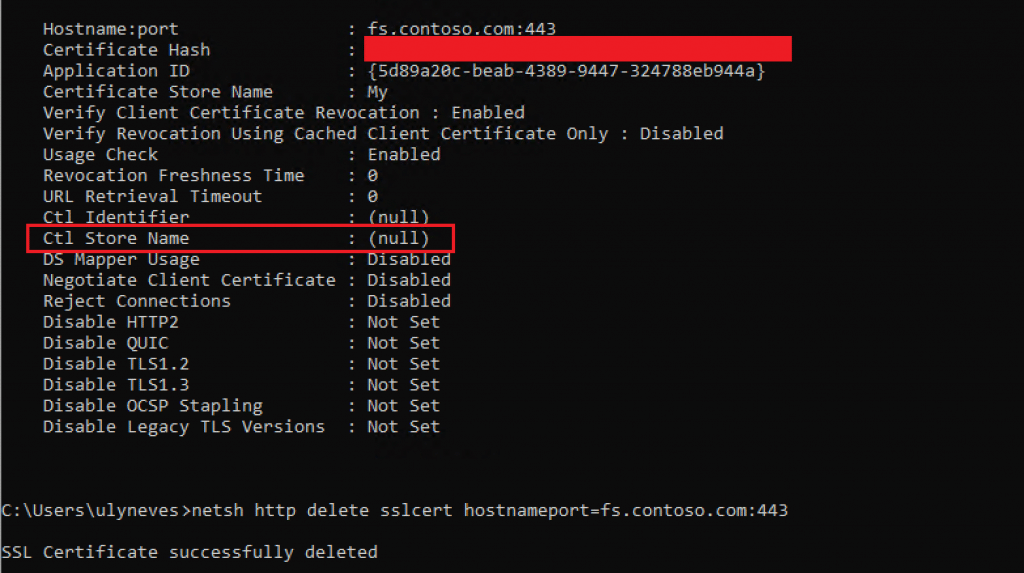
To fix this issue, on the AD FS server, open a command prompt as administrator and remove the hostname binding using command below:
netsh http delete sslcert hostnameport=fs.contoso.com:443
Note: Change the federation’s name ‘fs.contoso.com’ to the value name configured in your farm and retrieved by the command ‘netsh http show sslcert’.
To create the new binding with correct parameters, run the PowerShell command below:
Set-AdfsSslCertificate -Thumbprint 'TLS CERT THUMBPRINT'

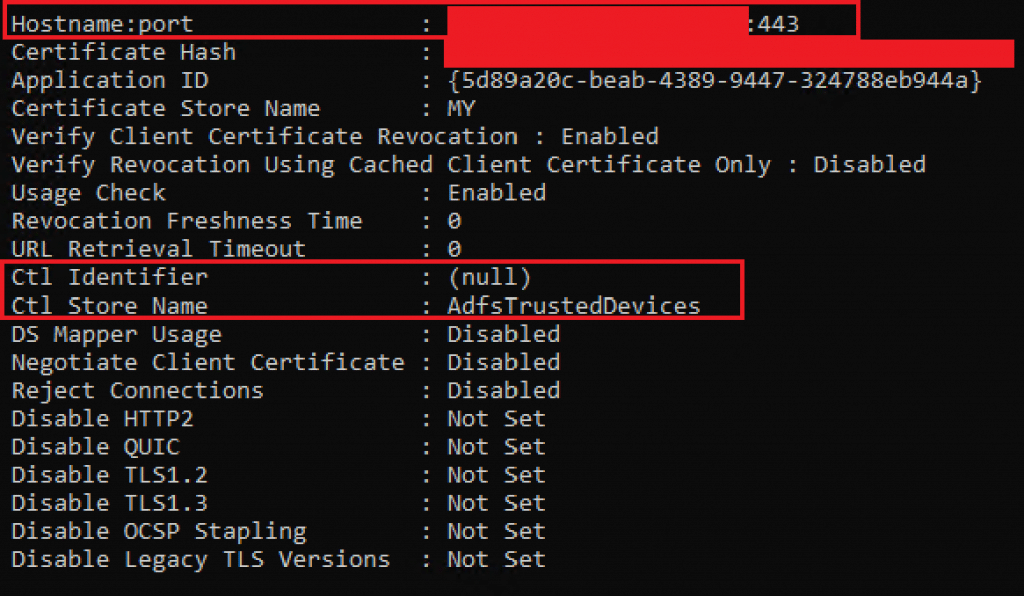
On Command prompt, check is a new binding has been created for hostnameport=fs.contoso.com:443 with correct ctl store name containing the store AdfsTrustedDevices value as below:
Sometimes, the PowerShell command does not create the binding so, as an alternative, you can manually create it using netsh command with parameters below:
netsh http add sslcert hostnameport=fs.contoso.com:443 certhash=THUMBPRINT appid="{5d89a20c-beab-4389-9447-324788eb944a}" certstorename=My verifyclientcertrevocation=Enable sslctlstorename=AdfsTrustedDevices
Note: Update the parameters above according to your AD FS information and check this official Microsoft documentation for reference.
Testing the solution
Once we have fixed the HTTPS binding on the AD FS server, let’s run again the WAP trust process using the command below:
$FScredential = Get-Credential
Install-WebApplicationProxy -FederationServiceName "fs.contoso.com" -FederationServiceTrustCredential $FScredential -CertificateThumbprint "TLS CERT THUMBPRINT"
Reference: Install-WebApplicationProxy (WebApplicationProxy) | Microsoft Docs
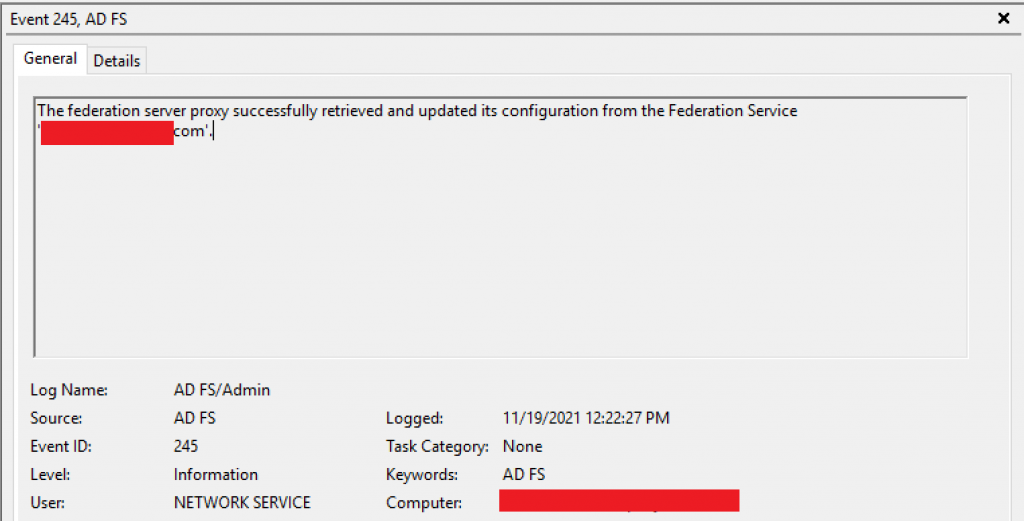
And we get a successful WAP trust having event ID 245 on WAP AD FS/Admin logs:
The federation server proxy successfully retrieved and updated its configuration from the Federation Service ‘fs.contoso.com’.
Summary
In this article, we covered how to troubleshoot error message ‘No client certificate associated with the request was found.’ during Web Application Proxy trust setup.
I hope you have enjoyed reading this article, and it helps you to manage your AD FS environment.
Enjoyed the article? Like and share. 🙂
Note: I do not represent the organization I work for, all the opinions expressed here, are my own. This post is provided AS IS with no warranties or guarantees and confers no rights.
In case you have any suggestions or feedback, please leave a comment.
[ ]’s
Ulysses Neves
