Hello everyone. Today we’re going to share a method to run AD FS configuration backup and restore using Azure storage and the AD FS Rapid Restore tool.
It’s well known, the tool AD FS Rapid Restore is available to help engineers who want to replicate AD FS farm into a test environment or want to recover the farm from a disaster. For more scenarios in which this tool can be used, please check this official link.
In this article, we will cover the specific scenario below, but basically what changes if you have other farm configurations are the backup and restore commands mentioned in the link above.
Scenario:
Backup: AD FS 2019 configuration
AD FS service account: Group Managed Service Account (GMSA)
Database type: Windows Internal Database
Backup process:
To backup the AD FS server’s configurations, first, you need to install the tool after downloading the files using this link.
With the software installed in the AD FS primary server, we will run the command below to import the proper libraries before running tasks:
import-module 'C:\Program Files (x86)\ADFS Rapid Recreation Tool\ADFSRapidRecreationTool.dll'

The command below will bring into variables the credentials to be used against Azure in order to allow the task to save the backup files into the storage account. Please use your own tenant’s information in the variables below:
– Password = “This-is-the-Key-of-your-storage-account-and-can-be-found-in-your-Azure-Storage-Container-under-Access-Keys”
– Username = “adfsbackups” #Name of your storage account
$Password = "This-is-the-Key-of-your-storage-account-and-can-be-found-in-your-Azure-Storage-Container-under-Access-Keys"
$pass = ConvertTo-SecureString -AsPlainText $Password -Force
$Username = "adfsbackups" #Name of your storage account
$cred = New-Object -TypeName System.Management.Automation.PSCredential -ArgumentList $Username,$pass

With the credentials collected, now we will run the command below to run the backup task:
Backup-ADFS -StorageType "Azure" -AzureConnectionCredentials $cred -AzureStorageContainer "managedlab" -EncryptionPassword "password" -BackupComment "Clean Install of AD FS" -BackupDKM

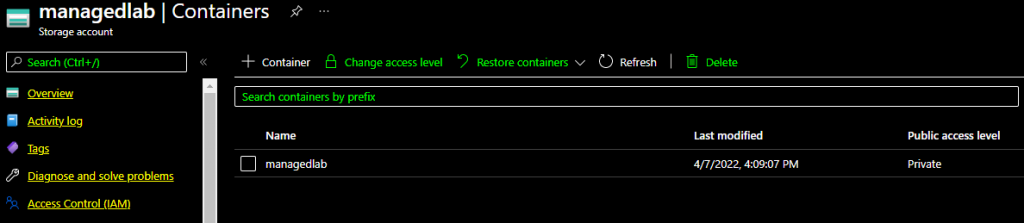
In Azure, we can see the new container created by the backup process.
Restore:
With the backup completed, we can implement the restore into one Windows Server following the steps below. Make sure you follow the same installation steps provided at the beginning of this article. This is required to have the restore commands known by the destination server.
With the tool installed, let’s import the libraries:
import-module 'C:\Program Files (x86)\ADFS Rapid Recreation Tool\ADFSRapidRecreationTool.dll'
Let’s run commands below to collect the credentials used to recover the backup files from Azure storage container:
$Password = "This-is-the-Key-of-your-storage-account-and-can-be-found-in-your-Azure-Storage-Container-under-Access-Keys"
$pass = ConvertTo-SecureString -AsPlainText $Password -Force
$Username = "adfsbackups" #Name of your storage account
$cred = New-Object -TypeName System.Management.Automation.PSCredential -ArgumentList $Username,$pass
With the credentials collected, let’s run the command below to recover the configurations and have the tool setup the AD FS farm into the new server using the same configurations used by the previous server:
Restore-ADFS -StorageType "Azure" -AzureConnectionCredentials $cred -AzureStorageContainer "managedlab" -DecryptionPassword "password" -GroupServiceAccountIdentifier "CORP\gsma$" -RestoreDKM -DBConnectionString "WID"

Note: Once the restore is done, the tool creates a post restore file with instructions to be followed before starting AD FS service.
In my scenario, the tool advised me to install my MFA connector and configure the custom attribute store into the new AD FS server before starting the AD FS service. These tasks are not done as part of the restoration process.
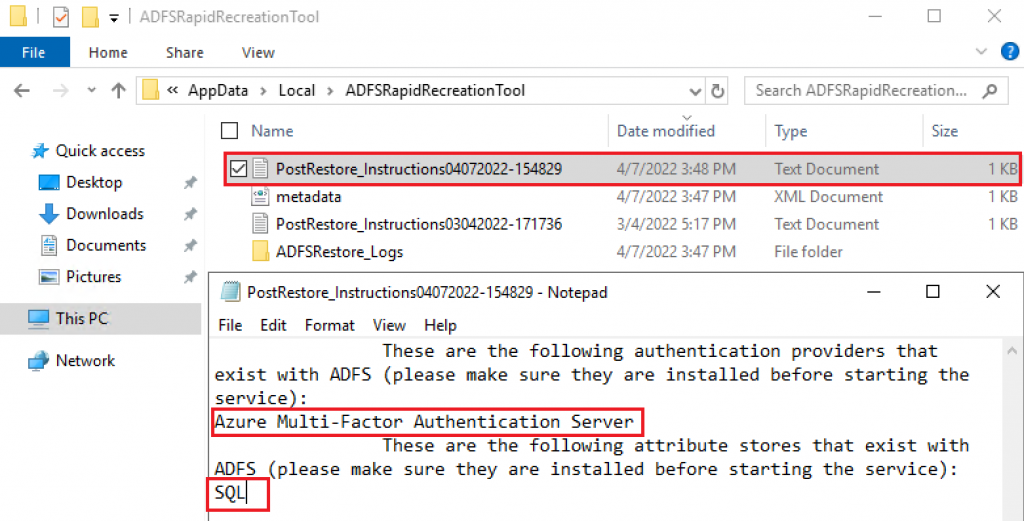
After I’ve configured the pending steps above, I am able to start the AD FS service in the new server. The new server will be the current AD FS Primary server, considering I am running a WID database.
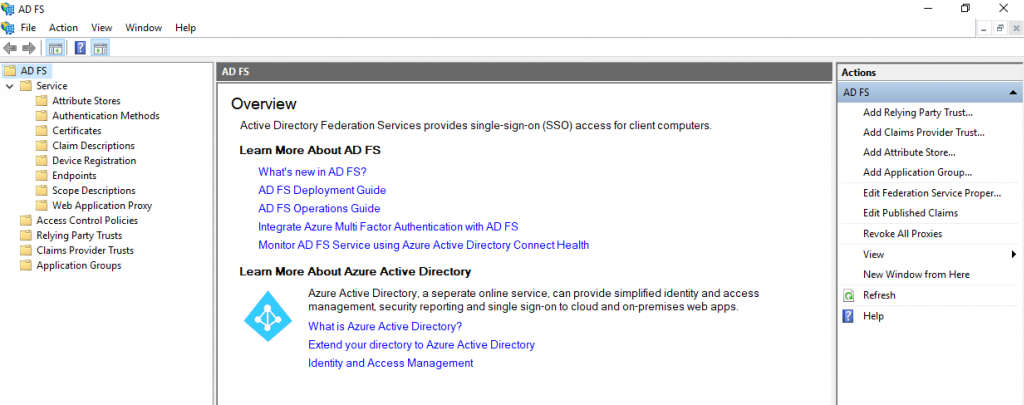
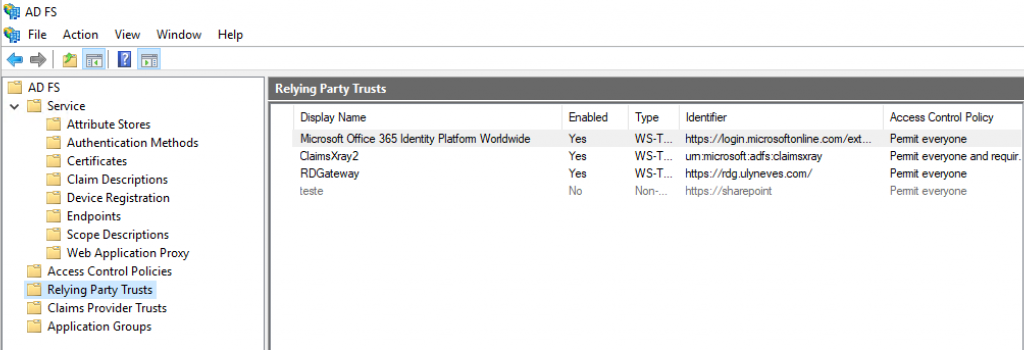
Checking the AD FS Relying Party Trusts in the new server, we confirm the previous trusts have been recovered:
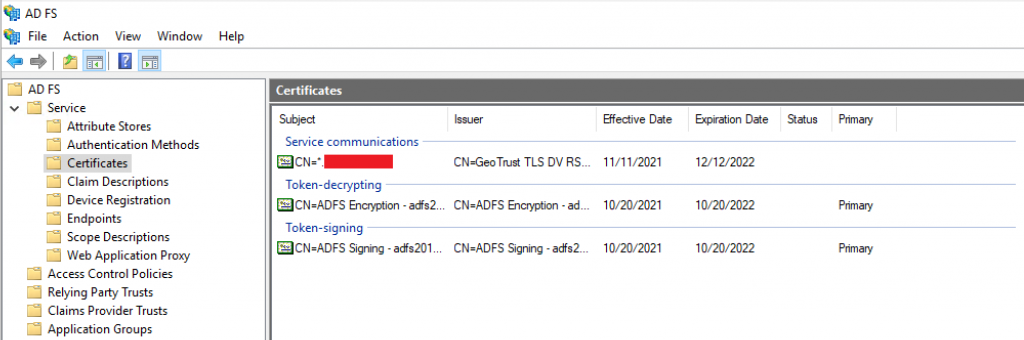
We can also confirm the SSL, token-signing and token-decrypting certificates used by AD FS have been recovered into the new server:
With the scenario above, the next step is to have the new server configured into the load balancer or DNS records to allow users to authenticate into it.
Summary
In this article, we covered how to back up and restore AD FS farm’s configurations using Azure storage account.
I hope you have enjoyed reading this article, and it helps you manage your AD FS environment.
Enjoyed the article? Like and share. 🙂
Note: I do not represent the organization I work for, all the opinions expressed here, are my own. This post is provided AS IS with no warranties or guarantees and confers no rights.
In case you have any suggestions or feedback, please leave a comment.
[ ]’s
Ulysses Neves
