Summary
Hello everyone. In this article, I will cover the steps to enforce users to use passwordless sign-in with Microsoft Authenticator with Authentication Strength in Microsoft Entra Conditional Access policy. Detailed information about this feature can be found at this link: https://learn.microsoft.com/en-us/azure/active-directory/authentication/concept-authentication-strengths
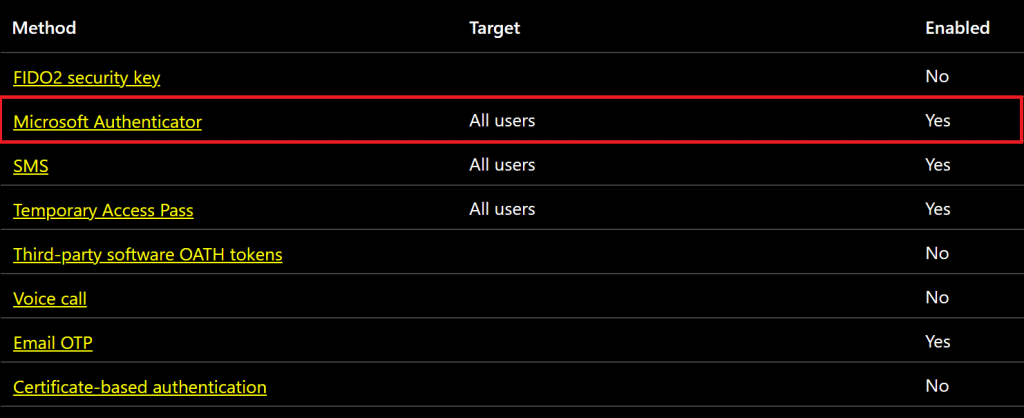
Step 1: Enable the user for the authenticator method
Since we want to use Authentication Strength with Authenticator App passwordless sign-in, we will enable the setting to all users under ‘Authentication methods | Policies’.
Step 2: Create the Conditional Access Policy with the authentication strengths
Policy goal: Enforce Passwordless Sign in using Authenticator App for users trying to access Azure Portal.
Create a new policy using the option ‘+ New Policy’ under Microsoft Entra Conditional Access policy blade:

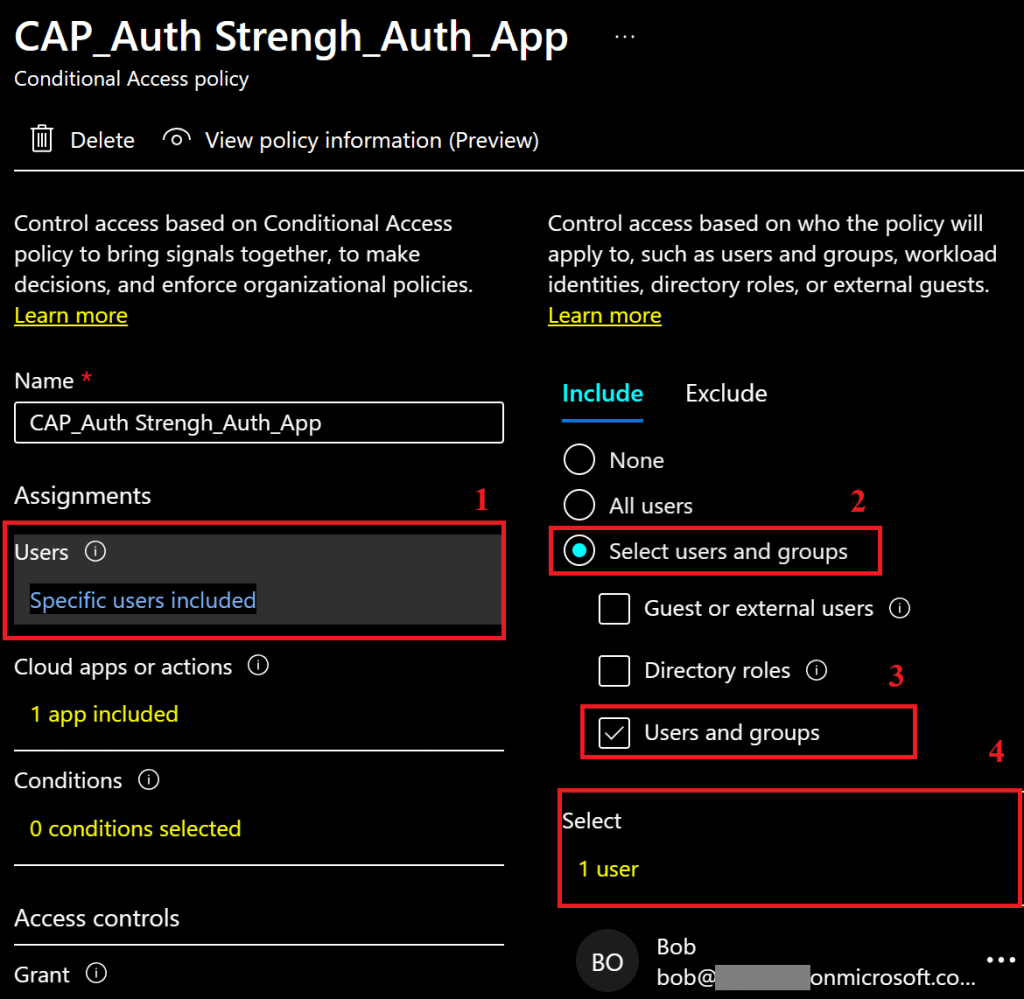
Give the policy a name and follow the steps below to configure the users who should be covered by the policy:
1 – Define which users should be covered by the policy selecting Users.
2 – Select one of the options available to the type of user to be covered by the policy.
3 – In this scenario, I will select users who are members of the Microsoft Entra tenant.
4 – Click on Select and search for the user you want to cover with the policy.
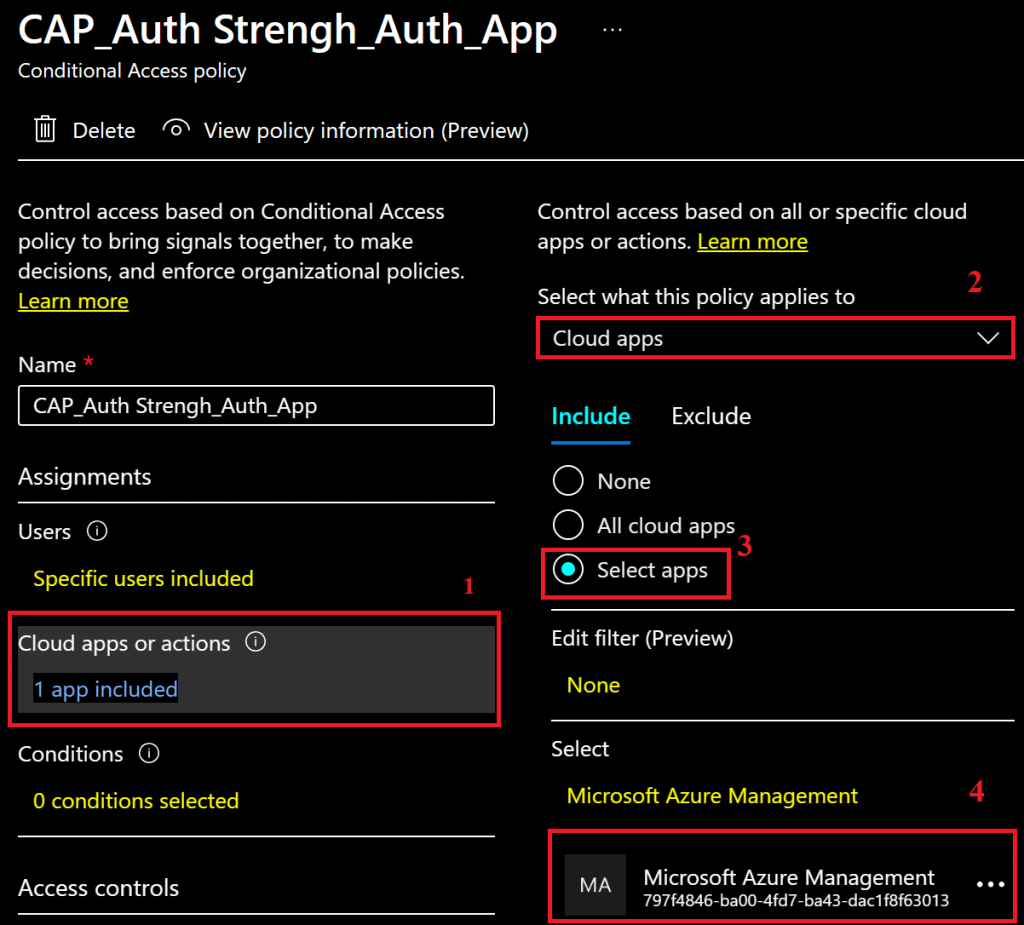
Select the Cloud Apps to be covered by the policy as below:
1 – To apply a policy to a cloud App, select Cloud apps or actions.
2 – Select Cloud apps.
3 – To filter specific cloud apps, click on Select Apps.
4 – Click on Select and search for the app you want to cover with the policy. I’ve chosen Microsoft Azure Management App.
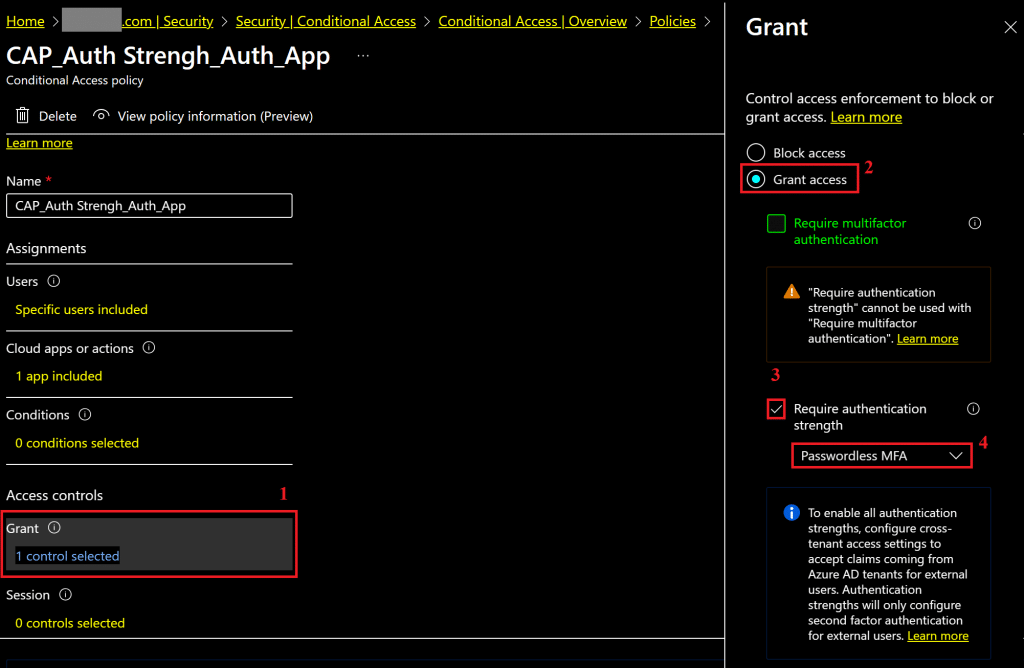
Define the access controls with steps below:
1 – Click on Grant option.
2 – Select Grant Access option.
3 – Check the Require authentication strength option and select the option you want to enforce. Since we’re looking forward to enforcing Phone Sign-in using Microsoft Authenticator app, we’ll choose the option Passwordless MFA.
User experience
To demonstrate the user experience after the policy created above is enabled, we’ll use a test account named bob@mydomain.onmicrosoft.com to access https://portal.azure.com.
After providing the username and password, we receive the prompt below, which is quite common when there is an MFA requirement. Let’s click Next.
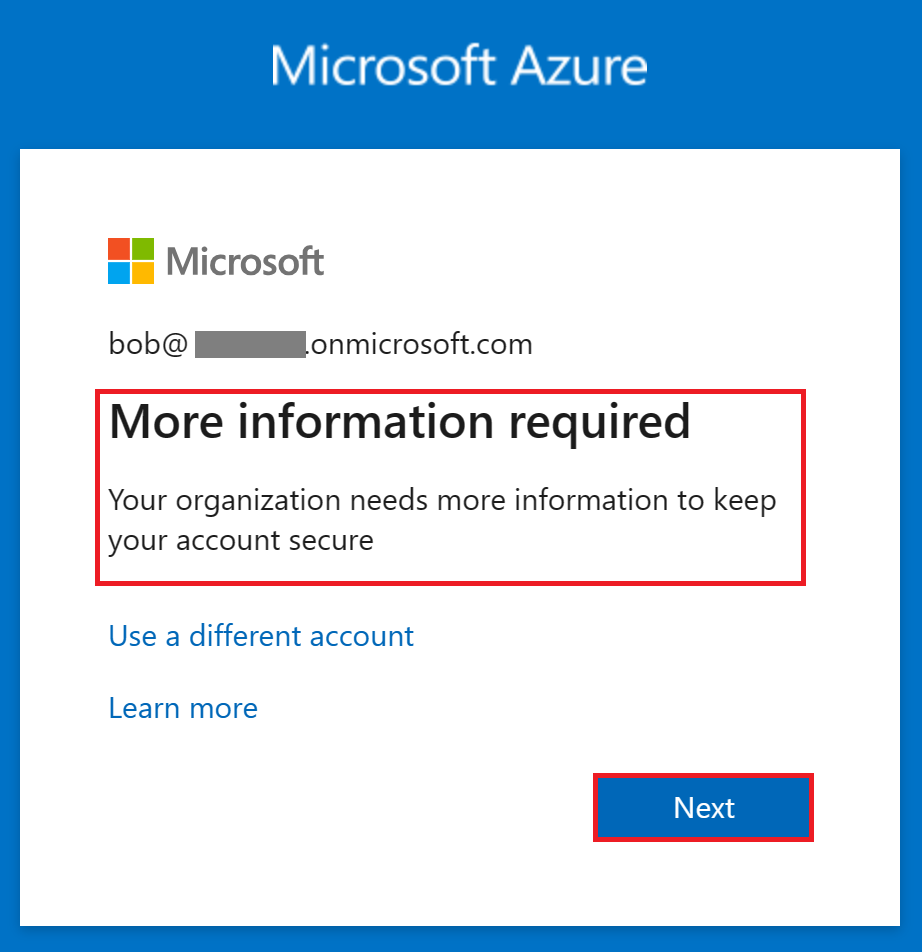
After proceeding with the message above, I get another message below:
Additional authentication is required to complete this sign-in. Learn how to set up Microsoft Authenticator and enable phone sign-in on your device, then go to https://aka.ms/mysecurityinfo to add the authentication method to your account.
The above message is properly documented in the link below and confirms that currently, Microsoft Authenticator app can’t be registered during sign-in.
Since my test user didn’t have PSI properly registered, I will enable it in the Microsoft Authenticator app:
Once I open my Microsoft Authenticator app, I select my test account and click on Enable phone sign-in.
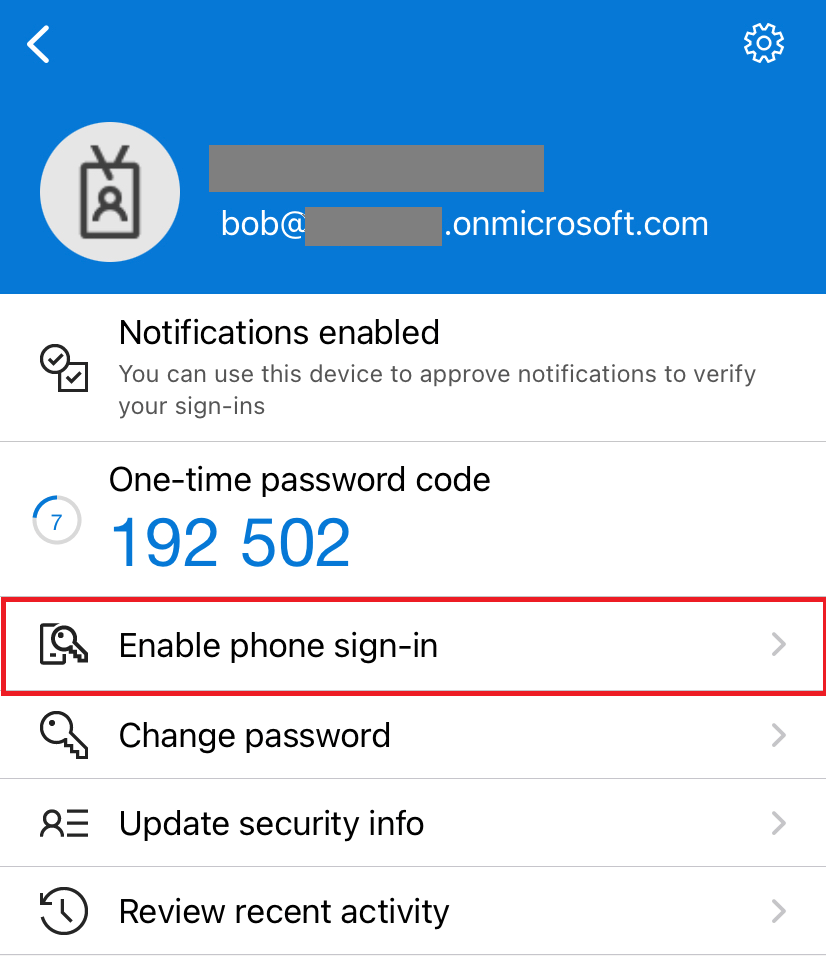
Device registration and a passcode are required when enabling this option. More information on these requirements, check out this link: https://learn.microsoft.com/en-us/azure/active-directory/authentication/howto-authentication-passwordless-phone
Click on Continue.
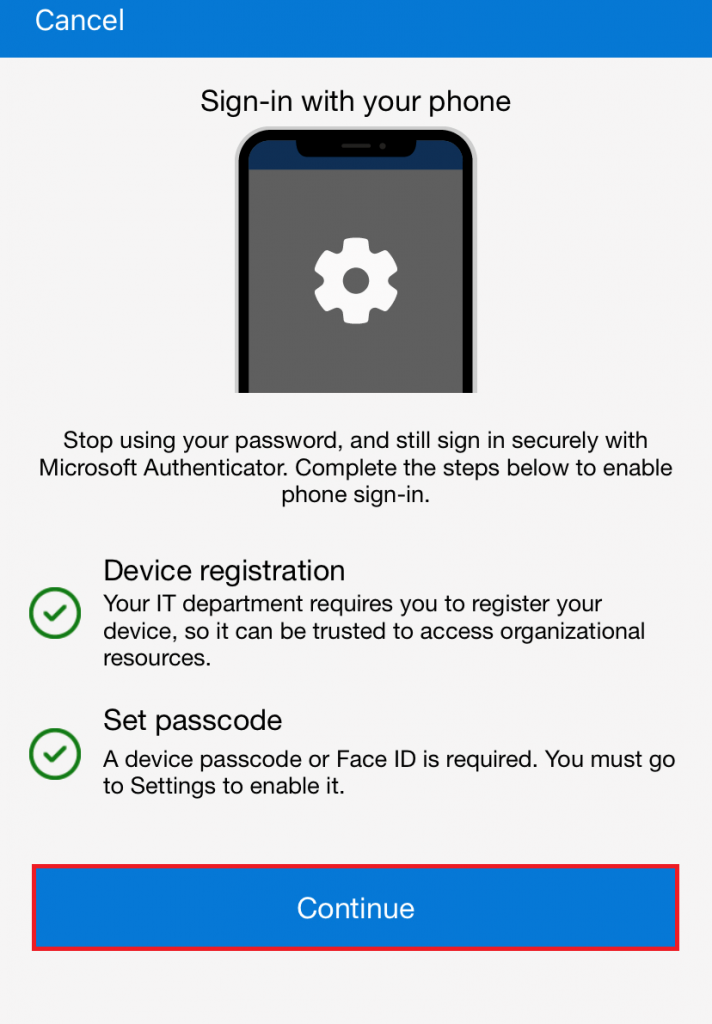
I approve my MFA with number matching request.
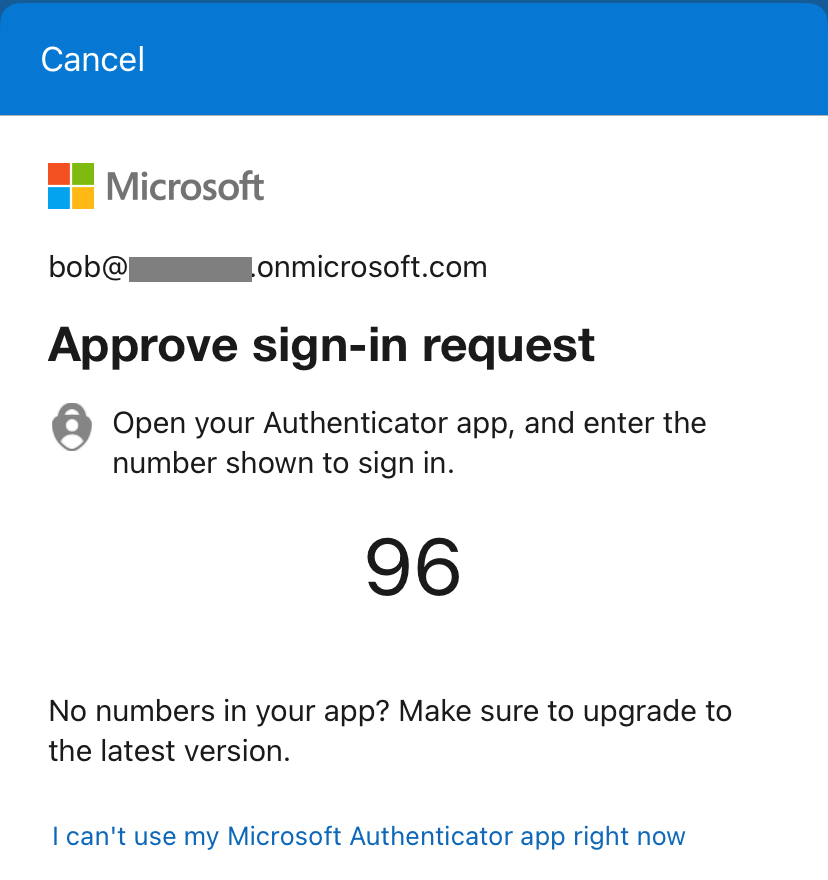
And finally, Passwordless is enabled in the Microsoft Authenticator app.
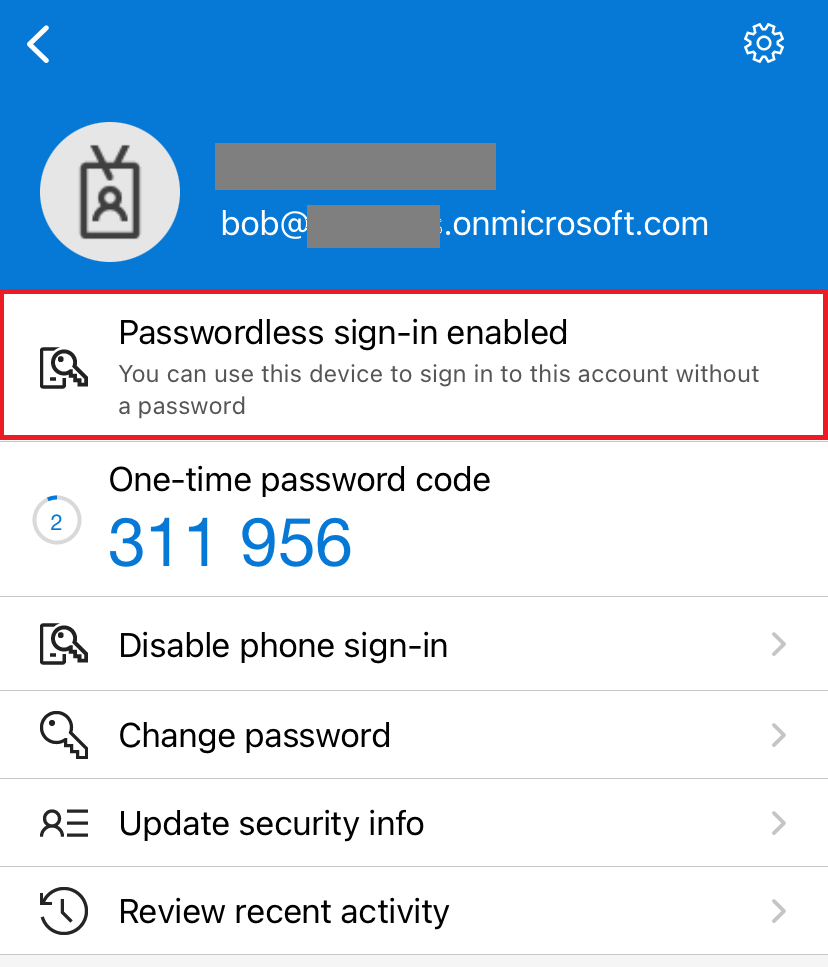
Now, with the Passwordless Sign-in enabled in the Microsoft Authenticator app, let’s access URL https://portal.azure.com again.
During the authentication, I’m prompted to sign in using Microsoft Authenticator app.
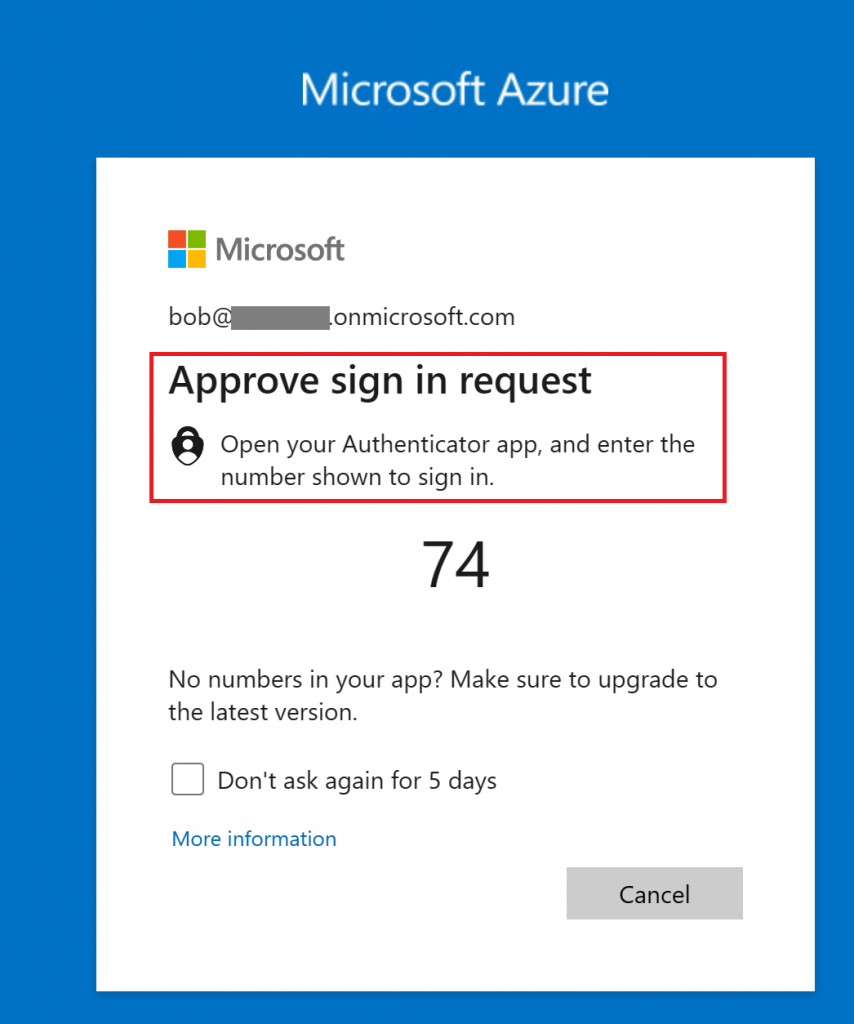
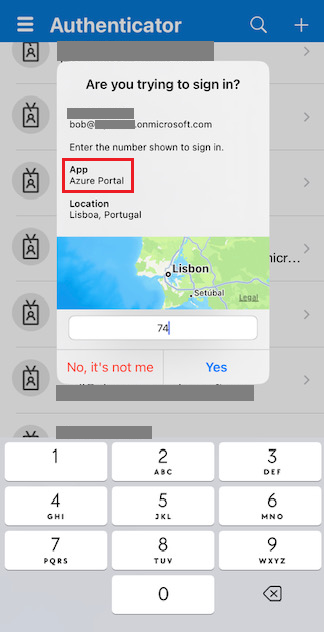
Opening the Microsoft Authenticator app in my mobile device, I confirm the App, location and provide the code provided during the authentication.
As a result, I was successfully signed in to Azure Portal after performing the authentication using Microsoft Authenticator app.
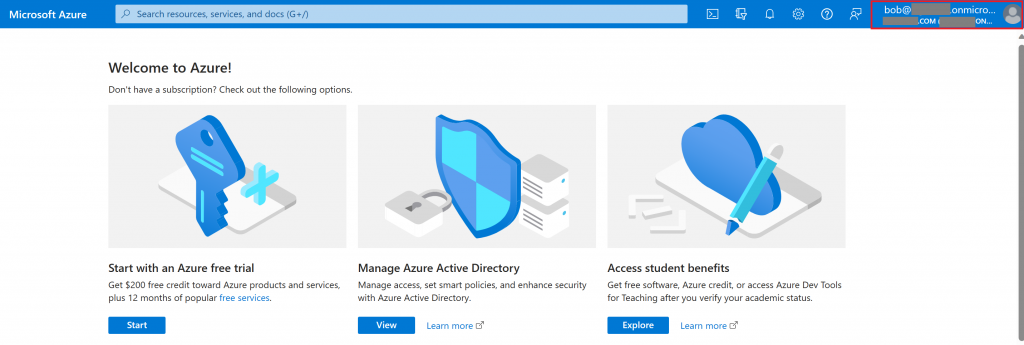
Investigating the Sign in logs
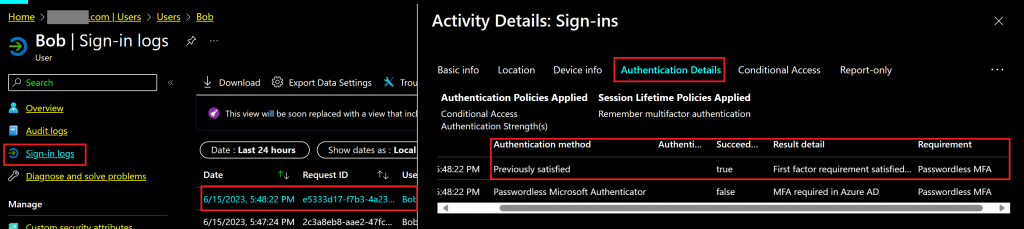
To get more information about the sign-in performed above, I will open the Microsoft Entra sign-in logs for the test user Bob.
Looking into Authentication Details, we confirm the Passwordless MFA requirement is satisfied as a first factor.
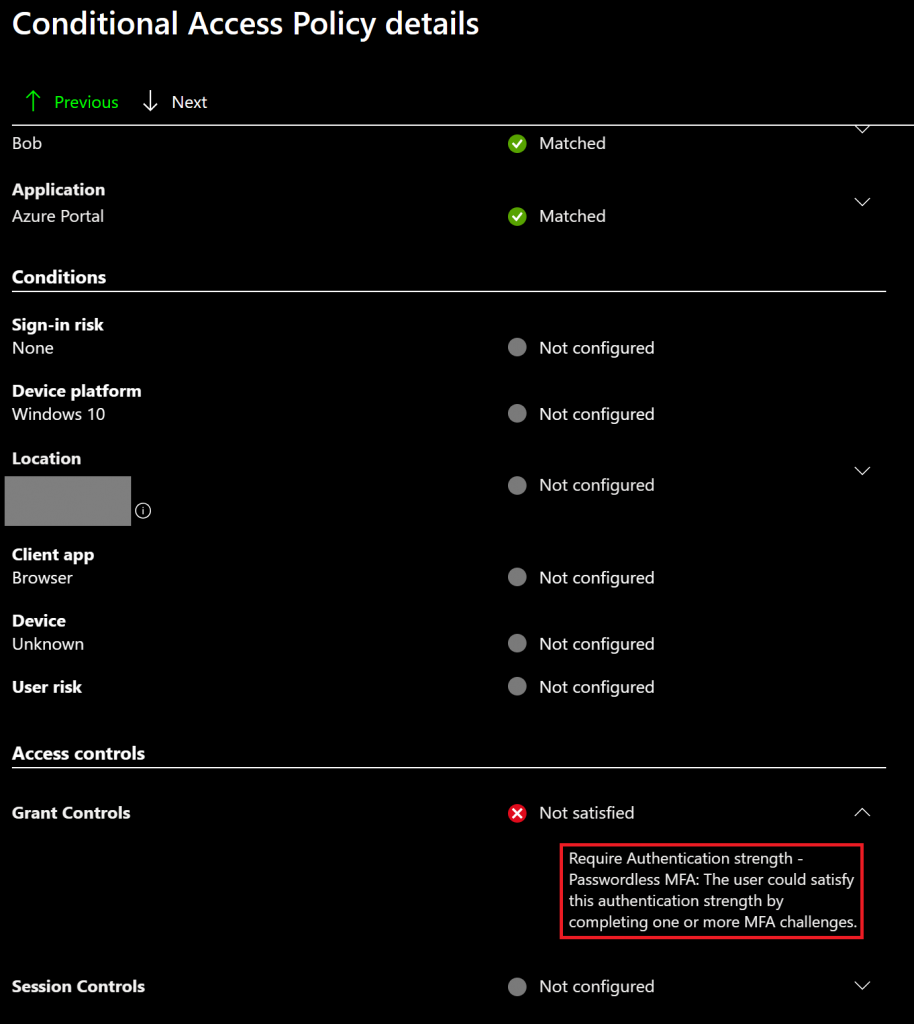
Looking into the Conditional Access Policy Details, we find more information about the Authentication Strengths control configured in the policy.
Summary
In this article, we covered how to enforce users to use the Microsoft Authenticator App Phone Sign-in method with Authentication Strength in Microsoft Entra Conditional Access policy.
Enjoyed the article? Like and share. 🙂
Note: I do not represent the organization I work for, all the opinions expressed here, are my own. This post is provided AS IS with no warranties or guarantees and confers no rights.
In case you have any suggestions or feedback, please leave a comment.
[ ]’s
Ulysses Neves
