Summary
Hello everyone. In this article, I will cover three common issues that prevent Windows services from starting. As an example, we’ll use the Print spooler service, but this could be applicable to any service under Windows Services.
Error message 1: Error 2: The system cannot find the file specified.
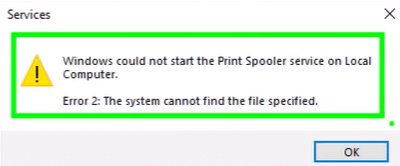
Checking the System logs under the event viewer, you may find the event ID 7000 with error message below:
The Print Spooler service failed to start due to the following error: The system cannot find the file specified.
Troubleshooting:
First thing to check is the registry keys that rule the service configuration.
Open the command prompt as administrator and type ‘regedit‘ to open the Registry Editor.
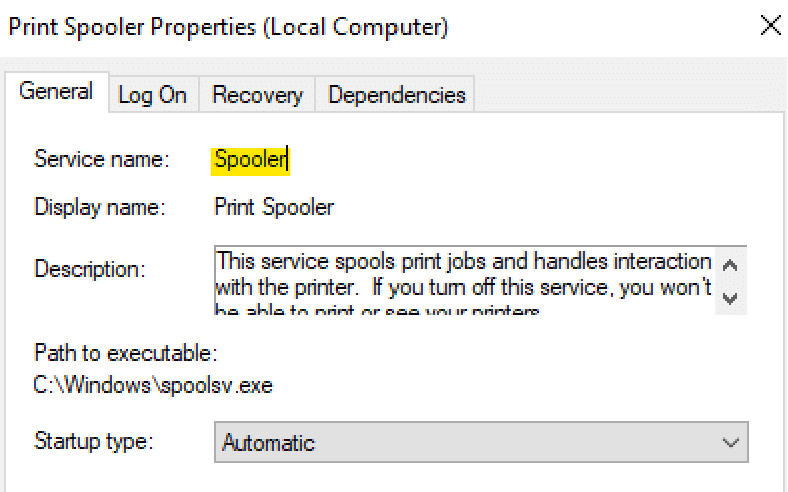
Open the Windows Services running the command services.msc. Double-click on the impacted service and take a note on its Service Name. In our case, Spooler.
Navigate to Computer\HKEY_LOCAL_MACHINE\SYSTEM\CurrentControlSet\Services\ and look for the service name identified above.
Look for the key ImagePath that contains the executable program location. Confirm if the file exists in the location configured. If not, identify the correct location and update the key.
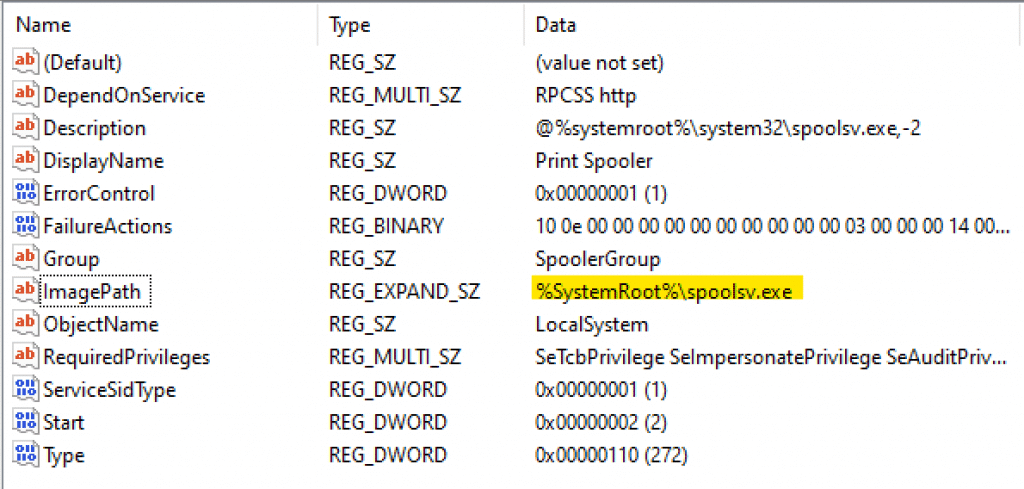
In our test, we’ll update the location from %SystemRoot%\spoolsv.exe to %SystemRoot%\System32\spoolsv.exe. It will look like below:
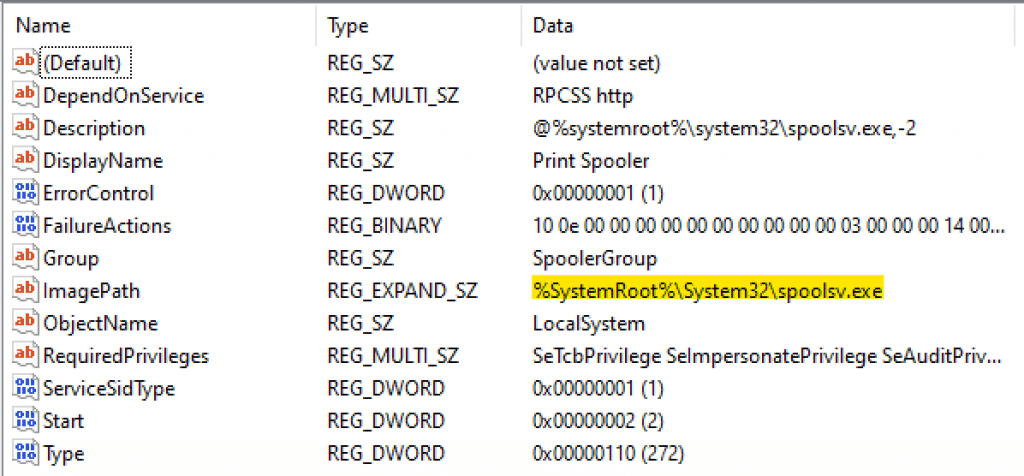
Now, we’re able to start the Print Spooler service after fixing its misconfiguration.
Error message 2: Error 1068: The dependency service or group failed to start.
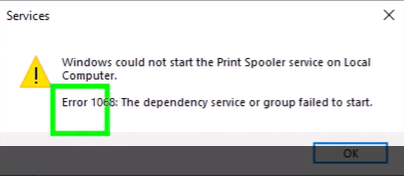
Checking the System logs under the event viewer, you may find the event ID 7001 with error message below:
The Print Spooler service depends on the Phone Service which failed to start because of the following error:
The service cannot be started, either because it is disabled or because it has no enabled devices associated with it.
Troubleshooting:
Open the PowerShell and run:
Get-Service -Name spooler | fl ServicesDependedOn

To fix the issue, check each dependent service to confirm which one is disabled. Once you find, enable it and the issue should disappear.
In our simulation, we’ve added a different service PhoneSvc with disabled status to the group of dependents services to start the Spooler service. This service does not belong to the default dependencies for the Spooler service. To fix such issues, open the Windows Registry editor, navigate to Computer\HKEY_LOCAL_MACHINE\SYSTEM\CurrentControlSet\Services\ and look for the folder that contains the service’s name.
Open the key DependOnService and under Value data, remove the services you see that should not be linked to the failing service. Let’s remove the service Phonesvc from the list below:
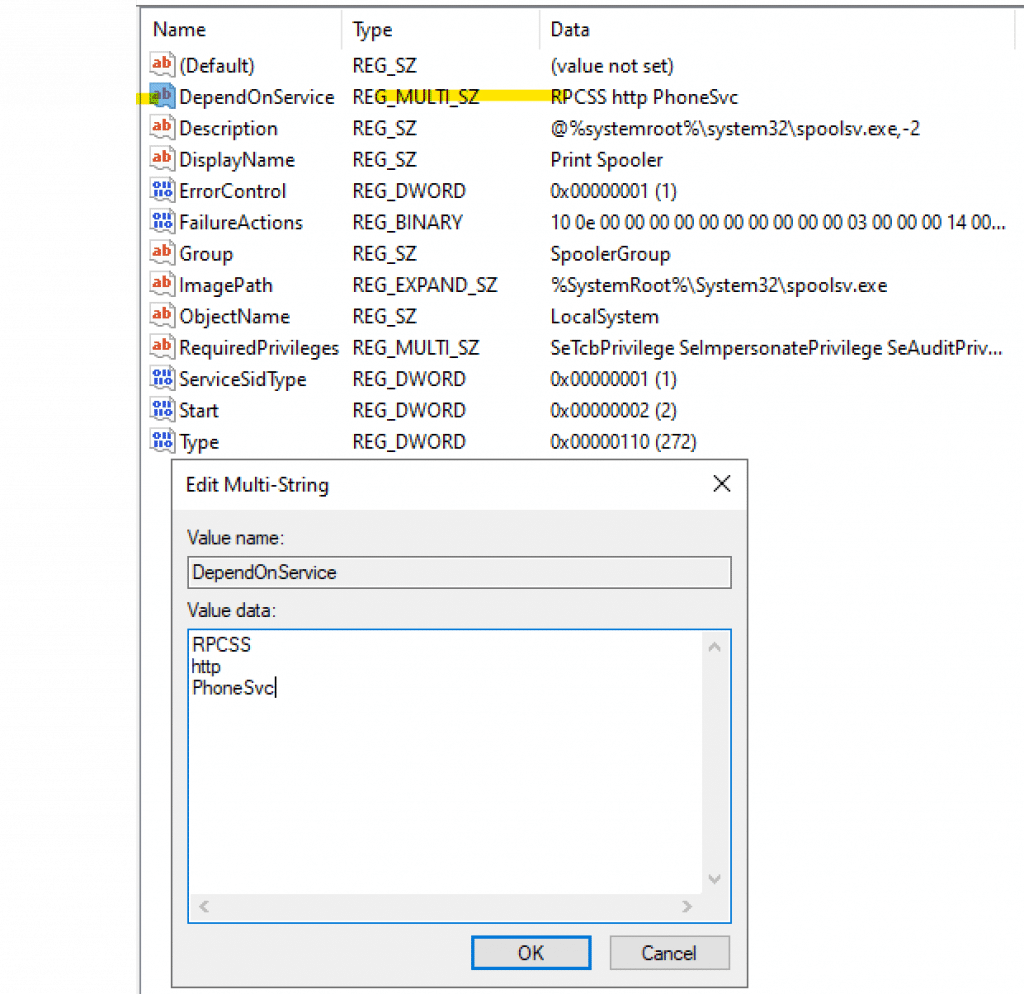
Note: This setting requires a device reboot to take effect. Restart the computer and check if the issue is resolved.
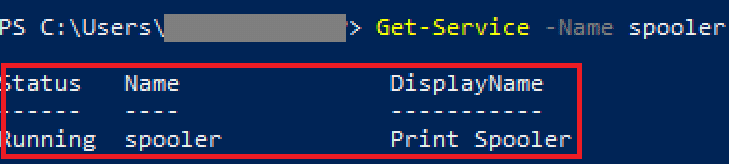
With the PS command below, we can confirm that now, the service Print Spooler started properly:
Get-Service -Name spooler
Error message 2: Error 1069: The service did not start due to a logon failure.
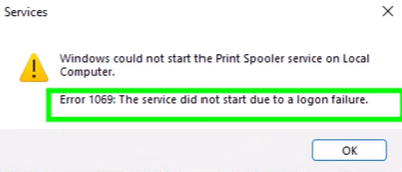
Troubleshooting:
Open the services.msc and check the affected service’s tab Log On:
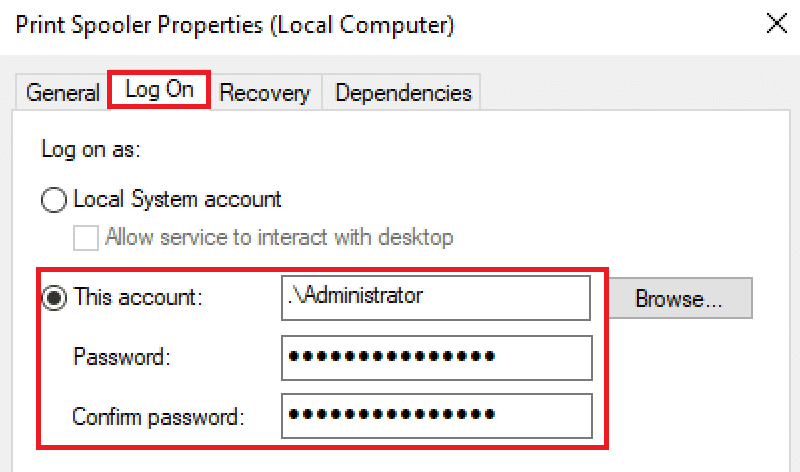
If you are investigating a service start failure in which it is expected to have an account configured to run the service, make sure the configuration follows the MS security guidance listed in this public doc: Log on as a service – Windows Security | Microsoft Learn
Check if the service account is valid, not disabled and its password has not expired or changed.
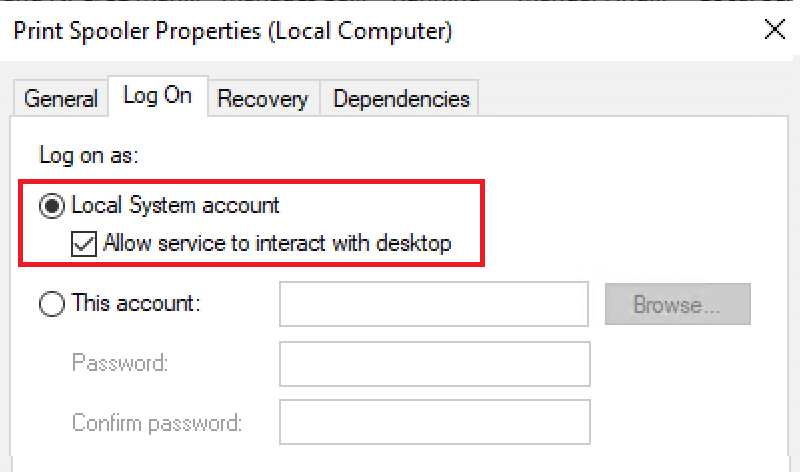
To simulate the error message, we changed the account from SYSTEM to a local account. We’ll revert to the default Log On configurations, and it should fix the issue for the Spooler service:
Summary
In this article, we covered a couple of common issues that prevent Windows services from starting.
Enjoyed the article? Like and share. 🙂
Note: I do not represent the organization I work for, all the opinions expressed here, are my own. This post is provided AS IS with no warranties or guarantees and confers no rights.
In case you have any suggestions or feedback, please leave a comment.
[ ]’s
Ulysses Neves
