Hello everyone. A user opens SharePoint successfully. You find the sign-in in Microsoft Entra, open its policy details, and see Failure. Did the policy break? Did SharePoint ignore it?
In this lab, neither happened. Alex reached SharePoint, and the selected policy recorded Report-only: Failure. Those two observations answer different questions. Let me show you the configuration, the evidence, and the comparison that made the result easier to interpret.
Lab disclosure: This walkthrough uses synthetic test accounts and data in a dedicated non-production lab. No customer or production data was used. Identifying environment details have been redacted.
Evidence scope: The screenshots come from the lab run on September 9, 2026. They are cropped, arranged and annotated for readability; account identifiers are masked or identifying columns are omitted. The displayed product results have not been rewritten. This article uses screenshots only.
Start with two questions, not one red label
Did the sign-in succeed? Read the sign-in event status. What did this particular policy evaluate? Go to Entra ID → Monitoring & health → Sign-in logs, select the matching interactive sign-in event for the test user and SharePoint resource, then open Report-only and inspect the named policy. Check the user, resource and timestamp so you compare results from the same event. Microsoft documents that report-only policies are evaluated without being enforced. reference: (Conditional Access report-only mode) and (Microsoft Entra sign-in logs)
Microsoft states: During sign-in, the system evaluates policies in report-only mode but doesn’t enforce them.
reference: (Conditional Access report-only mode)
That distinction is the whole point of this exercise. We deliberately used a Block access control in a report-only policy, rather than turning a blocking policy on.
The small lab behind the screenshots
- Alex: a synthetic, non-admin user included in the test policy.
- Jamie: a second synthetic, non-admin user not included in that policy.
- Target: the existing Office 365 SharePoint Online resource in the lab.
- Licensing: both test users received an existing Microsoft 365 E5 license. The tenant showed Entra ID P2; basic Conditional Access requires P1, so P2 was not a special requirement for this example. reference: (Conditional Access overview)
- Unchanged: the four pre-existing Conditional Access policies. No new Azure subscription, VM or Log Analytics resource was created for the walkthrough.
Use a dedicated lab and synthetic accounts if you repeat this. Keep administrative and recovery accounts out of the test’s included scope. Microsoft warns that Block access requires careful application and recommends testing before enforcement. reference: (Conditional Access grant controls)
Build the policy without enforcing it
The test users were created as internal users, with no administrative role or group assignment. Their usage locations were set and their licenses were active before the sign-ins. Microsoft’s user-creation guidance covers that account setup. reference: (Create users in Microsoft Entra ID)
- In the Microsoft Entra admin center, open Entra ID → Conditional Access → Policies and select New policy. reference: (Conditional Access overview)
- Name the policy
LAB-BLOG-CA-ReportOnly-SharePoint. - Under Users → Include → Select users and groups, select only the Alex test account. Jamie must remain outside the included scope.
- Under Target resources → Include → Select resources, select only Office 365 SharePoint Online. reference: (Conditional Access target resources)
- Under Grant, select Block access. Leave additional conditions and session controls unconfigured for this experiment. reference: (Conditional Access grant controls)
- Leave Enable policy set to Report-only. Review the selected user, resource, control and state before creating the policy; reopen it afterward to confirm the saved configuration. reference: (Conditional Access report-only mode)
Do not switch this demonstration policy to On. The objective is to observe evaluation, not to block the test user. We never enabled enforcement.
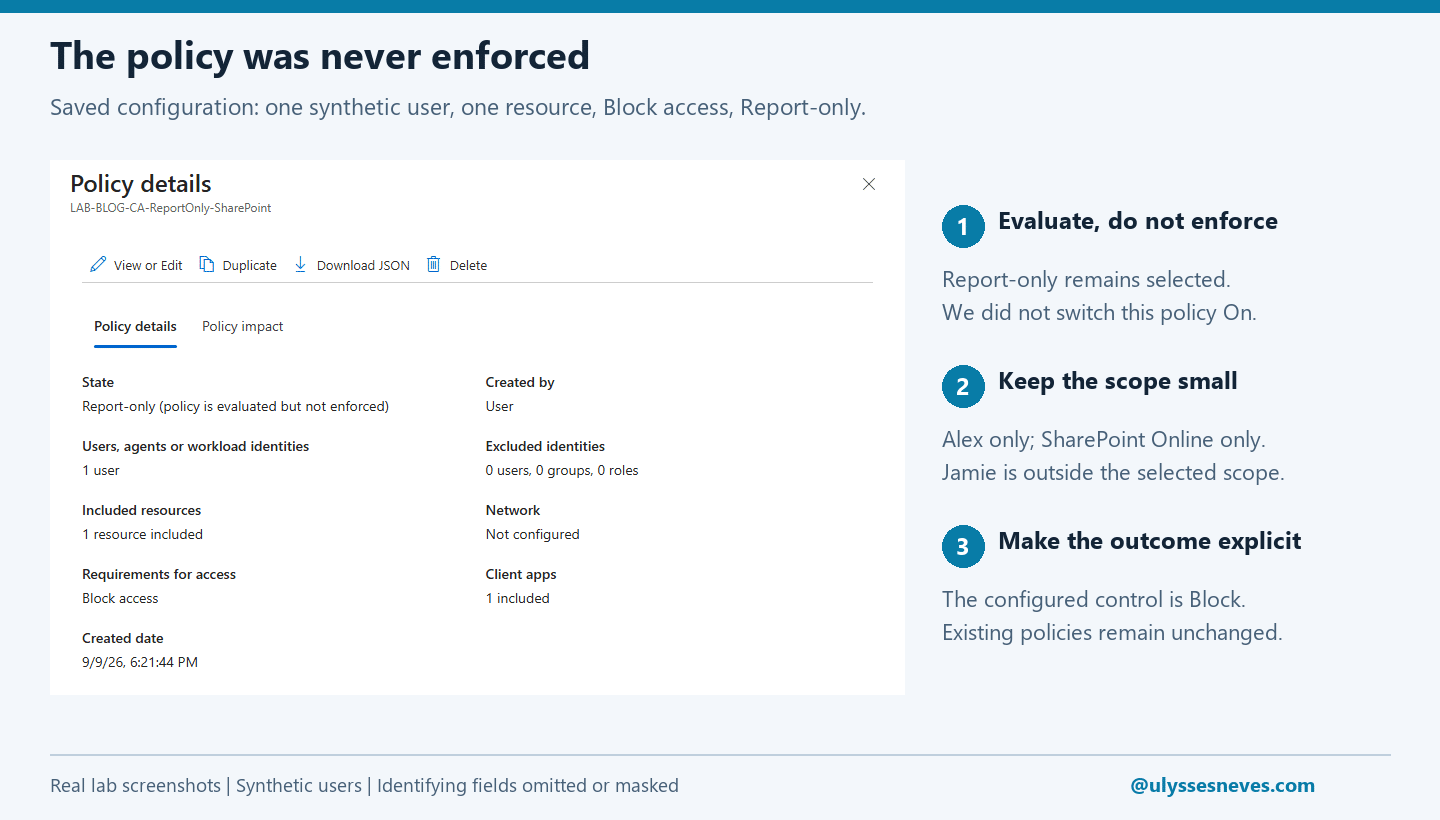
Why only SharePoint? It keeps this teaching example narrow. It is not a production Microsoft 365 protection design: Microsoft recommends the Office 365 grouping when protecting the suite to account for service dependencies. reference: (Conditional Access target resources)
Alex: a successful sign-in and a report-only failure
We opened the lab SharePoint site as Alex and confirmed the account shown by SharePoint. Password entry and MFA were kept out of the captures.
In Alex’s interactive sign-in logs, the Office 365 SharePoint Online event at 18:27:03 Europe/London showed Success, with error code 0. Opening that same event’s Report-only tab showed LAB-BLOG-CA-ReportOnly-SharePoint, the Block control, and Report-only: Failure.
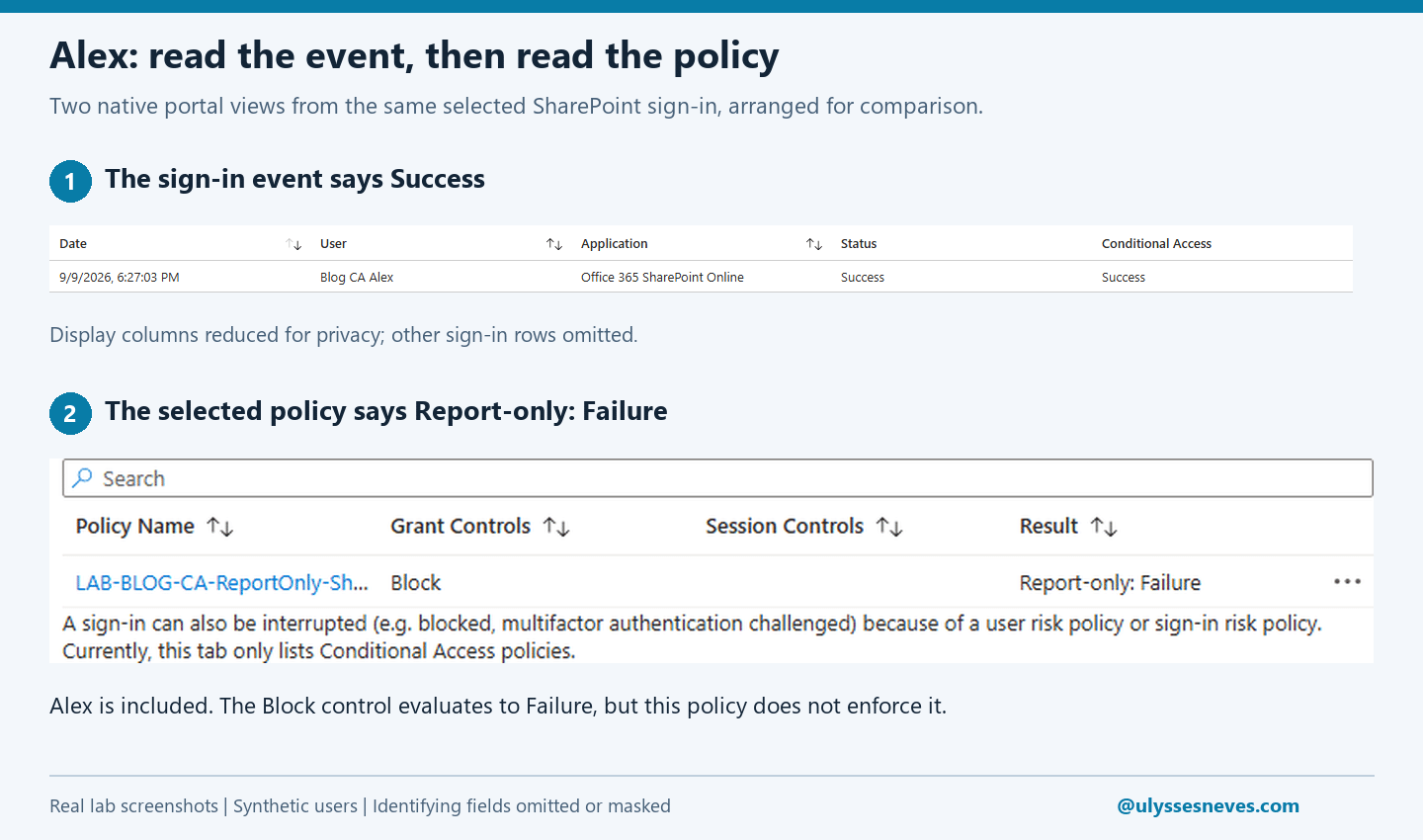
This is consistent with Microsoft’s documented example of report-only failure: the policy applies to the user and a Block control is configured. It is not evidence that the sign-in itself failed. Because this policy was report-only, it did not enforce the block. reference: (Conditional Access report-only mode)
Jamie: use a second account to check the scope
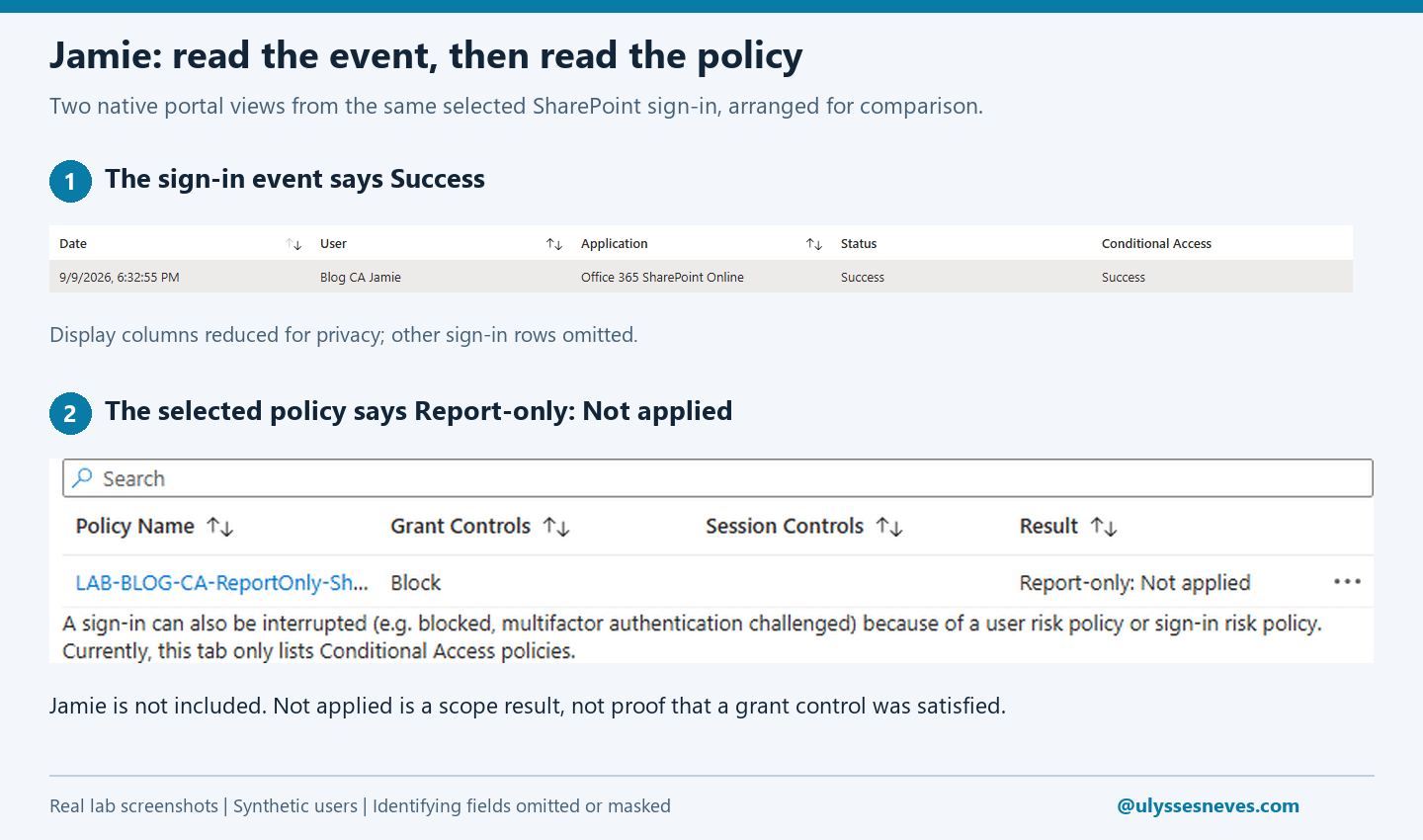
We then signed in as Jamie, confirmed Jamie’s SharePoint identity, and opened the same lab root site. Jamie’s Office 365 SharePoint Online event at 18:32:55 Europe/London also showed Success and error code 0.
For that event, the same named policy showed Report-only: Not applied. Jamie was not in the policy’s included user list. This illustrates a scope mismatch, not a successful test of a grant control. Microsoft’s result definitions distinguish Not applied from Success. reference: (Conditional Access report-only mode)
| Lab account | Sign-in result | Report-only policy result |
|---|---|---|
| Alex (in scope) | Success | Failure: Block control evaluated, not enforced |
| Jamie (outside scope) | Success | Not applied |
What I would check before troubleshooting the wrong thing
- Confirm the account and resource. Jamie’s sign-in produced several related application events. We used the Office 365 SharePoint Online event for this comparison, not just the first successful row. Microsoft distinguishes the identity, client application and target resource in sign-in analysis. reference: (Microsoft Entra sign-in logs)
- Keep the event and policy together. Open Report-only from the selected sign-in and check the exact policy name; do not compare unrelated events. reference: (Conditional Access report-only mode)
- Do not interpret Not applied as control success. Check whether the user and target match the policy’s configuration. reference: (Conditional Access report-only mode)
- Keep other enforcement in mind. A report-only policy does not enforce its controls, but other active policies still matter. We left the existing policies unchanged. reference: (Conditional Access report-only mode)
The events were not visible immediately in our first log checks. We refreshed and waited for the actual entries rather than filling in an expected result. That is an observation from this run, not a guaranteed log-delivery interval.
One important caveat: report-only is not a blanket promise of no user-facing effects for every policy. Microsoft documents device-certificate prompts for report-only policies requiring compliant devices on macOS, iOS and Android. This lab did not use a device-compliance control. reference: (Conditional Access report-only mode)
What this lab does and does not prove
This run demonstrates the difference between an observed sign-in outcome and the evaluation result of one report-only policy. It does not demonstrate enforcement after switching On, and it does not cover every Conditional Access control or application. We did not capture a pre-policy sign-in baseline.
At the end of the run, the test policy remained Report-only; the synthetic accounts and licenses were retained for review. Cleanup has not been performed. In your own lab, include removal of test-only objects and reclaiming their licenses in your separately approved cleanup plan.
My takeaway: before troubleshooting a red policy result, ask which result am I reading, for which user and resource, and in which policy state? That small pause can keep an expected report-only finding from turning into an unnecessary configuration change.
Original Microsoft sources
Product behavior and guidance above are grounded in these Microsoft documents, reviewed on September 9, 2026. The prose, screenshots and annotations are original to this lab walkthrough.
- reference: (Report-only mode and policy evaluation results)
- reference: (Conditional Access overview and license requirements)
- reference: (Target resources and Microsoft 365 service dependencies)
- reference: (Grant controls: Block access)
- reference: (Microsoft Entra sign-in logs)
- reference: (Create users in Microsoft Entra ID)
