Skip to content

Ulysses Neves

Microsoft Entra ID, authentication, and hybrid identity troubleshooting.

Menu
  • Home
  • Microsoft Azure
  • Microsoft AD FS
  • Microsoft 365
  • Contact
  • Troubleshooting Index
Menu
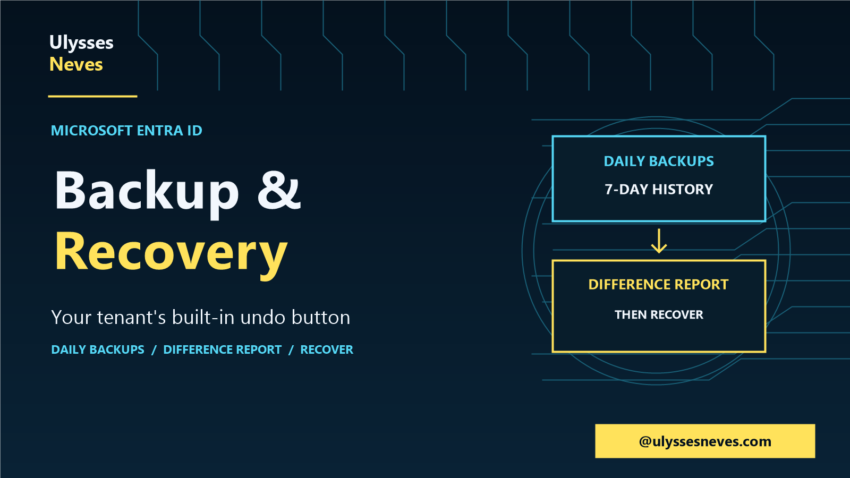
Article banner: Microsoft Entra Backup and Recovery, your tenant’s built-in undo button (Preview).

Microsoft Entra Backup & Recovery: Your Tenant’s Built-In Undo Button

Posted on November 6, 2026

Hello everyone!

Someone deletes a Conditional Access policy. A named location is changed. A group’s membership is altered during an incident. The question every admin dreads: can we get it back to how it was?

Microsoft Entra now has a built-in answer. Microsoft Entra Backup and Recovery automatically backs up core directory objects and lets you restore them to a known good state—no third-party tool required.

Scope: This walkthrough uses public Microsoft documentation and real, redacted screenshots from a dedicated synthetic lab tenant. No production or customer data is shown. Confirm current availability and limits before relying on it.

What it protects

Backup and Recovery captures selected properties of your most security-critical objects: users, groups, applications, service principals, Conditional Access policies, named locations, authentication method policy, and authorization policy. It also covers Agent ID objects.
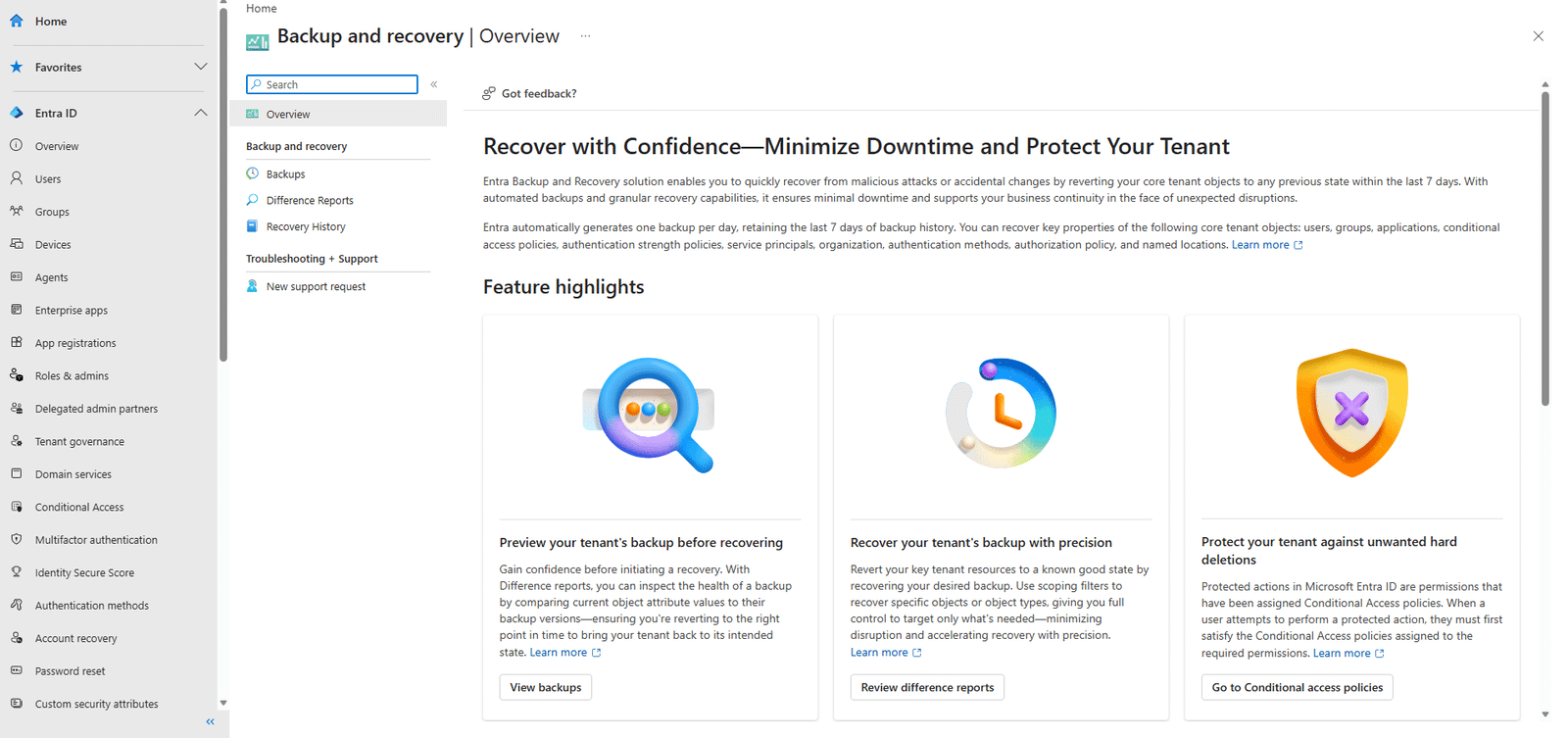
Backup and recovery overview page in the Microsoft Entra admin center.
The Backup and recovery overview in the Microsoft Entra admin center.

For reference (Microsoft Entra Backup and Recovery overview).

How the backups work

  • Microsoft takes one backup per day, automatically, retaining the last 7 days.
  • Backups are immutable: no signed-in user or app—even with the highest admin privileges—can turn off, delete, or modify them.
  • Backup data stays in the same geo-location as your tenant.
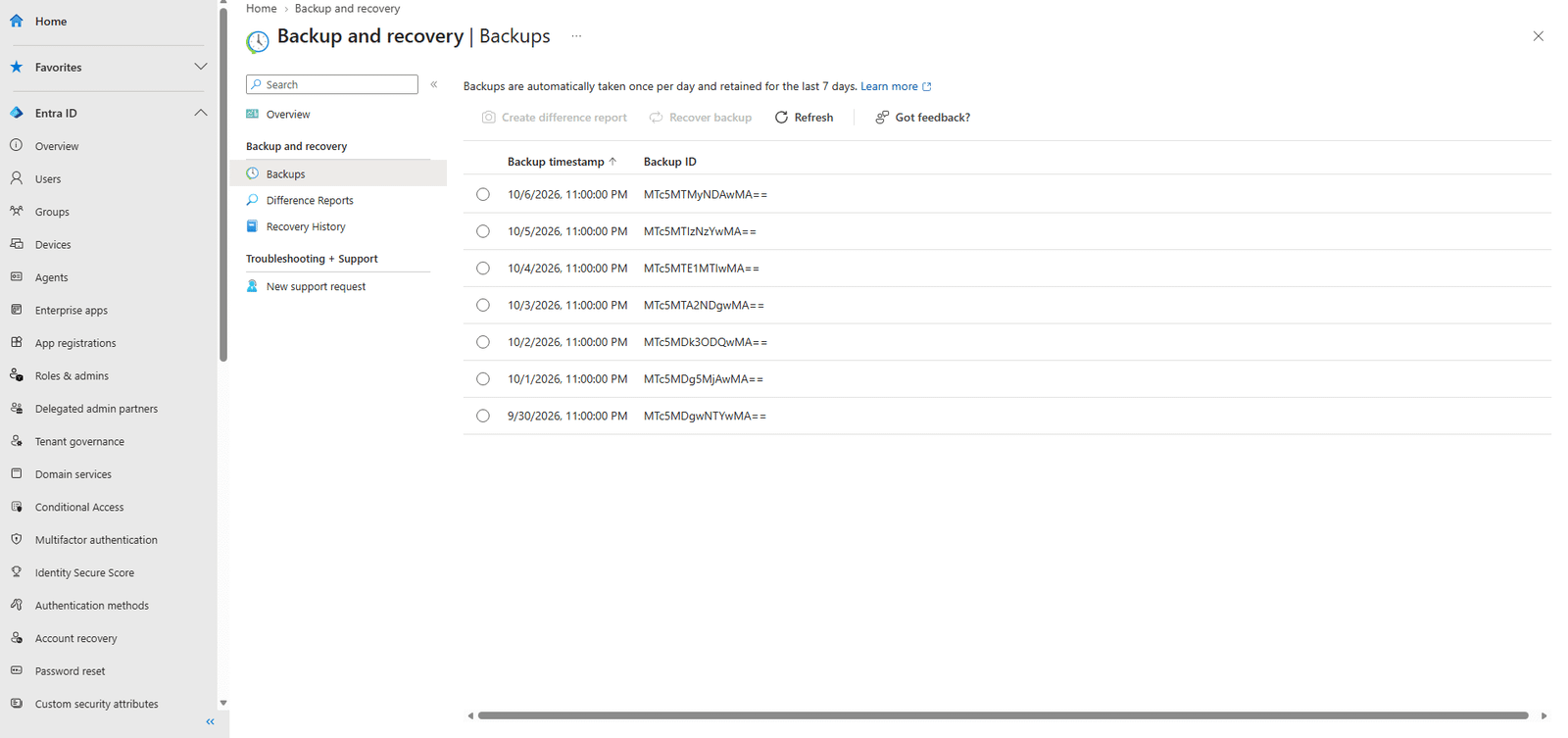
Backups list showing seven daily restore points in the Entra admin center.
Seven daily restore points — one backup per day, kept for seven days.

For reference (Microsoft Entra Backup and Recovery overview) and (Microsoft Entra data residency).

Licensing and where to find it

  • Licensing: your tenant needs Microsoft Entra ID P1 or P2. It must be a workforce tenant (External ID and Azure AD B2C aren’t supported).
  • Location: Microsoft Entra admin center → Backup and recovery. You’ll find Overview, Backups, Difference Reports, and Recovery History.

For reference (Microsoft Entra Backup and Recovery overview).

Access is least-privilege by design

Here’s a detail that surprises admins: opening the backup data isn’t automatic. Access is governed by two dedicated built-in roles:

  • Microsoft Entra Backup Reader—view backups, view difference comparisons, and review recovery history.
  • Microsoft Entra Backup Administrator—everything the Reader can do, plus initiate difference reports and trigger recovery. (These permissions are included in Global Administrator.)

Without the right permission, opening Backups returns a clear “No access” message—a good reminder that this is scoped access, not something every admin role lands on by default.
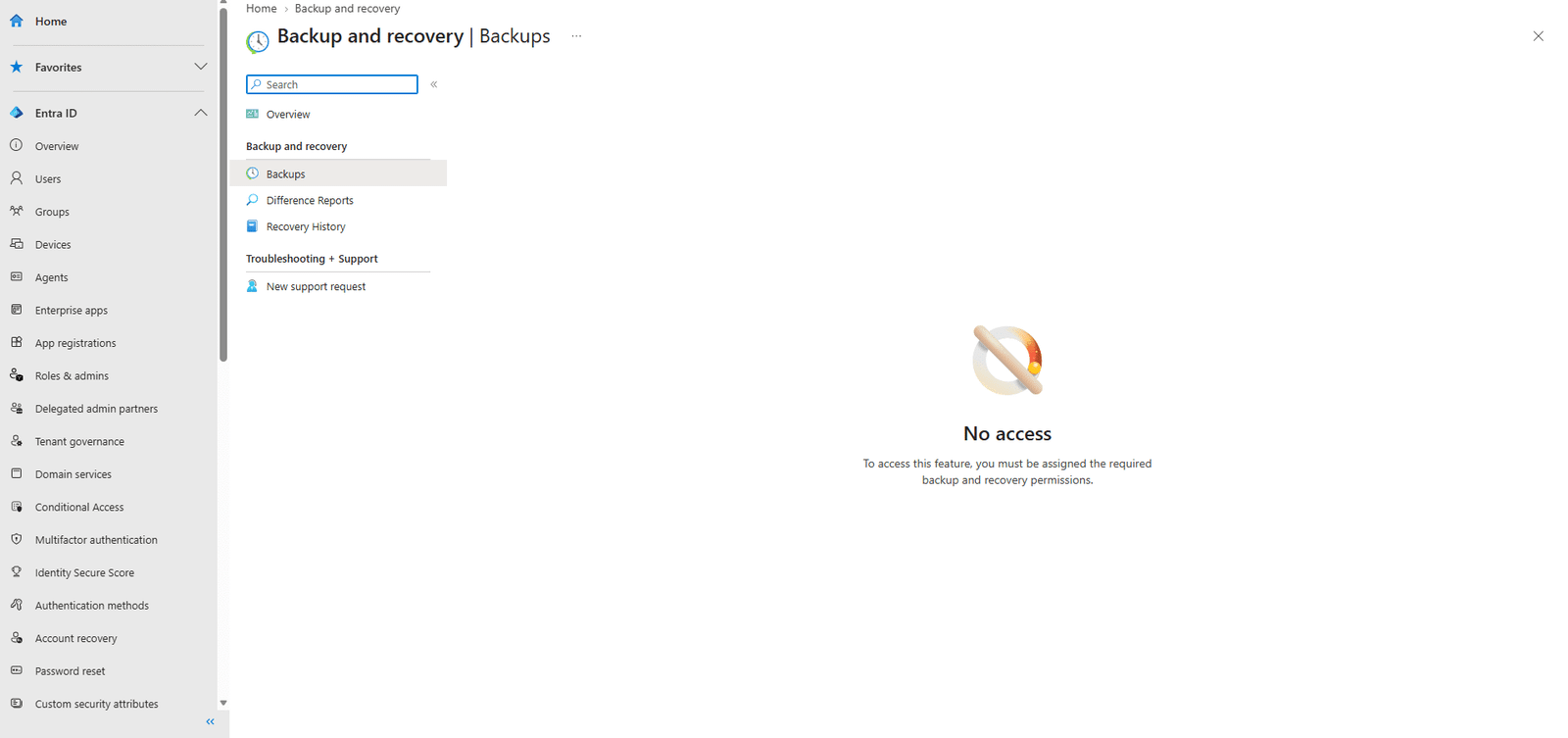
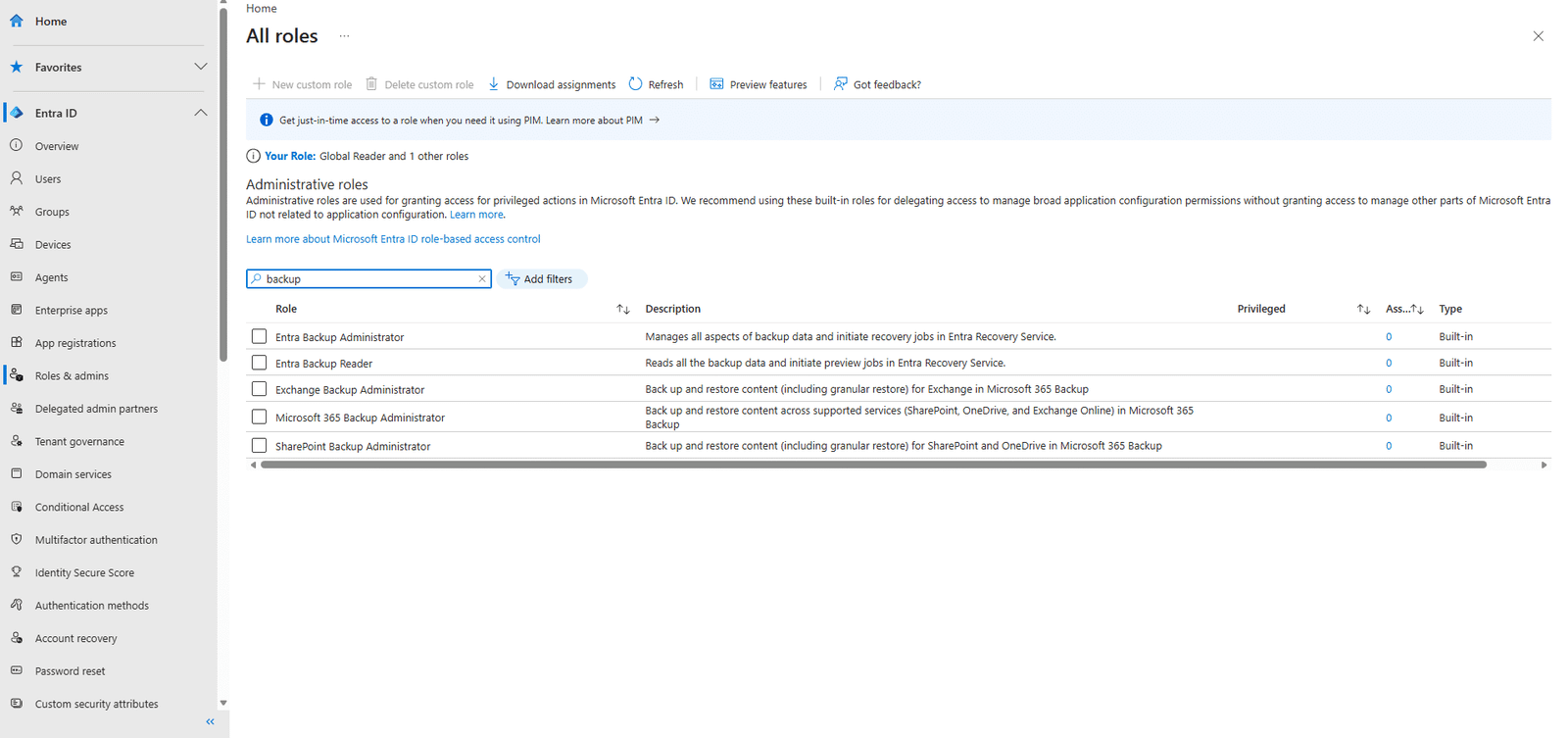
Backups page showing a No access message when the required backup role is not assigned.
Without the backup role, the data views return “No access.”
Entra roles list showing the built-in Backup Administrator and Backup Reader roles.
The two dedicated built-in roles: Backup Administrator and Backup Reader.

For reference (Microsoft Entra Backup and Recovery overview).

The recovery workflow
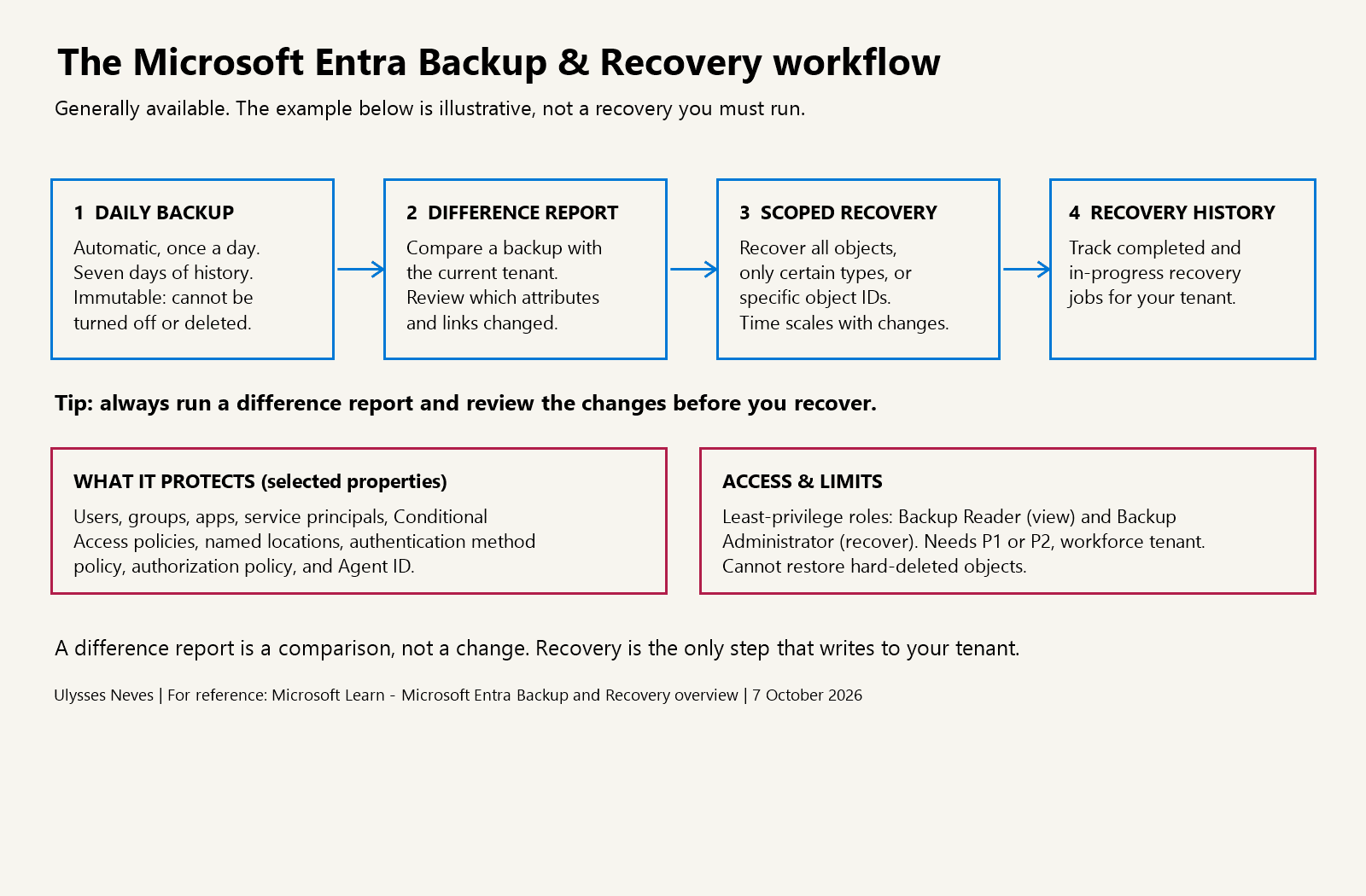
Diagram of the Entra Backup and Recovery workflow: daily backup, difference report, scoped recovery, recovery history.
The Backup and Recovery workflow: back up, compare, recover, review.
  1. Browse backups—the available restore points from the last seven days.
  2. Create a difference report—compare a backup to the current tenant state and review exactly which attributes and links changed. Always do this first.
  3. Recover—restore everything, selected object types, or specific object IDs.
  4. Review recovery history—track completed and in-progress operations.
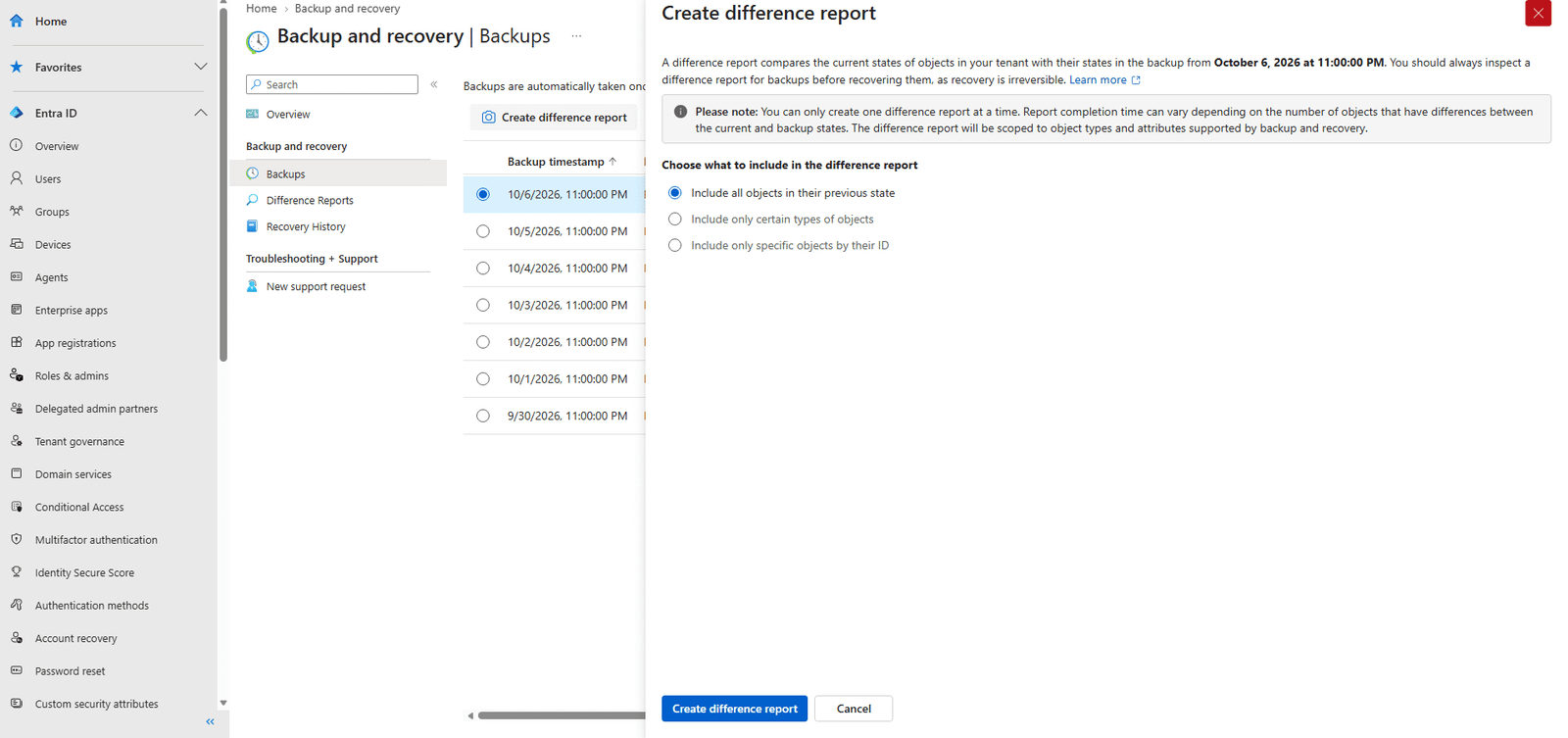
Create difference report panel with options to include all objects, certain types, or specific object IDs.
Creating a difference report — scope it to all objects, certain types, or specific IDs.
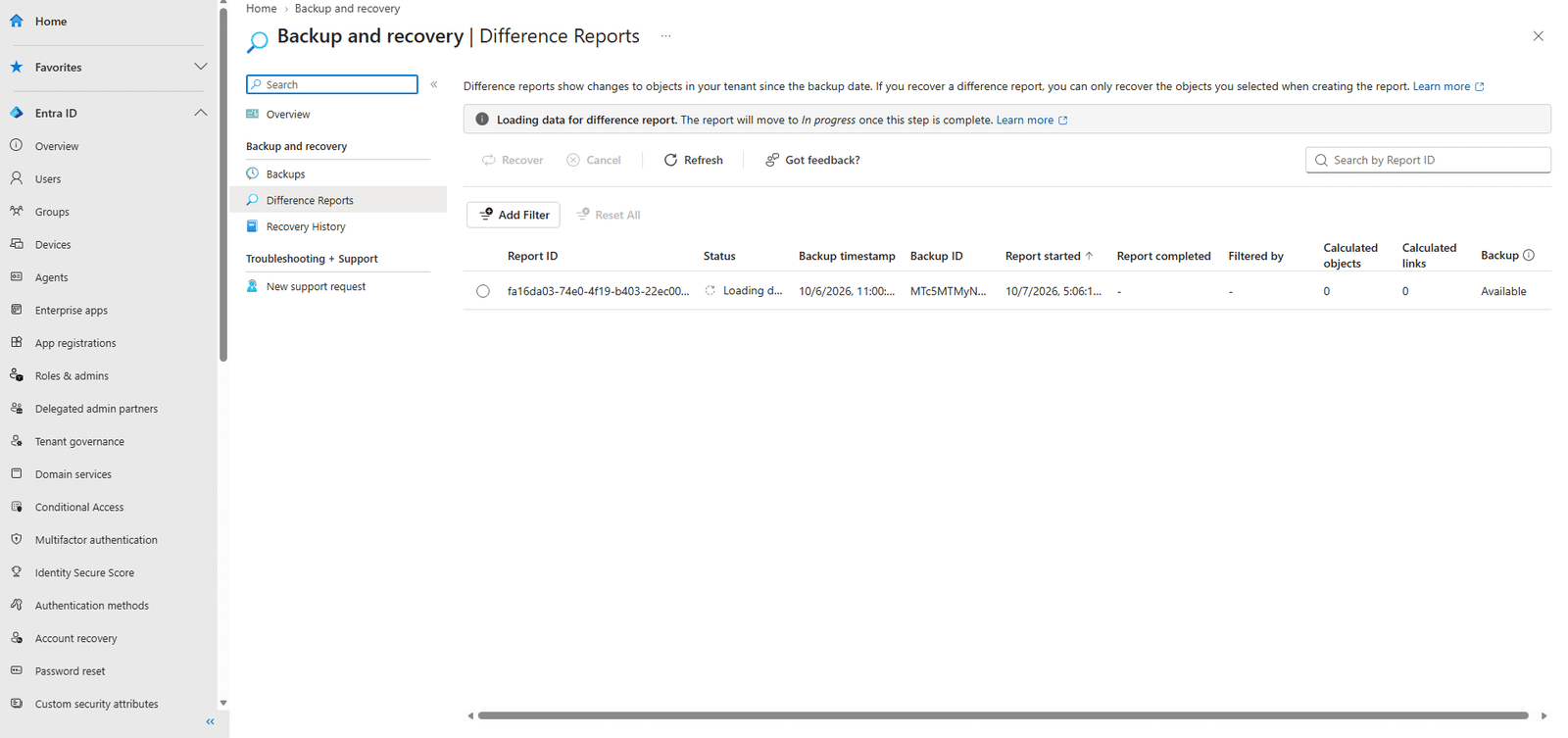
Difference Reports grid showing a report comparing a backup with the current tenant state.
The difference report shows what changed since the backup, before you recover.

The difference report is the star: it turns “I think something changed” into “here’s precisely what changed, and here’s what I’ll revert.”

For reference (Microsoft Entra Backup and Recovery overview).

What it does not do

  • It cannot recover hard-deleted objects. It restores properties and links of existing (or soft-deleted) objects—it does not re-create permanently deleted ones.
  • Soft-deleted users, Microsoft 365 Groups, cloud security groups, app registrations, and service principals remain restorable for 30 days through the existing soft-delete path; Backup and Recovery complements that, it doesn’t replace it.
  • For hybrid objects synced from AD DS, you can create difference reports to spot changes, but full recovery requires moving the group’s source of authority to the cloud.
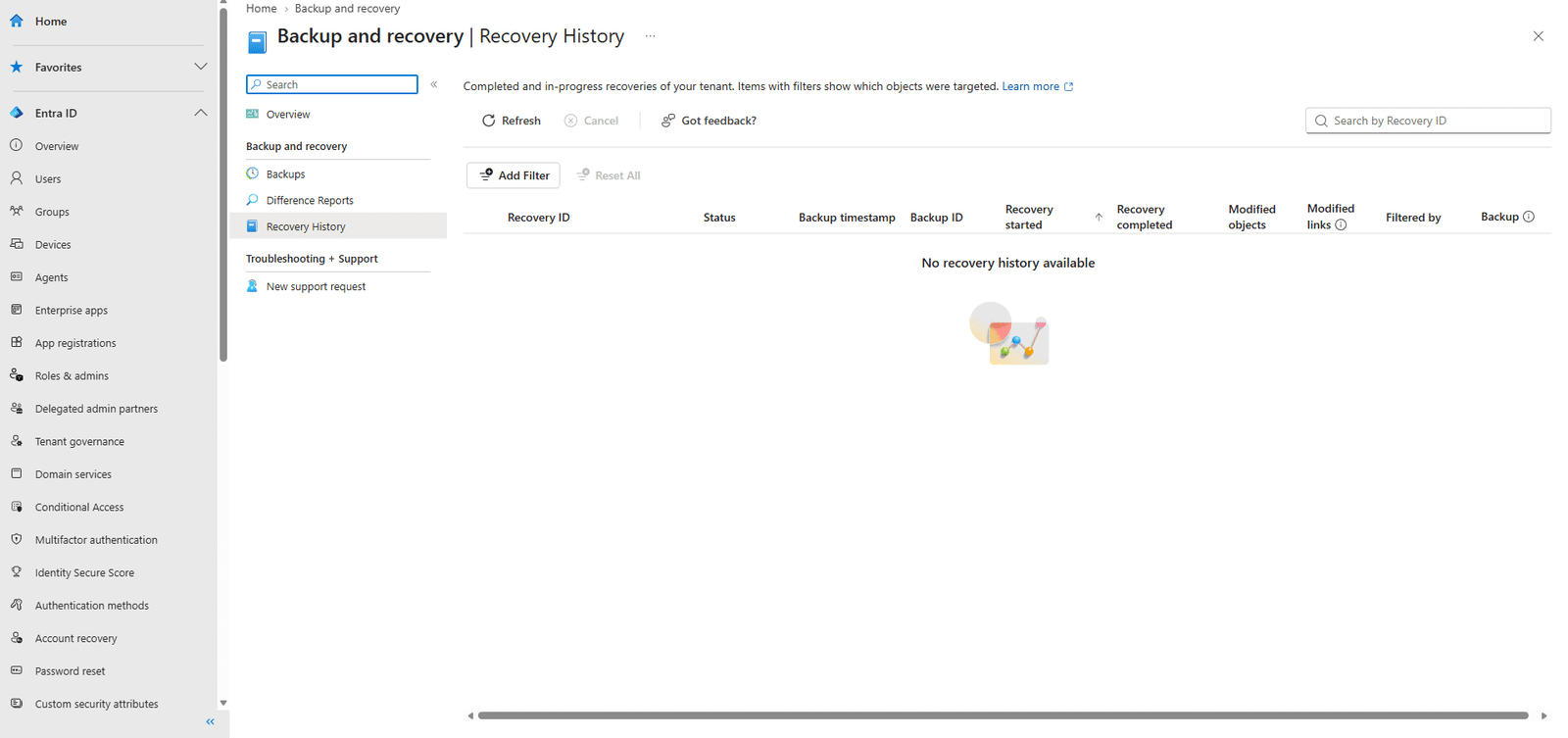
Recovery History page showing no recovery history available.
Recovery History stays empty until you actually run a recovery.

For reference (supported objects and limitations) and (soft deletion in Backup and Recovery).

Final takeaway

Microsoft Entra Backup and Recovery turns tenant resilience from a hope into a workflow: daily immutable backups, a difference report to see exactly what changed, and scoped recovery to put it right. Treat it as one layer of a broader recoverability strategy—not a substitute for change control, soft-delete awareness, or protecting against hard deletion in the first place.

Information current as of October 7, 2026. Confirm current availability, licensing, and limits before implementation.

Leave a Reply Cancel reply

Your email address will not be published. Required fields are marked *

Recent Posts

  • Microsoft Entra Backup & Recovery: Your Tenant’s Built-In Undo Button November 6, 2026
  • Conditional Access report-only: why a successful sign-in can show a policy failure October 9, 2026
  • Microsoft Entra SMS and Voice Retirement: An Admin Preparation Checklist September 24, 2026
  • Microsoft Defender for Identity domain investigation: six questions to ask first September 10, 2026
  • Microsoft Entra Kerberos key rotation: what changes—and what administrators should check September 6, 2026

Archives

  • November 2026
  • October 2026
  • September 2026
  • March 2026
  • September 2024
  • April 2024
  • February 2024
  • December 2023
  • September 2023
  • July 2023
  • June 2023
  • May 2023
  • April 2023
  • March 2023
  • February 2023
  • January 2023
  • December 2022
  • October 2022
  • September 2022
  • August 2022
  • July 2022
  • June 2022
  • May 2022
  • April 2022
  • March 2022
  • February 2022
  • January 2022
  • December 2021
  • November 2021
  • October 2021
  • September 2021
  • August 2021
  • July 2021
  • June 2021
  • May 2021
  • April 2021
  • March 2021
  • February 2021
  • January 2021
  • December 2020
  • November 2020
  • October 2020
  • September 2020
  • August 2020
  • July 2020
  • June 2020
  • May 2020
  • April 2020
  • March 2020
  • February 2020
  • January 2020
  • December 2019
  • November 2019
  • October 2019
  • September 2019
  • August 2019
  • July 2019

Tags

#aaddownleveldevice #adfs #adfscertificate #adfscertificates #adfsmfaadapter #azureauth #azureCA #azuredevice #capolicy #cloudsummit2021 #conditionalaccess #conditionalaccesspolicy #deviceregistration #farmbehavior #gopasswordless #mfaserver #msidentity #namedlocation #securingazure #securingazuread #sslprivatekey #troubleshootingadfs #troubleshootingwaptrust #tshootadfs #waptrust #webapplicationproxy #WHFBcerttrust #whfbdeployment #WHfBhybridsetup #WHfBprovisioning #widdatabase adconnect AD FS authenticationstrength az500 azurepim Azure security cloudsecurity microsoft365 Microsoft Azure Microsoft Entra hybrid join Microsoft Entra ID Microsoft Entra MFA PowerShell WHfB
©2026 Ulysses Neves | Design: Newspaperly WordPress Theme
Ulysses Neves
Gerenciar Consentimento de Cookies
Para fornecer as melhores experiências, usamos tecnologias como cookies para armazenar e/ou acessar informações do dispositivo. O consentimento para essas tecnologias nos permitirá processar dados como comportamento de navegação ou IDs exclusivos neste site. Não consentir ou retirar o consentimento pode afetar negativamente certos recursos e funções.
Funcional Always active
O armazenamento ou acesso técnico é estritamente necessário para a finalidade legítima de permitir a utilização de um serviço específico explicitamente solicitado pelo assinante ou utilizador, ou com a finalidade exclusiva de efetuar a transmissão de uma comunicação através de uma rede de comunicações eletrónicas.
Preferências
O armazenamento ou acesso técnico é necessário para o propósito legítimo de armazenar preferências que não são solicitadas pelo assinante ou usuário.
Estatísticas
O armazenamento ou acesso técnico que é usado exclusivamente para fins estatísticos. O armazenamento técnico ou acesso que é usado exclusivamente para fins estatísticos anônimos. Sem uma intimação, conformidade voluntária por parte de seu provedor de serviços de Internet ou registros adicionais de terceiros, as informações armazenadas ou recuperadas apenas para esse fim geralmente não podem ser usadas para identificá-lo.
Marketing
O armazenamento ou acesso técnico é necessário para criar perfis de usuário para enviar publicidade ou para rastrear o usuário em um site ou em vários sites para fins de marketing semelhantes.
  • Manage options
  • Manage services
  • Manage {vendor_count} vendors
  • Read more about these purposes
Ver preferências
  • {title}
  • {title}
  • {title}