
Hello, everyone. Continuing our Azure series, in today’s article we’ll cover custom domains and directories in Microsoft Entra ID. We’ll show how to register a custom domain, the benefits this configuration brings, and how to work with directories in Microsoft Entra ID.
What is a custom domain?
Every customer who joins Azure receives an initial domain called “domainname.onmicrosoft.com”. The custom domain lets you change the initial domain to one that’s familiar to the end user. This option makes it possible to create accounts in Microsoft Entra ID with the familiar domain and improve the experience when accessing Azure services.
In the scenario we’ll present, we’ll create a domain called ulyssesneves.com and validate it in the external DNS that’s authoritative for that domain.
Access the custom domains menu by clicking this link.
Click Add custom domain.

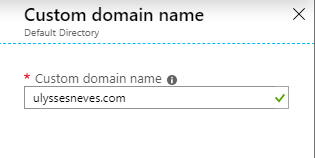
Fill in the domain you want to register in Azure and click Add.
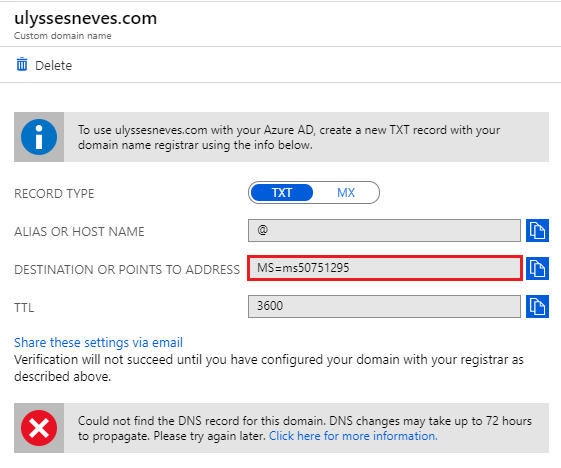
Copy the code from the Destination or points to address field and create a TXT record in the DNS that hosts the domain you want to register.
If the record hasn’t been replicated yet, you’ll receive the message below when you click verify. In that case, wait.
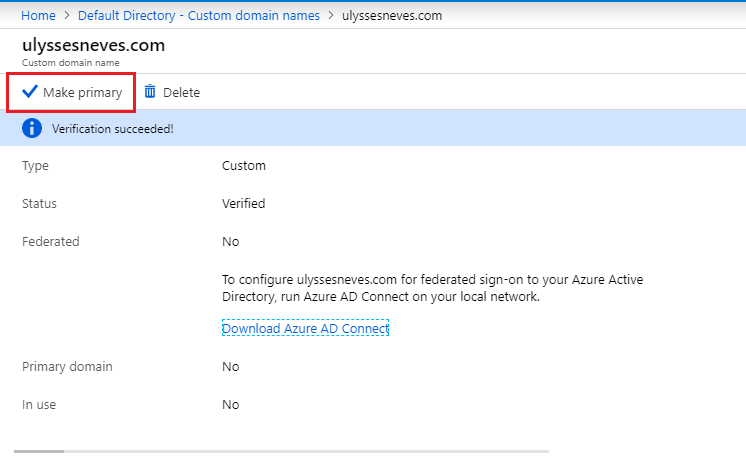
Once replication is complete, when you click verify and don’t receive the error, click Make primary to set the registered domain as the default domain for accessing Azure.
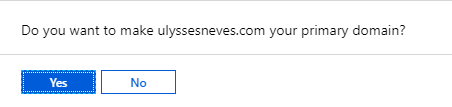
Confirm your choice by clicking YES.
In the screen below, you can see that the custom domain has a status of Verified.
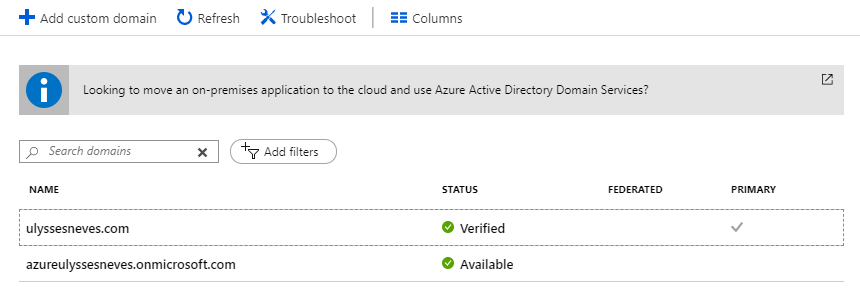
It’s strongly recommended to register the domain, and it’s one of the first tasks in planning your Azure usage, since this way it isn’t necessary to change the domain of users’ credentials later.
If the Azure administrator decides to register the domain after users already exist in Azure, it’s possible to change the sign-in credentials as we show below.
Access the menu Azure Active Directory > Users and select the user that was created before the domain was customized.
In the user name field, remove the “.onmicrosoft.” portion and check whether a green checkmark appears confirming that this name is available.
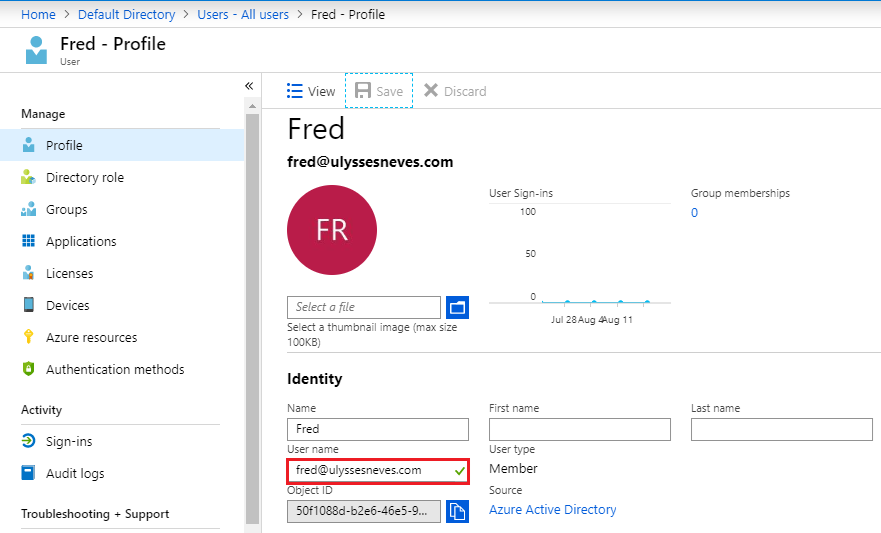
After changing the account, let’s test access for the user Fred, whom we just updated in the Azure portal.
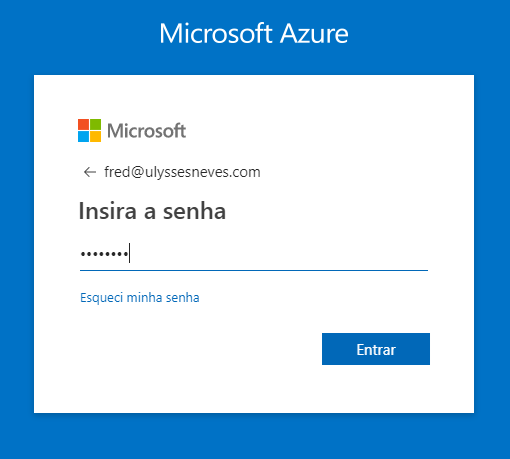
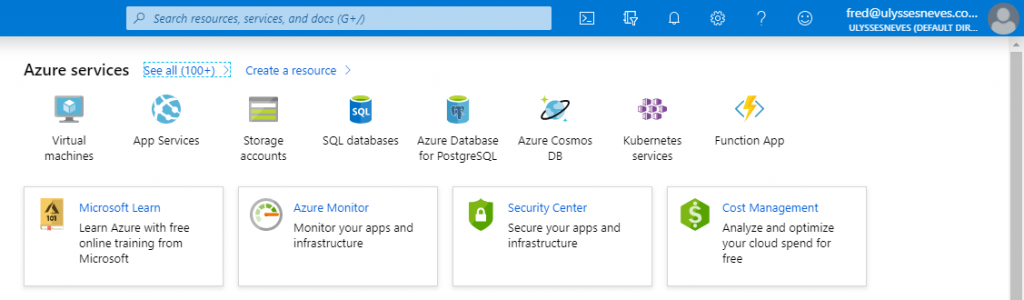
As shown below, the user Fred can sign in using the credential fred@ulyssesneves.com without the initial “onmicrosoft.com” domain.
What are Directories in Microsoft Entra ID?
The directory is the Microsoft Entra ID service used to provide administrative independence, access independence, synchronization, etc. You can register more than one domain in a directory and set a default domain for it. It’s possible to assign more than one subscription to the directory, however, only one tenant.
How to add a directory in Azure?
We’ll demonstrate creating a new directory in Azure.
Access the Microsoft Entra ID menu by clicking this link.
Click the Create a directory link.
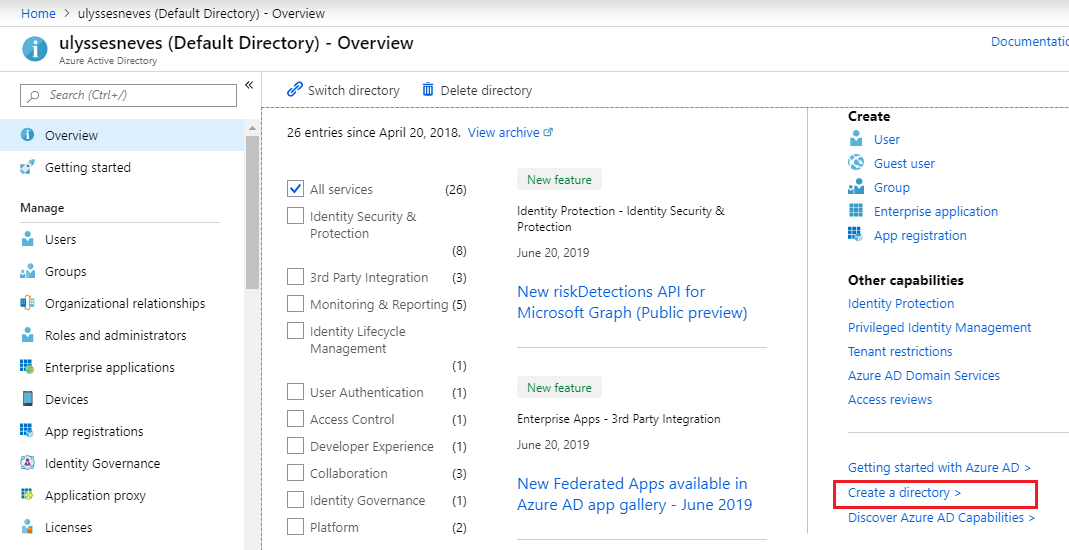
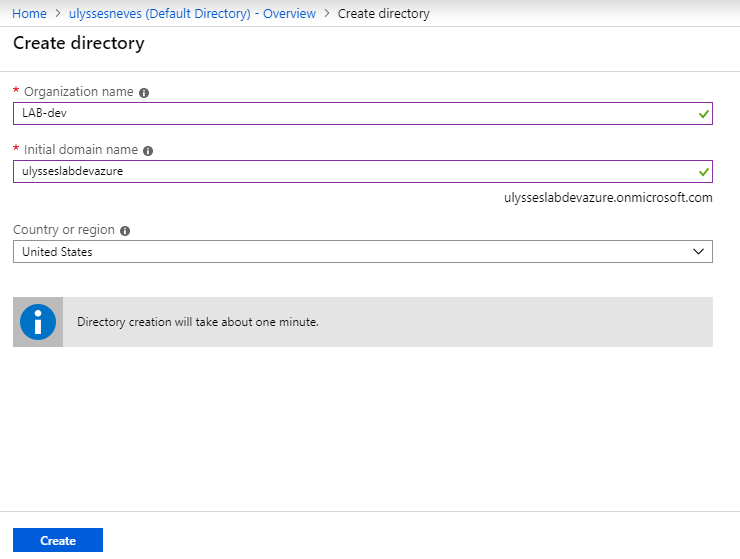
Fill in the organization name, the initial domain, and click Create.
With the new directory created, you can access it through the Azure AD menu by clicking Switch directory.
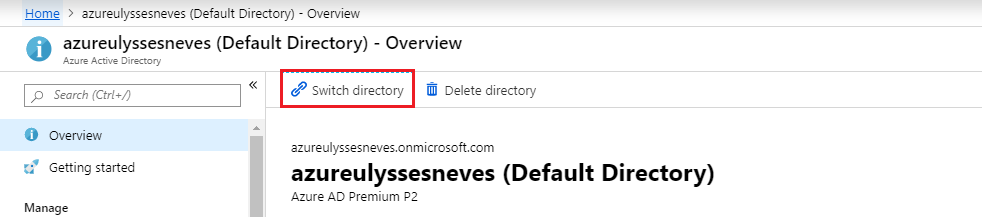
Select the directory you want to access.

Summary
In today’s article, we talked about custom domains in Microsoft Entra ID and how to register a new domain in Azure. We also explained what directories in Microsoft Entra ID are, what they’re used for, how to create a new directory, and how to navigate between directories through the Azure portal.
In the next article, I’ll start a series about the Microsoft Entra Connect tool and how important this tool is for access management in an on-premises, hybrid, or cloud domain.
I hope this content has helped enrich your knowledge of Azure.
Did you like the post? Like and share it.
If you have any suggestions or comments, let us know.
[ ]’s
Ulysses Neves
