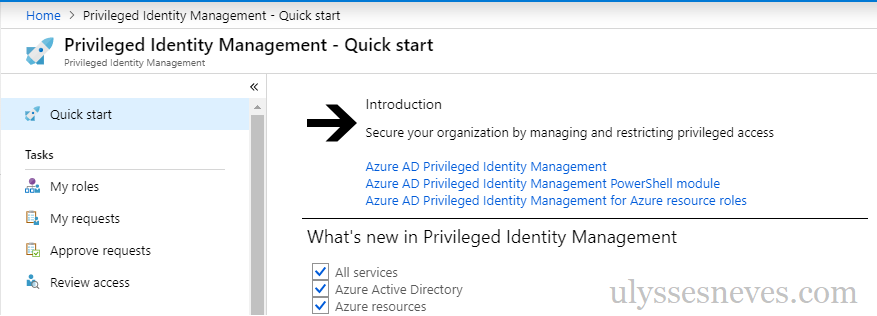
Hi everyone. In today’s article, we’ll continue the series of articles related to the AZ-500 – Microsoft Azure Security Technologies exam and show the workflow for requesting privileged access to a Microsoft Entra ID group managed by PIM. If you’re preparing to take this exam, don’t miss the next articles on this blog.
Before we simulate the privilege-granting workflow through PIM, let’s explain each of the roles. They are:
Permanent administrator – This is the state that allows the user to access the resources managed by the groups they already belong to.
Eligible administrator – This is the state that allows the user to activate privileged access whenever they find it necessary. Granting this access may require approval, if configured.
Access reviewer – This is the role responsible for approving one or more privileged access groups.
It’s possible to change the state from eligible to permanent and vice versa, but it’s a security best practice to keep the minimum number of users in the permanent administration state.
Configuring a high-privilege group in PIM
Let’s configure access policies for a group to control users who request access to this group.
Access the Microsoft Entra ID Roles portal by clicking this link.
With a user who has Global Admin privileges, let’s configure the approval requirement for eligible users to join the Microsoft Entra ID Security Administrator group.
Click the Settings option and then Roles.
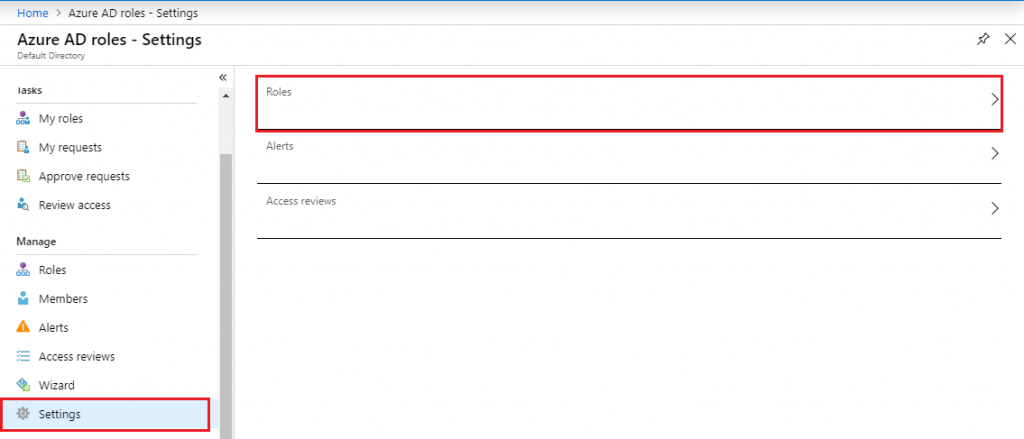
Let’s enable the approval requirement so eligible administrators have access to privileged groups.
Select the Security Administrator group.
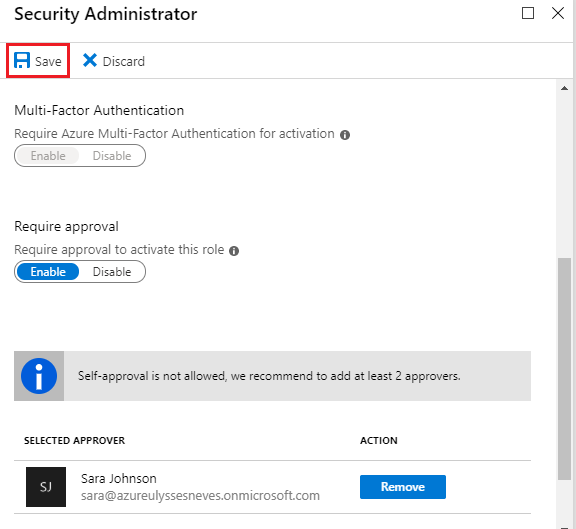
In the Require Approval menu, click Enable.
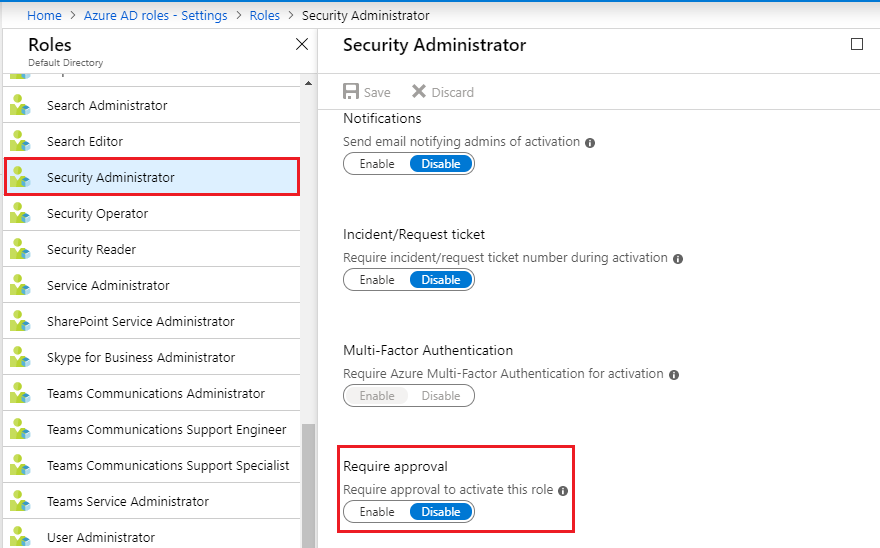
When enabling the option to require approval, you need to define a user or group of approving users. If you don’t select at least one approver, the PIM administrators will be set as the default approvers for this group.
Click Select approvers.
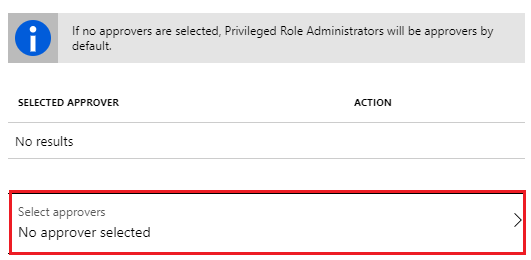
In the side window, select the user you want to be the access approver for this group and click select.
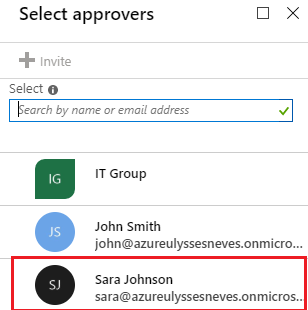
For our demonstration, we selected the user sara@azureulyssesneves.onmicrosoft.com to be the approver for access requests to the Security Administrator group.
Let’s designate the user john@azureulyssesneves.onmicrosoft.com as eligible to obtain access to the Security Administrator group.
Access the roles menu by clicking this link.
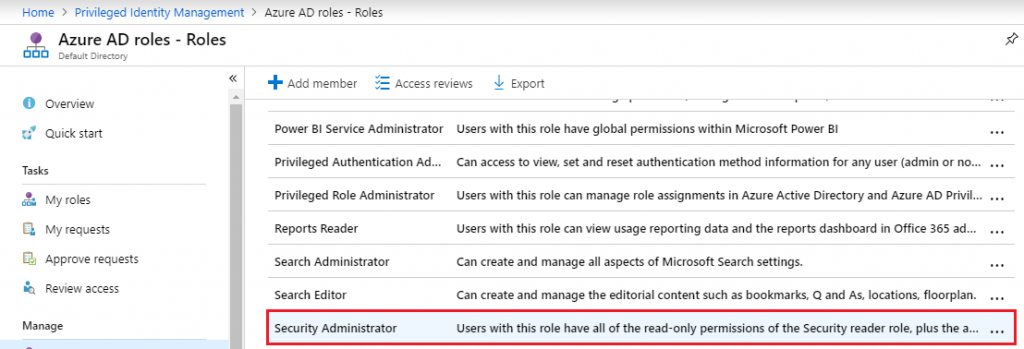
Click Add to designate the user John as eligible to join the group.
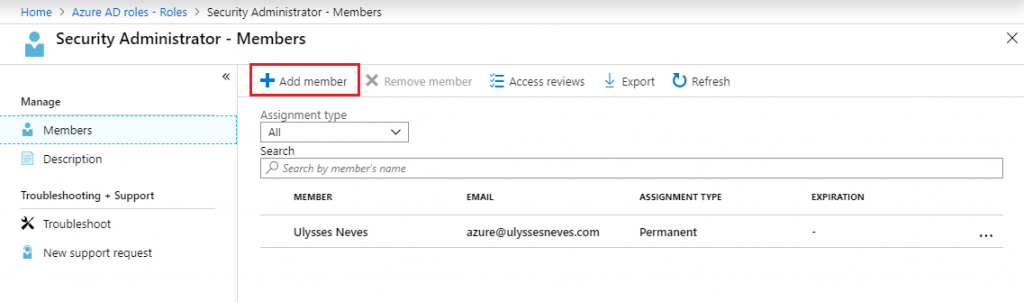
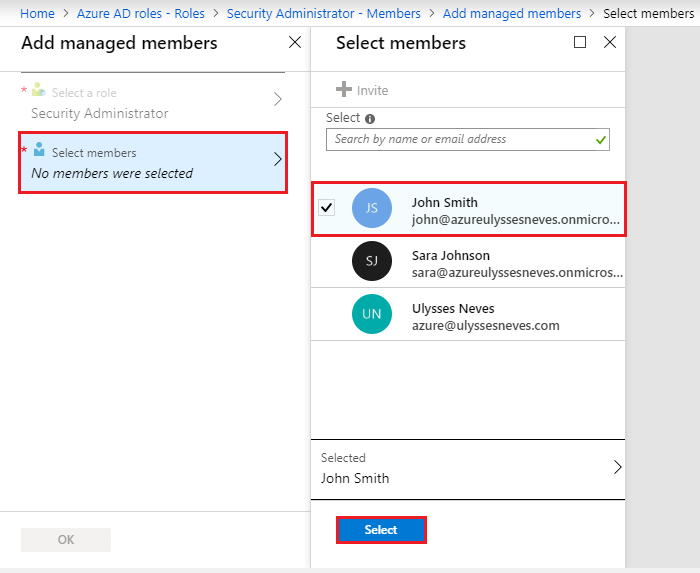
Click Select members, select the user john@azureulyssesneves.onmicrosoft.com and click Select.
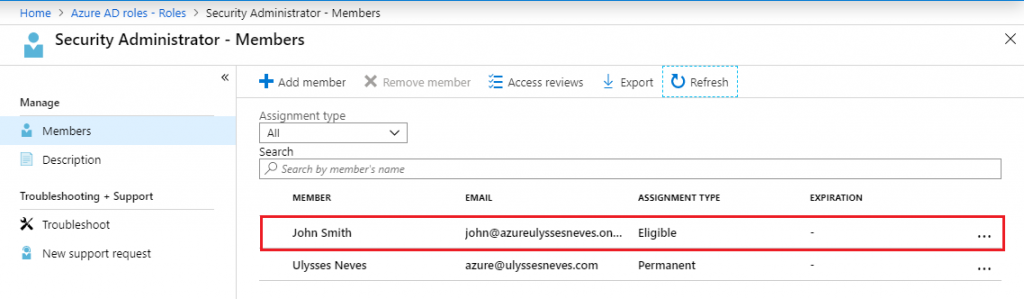
With the user added, you can already see the “elegible” status for the user John.
Requesting temporary access
Let’s now sign in to the Azure portal with the user John and check which groups he’s eligible to request access to.
Click this link to access the My Roles menu for the user John.
We can see that the user is eligible for the Security Administrator group, but is still in Not active status.
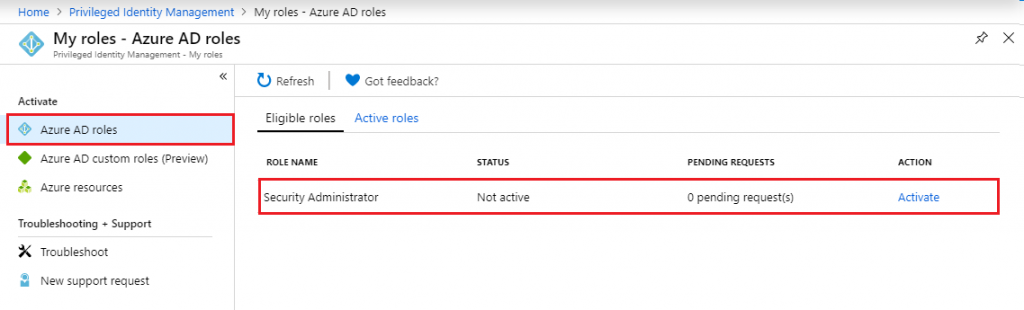
Let’s click Activate to request access to the group.
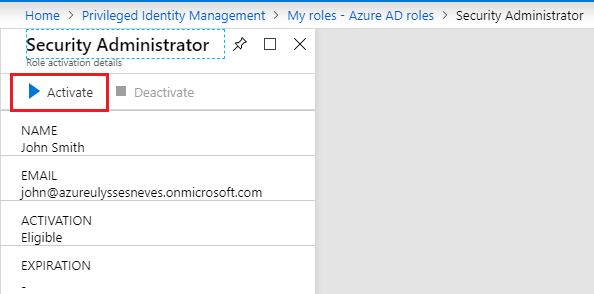
Fill in the reason for the access request and the required duration, then click Activate.
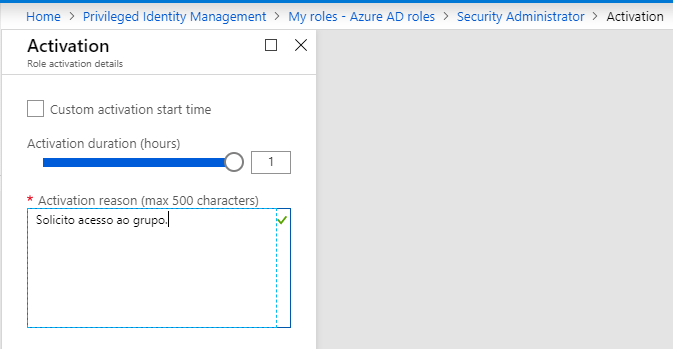
After requesting access, on the user John’s page, we can already see the request with a pending status.

Let’s now approve the request by accessing PIM, signing in to the Azure portal with the user Sara, who was defined as the approver at the beginning of this walkthrough.
Click Approved requests to access the group access approval requests.
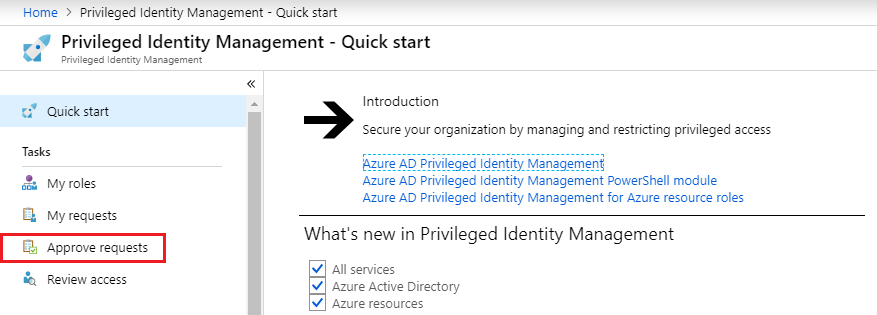
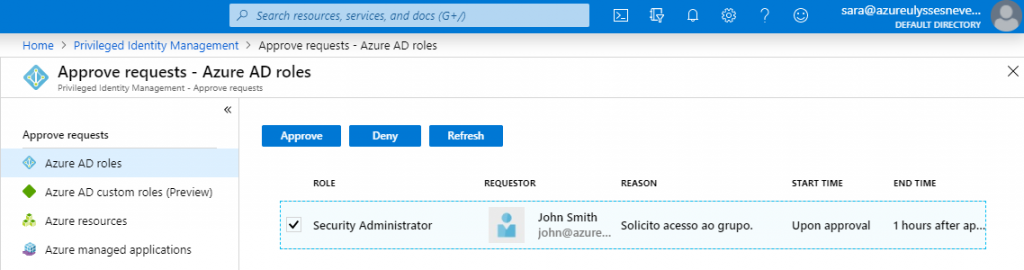
In Sara’s portal, you can see the user John’s access request to the Security Administrator group.
Select the request and click Approve.
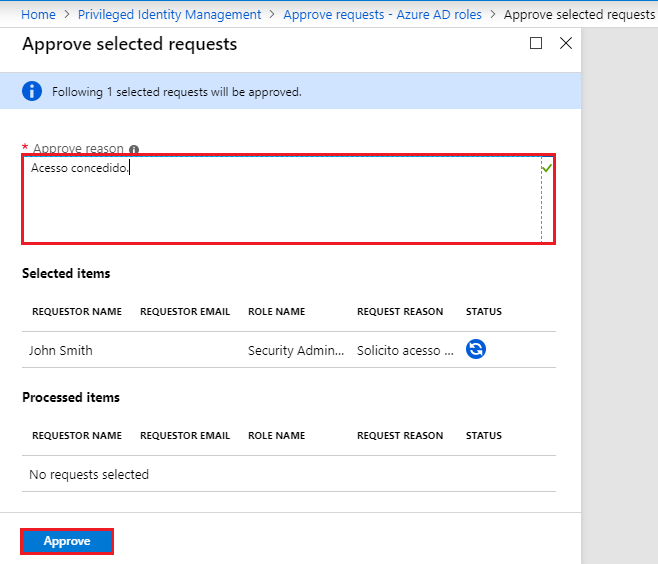
Enter the justification for approving the temporary access and click Approve.
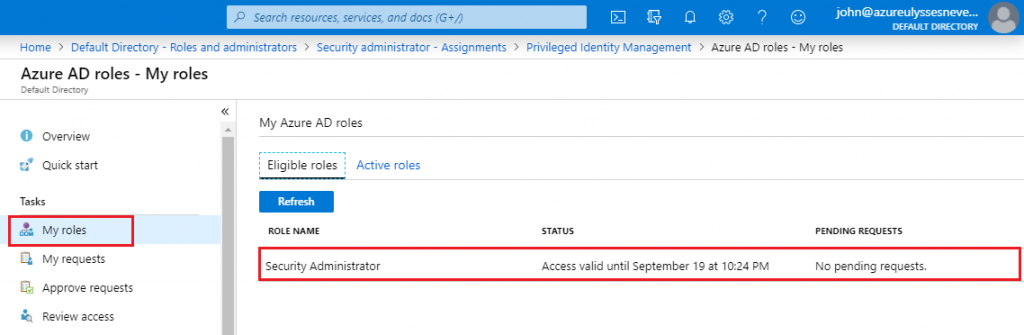
Let’s access the portal again with the user John to confirm whether access to the Security Administrator group was granted.
By accessing the My Roles menu, you can identify whether access was granted and the expiration time of that access.
Summary
In today’s article, we showed the access approval workflow for a Microsoft Entra ID security group managed by PIM and the roles of each participant in this workflow. We also presented a step-by-step guide on how to configure access authorization for privileged groups and simulated an access request to a security group with approval.
In the next article, we’ll show how to configure access reviews using Microsoft Entra Privileged Identity Management (PIM).
I hope this content has helped enrich your knowledge of Azure.
Did you like the post? Like and share it. 🙂
If you have any suggestions or comments, let us know.
[ ]’s
Ulysses Neves
