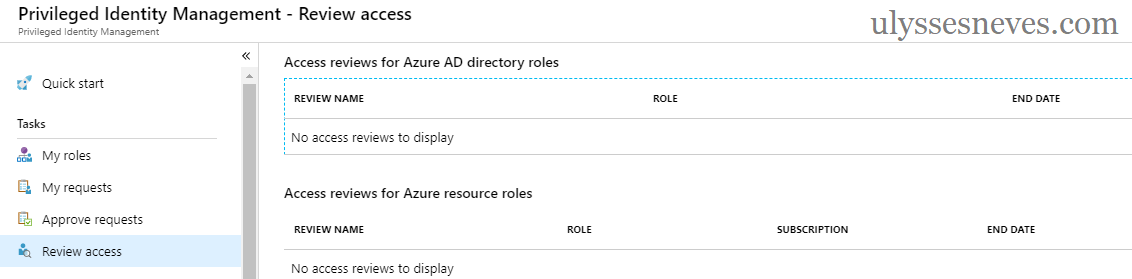
Hello, everyone. In today’s article, we’ll talk about another topic from the AZ-500 – Microsoft Azure Security Technologies exam, “Configuring access reviews” and explain what it is and how to perform an access review for security groups in Microsoft Entra ID using PIM.
What is a Microsoft Entra Privileged Identity Management (PIM) access review?
Access reviews ensure periodic and timely validation of user membership in privileged groups that grant access to applications and resources in Azure.
Why review privileged access?
There are many benefits to using access reviews. Let’s list a few:
- Ensure that active administrators in the company have appropriate access for their roles.
- Verify that former administrators don’t retain access after leaving the company.
- Proactively ensure that least privilege is applied in managing resources in Azure.
Reviewing access – step by step
Scenario
To illustrate how to create an access review, we’ll review the Azure AD Security Administrator group, approve the user Joseph, and deny access to the user Ulysses.
We’ll create the access review, review it, and confirm at the end of the review whether access was changed.
Creating the access review
Access the PIM menu in Azure by clicking this link.
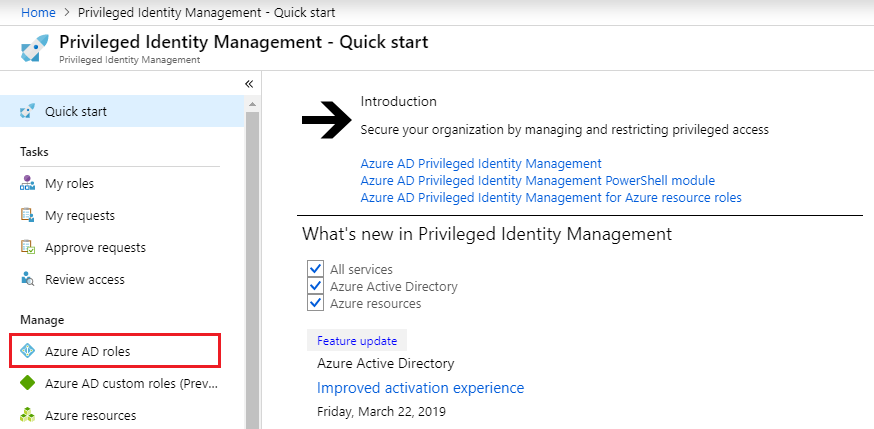
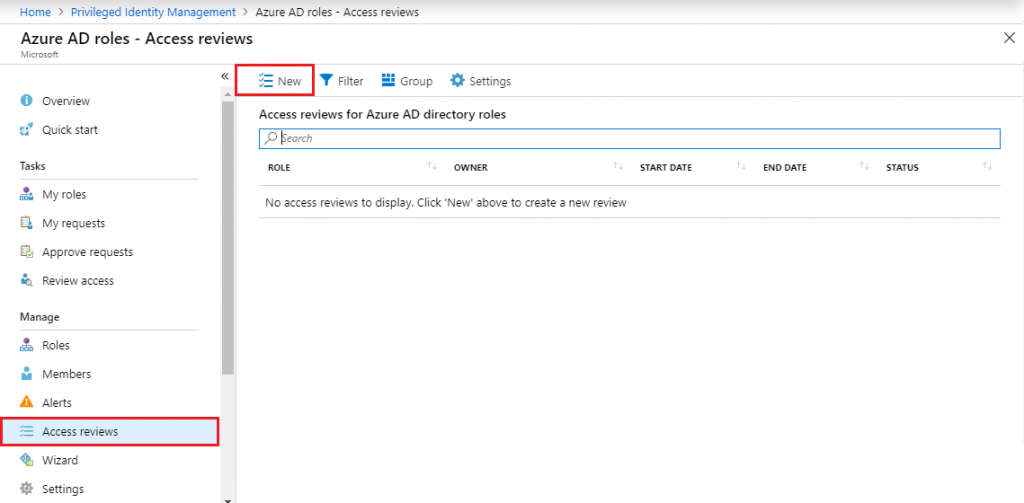
Select the Access reviews menu and then New.
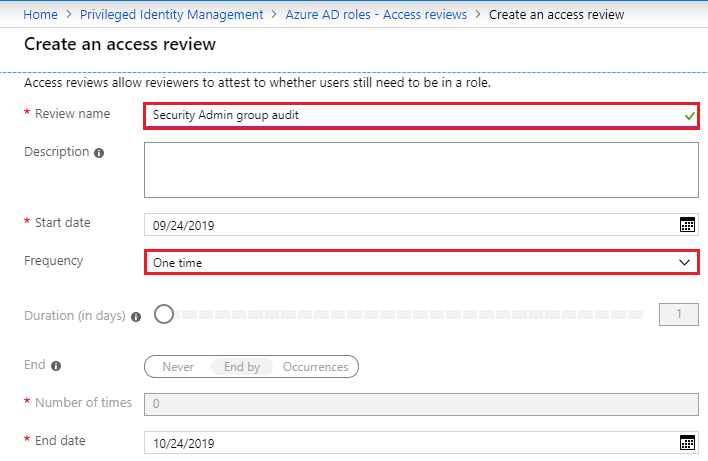
Let’s type the review name and select the frequency it should run.
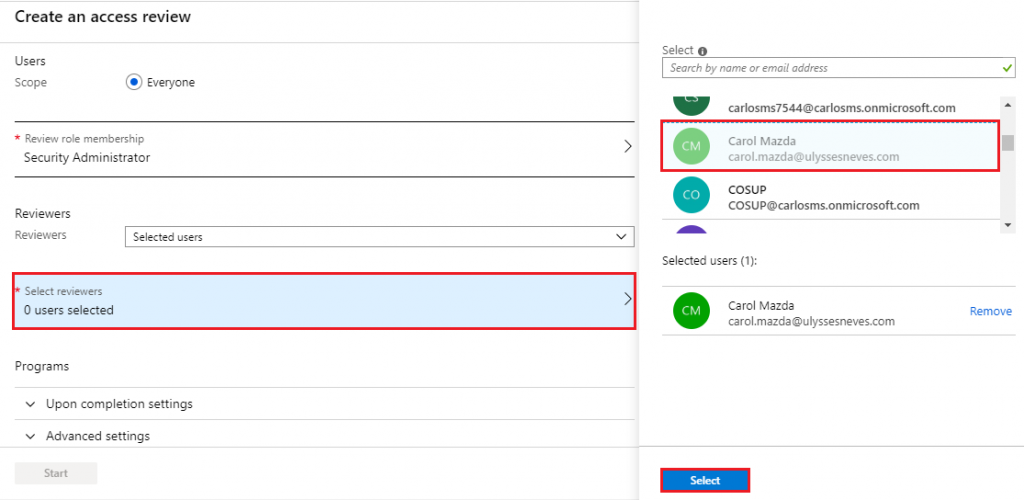
We’ll select the Security Administrator role as the target of the access review.

Now select one or more reviewers to evaluate the members of the chosen role by clicking Select reviewers and confirming with Select.
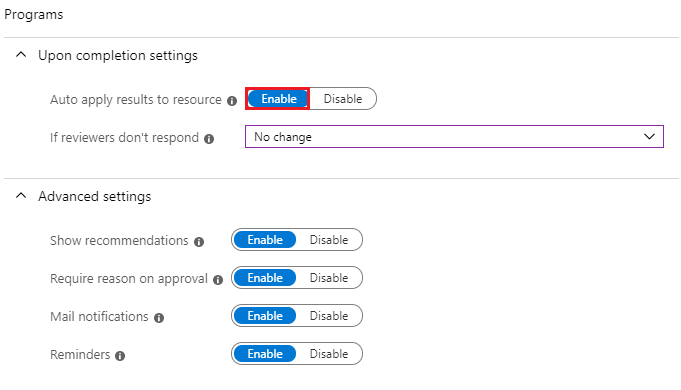
On the Auto apply results to resource option, check Enable. This option carries out the reviews made at the end of the access review window.
At the end of the review, click Start.
Reviewing access
With the review created, let’s sign in to the portal with the user carol.mazda, to whom we granted reviewer access at the beginning.
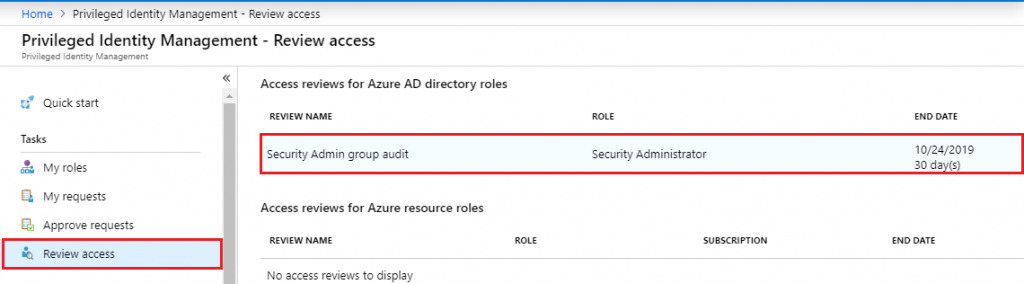
Access the PIM > Review Access menu and select the review that was created for the Security Administrator group.
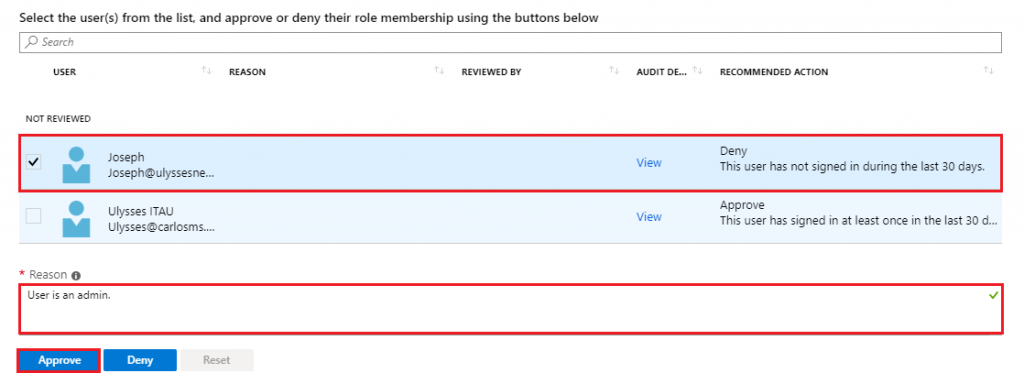
With both users in the group, we’ll approve the user Joseph’s continued membership and provide a justification.
Select the user and click Approve.
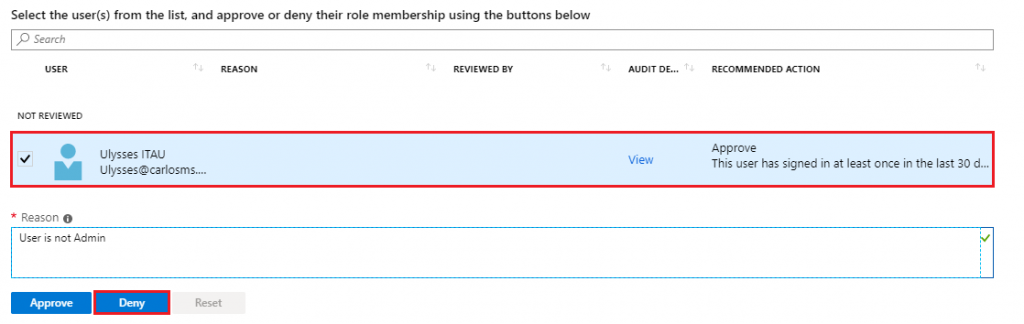
Now let’s select the user Ulysses and deny his continued membership in the Security Administrator group.
Select the user and click Deny.
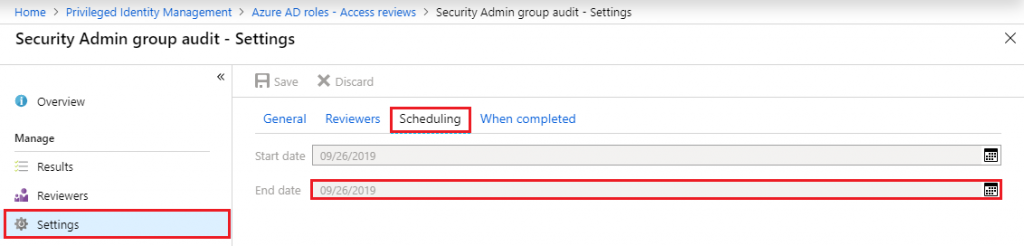
Note: For illustration purposes, I shortened the review window by accessing the review we created > Settings > Scheduling > End date.
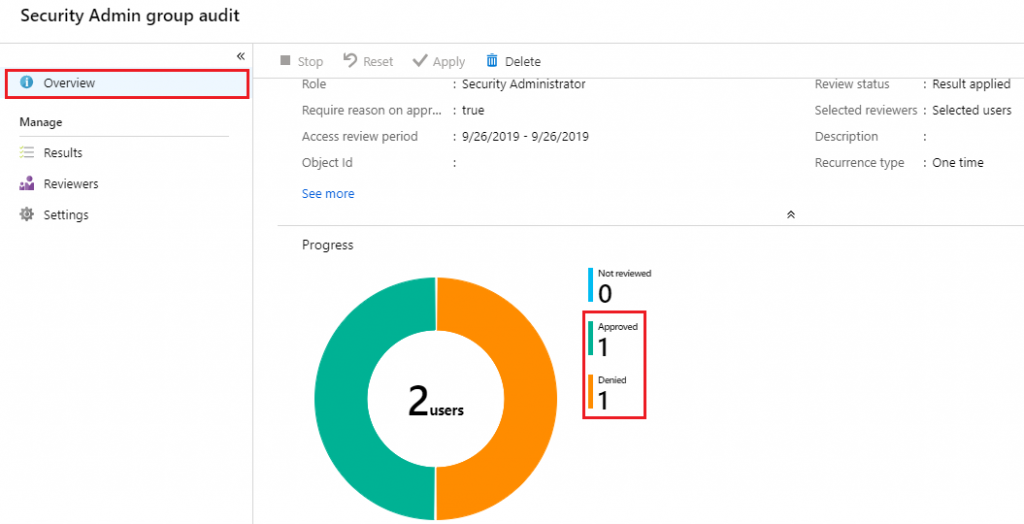
The Overview menu gives us the status of approvals and denials made by the reviewers.
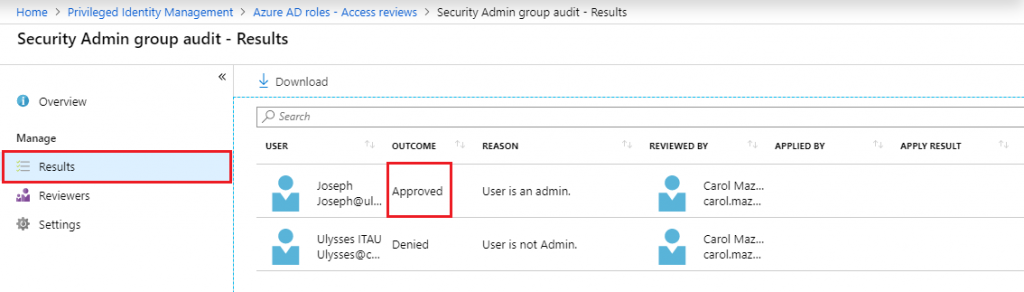
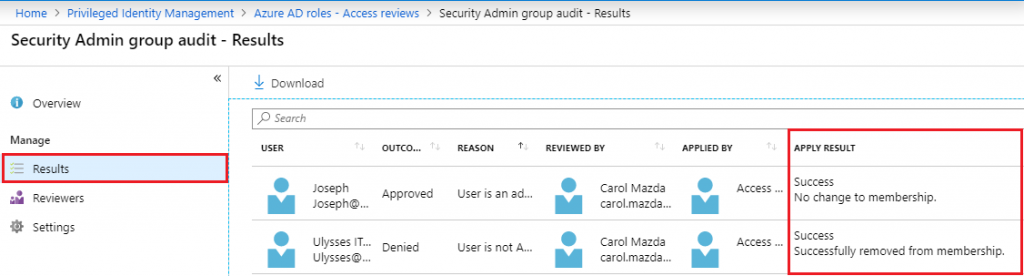
By clicking Results, you can view the results of the reviews performed in the Outcome column.
With the review finished, you can see the actions taken based on the reviewers’ decisions.
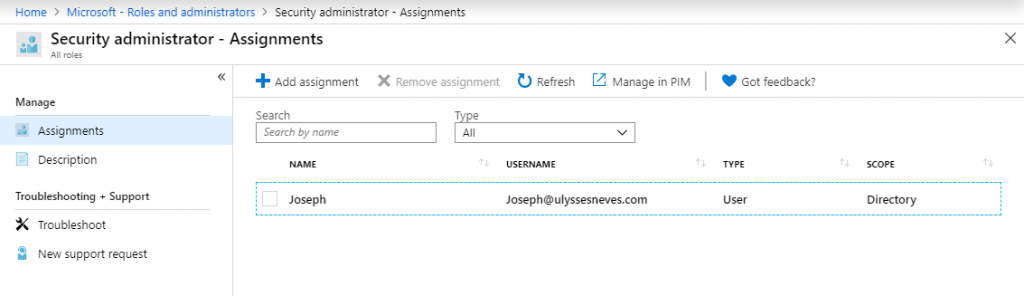
Accessing the Security Administrator group, we can see that the user Joseph remains in the group and the user Ulysses was removed.
Summary
In today’s article, we explained access reviews and created one to review a Microsoft Entra ID security group. We demonstrated how to approve and revoke access using PIM, and the effect of that assessment on the reviewed group.
In the next article, we’ll close out the topic “Configuring privileged access management” by talking about privileged access monitoring using alerts and events from Microsoft Entra Privileged Identity Management (PIM).
I hope this content has helped enrich your knowledge of Azure.
Did you like the post? Like and share it. 🙂
If you have any suggestions or comments, let us know.
[ ]’s
Ulysses Neves
