Historical per-user MFA notice — September 2026: This article preserves the per-user MFA interface and procedure shown at its original publication. For current deployments, Microsoft recommends requiring Microsoft Entra multifactor authentication through Conditional Access. For Microsoft Entra ID Free tenants without Conditional Access, use security defaults. Do not enable or enforce per-user MFA for users governed by Conditional Access policies.
Source: Enable per-user multifactor authentication: “The best way to protect users with Microsoft Entra MFA is to create a Conditional Access policy.” Microsoft also states: “Don’t enable or enforce per-user Microsoft Entra multifactor authentication if you use Conditional Access policies.”
Current implementation guide: Enable Microsoft Entra multifactor authentication: “The recommended way to enable and use Microsoft Entra multifactor authentication is with Conditional Access policies.”
Hello, everyone. In today’s article, we’ll show how to enable MFA for users in Azure. This article continues covering content from the “configure multi-factor authentication settings” topic of the AZ-500 – Microsoft Azure Security Technologies exam. If you’re preparing to take this exam, don’t miss the upcoming articles on this blog.
Enabling MFA on a Global Administrator Account
Let’s enable MFA for an account with global administrator privileges. It’s a good security practice to use these accounts only in emergencies and, to administer the environment, use accounts with specific roles for each activity.
Let’s enable MFA for a user with global admin privilege to allow us to enable other users.
Access the users menu by clicking this link.
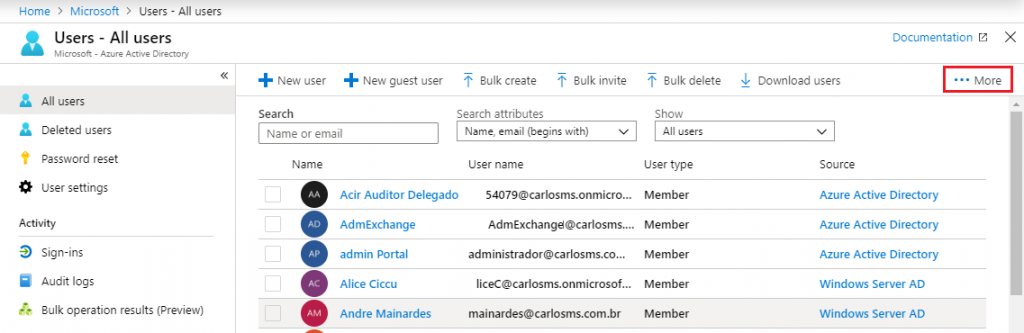
Select the More option.
Select the Multi-Factor Authentication option.

In the View option, select Global Administrators.
Note: If you want to enable MFA for users with other roles, simply select the desired role to filter the users.
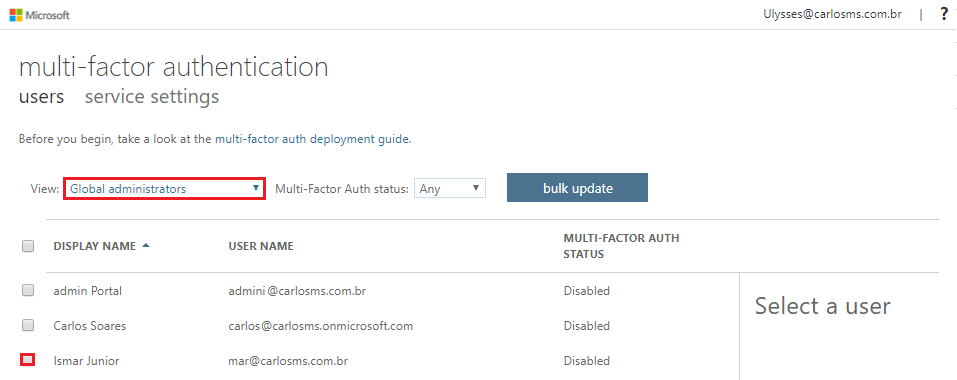
Select the user for whom you want to enable MFA and click Enable.
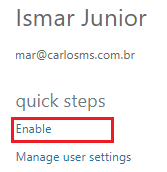
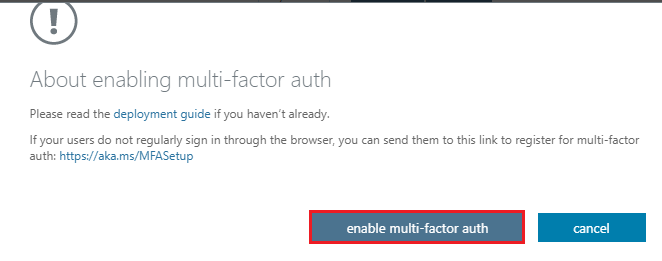
Select enable multi-factor auth.
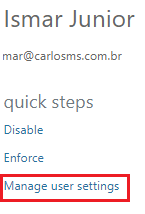
You can configure some options for users who use MFA by clicking Manage User settings.
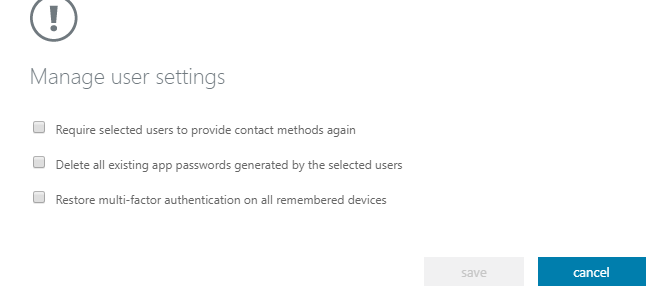
- Require selected users to provide contact methods again – Forces the user to register their contact methods again. This request is made for applications accessed through browsers.
- Delete all existing app passwords generated by the selected users – Removes the passwords created for applications that are not accessible through browsers.
- Restore multi-factor authentication on all remembered devices – Forces two-step verification on devices marked as trusted by users on their next access.
Using Two-Factor Authentication
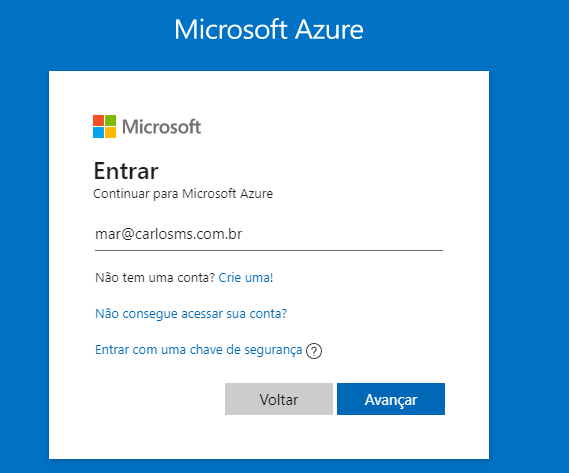
With MFA enabled for the user Ismar, let’s log in to portal.azure.com with the user’s credentials and validate the two-factor authentication.
Enter the credential and click Avançar.
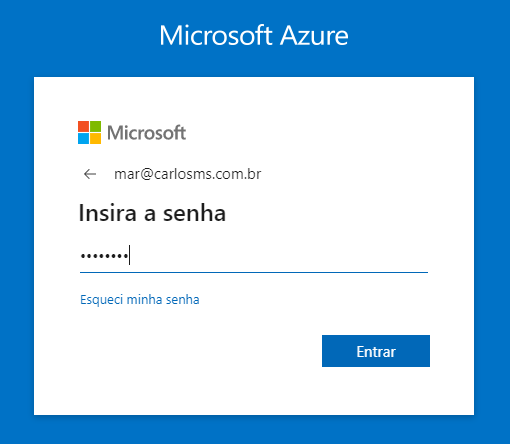
Enter the password and click Entrar.
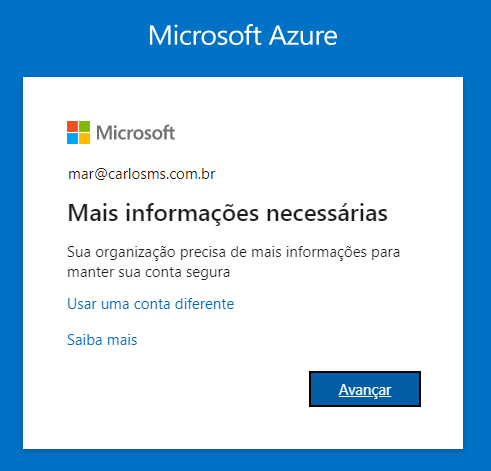
In the screen below, click Avançar.
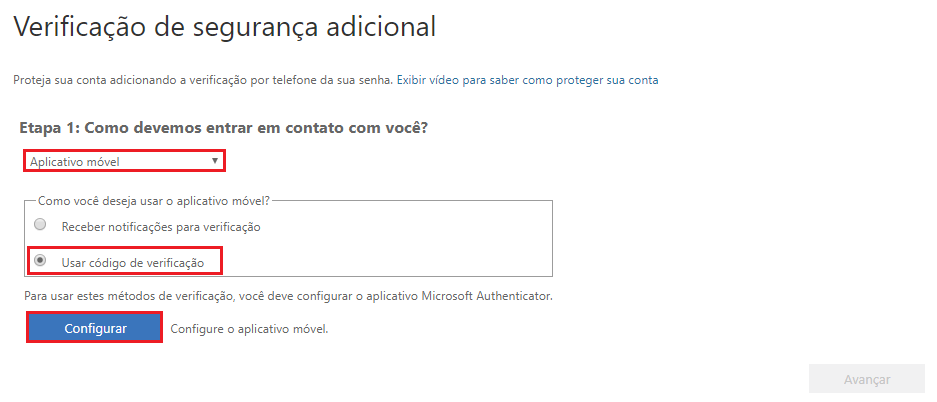
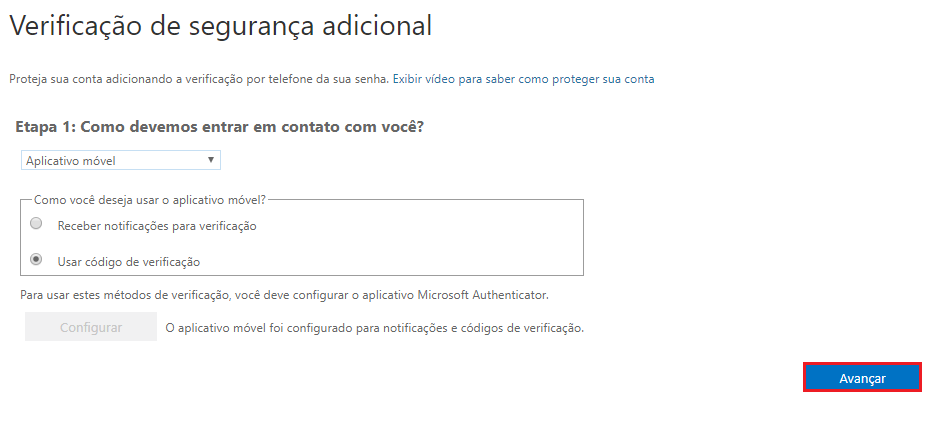
On the two-step verification method selection screen, let’s select Aplicativo móvel with the Usar código de verificação option to demonstrate how to use Microsoft Authenticator with MFA.
Click Configurar.
Follow the steps below to use two-factor authentication in Azure using Microsoft Authenticator.
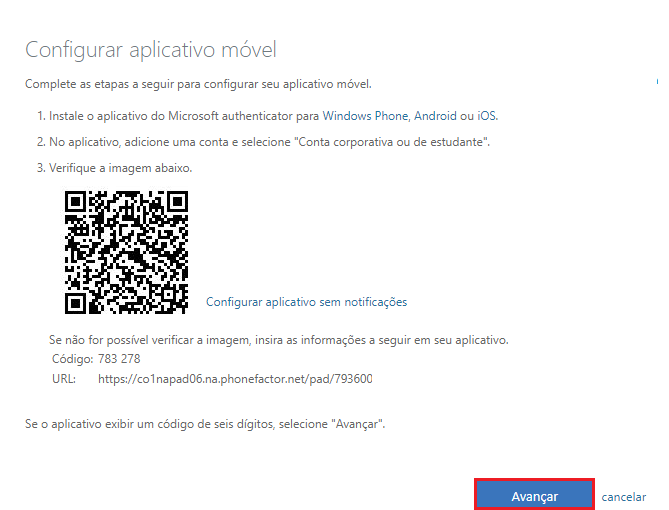
Configuring Microsoft Authenticator on the Mobile Device
Install Microsoft Authenticator on your iOS or Android device. For more information, click this link.
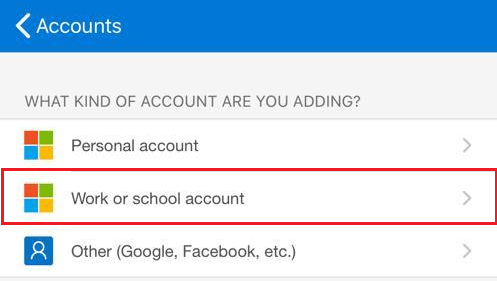
Select the Work or school account option.
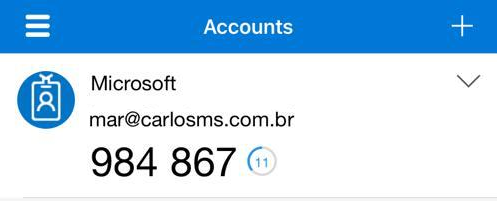
Point the camera at the QR code from the screen above to log in to the app.
Back in the browser, click Avançar.
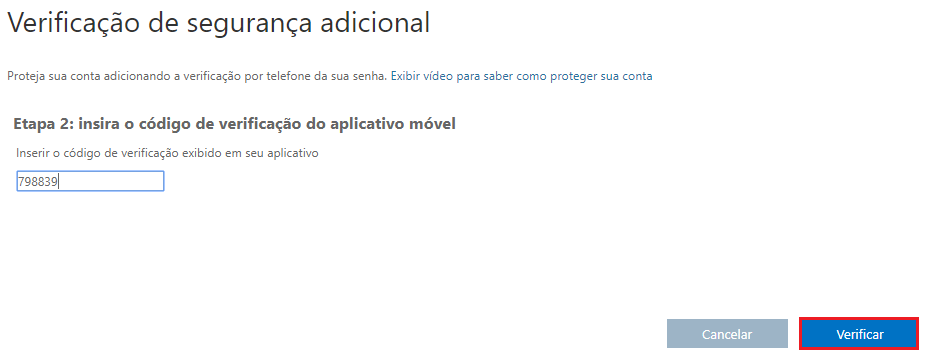
Enter the code generated by the app and click Verificar.
Enter your contact phone number to add more verification methods to your account.
Click Avançar.
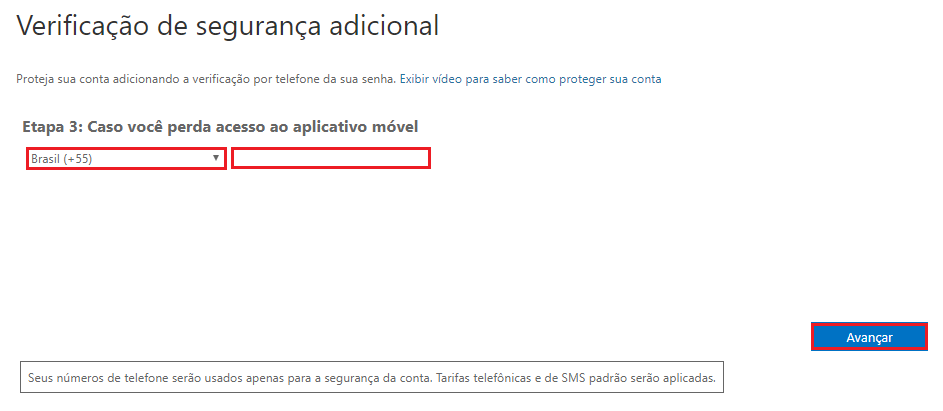
If you use applications that don’t support modern authentication, you can use an “app password” to protect against unauthorized access.
Click Concluído.
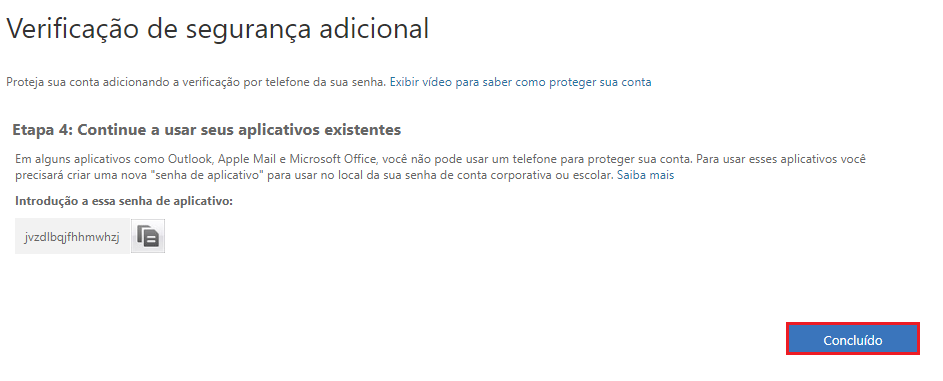
Done! Now you’ll be able to access the Azure portal or the application you want with more security.
Summary
In today’s article, we showed how to enable MFA for users in Azure and demonstrated a two-factor validation using Microsoft Authenticator.
In the next article, we’ll continue with the “Configure Microsoft Azure Active Directory for workloads” topic, explaining how to activate MFA licenses for users in Azure using the portal and PowerShell.
I hope this content has contributed to enriching your knowledge of Azure.
Did you like the post? Like and share it. 🙂
If you have any suggestions or comments, leave a comment.
[ ]’s
Ulysses Neves
