Update notice — September 2026: This article contains commands from the Azure AD or MSOnline PowerShell modules maintained since its original publication. Microsoft has deprecated these modules and recommends Microsoft Graph PowerShell for current automations. Do not use the legacy commands in new implementations.
Source: Guidance for migrating to Microsoft Graph: “Azure AD, Azure AD Preview and MSOnline PowerShell modules are deprecated.”
Hello, everyone. In today’s article, we’ll show how to assign licenses to Azure users for MFA use, using the Azure portal and PowerShell. This article covers the “configure multi-factor authentication settings” topic of the AZ-500 – Microsoft Azure Security Technologies exam. If you’re preparing to take this exam, don’t miss the next articles on this blog.
Activating licenses for users using the portal
Open the licenses menu by clicking this link.
Sign in with your Azure credential.
Select the product you want to assign the license to.
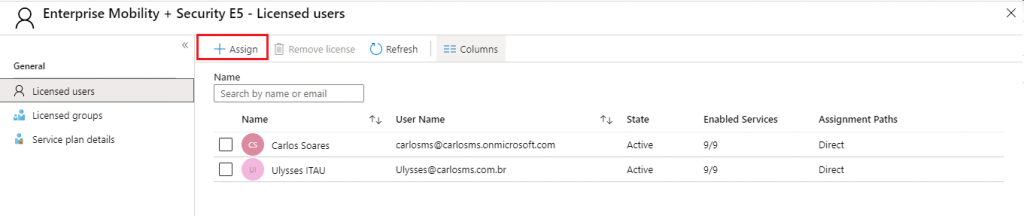
In our illustration, we’ll assign the E5 license that we have available for MFA use.

You can see two users who already have a license assigned.
Let’s click Assign to add a license for one more user.
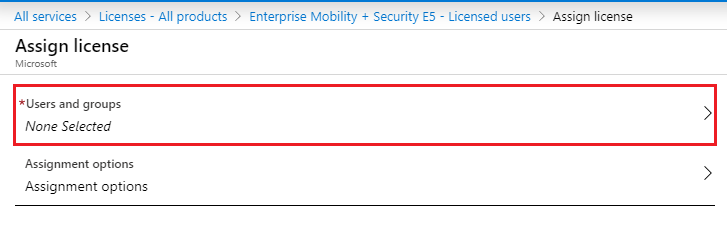
Click the Users and groups menu to select the user or group of users who will receive the license.
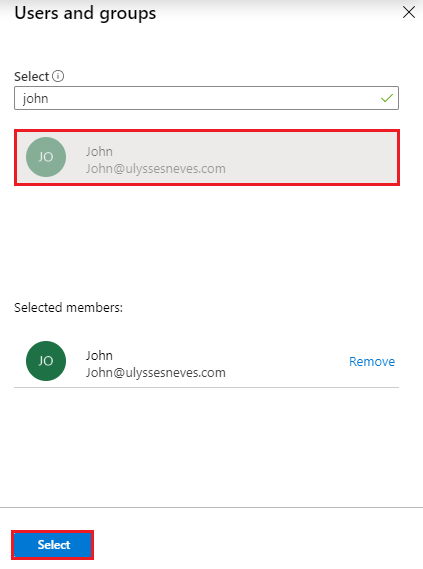
To make it easier to find the user, we type the name in the search.
Click the user and then Select.
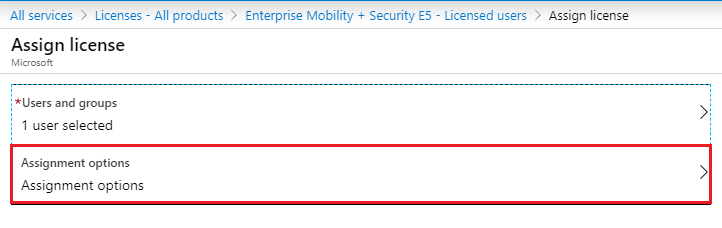
Let’s now select the product. Click Assignment options.
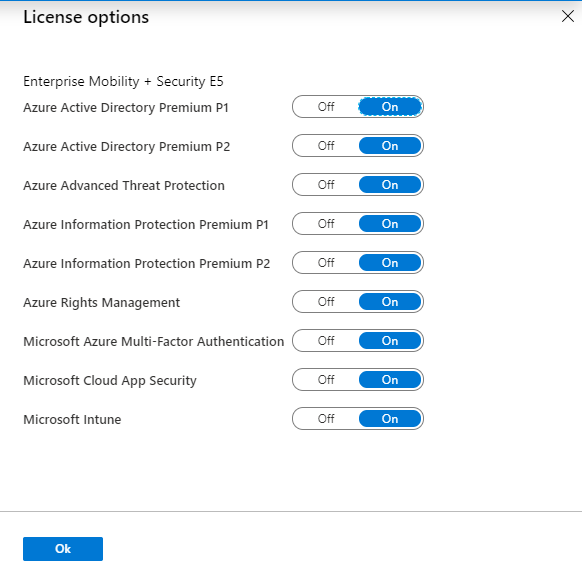
In the license options, within the license you want to assign, you can select certain services that the user may or may not use.
Let’s leave all options selected and click OK.
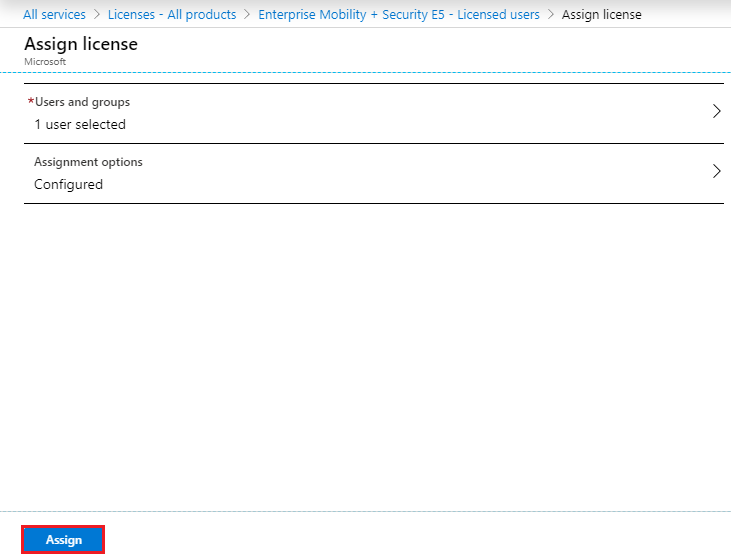
With the assignments configured, click Assign.
Attention: To assign a license to a user in Microsoft Entra ID, the user must have the usage location attribute properly filled in, or you will receive the error below.
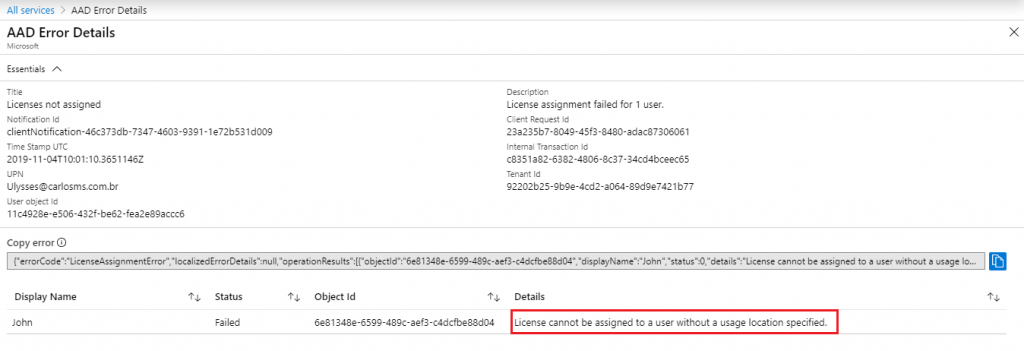
Let’s assign a location to the user John.
Open the All users menu by clicking this link.
We select the user John and fill in the Usage location attribute so that we can assign him a license.
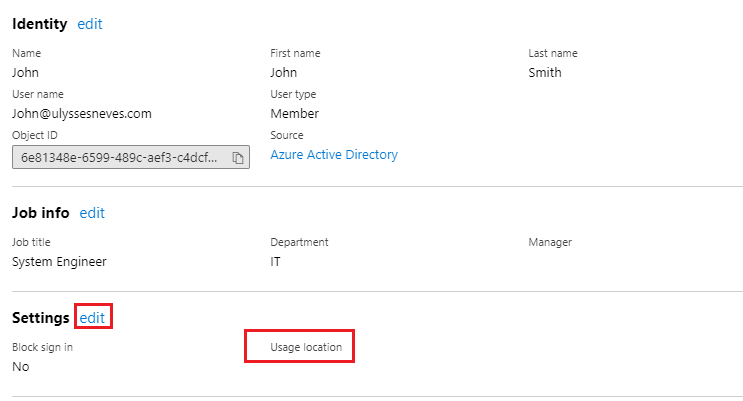
We select Brazil as John’s Usage location.
After the change to the profile, we click save.

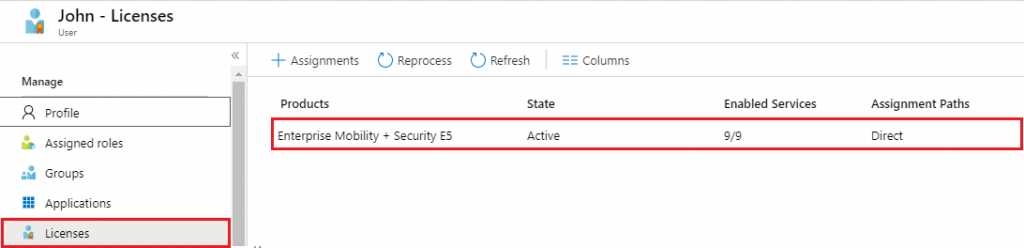
With the Usage location attribute filled in, we run the previous steps again, and now we can see the license assigned to the user John.
Activating licenses for users using PowerShell
Let’s now activate a license for the user john@ulyssesnevs.com using PowerShell.
Open PowerShell with administrator privilege.
Let’s enable remote script execution using the command below:
Set-ExecutionPolicy RemoteSigned

Let’s install the AzureAD module for PowerShell using the command line below:
Install-Module AzureAD

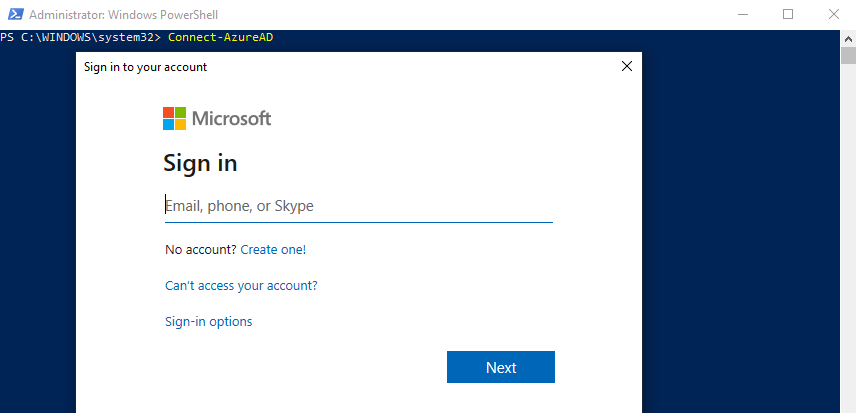
To connect to Microsoft Entra ID, use the command below:
Connect-AzureAD
Sign in with the credentials of an account with Azure administrative privileges.
Let’s list the licenses available in the subscription to identify the available licenses.
Enter the command below to list the available licenses, filtering by license type and ID.
Get-AzureADSubscribedSku | select skuPartNumber, SkuId

Let’s store the EMS Premium license ID in a variable using the command below.
$skuid = 'ID da licença EMS'

Let’s create two variables to store the collection of user information.
$license = New-Object -TypeName Microsoft.Open.AzureAD.Model.AssignedLicense
$licenses = New-Object -TypeName Microsoft.Open.AzureAD.Model.AssignedLicenses

Let’s assign the EMS license captured in the $skuid variable to the properties of the $license variable using the command below:
$license.SkuId = $skuid
Add the captured license to the license collection defined in the $licenses variable by running the following command.
$licenses.AddLicenses = $license

To capture the user for whom we want to activate the license, use the command below. To capture the object ID, run the command Get-AzureADUser.
$user = Get-AzureADUser -ObjectId 'ID do objeto usuário'

As mentioned in the previous example, if the user does not have the Usagelocation attribute populated, it will not be possible to assign the license.
Run the command below to assign a US location to the user. For more information about the locations available in Azure, use this link.
Set-AzureADUser -ObjectId $user.ObjectId -UsageLocation 'US'
Let’s now assign the license to the user john@ulyssesneves.com using the command:
Set-AzureADUserLicense -ObjectId $user.ObjectId -AssignedLicenses $licenses

Update the license property of the user John with the following command.
$user = Get-AzureADUser -ObjectId 'ID do objeto usuário'
Run the command below to identify whether the license was assigned correctly:
$user.AssignedLicenses

Accessing the licensing portal, we can see the user John in the list of users licensed with EMS.

Summary
In today’s article, we showed how to activate a license for users in Azure using the portal and also PowerShell, enabling the use of MFA.
In the next article, we’ll continue with the topic “Configure Microsoft Azure Active Directory for workloads“, explaining how to enable MFA for users using a conditional access policy in Azure.
I hope this content has contributed to enriching your knowledge of Azure.
Did you like the post? Like and share it. 🙂
If you have any suggestions or comments, let us know.
[ ]’s
