Skip to content

Ulysses Neves

Microsoft Entra ID, authentication, and hybrid identity troubleshooting.

Menu
  • Home
  • Microsoft Azure
  • Microsoft AD FS
  • Microsoft 365
  • Contact
  • Troubleshooting Index
Menu

Microsoft Entra ID Devices – Manually joining a Windows 10 device to Microsoft Entra ID

Posted on December 17, 2019

Hi everyone. In today’s article, we’ll explain step by step how to manually join a Windows 10 device to Microsoft Entra ID. This scenario is used when the company has a cloud-first culture or doesn’t have an on-premises domain infrastructure.

Registering a Windows 10 device with Microsoft Entra ID

Let’s explain how to register a Windows 10 device with Microsoft Entra ID.

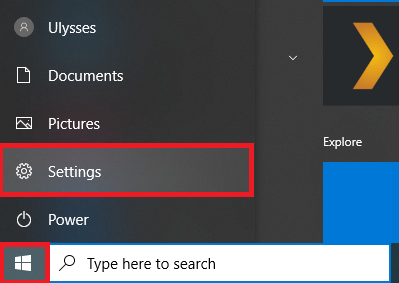
1 – Click Start in the Windows menu and select Settings.
This image's alt attribute is empty. The file name is image-72.png

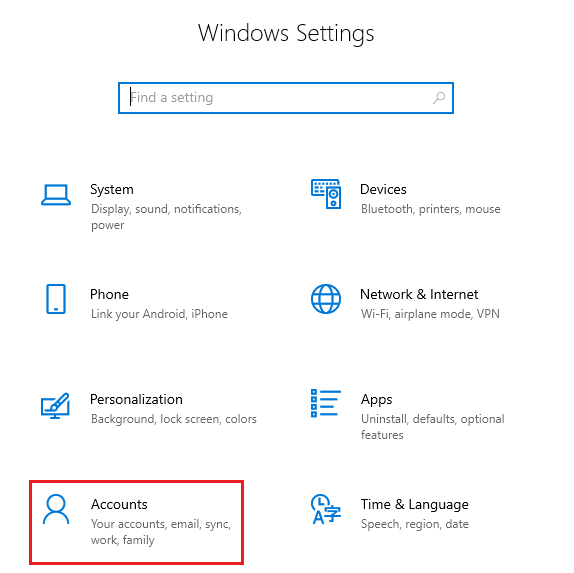
2 – Select the Accounts option.

This image's alt attribute is empty. The file name is image-73.png

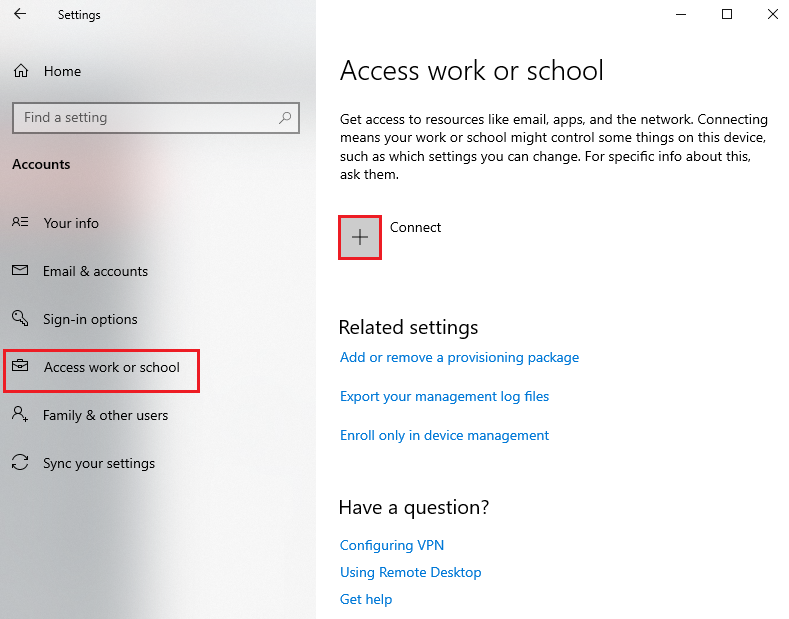
3 – Click Access work or school and select the Connect option.
Edit image

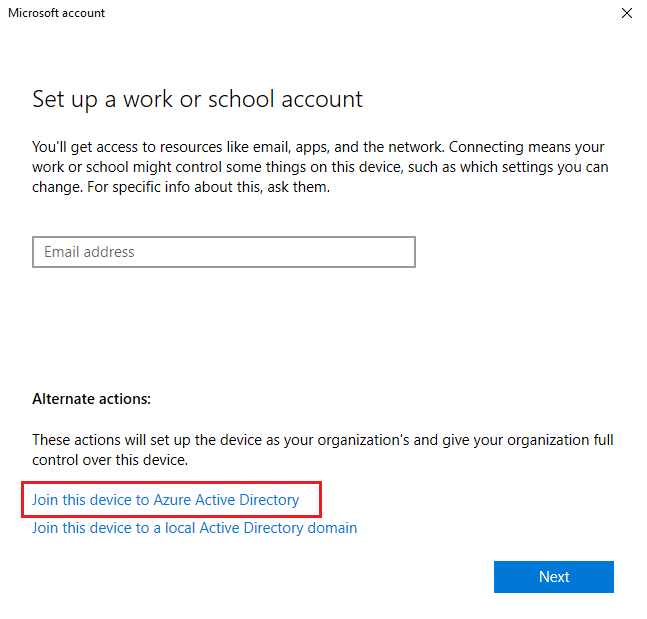
To illustrate this, we’ll join a workgroup device directly to the Microsoft Entra ID domain.

Select the Join this device to Azure Active Directory option.
This image's alt attribute is empty. The file name is image-85.png

Enter an existing Microsoft Entra ID user.
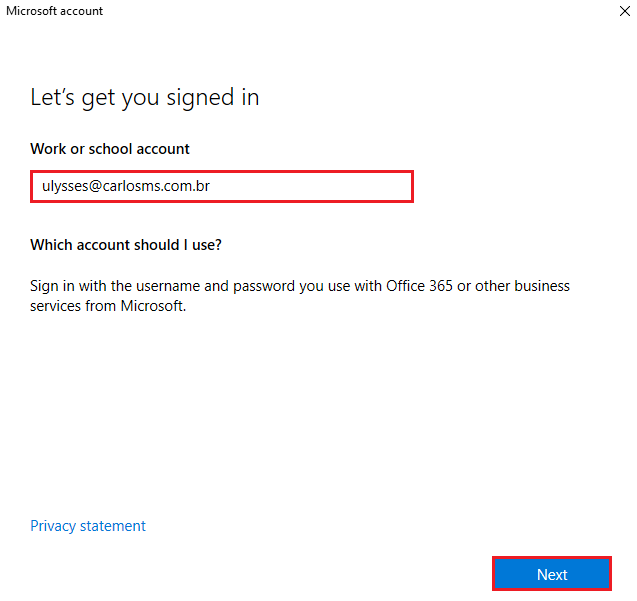
This image's alt attribute is empty. The file name is image-86.png

Enter the password and click Sign in.
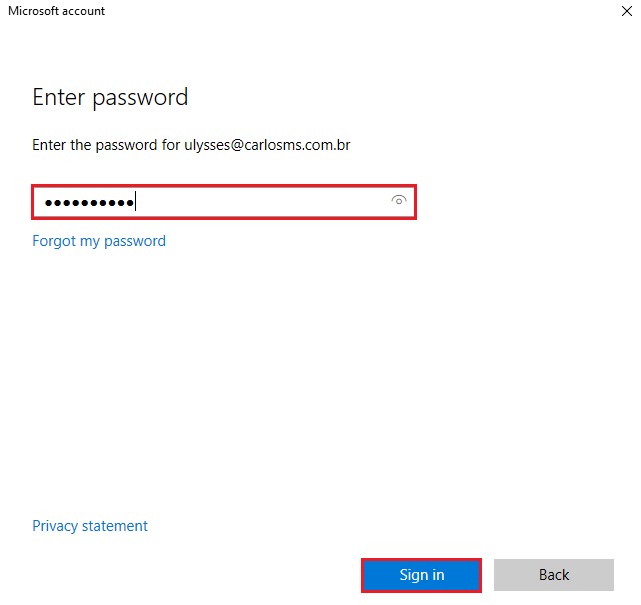
This image's alt attribute is empty. The file name is image-87.png

You’ll receive an organization confirmation notice.

Click Join.
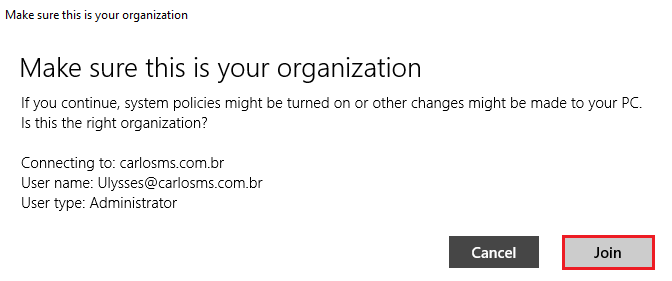
This image's alt attribute is empty. The file name is image-88.png

You’ll receive a confirmation of the join to Microsoft Entra ID and instructions on how to sign in with the user account used to join the device to the domain.

Click Done.
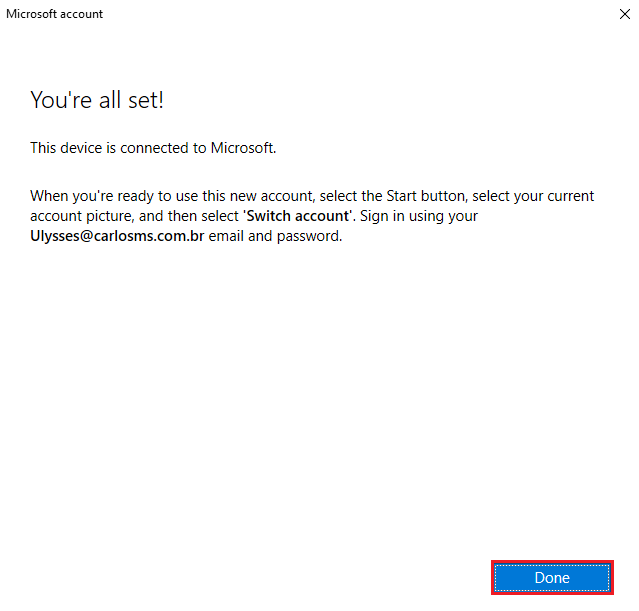
This image's alt attribute is empty. The file name is image-89.png

Verifying the device join in Microsoft Entra ID

To verify the device registration in Microsoft Entra ID, click this link.

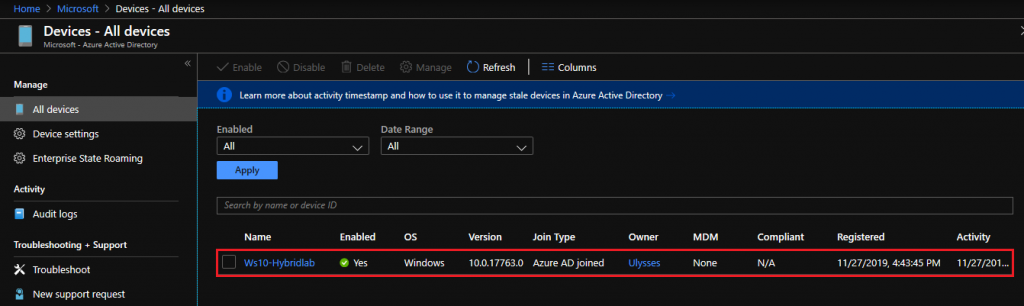
By accessing the existing devices menu in Microsoft Entra ID, we can identify the desktop we just joined to the Azure domain.
This image's alt attribute is empty. The file name is image-91-1024x306.png

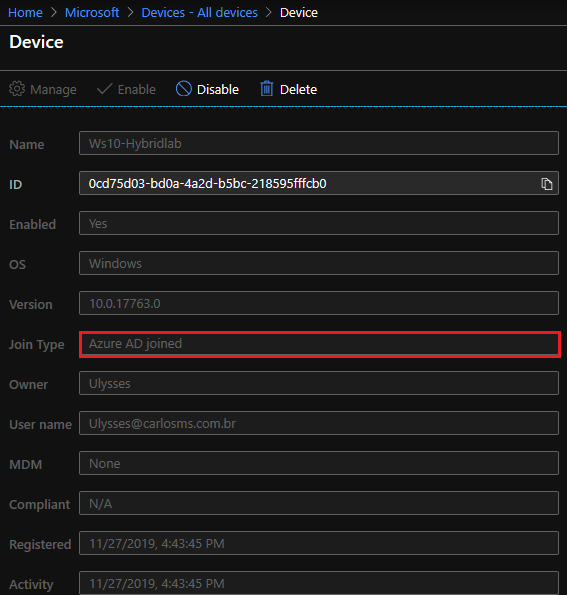
By clicking the device name, you can see more information about it.

We can see that the Join Type attribute for the device we just joined shows as Azure AD Joined.
This image's alt attribute is empty. The file name is image-94.png

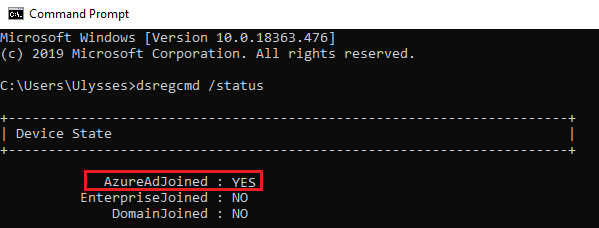
You can also identify the device’s join status in Microsoft Entra ID by running the command below in the Windows prompt:

dsregcmd /status
Summary

In today’s article, we talked about how to join a Windows 10 device to Microsoft Entra ID.

I hope this content has helped enrich your knowledge of Azure.

Did you like the post? Like and share it. 🙂

If you have any suggestions or comments, let us know.

[ ]’s

Ulysses Neves

Related guides: Browse the Microsoft Identity Troubleshooting Index or the Devices topic archive.

6 thoughts on “Microsoft Entra ID Devices – Manually joining a Windows 10 device to Microsoft Entra ID”

  1. Loan Carlos says:
    March 5, 2020 at 10:38

    Olá, tudo bem?

    Muito obrigado pelo artigo. Consegui realizar todos os passos com sucesso. Porém, na tentativa de logar um usuário do AzureAD, como joao@dominio.onmicrosoft.com, diz: usuário ou senha incorreta. Tem alguma sugestão?

    Muito obrigado.

    Reply
    1. Uneves says:
      March 7, 2020 at 20:16

      Olá Loan. Obrigado pelo feedback sobre o artigo. Você possui domínio customizado no Azure? Poderia verificar se o UPN do usuário é o mesmo utilizado para login no dispositivo. Você pode também confirmar se o dispositivo está corretamente ingressado no Azure AD utilizando este link: https://docs.microsoft.com/en-us/azure/active-directory/user-help/user-help-join-device-on-network#to-make-sure-youre-joined-1

      Reply
    2. Gustavo Pinto says:
      February 4, 2021 at 10:04

      Bom dia Loan,

      Também estou com o mesmo problema, como resolveu o seu?

      Obrigado!

      Reply
      1. Uneves says:
        February 4, 2021 at 15:56

        Olá Gustavo. Você pode verificar se o usuário utilizado para acessar a máquina atende aos requisitos de acesso através desse documento: https://docs.microsoft.com/en-us/azure/active-directory/devices/azureadjoin-plan
        Confirma também se a máquina existe no Azure AD e o processo de “Join” foi feito corretamanete.

        Abraços. 🙂

        Reply
  2. Marcelo Darwich Apgáua says:
    June 16, 2021 at 19:54

    Olá Ulysses,

    Com a pandemia temos tido muita demanda de home office e parte da equipe tem windows 10 home.

    Existe configuração possível para assinar o w10 home no azure?

    Conseguimos usar o office 365 mas precisamos assinar no Azure AD por questão de segurança em acesso ao SharePoint

    Reply
    1. Uneves says:
      June 17, 2021 at 11:49

      Olá Marcelo. Obrigado por compartilhar sua dúvida. O Azure AD consegue ajudar bastante nos acessos às aplicações publicadas no Azure conforme explicado neste documento: https://azure.microsoft.com/en-us/services/active-directory/
      Sobre a possibilidade de assinar o Windows home no Azure, não tenho muita informação. Seria interessante confirmar com um representante de vendas parceiro Microsoft, mas para ter a possibilidade de fazer o Azure domain join, precisas ter pelo menos a versão Pro do Windows 10 instalado.
      Espero ter ajudado.

      Reply

Leave a Reply Cancel reply

Your email address will not be published. Required fields are marked *

Recent Posts

  • Microsoft Entra Kerberos key rotation: what changes—and what administrators should check September 6, 2026
  • Microsoft Authenticator Will Block Jailbroken Devices in 2026 — What You Need to Know March 17, 2026
  • Enhancing Azure role activation security with FIDO2/Passkeys September 23, 2024
  • Microsoft Entra ID CAP | Enforcing WHfB using Authentication Strength April 21, 2024
  • Troubleshooting Error Code ‘0x000005e’ in WHfB: PIN Authentication Woes February 11, 2024

Archives

  • September 2026
  • March 2026
  • September 2024
  • April 2024
  • February 2024
  • December 2023
  • September 2023
  • July 2023
  • June 2023
  • May 2023
  • April 2023
  • March 2023
  • February 2023
  • January 2023
  • December 2022
  • October 2022
  • September 2022
  • August 2022
  • July 2022
  • June 2022
  • May 2022
  • April 2022
  • March 2022
  • February 2022
  • January 2022
  • December 2021
  • November 2021
  • October 2021
  • September 2021
  • August 2021
  • July 2021
  • June 2021
  • May 2021
  • April 2021
  • March 2021
  • February 2021
  • January 2021
  • December 2020
  • November 2020
  • October 2020
  • September 2020
  • August 2020
  • July 2020
  • June 2020
  • May 2020
  • April 2020
  • March 2020
  • February 2020
  • January 2020
  • December 2019
  • November 2019
  • October 2019
  • September 2019
  • August 2019
  • July 2019

Tags

#aaddownleveldevice #adfs #adfscertificate #adfscertificates #adfsmfaadapter #azureauth #azureCA #azuredevice #capolicy #cloudsummit2021 #conditionalaccess #conditionalaccesspolicy #deviceregistration #farmbehavior #gopasswordless #mfaserver #msidentity #namedlocation #securingazure #securingazuread #sslprivatekey #troubleshootingadfs #troubleshootingwaptrust #tshootadfs #waptrust #webapplicationproxy #WHFBcerttrust #whfbdeployment #WHfBhybridsetup #WHfBprovisioning #widdatabase adconnect AD FS authenticationstrength az500 azurepim Azure security cloudsecurity microsoft365 Microsoft Azure Microsoft Entra hybrid join Microsoft Entra ID Microsoft Entra MFA PowerShell WHfB
©2026 Ulysses Neves | Design: Newspaperly WordPress Theme
Ulysses Neves
Gerenciar Consentimento de Cookies
Para fornecer as melhores experiências, usamos tecnologias como cookies para armazenar e/ou acessar informações do dispositivo. O consentimento para essas tecnologias nos permitirá processar dados como comportamento de navegação ou IDs exclusivos neste site. Não consentir ou retirar o consentimento pode afetar negativamente certos recursos e funções.
Funcional Always active
O armazenamento ou acesso técnico é estritamente necessário para a finalidade legítima de permitir a utilização de um serviço específico explicitamente solicitado pelo assinante ou utilizador, ou com a finalidade exclusiva de efetuar a transmissão de uma comunicação através de uma rede de comunicações eletrónicas.
Preferências
O armazenamento ou acesso técnico é necessário para o propósito legítimo de armazenar preferências que não são solicitadas pelo assinante ou usuário.
Estatísticas
O armazenamento ou acesso técnico que é usado exclusivamente para fins estatísticos. O armazenamento técnico ou acesso que é usado exclusivamente para fins estatísticos anônimos. Sem uma intimação, conformidade voluntária por parte de seu provedor de serviços de Internet ou registros adicionais de terceiros, as informações armazenadas ou recuperadas apenas para esse fim geralmente não podem ser usadas para identificá-lo.
Marketing
O armazenamento ou acesso técnico é necessário para criar perfis de usuário para enviar publicidade ou para rastrear o usuário em um site ou em vários sites para fins de marketing semelhantes.
  • Manage options
  • Manage services
  • Manage {vendor_count} vendors
  • Read more about these purposes
Ver preferências
  • {title}
  • {title}
  • {title}