
Hello guys. Today I will share some guidance on troubleshooting and fixing the immediate failure once you are trying to use the feature ‘Download devices’ in AAD and receive immediately an error message without many details on it.
On this article, I will focus on a scenario where you have a ‘Terms of Use’ configured for the user, but this issue can show up on different Policy deployments.
The ‘Download devices’ feature is still in preview provides administrators the possibility to download all devices registered to Azure AD into a CSV file. For more information on this feature, please check this official link.

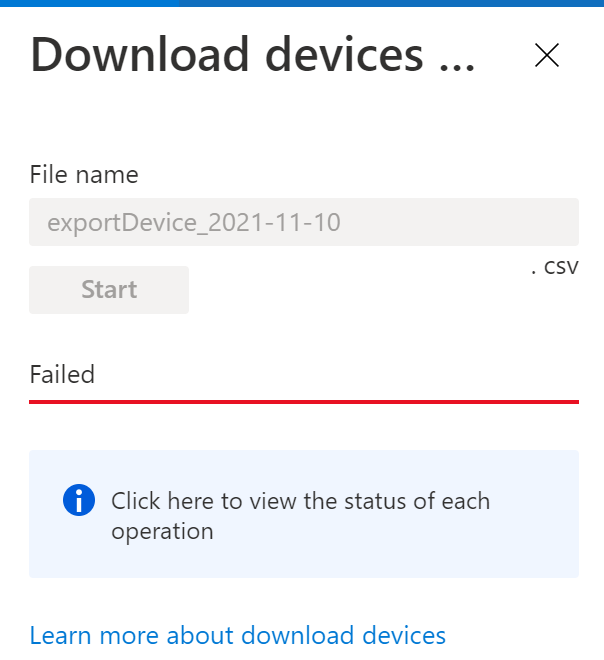
Having my scenario configured, I reproduced the error message below when trying to download the devices into a CSV file:
Investigating
To get more information on the request, I observed in the Sign in logs for my test user Jack and we can see a ‘non-interactive’ request to one Application called ADIbizaUX-AsyncProcessor.
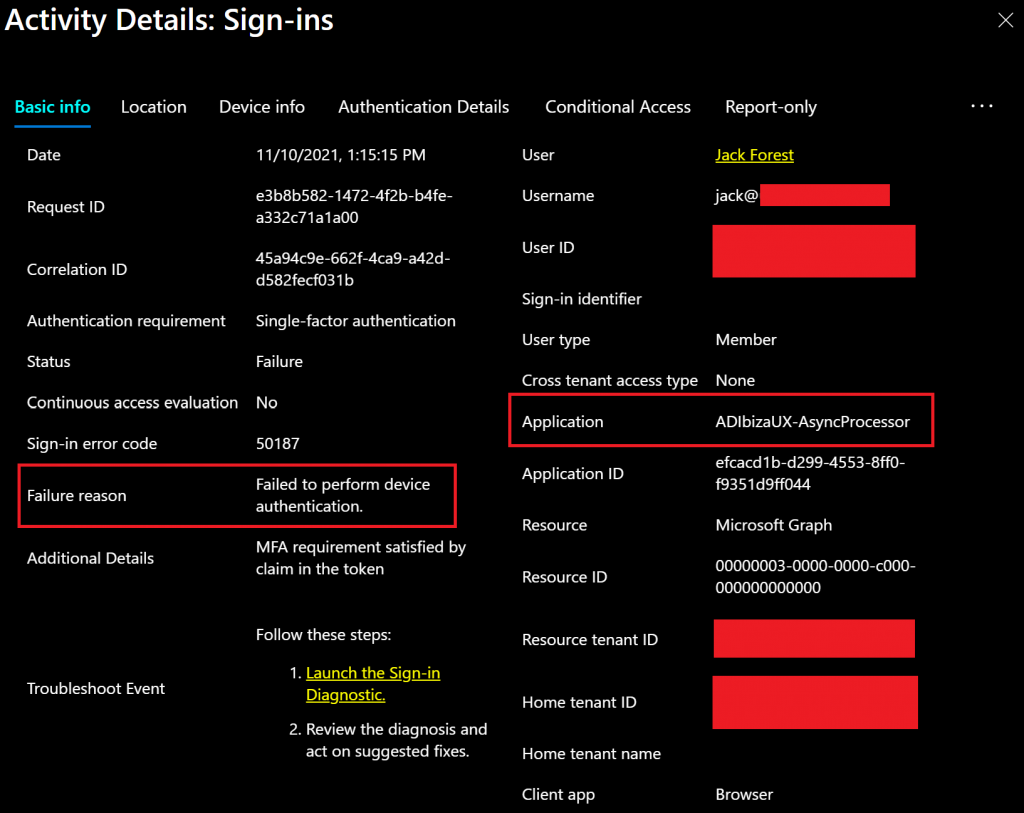
Going on tab ‘Conditional Access’ to get more information on the failure reason, we see one CA policy with Result ‘Failure’.

Going deeper on the CA policy, we see that it’s applied to all Office Apps, which includes the App ADIbizaUX-AsyncProcessor.
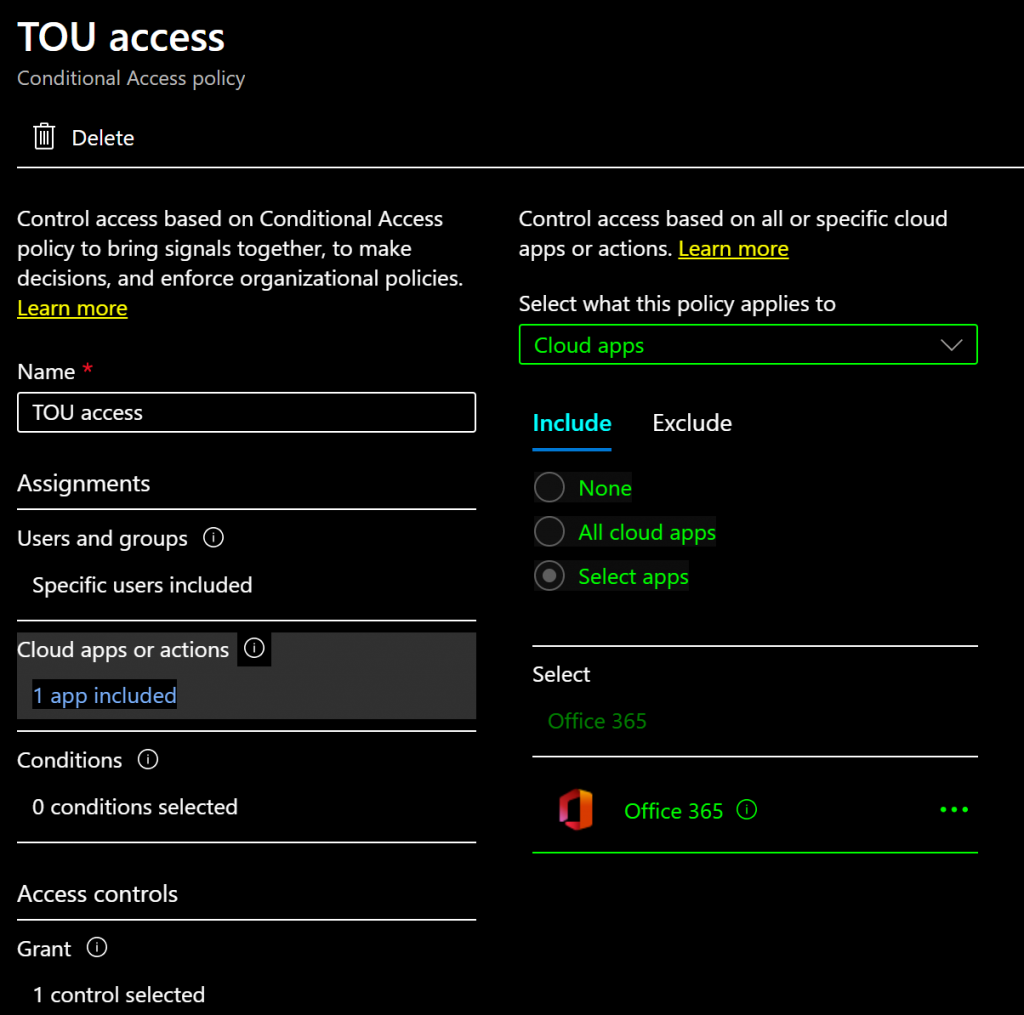
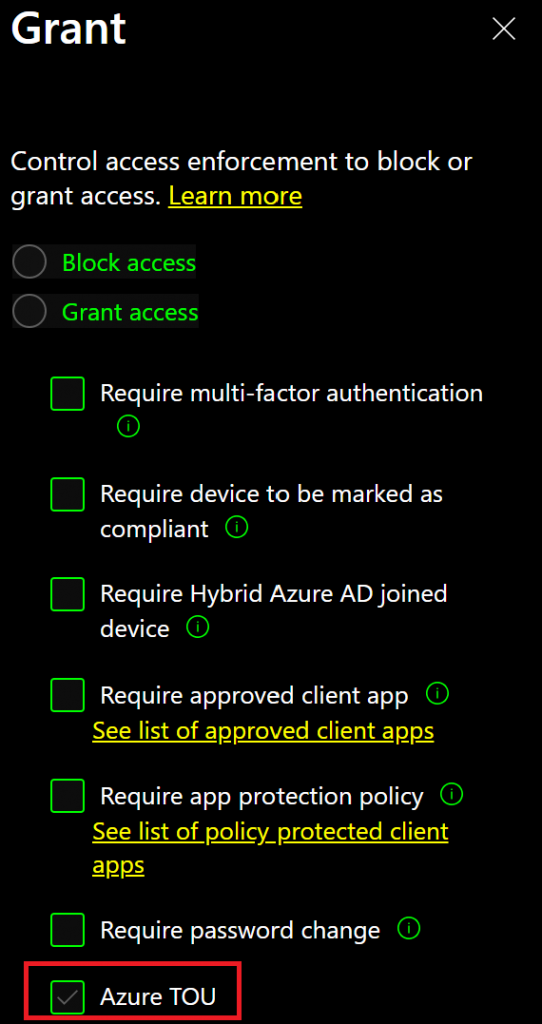
And we confirmed below, ‘Terms of Use’ is the control used to give access to Office 365 Apps.
Reason
Considering that ‘Terms of use’ can only be accepted when authenticating interactively, we have a problem that administrators access portal.azure.com and try to access one resource which requires ‘Terms of use’ control. Being the request to service ADIbizaUX-AsyncProcessor non-interactive, the CA policy won’t be able to evaluate if the user has accepted the terms and will fail.
Fix
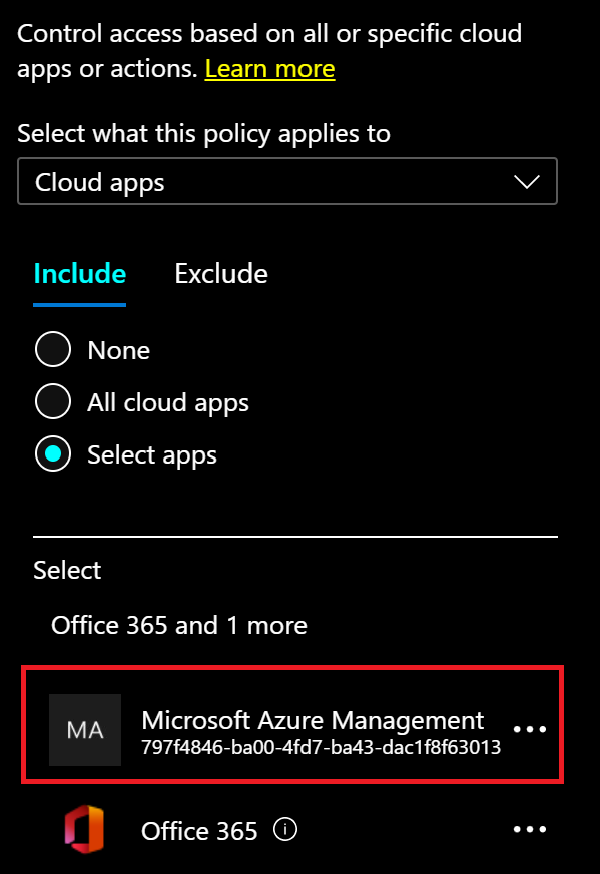
To fix this issue, we need to have ‘Terms of Use’ evaluated on an ‘Interactive’ Sign in. Having the feature ‘Download device’ part of the Azure portal, the best approach we can use is adding the Application ‘Microsoft Azure Management’ which is Azure Portal to the same CA policy requiring ‘Terms of Use’ control:
User experience
With the change above, we expect the user to be prompted or Skipped ‘Terms of User’ during the authentication against Azure Portal considering it’s an Interactive sign-in.
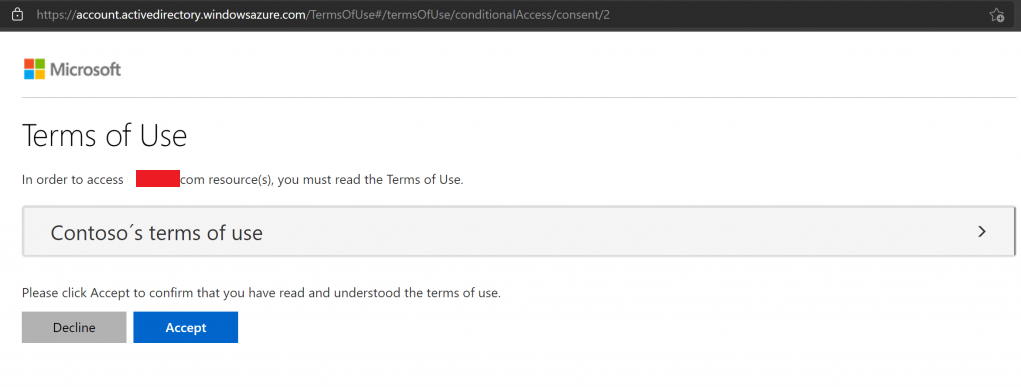
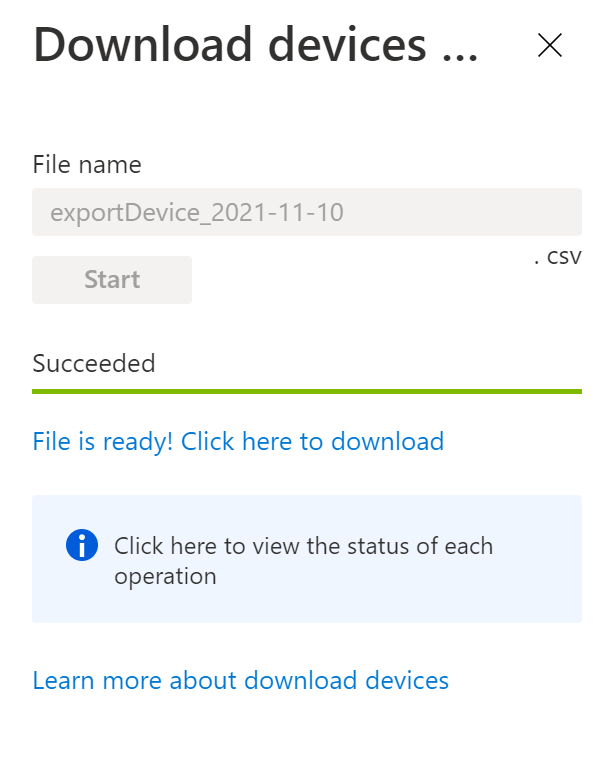
With the user with the ‘Terms of use’ evaluation in the claim, the user is now able to download the CSV.
With the access succeeded, checking the Azure AD Sign-in logs, we can see Success result reaching out to App ADIbizaUX-AsyncProcessor:
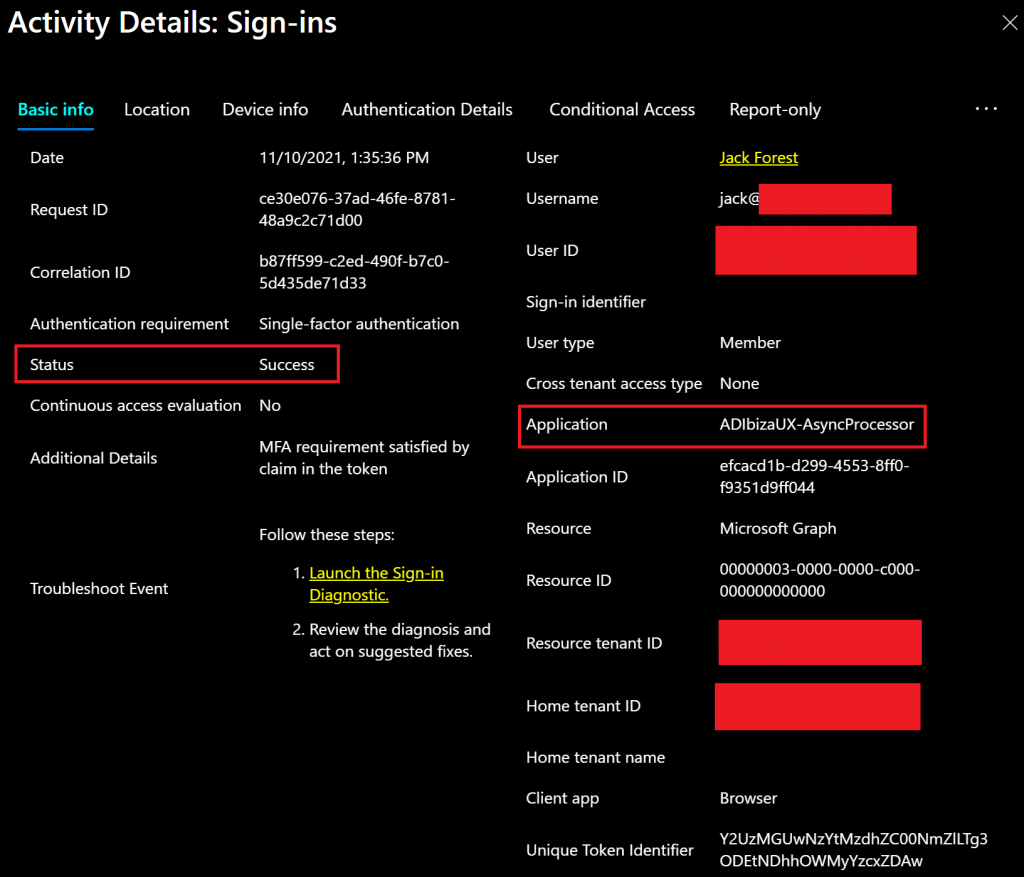
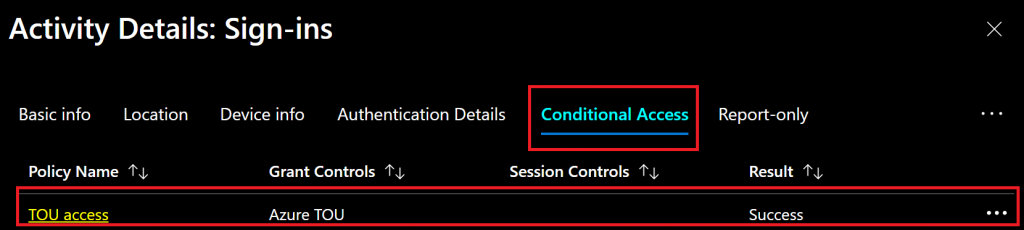
Checking Conditional Access Policy, we confirm that the policy requiring ‘Terms of Use’ control have the result ‘Success’:
Summary
In this article, we covered how to troubleshoot and fix the error message ‘Failed’ when trying to use the Azure AD feature ‘Download Device’.
I hope you have enjoyed reading this article, and it helps you to manage your Azure AD.
Enjoyed the article? Like and share. 🙂
Note: I do not represent the organization I work for, all the opinions expressed here, are my own. This post is provided AS IS with no warranties or guarantees and confers no rights.
In case you have any suggestions or feedback, please leave a comment.
[ ]’s
Ulysses Neves
