
Hello everyone. Today we’re going to investigate the message ‘DeviceAuthStatus : FAILED. Device is either disabled or deleted’ on a Hybrid Joined scenario, which can cause error code 50155 on Azure AD Signing logs.
Scenario: Hybrid Azure AD Join
Checking the device join status
To check the device join status, run on the Windows client in the user context command: dsregcmd /status

On the device state section above, we can confirm my device is Azure AD Joined and Domain Joined, which means the device is Hybrid Azure AD Joined. More information on the device states, please check this official Microsoft document.
Checking the event viewer log Microsoft-Windows-User Device Registration/Admin, we see two events confirming the device join status as ‘Hybrid Azure AD joined‘.
Event ID: 331
Automatic device join pre-check tasks completed. Debug output:\r\n preCheckResult: DoNotJoin
deviceKeysHealthy: YES
isJoined: YES
isDcAvailable: YES
isSystem: YES
keyProvider: Microsoft Software Key Storage Provider
keyContainer: 357ca95f-7a99-456f-a36f-XXXXXXXXXXXXXXX
dsrInstance: AzureDrs
elapsedSeconds: 0
resultCode: 0x1
Event ID: 335
Automatic device join pre-check tasks completed. The device is already joined.
Checking the error message on the client
Checking more information on the Device Details, we see a failure. In this section, we see the device’s health in Azure AD, which in this case is failing with error message below:
DeviceAuthStatus : FAILED. Device is either disabled or deleted

More information on the Device Details section, please check this official Microsoft document.
Investigation: Based on the error message above, we can face two possible scenarios:
Scenario 1: The device has been deleted in the OnPrem AD and consequently removed from the Azure AD by the Azure AD Connect SYNC service.
Scenario 2: The device has been moved to an Organization Unit in the OnPrem AD which is not in SYNC with the Azure AD and added back, causing the device state to appear as Pending in Azure AD.
Investigating scenario 1:
Open Azure AD and search for the device ID collected from the dsregcmd /status command.

Confirming the device does not exist in Azure AD, as a next step, we will confirm if it exists in the OnPrem AD:
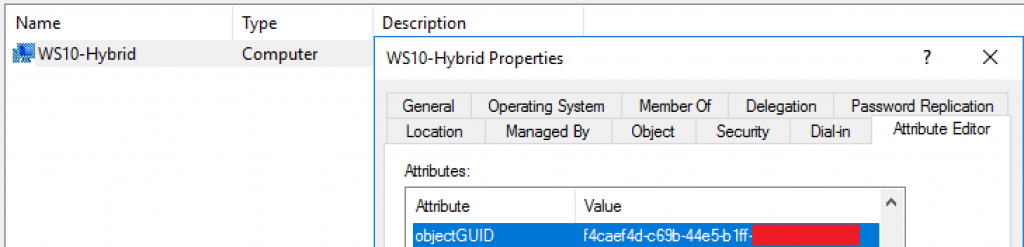
As confirmed above, the device with same objectGUID does exist in the OnPrem AD, next step is to confirm if the OU the device belongs to is in SYNC scope. To do so, we should open Azure AD Connect and select the option Configure » Customize synchronization options.

After validating the SYNC credential, select the option Domain/OU Filtering and confirm if the OU which the device belongs is in SYNC scope. In my case, it’s NOT which is the reason I am getting the error message ‘FAILED. Device is either disabled or deleted‘.
To fix this issue, I can either:
– Move the device to an OU which is in SYNC.
– Select the OU which the device belongs to.
In my case, I will move the device to one Organization Unit under SYNC scope and run a delta sync with the PS command below on the Azure AD Connect server:
Start-ADSyncSyncCycle -PolicyType Delta
With delta sync successfully finished, we can confirm the affected device has been added to Azure AD in the AAD Synchronization Service Manager:
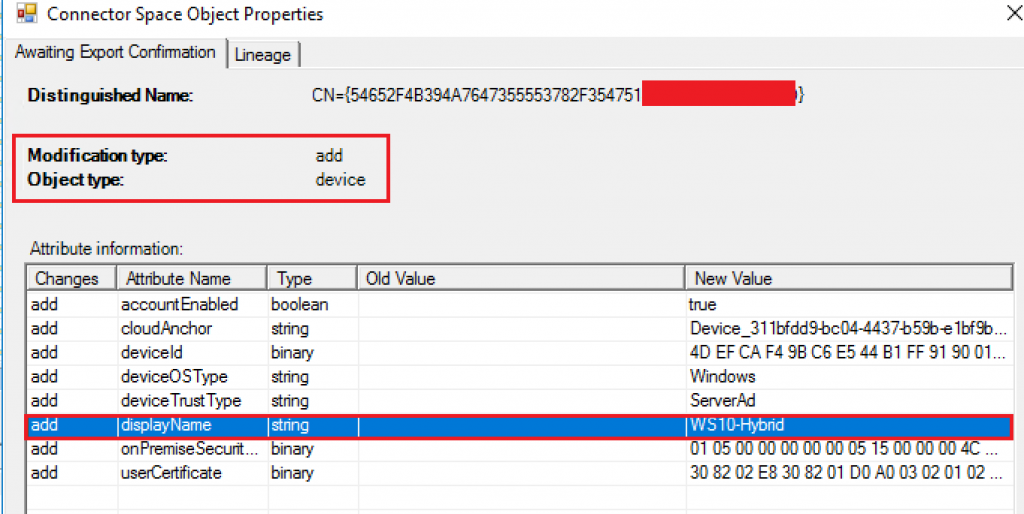
Confirmed the device has been added to Azure AD after the delta sync, we are able to find the device, but with pending status:

From here, we fall into scenario 2, where you have a previously registered device move from Hybrid Azure AD Joined to pending status. This scenario and fix are documented in this official Microsoft Article, so, we’re going to follow it.
On the client machine, we will unjoin the device from Azure AD to remove all references belonging to the previous registration locally. The command below is used to unjoin the device:
dsregcmd /leave
In order to have the device join process try once again the join, we should reboot the machine.
Once the machine is restarted, running dsrecmd /status command, we confirm it has removed all references to the old registration process as Azure AD Joined is set to NO.

The Automatic Device Join task triggers with each user sign-in or every hour and tries to authenticate the computer to Azure AD.
After logout and logon to the machine, we can see the device has changed the status Azure AD Joined to YES and the DeviceAuthStatus has changed to Sucessful.

Still on the Windows device, checking event viewer log Microsoft-Windows-User Device Registration/Admin, we confirm the automatic registration through Event ID: 306:
Automatic registration Succeeded.
Looking for the same device in Azure AD, we see that is has changed the status from PENDING to Hybrid Azure AD Joined.
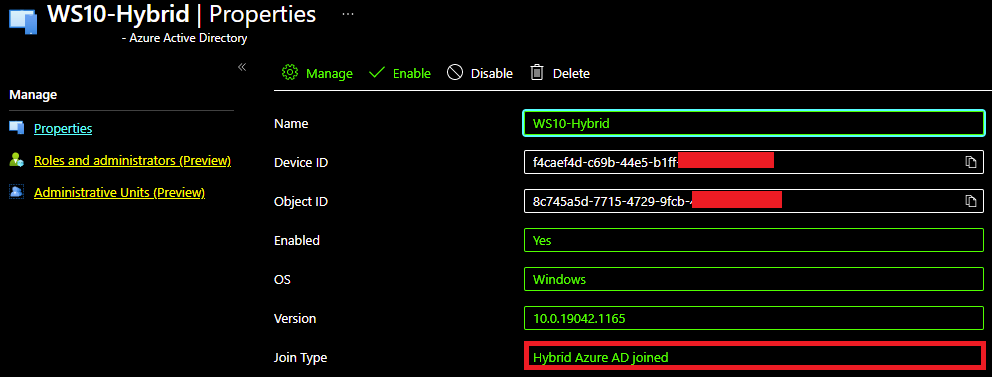
That should be sufficient to avoid the error message 50155 in the Azure AD Sign in logs due to the successful device authentication.
Summary
In this article, we covered how to ‘DeviceAuthStatus : FAILED. Device is either disabled or deleted’ on a Hybrid Joined scenario.
I hope you have enjoyed reading this article, and it helps you manage your Hybrid devices in Azure AD.
Enjoyed the article? Like and share. 🙂
Note: I do not represent the organization I work for, all the opinions expressed here, are my own. This post is provided AS IS with no warranties or guarantees and confers no rights.
In case you have any suggestions or feedback, please leave a comment.
[ ]’s
Ulysses Neves
