Historical support notice — September 2026: This article documents Microsoft Entra hybrid join troubleshooting for down-level Windows versions, including Windows 8.1 and Windows Server 2012/R2. These operating systems are no longer included in Microsoft’s current supported hybrid-join list. Do not use this procedure as deployment guidance for a new environment; upgrade to a supported Windows version and use the current Microsoft Entra hybrid join plan.
Source: Plan your Microsoft Entra hybrid join deployment: “Microsoft Entra hybrid join supports … Windows 11, Windows 10, Windows Server 2016, Windows Server 2019, Windows Server 2022.”
Lifecycle source: Windows 8.1 lifecycle: “Windows 8.1 will reach the end of support on January 10, 2023. After this date, this product will no longer receive security updates…”
Hello everyone. Today, we’re going to investigate the error message ‘The requested authentication method ‘wiaormultiauthn’ is not valid‘ when trying to Hybrid join domain-joined down-level device into Azure AD.
INTRODUCTION
Mainly, Windows 10 and Windows Server 2016 or above are considered under the current devices’ category. Older Windows client and server versions are called Windows Down-level devices, such as Windows 8.1 and Windows Server 2012 R2. For more information about supported versions for AAD Hybrid Join, check this official document: https://learn.microsoft.com/en-us/azure/active-directory/devices/hybrid-azuread-join-plan#review-supported-devices
The requirements and configuration steps to join down-level devices are slightly different from current devices. For more information in how to setup your environment to join down-level devices, please check this link: https://learn.microsoft.com/en-us/azure/active-directory/devices/howto-hybrid-join-downlevel
Once you have the setup in place and install the Microsoft Workplace Join for Windows down-level computers in the client machine, the scheduled task below is created:
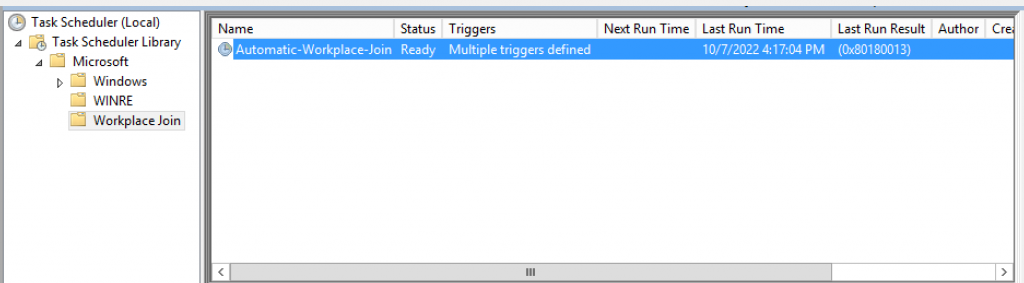
In order to illustrate possible issues when Hybrid join the down-level devices into Azure AD, let’s simulate one scenario:
Scenario:
Client: Windows Server 2012
Join type: AAD Hybrid Join
IDP: AD FS
ERROR: During the join process, you might face error message below:
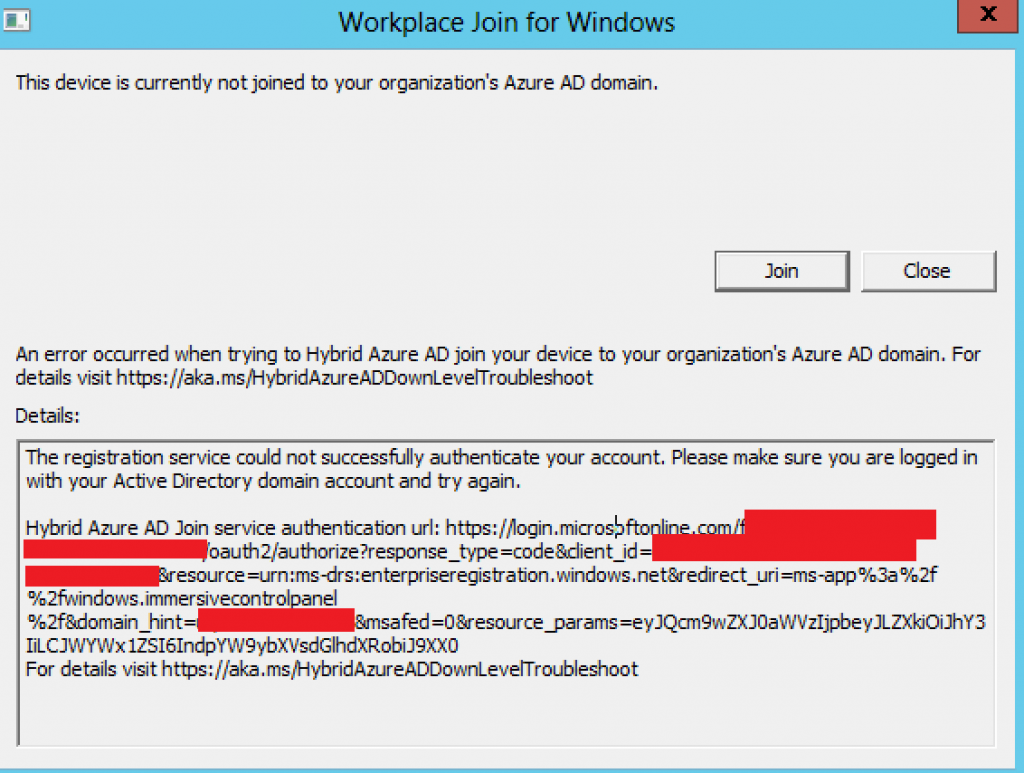
In text format, we see:
Error: The registration service could not successfully authenticate your account. Please make sure you are logged in with your Active Directory domain account and try again.
Hybrid Azure AD Join service authentication url: https://login.microsoftonline.com/TENANTID/oauth2/authorize?response_type=code&client_id=CLIENTID&resource=urn:ms-drs:enterpriseregistration.windows.net&redirect_uri=ms-app%3a%2f%2fwindows.immersivecontrolpanel%2f&domain_hint=contoso.com&msafed=0&resource_params=eyJQcm9wZXJ0aWVzIjpbeyJLZXkiOiJhY3IiLCJWYWx1ZSI6IndpYW9ybXVsdGlhdXRobiJ9XX0
For details visit https://aka.ms/HybridAzureADDownLevelTroubleshoot
TROUBLESHOOTING:
In order to investigate this issue, we can count on Event viewer logs in the client and in AD FS server.
Checking the client log ‘Microsoft-Workplace Join/Admin‘, we find:
Event ID 400:
Hybrid Azure AD Join error:
Error Message: Failed to navigate to: https://login.microsoftonline.com/TENANTID/oauth2/authorize?response_type=code&client_id=dd762716-544d-4aeb-a526-687b73838a22&resource=urn:ms-drs:enterpriseregistration.windows.net&redirect_uri=ms-app%3a%2f%2fwindows.immersivecontrolpanel%2f&domain_hint=contoso.com&msafed=0&resource_params=eyJQcm9wZXJ0aWVzIjpbeyJLZXkiOiJhY3IiLCJWYWx1ZSI6IndpYW9ybXVsdGlhdXRobiJ9XX0
For details visit https://aka.ms/HybridAzureADDownLevelTroubleshoot Error code: 0x10DD
Checking client log ‘Microsoft-Workplace Join/Debug‘, we find:
Event ID 502:
_NavigationComplete: Navigation was cancelled.
Checking AD FS Admin logs, we see:
Encountered error during federation passive request.
Additional Data
Protocol Name: wsfed
Relying Party: urn:federation:MicrosoftOnline
Exception details:
Microsoft.IdentityServer.RequestFailedException: The requested authentication method ‘wiaormultiauthn’ is not valid for relying party trust ‘Microsoft Office 365 Identity Platform Worldwide’. at Microsoft.IdentityServer.Web.Authentication.AuthenticationPolicyEvaluator.ValidateRpAllowsAuthClassReference(String rpIdentifier, String authClassReferenceId) at Microsoft.IdentityServer.Web.Authentication.AuthenticationPolicyEvaluator.VerifyTargetRPsSupportAuthClassReference(String authClassReferenceId) at Microsoft.IdentityServer.Web.Authentication.AuthenticationPolicyEvaluator.EvaluatePolicy(Boolean& isLastStage, AuthenticationStage& currentStage, Boolean& strongAuthRequried) at Microsoft.IdentityServer.Web.PassiveProtocolListener.GetAuthMethodsFromAuthPolicyRules(PassiveProtocolHandler protocolHandler, ProtocolContext protocolContext) at Microsoft.IdentityServer.Web.PassiveProtocolListener.GetAuthenticationMethods(PassiveProtocolHandler protocolHandler, ProtocolContext protocolContext) at Microsoft.IdentityServer.Web.PassiveProtocolListener.OnGetContext(WrappedHttpListenerContext context)
REASON
Down level devices require the on-premises federation service to issue claims to support integrated Windows authentication (IWA) for device registration. The on-premises federation service must support issuing the authenticationmethod and wiaormultiauthn claims when it receives an authentication request to the Azure AD relying party holding a resource_params parameter with the following encoded value:
eyJQcm9wZXJ0aWVzIjpbeyJLZXkiOiJhY3IiLCJWYWx1ZSI6IndpYW9ybXVsdGlhdXRobiJ9XXX

which decoded is {"Properties":[{"Key":"acr","Value":"wiaormultiauthn"}]}
FIX:
Microsoft has a public document above with steps to fix this issue. Let’s follow these steps.
For AD FS 2019, open AD FS console » Relying Party Trusts » right-click on the RPT Microsoft Office 365 Identity Platform and select ‘Edit Claim Issuance Policy’.
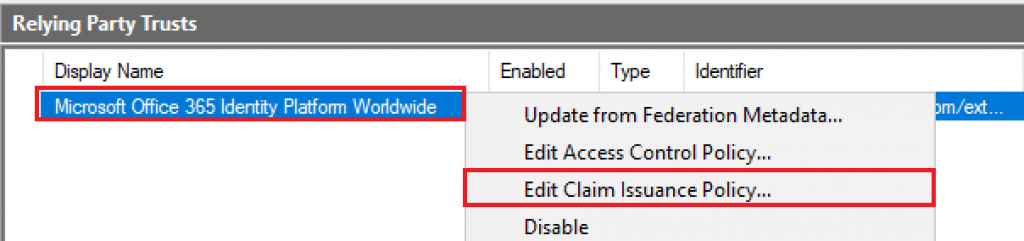
Click Add Rule » select Send Claims Using a Custom Rule and click Next.
Enter the rule name ‘Auth Method Claim Rule’.
In the claim box, enter rule below:
c:[Type == "http://schemas.microsoft.com/claims/authnmethodsreferences"] => issue(claim = c);
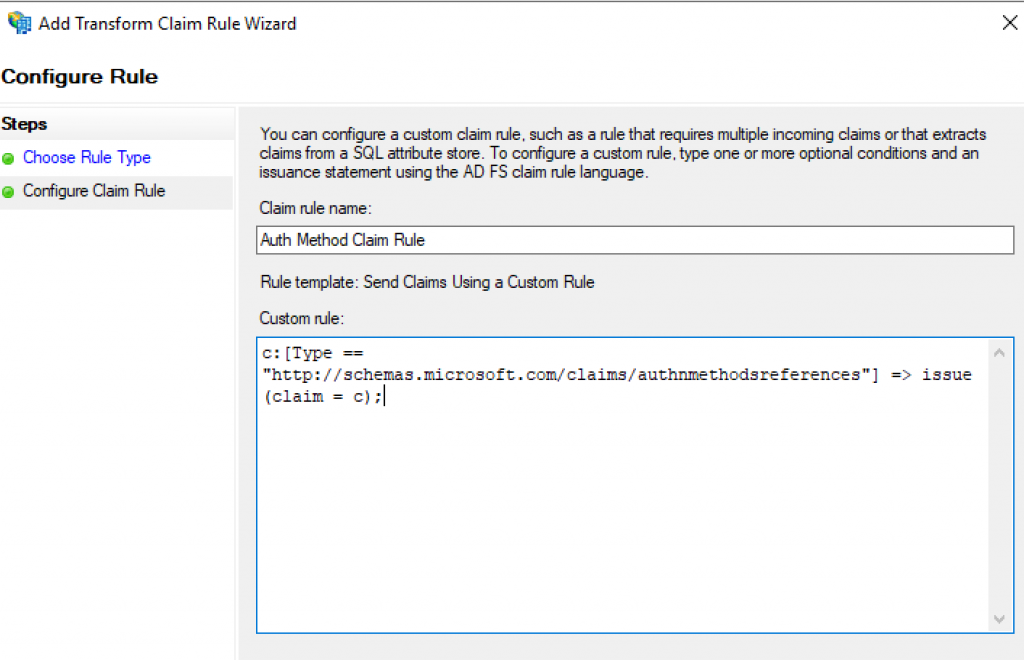
Click Finish » Apply.
Use the command below to update the RPT name of your configured Office 365:
Set-AdfsRelyingPartyTrust -TargetName 'Microsoft Office 365 Identity Platform Worldwide' -AllowedAuthenticationClassReferences wiaormultiauthn
Output expected below:

RESULT:
After updating the AD FS configuration to send the claim WIAORMULTIAUTH, we tested the scheduled task and the result is successful with the message ‘The operation completed successfully:

With the successful Hybrid Join, let’s check a few logs to confirm if everything is fine:
Checking client log ‘Microsoft-Workplace Join/Debug‘, we find:
Event ID 500:
_OnBeforeNavigate2Webbrowser: Navigating to https://fs.contoso.com/adfs/ls/wia?wauth=http%3a%2f%2fschemas.microsoft.com%2fclaims%2fwiaormultiauthn&client-request-id=378e2687-bcb1-4b79-a86b-4516d4bb8fbc&username=&wa=wsignin1.0&wtrealm=urn%3afederation%3aMicrosoftOnline&wctx=estsredirect%3d2%26estsrequest%3drQQIARAAjZA9LANRAIDv9apaUZoOYpQQgrzW_f8kBhIiJDVIBInh3d1rXfTeXd679lITFhZ_q5GFDhIm8ZNYmSQMwi4hkRhNQge75Ru_5PsGeCEnmD2Oo6miJqhQkWUHyghbECmiClVdszRJl3QkijTbktno3dZOr2pTR8tjHY-XO1f7IFMp1xjDjOAqZjnb9-qgz2MQBYGZz0cucfyI5VzPw5S5VWz7JKR-OUAEl_PnANwD8Bxrnx6phEtiAz51V_AqD-o8rFBi_oocykxMQkwD6jJMccllIUWh65Pcn53g8IzvKTqSoUqKAw1VE6AsKBhatoEgskTJkFW5KFnyEw_u4-A93jrEm8lkIhPr5Lq4rzg4aGq09S_epmOvhb2Hte-Ni27urikfUH1SdQtshIQL9lQ0Z0ujRmREgyHSZ2hJmh_3hRnNQL4yOzYsmMJuAnwmwGYzuEj998F6azrJZVOpQ6JfV46fJ27S3Ffb7dbl28tJ_WPiBw2&deviceAuthenticationMethod=TlsHandler
Event ID 100:
Hybrid Azure AD Join operation succeeded. Activity Id: 00000000-0000-0000-0000-000000000000
Registration Service URI: https://enterpriseregistration.windows.net/EnrollmentServer/DeviceEnrollmentWebService.svc
Summary
In this article, we covered how to investigate the error message ‘The requested authentication method ‘wiaormultiauthn’ is not valid‘ when trying to Hybrid join domain-joined down-level device into Azure AD.
I hope you have enjoyed reading this article, and it helps you manage your Hybrid devices in Azure AD.
Enjoyed the article? Like and share. 🙂
Note: I do not represent the organization I work for, all the opinions expressed here, are my own. This post is provided AS IS with no warranties or guarantees and confers no rights.
In case you have any suggestions or feedback, please leave a comment.
[ ]’s
Ulysses Neves

Thanks!
Always happy to help. 🙂