
Hi everyone. In today’s article, we’ll explain step by step how to manually join a Windows 10 device to Microsoft Entra ID. This scenario is used when the company has a cloud-first culture or doesn’t have an on-premises domain infrastructure.
Registering a Windows 10 device with Microsoft Entra ID
Let’s explain how to register a Windows 10 device with Microsoft Entra ID.
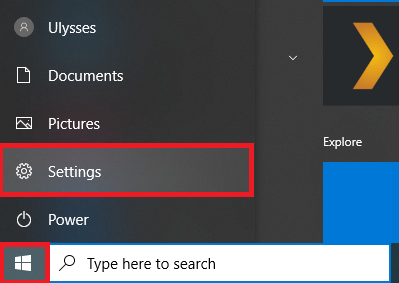
1 – Click Start in the Windows menu and select Settings.
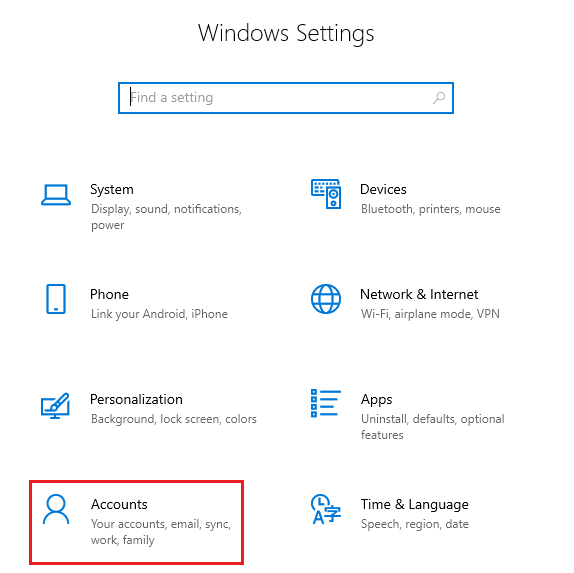
2 – Select the Accounts option.
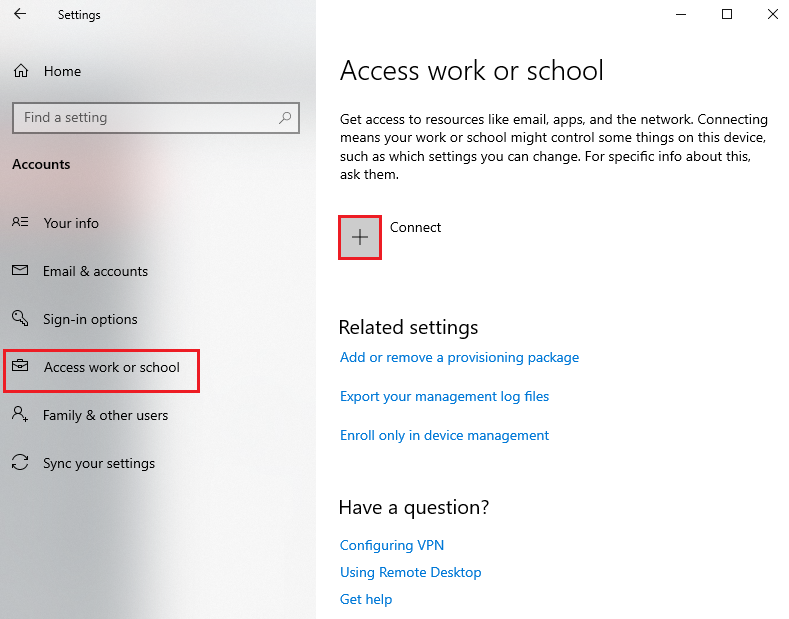
3 – Click Access work or school and select the Connect option.
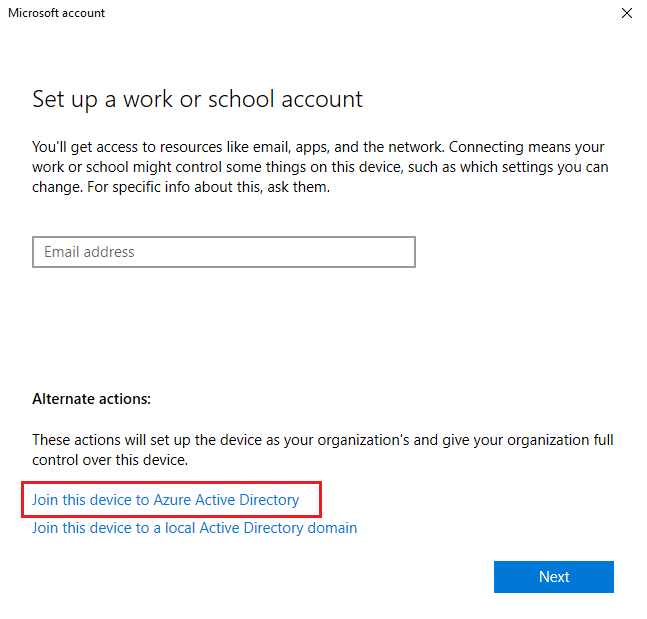
To illustrate this, we’ll join a workgroup device directly to the Microsoft Entra ID domain.
Select the Join this device to Azure Active Directory option.
Enter an existing Microsoft Entra ID user.
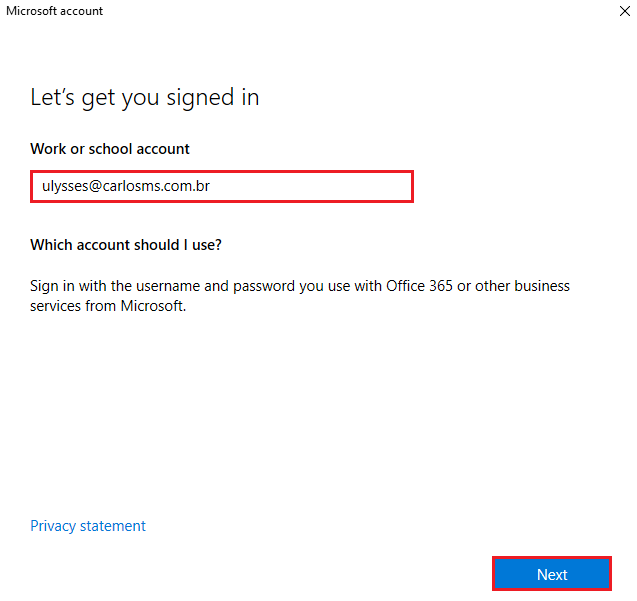
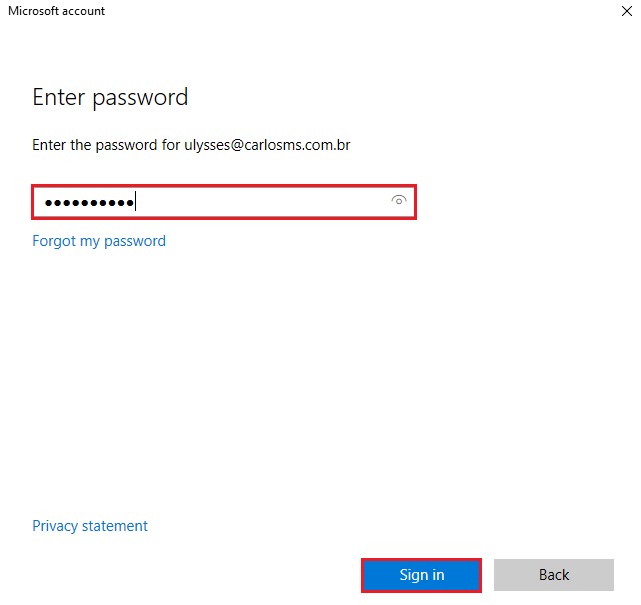
Enter the password and click Sign in.
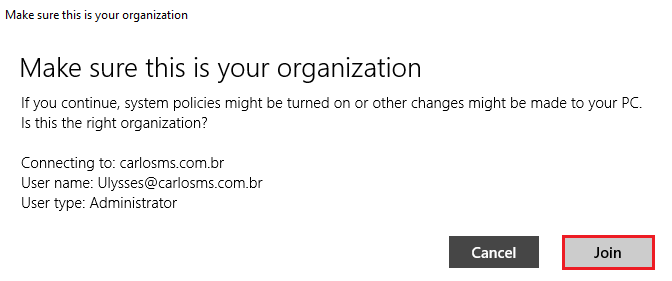
You’ll receive an organization confirmation notice.
Click Join.
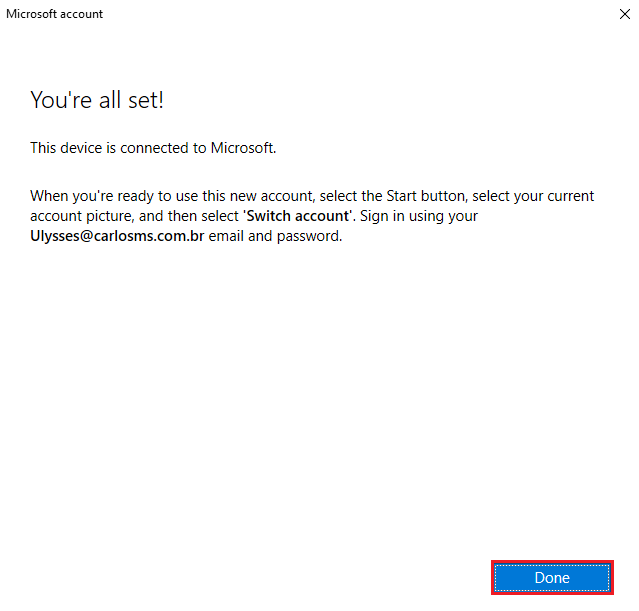
You’ll receive a confirmation of the join to Microsoft Entra ID and instructions on how to sign in with the user account used to join the device to the domain.
Click Done.
Verifying the device join in Microsoft Entra ID
To verify the device registration in Microsoft Entra ID, click this link.
By accessing the existing devices menu in Microsoft Entra ID, we can identify the desktop we just joined to the Azure domain.
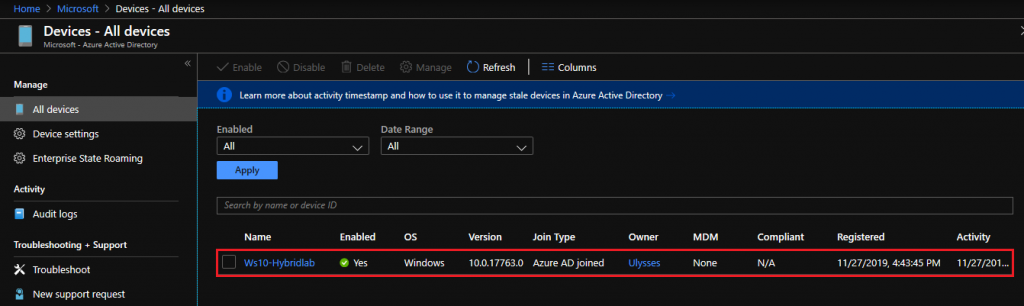
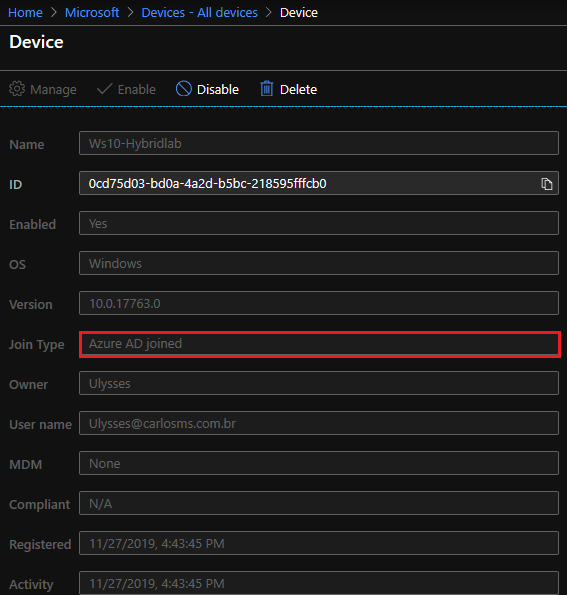
By clicking the device name, you can see more information about it.
We can see that the Join Type attribute for the device we just joined shows as Azure AD Joined.
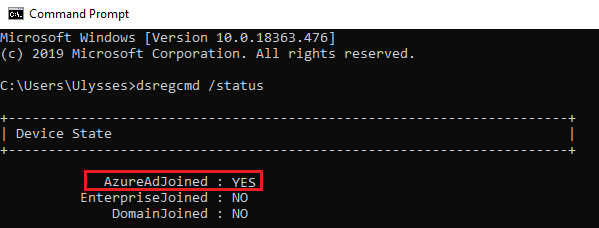
You can also identify the device’s join status in Microsoft Entra ID by running the command below in the Windows prompt:
dsregcmd /status
Summary
In today’s article, we talked about how to join a Windows 10 device to Microsoft Entra ID.
I hope this content has helped enrich your knowledge of Azure.
Did you like the post? Like and share it. 🙂
If you have any suggestions or comments, let us know.
[ ]’s
Ulysses Neves

Olá, tudo bem?
Muito obrigado pelo artigo. Consegui realizar todos os passos com sucesso. Porém, na tentativa de logar um usuário do AzureAD, como joao@dominio.onmicrosoft.com, diz: usuário ou senha incorreta. Tem alguma sugestão?
Muito obrigado.
Olá Loan. Obrigado pelo feedback sobre o artigo. Você possui domínio customizado no Azure? Poderia verificar se o UPN do usuário é o mesmo utilizado para login no dispositivo. Você pode também confirmar se o dispositivo está corretamente ingressado no Azure AD utilizando este link: https://docs.microsoft.com/en-us/azure/active-directory/user-help/user-help-join-device-on-network#to-make-sure-youre-joined-1
Bom dia Loan,
Também estou com o mesmo problema, como resolveu o seu?
Obrigado!
Olá Gustavo. Você pode verificar se o usuário utilizado para acessar a máquina atende aos requisitos de acesso através desse documento: https://docs.microsoft.com/en-us/azure/active-directory/devices/azureadjoin-plan
Confirma também se a máquina existe no Azure AD e o processo de “Join” foi feito corretamanete.
Abraços. 🙂
Olá Ulysses,
Com a pandemia temos tido muita demanda de home office e parte da equipe tem windows 10 home.
Existe configuração possível para assinar o w10 home no azure?
Conseguimos usar o office 365 mas precisamos assinar no Azure AD por questão de segurança em acesso ao SharePoint
Olá Marcelo. Obrigado por compartilhar sua dúvida. O Azure AD consegue ajudar bastante nos acessos às aplicações publicadas no Azure conforme explicado neste documento: https://azure.microsoft.com/en-us/services/active-directory/
Sobre a possibilidade de assinar o Windows home no Azure, não tenho muita informação. Seria interessante confirmar com um representante de vendas parceiro Microsoft, mas para ter a possibilidade de fazer o Azure domain join, precisas ter pelo menos a versão Pro do Windows 10 instalado.
Espero ter ajudado.