Update notice — September 2026: This article contains commands from the Azure AD or MSOnline PowerShell modules retained since its original publication. Microsoft has deprecated these modules and recommends Microsoft Graph PowerShell for current automation. Do not use the legacy commands in new implementations.
Source: Guidance for migrating to Microsoft Graph: “Azure AD, Azure AD Preview and MSOnline PowerShell modules are deprecated.”
Hello everyone. Many administrators face the tough mission of automating tasks to make life easier for the end user. In today’s article, we’ll explain how to pre-populate phone information for MFA authentication in Azure AD using PowerShell and Microsoft Graph, preventing users from having to complete this registration during the company’s MFA rollout.
What Is Azure MFA?
Azure MFA (Multi-factor Authentication) minimizes the chances of your account being compromised and used if your credentials are stolen. It’s an extra layer of security based on the need to possess other methods to prove your identity. For more information about Azure MFA, take a look at this article I wrote explaining how to enable MFA in Azure AD.
Installing the MSAL Module
Let’s start by opening PowerShell as administrator and installing the MSAL module using the command below:
Install-Module -Name MSAL.PS -force
If you have restrictions in your environment that prevent you from running the command above, run the command below:
Save-Module -Name PowerShellGet -Path C:\LocalFolder -Repository PSGallery (CHANGE THE PATH)
Then navigate to the path, and you should have 2 folders downloaded there: “PowerShellGet and PackageManagement”. Copy these folders into the following folder: “C:\Program Files\WindowsPowerShell\Modules”
Import-module -name PowerShellGet
Install-module -name MSAL.PS
Note: This script was created by the brilliant Mircea Farcasanu, and I thank him for sharing the content with us.
Copy the code below, paste it into Notepad, and save it as “Phone_edit.ps1”.
#install-module -name MSAL.PS

#PARAMATERS (Please Modify with your values)
################################################
#Clear-MsalCache
$ClientID = Read-Host("Add your ApplicationID:")
$tenantId = Read-Host("Add your TeantID:")
################################################

$Token = Get-MsalToken -clientID $clientID -tenantID $tenantID -Scope 'https://graph.microsoft.com/.default' -RedirectUri "https://login.microsoftonline.com/common/oauth2/nativeclient"
$Identity = $Token.AccessToken

################################################
#BUILD THE REQUEST:
$headerParams = @{'Authorization'="$("Bearer") $($Identity)"}

#Import your CSV: (Please Modify with your CSV PATH)
Write-host "Import the CSV file with your information, in the format of <C:\Users\<USER>\Desktop\Users.csv>" -ForegroundColor white -BackgroundColor Black
$importPath = Read-Host
$CSV = Import-Csv -Path $importPath

$Logs = @()
$error.Clear()

foreach ($user in $CSV)
{
$ObjectID = $user.ObjectId
$phone = $user.PhoneNumber
$username = $user.UserPrincipalName
$error.Clear()

$Update = "https://graph.microsoft.com/beta/users/$ObjectID/authentication/phoneMethods/3179e48a-750b-4051-897c-87b9720928f7"
$Add = "https://graph.microsoft.com/beta/users/$ObjectID/authentication/phoneMethods/"

$Body = @"
{
  "phoneNumber": "$phone",
  "phoneType": "mobile"
}
"@

try
        {
        $AddPhoneNumber = Invoke-WebRequest -UseBasicParsing -Headers $headerParams -Uri $Add -body $Body -Method POST -ContentType "application/Json"
        }
        catch [System.Net.WebException]
        {

        }

            #EXCEPTION

                $Except = $Error[0].ErrorDetails.Message
                $Exception = $Except | Convertfrom-json -ErrorAction SilentlyContinue


            #LOGS
           if ($Exception -ne $null)
           {
            $Log = New-Object System.Object
            $Log | Add-Member -MemberType NoteProperty -Name "ErrorCode" -Value $Exception.error.code
            $Log | Add-Member -MemberType NoteProperty -Name "ErrorMessage" -Value $Exception.error.message
            $Log | Add-Member -MemberType NoteProperty -Name  "User" -value $username
            $Log | Add-Member -MemberType NoteProperty -Name  "UserObjectID" -value $ObjectID
            $Logs += $Log
            }
}
Write-host "Add the Path you'd like us to export the ERRORS CSV file to, in the format of <C:\Users\<USER>\Desktop\Users.csv>" -ForegroundColor white -BackgroundColor Black
$Export = Read-Host
$Logs | Export-CSV  $Export -NoTypeInformation -Encoding UTF8
Registering the Application
The next step is to register the application that will be used to insert the information into the users’ profiles.
Open the Azure AD App registration portal using the URL https://portal.azure.com/#blade/Microsoft_AAD_IAM/ActiveDirectoryMenuBlade/RegisteredApps and select + New Registration as shown below:

Register the application following the settings below:
1 – Application name.
2 – Select the option Accounts in this organizational directory only (<your domain> only – Single tenant)
3 – In the Redirect URI option, select Public Client/native
4 – Paste this address into the URI field as shown below: https://login.microsoftonline.com/common/oauth2/nativeclient
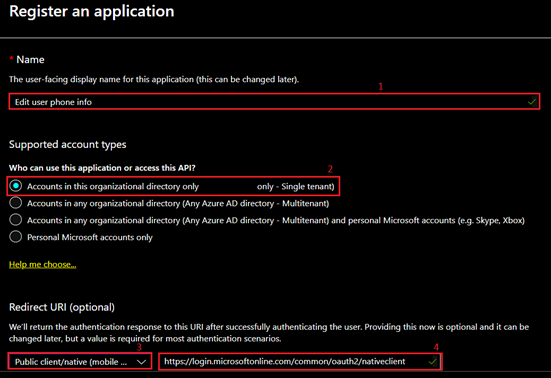
Select Register.
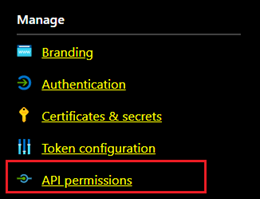
Inside the application, click API Permissions.
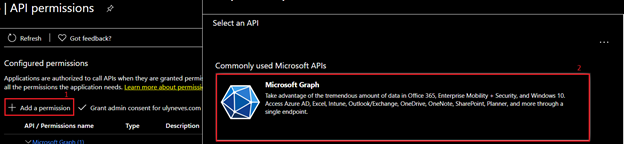
Let’s configure the Microsoft Graph permissions following the steps below:
1 – Select the + Add Permission option.
2 – Select Microsoft Graph.
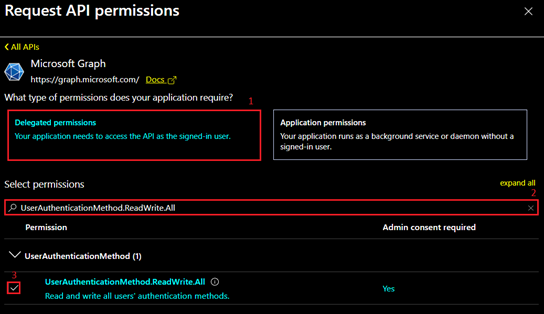
1 – Select Delegated Permissions.
2 – In the search bar, type: UserAuthenticationMethod.ReadWrite.All
3 – Check the permission as shown below:
Select Add Permissions.
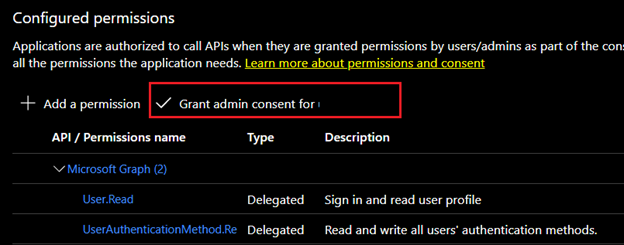
Click Grant admin consent for <your domain> as shown below:
Populating the .csv File with User Information
With the application configured, let’s now create a file with the users’ information.
You can create a file in Excel or export directly from Azure AD, already in the format used by the script, by running the commands below:
Connect-MsolService
Get-msoluser -all | select UserPrincipalName, ObjectId, PhoneNumber | Export-CSV “C:\Users\<USER>>\Desktop\Users.csv” -NoTypeInformation -Encoding UTF8
Note: After generating the .CSV file, convert the “phone number” column from “general” format to “text” format to prevent the phone number from being treated as a formula.
Adjusting the Script with the Registered Application’s Information
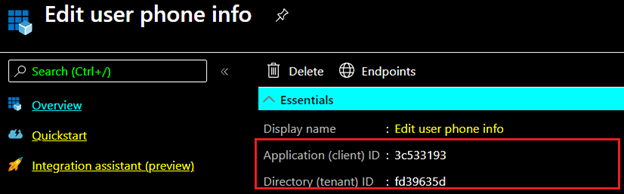
In the script, you’ll need to fill in the ApplicationID and TenantID information for the app created in the second step of this article. You can find this information by selecting your application and the Overview option as shown below:
Running the Script
Let’s now open PowerShell and run the Phone_edit.ps1 file, created by me for this demonstration.
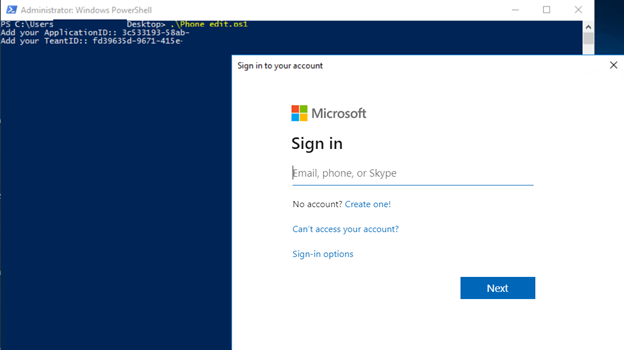
Let’s fill in the Application ID of the registered application.
Let’s fill in the Tenant ID of the domain in Azure AD.
Let’s sign in with a credential that has administrator privileges in Azure AD, as shown below:
Let’s fill in the path where the properly completed .CSV file with the users’ information is located.

You need to provide a path where the script’s output log file will be saved. This file is important for verifying that everything went well with the script.

If the script’s output matches what’s shown below, everything went well, and all users had their MFA information properly registered.
Validating the Automated Registration of MFA Information
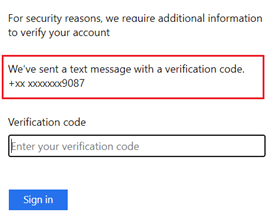
After running the script using the .csv file with just one user, we confirmed there were no errors, and upon accessing the user’s account, we noticed that the fictitious number +55 21988889087 was successfully assigned.
With the MFA information confirmed, the first time the user accesses a resource that requires MFA, they will not be redirected to the registration page; instead, an SMS will be sent to the number registered by the script in the previous steps.
Summary
In today’s article, we explained how to pre-register MFA information for users using PowerShell and Microsoft Graph, preventing users from being redirected to the Azure MFA registration page during an Azure MFA rollout scenario.
I hope this content has contributed to expanding your knowledge of Azure MFA.
Did you like the post? Like and share it. 🙂
If you have any suggestions or comments, let us know.
[ ]’s
Ulysses Neves
